
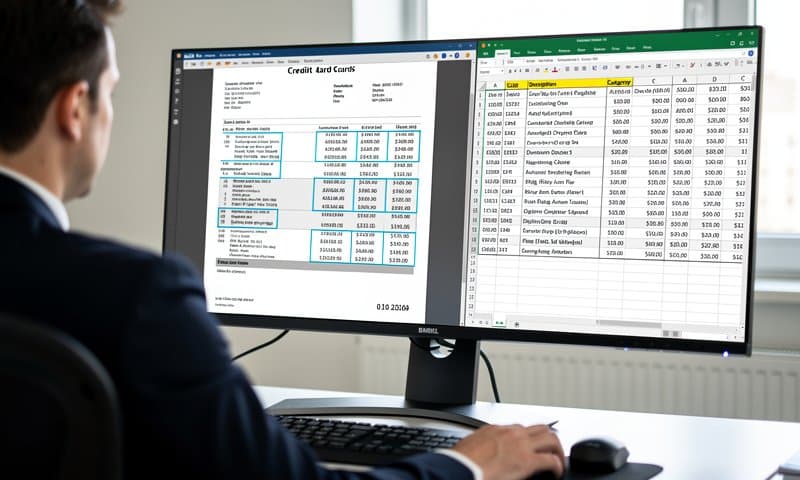
![Credit Card Statement OCR: Extract Data Automatically [2026]](/_next/image?url=https%3A%2F%2Fconvertbanktoexcel.com%2Fapi%2Fuploads%2Fimages%2Fcredit-card-statement-ocr-scanning-process-showing-ai-data-extraction-with-highlighted-fields-1771963551234.jpg&w=1920&q=75)
Credit Card Statement OCR: Extract Data Automatically [2026]
I used to spend Sunday evenings typing credit card transactions into a spreadsheet. Date, amount, merchant, category—one by one. An hour gone every month.
Then I tried OCR. My next statement took 40 seconds.
OCR (Optical Character Recognition) technology reads text from PDFs and images, identifies transaction data, and outputs it as structured data you can actually work with. This guide covers exactly how it works for credit card statements and which tools do it best.
What Is Credit Card Statement OCR?
OCR for credit card statements is software that:
- Reads your PDF - Scans the statement page by page
- Identifies transaction rows - Finds dates, amounts, merchant names, and categories
- Extracts the data - Converts it into CSV, Excel, or JSON format
- Handles formatting - Deals with different layouts from Visa, Mastercard, Amex, and bank-issued cards
The key difference between generic OCR and bank-specific OCR: generic tools might extract text, but they struggle to understand which text is a transaction date vs. a merchant name. Purpose-built financial OCR handles this correctly.
Why Standard Copy-Paste Doesn't Work
PDF credit card statements aren't actually text files. They're rendered images of text. When you try to copy-paste a table from a PDF, you often get:
- Merged cells that collapse columns
- Missing spaces that join amounts to merchant names
- Scrambled row order on multi-column layouts
- Character errors (0 vs O, 1 vs I)
OCR avoids this by reading the visual layout rather than extracting raw text characters.
How OCR Extracts Credit Card Transactions
Here is the process from PDF to usable data:
Step 1: PDF Parsing
The tool opens your statement and converts each page to an image (even if it looks like selectable text). This ensures consistent processing regardless of how the PDF was created.
Step 2: Layout Detection
The OCR engine identifies the table structure—column positions, row boundaries, header rows. Good tools recognize common statement formats automatically. A Chase statement looks different from an Amex statement, and the software handles both.
Step 3: Field Extraction
Each cell is classified:
- Date column: Transaction dates (handles DD/MM/YYYY, MM-DD-YYYY, MMM DD formats)
- Description column: Merchant names (often noisy with location codes and reference numbers)
- Amount column: Charges and credits (positive/negative handling varies by card issuer)
- Category column: If your card includes spending categories
Step 4: Cleaning and Structuring
Raw OCR output has noise. Good tools clean it:
- Remove page headers and footers from data rows
- Normalize date formats
- Flag ambiguous entries for review
- Separate charges from credits correctly
Best Tools for Credit Card Statement OCR
1. ConvertBankToExcel.com (Recommended)
ConvertBankToExcel.com handles credit card statements specifically, not just bank statements. Upload your PDF, and it outputs Excel or CSV with properly structured columns.
- What works: Visa, Mastercard, Amex, Discover, and store cards from most major banks
- Output formats: Excel (.xlsx), CSV, OFX, QBO
- Best for: Getting transactions into Excel, QuickBooks, or Xero
- Processing time: Under 60 seconds for a monthly statement
- Accuracy: Handles multi-column layouts and running balance statements
Try it free — no signup required.
2. Adobe Acrobat Pro
Acrobat's OCR tools can extract text from scanned statements, but you'll get raw text—not structured table data. You'd still need to manually organize the output into rows and columns.
- Best for: Scanned physical statements (not digital PDFs)
- Limitation: No financial-specific structure understanding
- Cost: .99/month
3. Tabula
Open-source tool that extracts tables from PDFs. Works well on simple single-table statements but struggles with complex layouts.
- Best for: Tech-savvy users with straightforward statements
- Limitation: Manual column selection required; no AI cleanup
- Cost: Free
4. Google Document AI
Enterprise OCR solution with financial document parsing. Requires API setup and coding knowledge.
- Best for: Developers building automated pipelines
- Limitation: Not a consumer tool; significant setup required
- Cost: Pay-per-page
Credit Card OCR vs. Bank Statement OCR: Key Differences
Credit card statements have specific quirks that differ from regular bank statements:
| Feature | Bank Statement | Credit Card Statement |
|---|---|---|
| Running balance | Yes, always | Sometimes |
| Credits | Deposits | Payments + returns |
| Categories | Rare | Often included |
| Foreign transactions | Simple | May include exchange rates |
| Layout | Usually simple | More complex (rewards, fees sections) |
A tool that handles bank statements well may struggle with credit card layouts. Test with your specific card issuer.
Accuracy: What to Expect
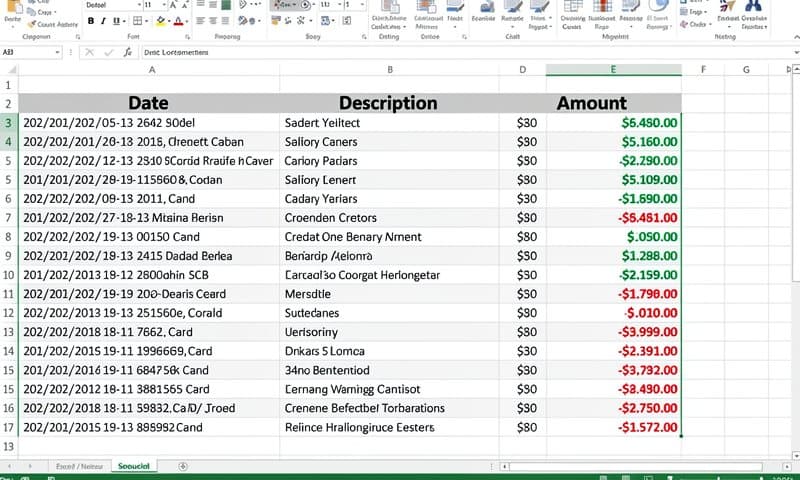
For digital PDFs (generated electronically, not scanned): 95-99% accuracy with purpose-built tools. Most errors occur with:
- Unusual merchant name formatting
- Currency symbols in non-standard positions
- Very small text in footnotes
For scanned statements (physical statements photographed or scanned): 85-95% accuracy, depending on scan quality. Always review flagged transactions.
Practical tip: After conversion, do a quick sanity check—verify the total charges match your statement closing balance. If they match, you're good.
How to Convert Your Credit Card Statement in 3 Steps
Download your statement as PDF from your card's online portal (look for "Download Statement" or "Export PDF")
Upload to ConvertBankToExcel.com — drag and drop your PDF
Download the result — choose Excel for spreadsheet analysis or CSV for accounting software import
The whole process takes under 2 minutes, including the download.
Importing Into Accounting Software
Once you have your data extracted, here is where it goes:
- QuickBooks: Import CSV via Banking > Upload transactions, or use the OFX/QBO format for automatic matching
- Xero: Bank feeds or manual CSV import via Accounting > Bank Accounts
- Excel: Open directly or use Data > Get External Data for CSV
- Wave: Import via CSV under Accounting > Transactions
ConvertBankToExcel.com outputs formats compatible with all of these—no reformatting needed.
When to Use OCR vs. Direct Bank Export
Many banks let you export transactions directly (without OCR) via online banking. Use that when available—it's faster and more accurate than OCR.
Use OCR when:
- Your bank only offers PDF statements
- You have old statements you need to digitize
- You received a PDF statement by email and need to process it
- You're working with physical statements that were scanned
Conclusion
OCR technology makes credit card statement data extraction practical for anyone—not just developers or accountants with expensive enterprise software. The tools have gotten good enough that a 12-month statement takes minutes, not hours.
If you're manually entering transactions, stop. Try the free converter at ConvertBankToExcel.com and see how fast it actually is. No signup, no credit card required.