
![How to Convert Standard Bank OFX to Excel [2026]](/_next/image?url=https%3A%2F%2Fconvertbanktoexcel.com%2Fapi%2Fuploads%2Fimages%2Flaptop-showing-standard-bank-ofx-file-conversion-to-excel-professional-office-setup-1772308990566.jpg&w=1920&q=75)
How to Convert Standard Bank OFX to Excel [2026]
You've downloaded your OFX file from Standard Bank's online banking. Now you're staring at it, and Excel won't open it.
Here's the problem: OFX is a structured financial data format. Excel doesn't read it natively. You need to convert it first.
Three methods work reliably in 2026. I'll cover the fastest one first.
What Is an OFX File from Standard Bank?
Standard Bank (one of South Africa's "Big Four" banks) allows customers to export transaction history as OFX files from the online banking portal. OFX stands for Open Financial Exchange—a format originally built for accounting software like QuickBooks and Quicken.
The file looks like XML inside. It contains your transaction dates, amounts, descriptions, and reference numbers—all structured, all accurate.
The catch: Excel can't open OFX directly. You get a blank screen or an error.
Method 1: Use an Online Converter (Fastest)
This is what I use. Upload the OFX file, get an Excel file back in about 30 seconds.
- Go to ConvertBankToExcel.com
- Click Upload and select your Standard Bank OFX file
- Choose Excel (.xlsx) as your output format
- Download your converted file
Try it free now — no account required, no software to install.
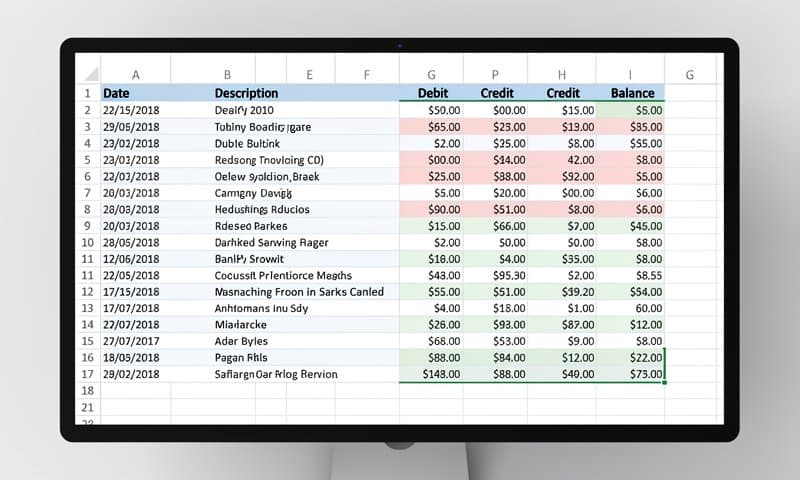
Your converted file will have separate columns for date, description, debit, credit, and balance—exactly how Standard Bank formats it. No manual cleanup needed.
Why this works: The converter reads the OFX XML structure and maps each tag to the correct Excel column. It handles Standard Bank's specific OFX dialect, including their reference number format.
Method 2: Import via Excel's Built-In Data Tool (Manual)
If you'd rather not use a third-party tool, Excel can handle OFX with some coaxing. This works in Excel 2016 and later.
- Open Excel
- Go to Data → Get Data → From File → From XML
- Select your OFX file (you may need to change the file extension from to first)
- Excel's Power Query editor opens—map the transaction fields
- Click Load to import
Honest assessment: This works, but it's fiddly. OFX isn't true XML, and Power Query sometimes chokes on Standard Bank's formatting. Expect 10-15 minutes of manual column mapping. Use Method 1 if you're doing this more than once.
Method 3: Convert OFX to CSV First, Then Open in Excel
Some users prefer CSV as an intermediate step—especially if you're importing into Google Sheets or another tool afterward.
- Upload your OFX to ConvertBankToExcel.com
- Choose CSV as the output format instead of Excel
- Open the CSV in Excel (File → Open → select the .csv file)
- Excel's import wizard handles the rest automatically
CSV works well when you need to import the transactions into another application—accounting software like Pastel, Sage, or Wave—after reviewing in Excel.

How to Download OFX from Standard Bank Online Banking
If you haven't downloaded your OFX file yet, here's where to find it:
Standard Bank Internet Banking (South Africa):
- Log in at internetbanking.standardbank.co.za
- Go to Accounts → select your account
- Click Download Transactions or Export
- Set your date range
- Choose OFX from the format dropdown
- Click Download
Standard Bank App: The mobile app exports to PDF, not OFX. Use the desktop internet banking portal for OFX export.
Which Method Is Right for You?
| Method | Time | Difficulty | Best For |
|---|---|---|---|
| Online converter | ~30 seconds | Easy | Most users |
| Excel Power Query | 10-15 minutes | Medium | No internet access |
| OFX → CSV → Excel | ~1 minute | Easy | Accounting imports |
For regular statement reviews, Method 1 wins every time. For one-off situations where you're offline, Method 2 gets the job done.
Common Issues
"Excel can't open this file"
You're trying to open OFX directly. Use one of the three methods above—don't just double-click the file.
"Transactions are missing"
Standard Bank's OFX export sometimes cuts off at 90 days. Download in multiple date ranges and combine the Excel files.
"Amounts show as text, not numbers"
This happens with some direct OFX imports. The online converter formats amounts as proper numbers automatically.
"Wrong currency formatting"
Standard Bank uses South African Rand (ZAR). The converter preserves the original values. Apply your preferred currency format in Excel after importing (Ctrl+1 → Number → Currency).
Conclusion
Standard Bank OFX files convert cleanly to Excel—you just need the right approach. For most people, the online converter is the fastest path: upload your OFX, download your Excel, done in under a minute.
Start converting your Standard Bank OFX file — free, no signup needed.