
![Bank Statement Processing: 4 Ways to Automate [2026]](/_next/image?url=https%3A%2F%2Fconvertbanktoexcel.com%2Fapi%2Fuploads%2Fimages%2Flaptop-displaying-automated-bank-statement-processing-with-multiple-pdfs-being-converted-simultaneou-1771012952529.jpg&w=1920&q=75)
Bank Statement Processing: 4 Ways to Automate It
Last tax season I watched an accountant friend manually retype 47 bank statements into Excel. Took her an entire weekend. Two days of squinting at PDFs, typing numbers, double-checking totals.
There are faster ways. Bank statement processing in 2026 means letting software read your PDFs, pull out the transactions, and hand you clean data you can actually work with. Whether you need one statement converted or fifty, here are the four methods I've tested.
What Is Bank Statement Processing?
Bank statement processing is the act of extracting transaction data from bank statements and converting it into a structured, usable format. Think of it as going from a static PDF (or paper scan) to a spreadsheet with clean columns: date, description, amount.
For a single personal statement, this might take 10 minutes by hand. For an accounting firm handling 30 clients with multiple accounts each? That's hundreds of hours per year.
The goal is simple: get transaction data out of PDFs and into whatever software you actually use, whether that's Excel, QuickBooks, Xero, or something else entirely.
Why Manual Processing Costs More Than You Think
I ran some rough numbers on manual bank statement processing for a small bookkeeping practice:
- Time per statement: 15-45 minutes (depends on transaction count)
- Error rate: About 2-4% when typing manually, per a study from the University of Hawaii
- Cost: At $30/hour, processing 20 statements monthly costs $300-$900/month just in labor
That 2-4% error rate is the real killer. One transposed digit in a reconciliation sends you hunting for discrepancies for hours.

Automated processing drops the error rate to near zero and cuts processing time to seconds per statement.
Method 1: Online OCR Converters (Best for Most People)
This is where I'd start. Online converters use OCR (optical character recognition) to read your bank statement PDF, identify the transactions, and export them to your preferred format.
How it works:
- Upload your bank statement PDF
- The OCR engine scans the document and identifies tables, dates, amounts
- You get a download in Excel, CSV, QBO, or OFX format
Upload your statement to ConvertBankToExcel.com and you'll have clean data in under 90 seconds. Works with statements from any bank, any country.
The main advantage: zero setup. No software to install, no configuration. You upload a file and get results.
Best for: Individual statements, occasional batch jobs, anyone who doesn't want to install software.
Method 2: Batch Processing for Multiple Statements
If you're processing bank statements regularly, like an accounting firm during month-end close, you need batch capabilities.
Batch processing means uploading multiple PDFs at once and getting all results back in a single download. Instead of converting statements one by one, you drop a folder of 20 PDFs and walk away.
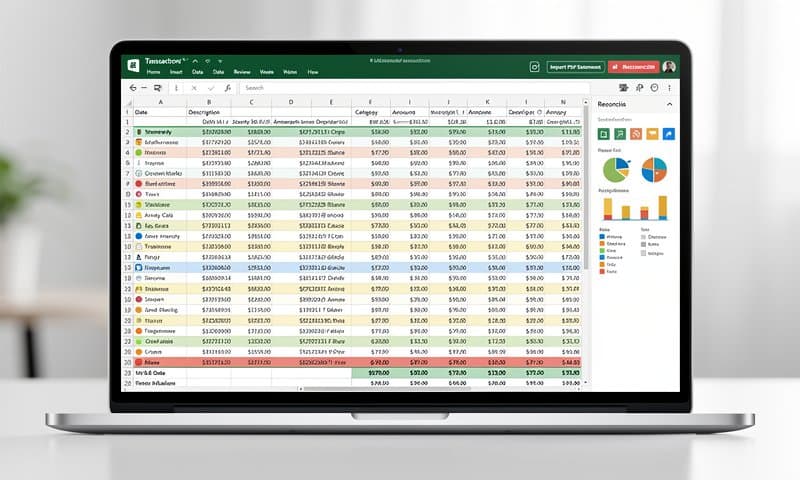
Here's what to look for in a batch processor:
- Multi-file upload: Drag and drop multiple PDFs at once
- Consistent output: Every statement outputs the same column format
- Error flagging: The system tells you if it couldn't read a specific transaction
- Export flexibility: Choose between Excel, CSV, QBO, or OFX per batch
ConvertBankToExcel.com handles batch processing, so you can upload several statements and process them without repeating the same steps.
Best for: Accountants, bookkeepers, finance teams handling multiple clients or accounts.
Method 3: Bank Direct Downloads (Free but Limited)
Most banks let you download transaction data directly from online banking. This skips OCR entirely since the bank already has the data in structured format.
Where to find it:
- Chase: Statements & Documents > Download Activity > CSV/QFX
- Bank of America: Statements & Documents > Download > CSV
- Wells Fargo: Account Activity > Download > CSV/QFX/OFX
- Citi: View Statements > Download > CSV
The catch? Banks typically limit downloads to the last 12-18 months. Older statements only exist as PDFs. And the formats vary wildly between banks. Chase CSV files look different from Bank of America CSV files, which makes consolidation painful.
Also, if you're an accountant, you'd need login access to every client's banking portal. That's a security and logistics headache.
Best for: Personal finance, recent transactions only, single-bank accounts.
Method 4: Desktop Software With OCR Built In
Desktop applications like ABBYY FineReader or Tabula can process bank statement PDFs locally on your machine.
Pros:
- Data never leaves your computer (important for compliance-heavy industries)
- Usually supports advanced table detection
- One-time purchase, no recurring fees
Cons:
- Setup and learning curve
- License costs ($100-$500+)
- Updates and maintenance fall on you
- Bank statement layouts change, and desktop software can lag behind
I used Tabula for a while. It's free and open-source, which is great. But it struggles with scanned PDFs (only works well with digital/native PDFs) and has no OCR engine. For scanned statements, you'll need ABBYY or a similar tool.
Best for: Organizations with strict data residency requirements, tech-comfortable users.
How OCR Bank Statement Processing Actually Works
When you upload a PDF statement, here's what happens behind the scenes:
- Document classification: The system identifies it as a bank statement (vs. invoice, receipt, etc.)
- Layout analysis: It maps out headers, columns, rows, and page boundaries
- Text extraction: OCR reads every character on the page
- Table detection: The engine identifies which text belongs to the transaction table vs. headers, footers, account info
- Data structuring: Raw text gets parsed into date, description, and amount fields
- Validation: Extracted totals get cross-checked against the statement's printed totals
That validation step is what separates good OCR processing from bad. If the extracted transactions don't add up to the printed total, something went wrong and the system flags it.
Picking the Right Method for Your Situation
| Your Situation | Best Method | Why |
|---|---|---|
| 1-5 statements per month | Method 1 (Online OCR) | Fast, no setup needed |
| 10+ statements per month | Method 2 (Batch Processing) | Saves hours of repetitive work |
| Only need last 12 months | Method 3 (Bank Download) | Free, instant, structured data |
| Strict data compliance rules | Method 4 (Desktop Software) | Data stays on your hardware |
| Mix of scanned and digital PDFs | Method 1 or 2 | OCR handles both formats |
For most people reading this, Method 1 or 2 covers the need. Bank downloads work well as a supplement for recent data, but they can't handle older statements or scanned documents.
Tips for Accurate Bank Statement Processing
After processing thousands of statements, here's what I've learned:
PDF quality matters. A clear, high-resolution scan converts better than a blurry phone photo. If you're scanning paper statements, use 300 DPI minimum.
Digital PDFs convert faster and more accurately than scanned ones. If your bank offers digital statement downloads, prefer those over printing and scanning.
Check the totals. After conversion, compare the sum of extracted transactions against the statement's printed balance change. They should match. If they don't, one or more transactions may have been missed or misread.
Standardize your output format early. If you're feeding data into QuickBooks, always export as QBO. If it's Excel analysis, go CSV. Switching formats mid-workflow creates confusion.
Keep originals. Always save the original PDF alongside the converted output. If a question comes up during audit, you want the source document accessible.
Wrapping Up
Bank statement processing doesn't have to eat your weekend. Whether you're converting one statement or running a monthly batch of fifty, OCR tools handle the heavy lifting.
For most situations, an online converter gets you from PDF to clean data in under two minutes. No software to install, no login credentials to manage, no manual typing.
Try ConvertBankToExcel.com free and see how fast your statements convert. Upload a PDF, pick your format, download the result. That's it.