

Receipts are in your glove box. Card charges are spread across two accounts. The bank statement is a PDF, your accountant wants a spreadsheet, and tax season is getting closer than you'd like. That’s the point where most business owners go looking for an excel spreadsheet for business expenses and end up downloading a template that looks neat for five minutes and falls apart the first time real transactions hit it.
A usable expense sheet isn’t just a list of purchases. It’s a working ledger that should help you categorize consistently, match transactions to statements, and hand clean records to a CPA without a back-and-forth email chain. I’ve seen plenty of spreadsheets that looked polished but failed on the basics: unclear categories, no payment method field, broken totals, and no way to reconcile what’s in Excel against what cleared the bank.
The spreadsheet that works best is the one built like a bookkeeper would build it. That means starting with reconciliation in mind, not just appearance.
Why Your Business Still Needs a Great Expense Spreadsheet
A lot of owners assume Excel is a stopgap until they move into full accounting software. In practice, Excel still holds a permanent place in many finance workflows because it gives you direct control over the data. You can see every line, adjust your structure quickly, and build exactly the report your accountant or tax preparer needs.
That isn’t a niche habit. A 2023 Small Business Administration report indicates that 72% of U.S. small businesses still use Excel as their primary tool for expense spreadsheets, and that use directly aids tax compliance while saving an average of $1,200 per firm annually in accounting fees according to TemplateArchive’s summary of the SBA data.
What matters is why this remains true. A good spreadsheet gives you a clear record of where money went, by whom it was paid, how it was paid, and whether the total in your file matches the statement total. That level of control is hard to replace when you’re cleaning up books, reviewing spending, or preparing records for an outside professional.
Where Excel fits in the real workflow
Business owners often mix up three separate jobs:
- Tracking cash movement
- Classifying expenses
- Understanding payables and receivables
Those aren’t the same thing. If you need a clear plain-English refresher on the last part, Resolut's AR vs AP guide is useful because it helps separate money you owe from money owed to you. That distinction matters when you build reports from your expense data.
Excel also works well as a staging layer, especially if you’re deciding whether a spreadsheet-first process fits your business better than direct software entry. A side-by-side look at Excel versus QuickBooks workflows helps clarify that trade-off.
A spreadsheet is still the fastest way to spot bad categorization habits, duplicate charges, and missing transaction details before they become accounting problems.
What a good sheet does that a template often doesn’t
A generic template usually focuses on logging. A bookkeeper’s spreadsheet focuses on control.
That means your file should help you:
- Find errors early: wrong dates, split categories, duplicate entries
- Prepare for reconciliation: every row should be traceable to a statement line
- Support tax prep: categories should be stable enough to roll up cleanly
- Scale without rework: you shouldn’t rebuild the file every quarter
If your current spreadsheet can’t answer “Did this transaction clear the bank, and how was it classified?” it needs a redesign.
Designing a Bulletproof Expense Tracker Layout
A lot of expense spreadsheets look fine in week one, then fall apart the first time someone tries to match them to a bank statement. That usually happens because the layout was built for data entry, not bookkeeping. A tracker that scales needs to answer a practical question on every row. What was spent, how was it paid, and can you trace it back to source documentation without guessing?
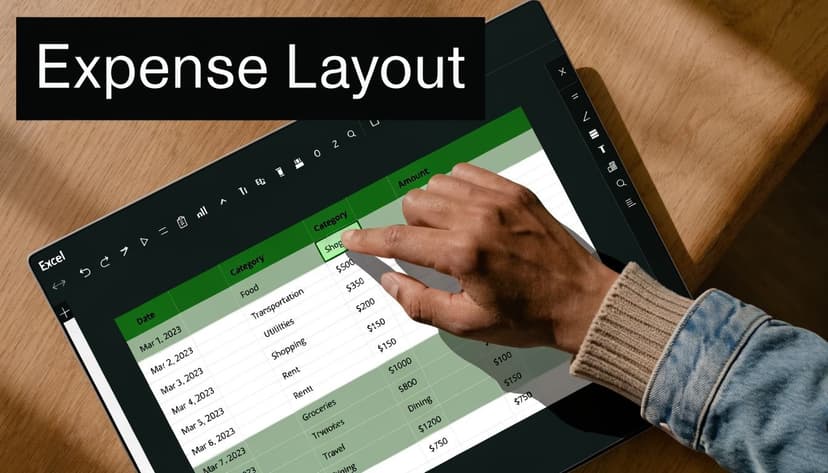
Set up one main transactions sheet and keep it boring. One row for one transaction. One header row. No merged cells, no blank spacer rows, no separate mini-tables for each month. Those design choices seem harmless, but they create sorting problems, broken formulas, and messy imports later.
The Five Required Columns
These columns give you a sheet you can reconcile and report from:
| Column | Why it matters |
|---|---|
| Date | Lets you sort correctly, group by period, and match statement activity |
| Description | Explains the transaction beyond a vague vendor label |
| Category | Controls reporting, tax mapping, and spend review |
| Amount | Feeds totals, summaries, and exception checks |
| Payment Method | Tells you which bank account or card should carry the charge |
That is the minimum workable structure. After that, add columns based on how your business operates, not because a template included them.
Description is where many sheets lose value. If a row says “Office supplies,” that may be enough today and useless during year-end cleanup. “Staples toner and shipping labels” gives the reviewer something they can verify. The same rule applies to payment method. “Card” is too broad if the business uses two credit cards and one debit account.
Here is the test I use with clients. If another person had to review the file during tax prep, could they understand each line without asking you what it means? If the answer is no, the layout still needs work.
Convert the range into an Excel Table immediately
Do this before you enter a month of data. Excel Tables expand automatically, carry formulas down consistently, and make filtering much cleaner. They also give you structured references, which makes later reporting less error-prone.
If you plan to connect bank exports or outside tools later, a proper table structure matters even more. A clean table is what makes Excel integrations for transaction imports and spreadsheet workflows much easier to set up without constant range fixes.
Control categories before bad habits start
Free-typed categories create cleanup work. I see the same pattern constantly. One person enters “Meals,” another enters “Dining,” and a third uses “Client lunch.” Excel treats those as three separate categories, and your summary becomes less useful every week.
Use Data Validation with a dropdown list:
- Create a separate sheet called Lists.
- Enter your approved categories in a single column.
- Select the Category column in the transaction table.
- Go to Data > Data Validation > List and point it to that category range.
This is one of the simplest controls you can add, and it prevents a surprising amount of rework.
Add only the extra columns you will actually use
A good tracker is structured, not crowded. I usually add one or two operational fields that support review and reconciliation:
- Vendor/Merchant
- Receipt Attached
- Account or Card Name
- Notes
- Billable or Reimbursable
The right choice depends on the business. A solo owner may only need receipt status. A team with shared cards usually needs account name and employee or department. The trade-off is straightforward. More columns can improve control, but only if someone will maintain them consistently. Dead columns become clutter fast.
Build the layout so month three looks as clean as month one. That is the difference between a tracker and a bookkeeping system.
Essential Formulas to Automate Your Calculations
A good expense spreadsheet should answer routine questions before you start filtering, copying, or checking numbers by hand. If a client asks how much was spent on software this quarter, or whether the card activity matches the bookkeeping total, the workbook should give you that answer in seconds. That is the standard to build for.
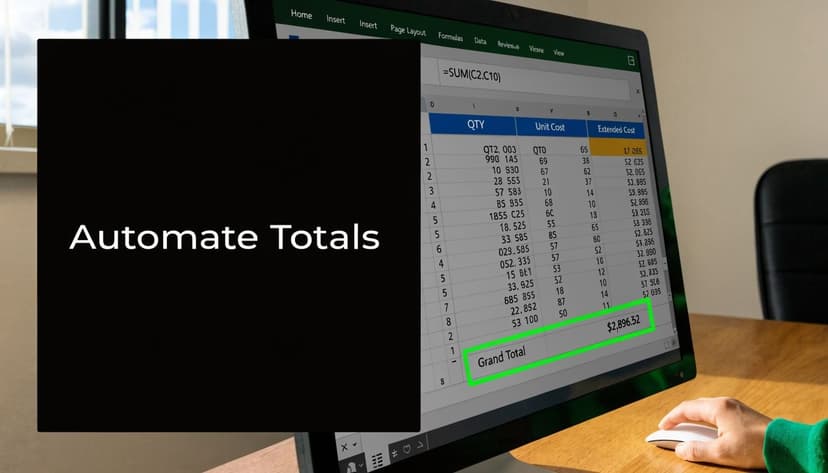
I keep raw transactions in one Excel Table and put formulas on a separate summary tab. That one choice prevents a lot of damage. People are far less likely to overwrite a formula if they never have to type anywhere near it.
Start with control totals first
Before building category reports, set up numbers that help you catch mistakes.
- Grand total:
=SUM(Table1[Amount]) - Transaction count:
=COUNTA(Table1[Date])
The total tells you whether the file is in the right range. The count tells you whether rows went missing during an import or cleanup step. Bookkeepers use both because reconciliation problems often show up as a missing row before they show up as a dollar difference.
For a quick category check, use a proper structured reference version of SUMIF:
- Single-category subtotal:
=SUMIF(Table1[Category],"Travel",Table1[Amount])
That formula is simple, but it helps with spot checks. If travel looks too high, you know where to review first.
Use SUMIFS for month-by-month reporting
SUMIFS is the formula I use most in expense workbooks because it mirrors how financial review happens. You rarely need one grand total. You need office supplies for March, meals for Q2, or card charges for one account over a date range.
A practical example:
=SUMIFS(Table1[Amount],Table1[Category],"Travel",Table1[Date],">="&DATE(2026,1,1),Table1[Date],"<"&DATE(2026,2,1))
This approach scales well because the logic stays consistent as volume grows. You can copy the formula across months and down categories without rebuilding the report every time. More important, the summary stays tied to the transaction table, which makes it easier to reconcile and much harder to drift away from the source data.
A summary sheet usually works best with categories down the left and months across the top. Keep the layout plain. Fancy dashboards can wait until the numbers are stable.
If a monthly summary depends on copy-paste values, it will eventually stop matching the transaction log.
Use XLOOKUP to enforce consistency
Expenses often need extra context that should not be typed freehand every time. Department codes, client names, reimbursement rates, tax treatment, and payment account labels all belong on a reference sheet.
Use XLOOKUP to pull them in:
=XLOOKUP([@ClientID],Clients!A:A,Clients!B:B,"")
That reduces manual coding errors and keeps your workbook easier to maintain. It also makes updates cleaner. If a client code changes, you update the reference list once instead of fixing dozens of rows.
There is a trade-off. Lookup formulas are excellent for stable reference data, but they can hide problems if the lookup table is messy. If I inherit a spreadsheet with broken lookups, the issue is usually not the formula. It is duplicate IDs, inconsistent naming, or a list that nobody owns.
Add formulas that support reconciliation
This is the piece most template-style guides skip. A useful expense spreadsheet is not just a tracker. It should help you prove that the numbers are complete.
A few formulas do that well:
- Uncategorized transactions:
=COUNTBLANK(Table1[Category]) - Unreconciled items:
=COUNTIF(Table1[Cleared],"No") - Duplicate amount and date check:
=COUNTIFS(Table1[Date],[@Date],Table1[Amount],[@Amount])
These are not presentation formulas. They are review formulas. If uncategorized items are sitting in the file at month-end, reports are premature. If duplicates appear, review them before you trust any spending summary.
If your process includes imported bank or card activity, it helps to understand how Excel handles outside data before those formulas are layered on top. This guide to using Excel with imported financial data is useful if your workbook is starting to serve as a real bookkeeping tool instead of a basic log.
Use conditional formatting to flag exceptions
Conditional formatting should point your eye to problems.
Useful rules include:
- Highlight blank categories
- Flag duplicate transactions
- Mark amounts above a review threshold
- Identify expenses missing a receipt status
- Shade unreconciled rows
I keep the rules restrained. Too many colors make review slower, not faster. One color for missing information, one for duplicates, and one for items that need follow-up is usually enough.
The goal is simple. A bookkeeper should be able to open the file, scan for issues, and know what needs attention before reports go out.
Importing Bank Transactions The Fast Way
Manual entry is where good expense systems go bad. A PDF statement looks simple until you start typing line by line, fixing date formats, correcting signs, and figuring out whether “POS PURCHASE” tells you anything useful. That work is slow, and worse, it creates small errors that don’t show up until the totals don’t match.
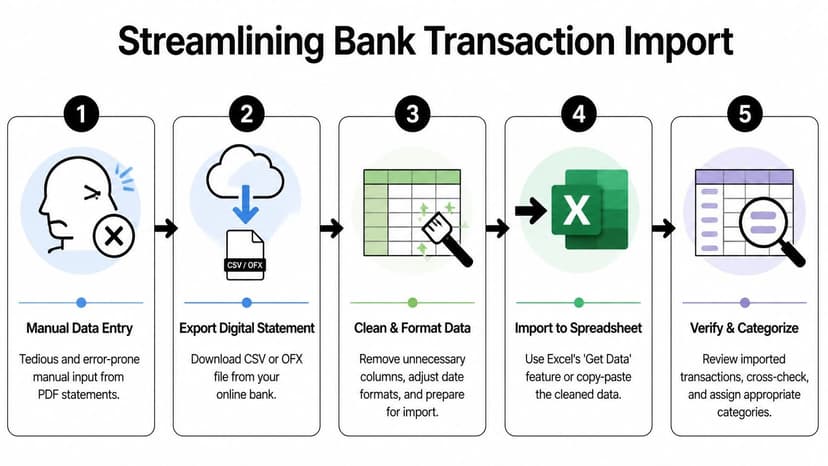
There are really two workflows here. One is manual. The other is import-first.
Manual entry versus imported data
Here’s the practical difference:
| Method | What it looks like in practice | Main downside |
|---|---|---|
| Manual typing from PDF | Read a line, type a line, repeat | Slow, fatiguing, easy to miskey |
| CSV or structured import | Bring transaction data into Excel, then review | Requires cleanup if the export is messy |
| Bank-statement conversion workflow | Convert statement data into rows and review inside your tracker | Best when statements arrive as PDF only |
Manual typing can work for a very small number of transactions. It stops working once statement volume grows, multiple cards are involved, or the business owner falls behind.
What clean imports change
When transaction data lands in Excel in a structured format, the job changes from data entry to review. That’s where bookkeepers want to be. Review is faster than re-creation.
A clean import should give you fields that map well to your main sheet:
- Date
- Description
- Amount
- Account or statement source
- Reference details when available
Once those fields exist, you can paste or load them into the transaction tab, fill the category column, and run your totals and summaries immediately.
Here’s a helpful walkthrough if you’re comparing options for converting bank statements into Excel-friendly data.
To see the general workflow in action, this short video is useful:
My rule for imports
I don’t trust any import blindly. I trust imported data after three checks:
Date check
Make sure Excel recognizes the dates as actual dates, not text. If grouping by month fails later, this is usually why.Sign check
Confirm whether expenses are imported as positive values, negative values, or mixed formatting. Pick one standard and stick to it.Total check
Compare the imported total against the statement total before you start categorizing. If the numbers don’t tie, fix that first.
Import first, validate second, categorize third. Reversing that order wastes time.
How to move imported transactions into your tracker
If you already have your spreadsheet structure in place, the process should be simple:
- Open the import file and review the columns
- Match columns to your tracker fields
- Paste into the Table, not below some old static range
- Fill or select categories
- Tag payment method or account source
- Run your control totals
If the data arrives as CSV, Excel handles it well. If the bank only gives you PDF statements, the main issue is converting those PDFs into structured rows that don’t need extensive cleanup.
What doesn’t work well
A few shortcuts create long clean-up jobs later:
- Dumping raw statement text into Excel: the rows won’t align cleanly
- Combining multiple accounts without an account field: reconciliation becomes messy
- Leaving imported descriptions untouched when they’re cryptic: later review gets harder
- Importing directly into a summary sheet: raw data should always live in one primary transaction table
When owners tell me their spreadsheet “stopped working,” the problem usually isn’t Excel. It’s that they built a system around manual entry and then outgrew it.
Creating Insightful Reports with PivotTables and Charts
Friday afternoon is when weak reporting shows up. The owner wants to know why spending jumped this month, which vendors are driving it, and whether the increase is real or just timing. If your expense sheet can only provide a long transaction list, you still have bookkeeping work left to do. Reports should answer those questions in minutes and hold up when you compare them to the bank and card activity later.
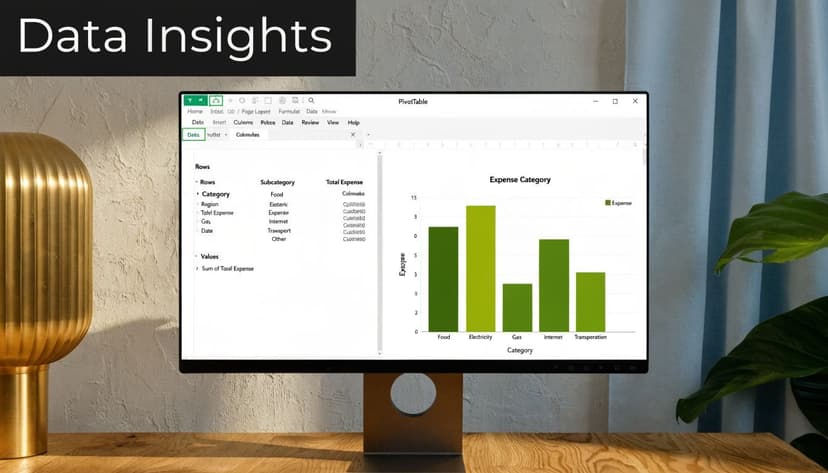
PivotTables are the fastest way to turn a transaction table into something management can use. I use them because they stay tied to the raw data, refresh quickly, and make it obvious when the category structure is breaking down. If a report looks messy, the usual problem is not the PivotTable. It is inconsistent source data.
The first PivotTable I’d build
Start with one report that answers a real operating question. Click anywhere inside the expense Table, go to Insert > PivotTable, and place it on a new sheet.
Use this layout:
- Rows: Category
- Values: Sum of Amount
- Columns: Month or Date grouped by month
- Filters: Payment Method or Account
That setup does more than summarize spend. It shows whether your category list is working, whether one payment source is carrying costs you expected elsewhere, and whether a monthly spike needs review before month-end close. This is the bookkeeper’s angle most template guides miss. A useful report is not just pretty. It is built so you can trace any total back to underlying transactions without guessing.
Questions your reports should answer quickly
A report earns its place if it helps you review exceptions, not just admire totals. At minimum, it should let you answer these questions without going back to the raw tab for every check:
- Which categories are running higher than usual
- Which vendors account for the largest share of spend
- Whether software, travel, or marketing costs are climbing month to month
- Whether credit card and bank-paid expenses follow the same pattern
- Which items need follow-up before management review or tax coding
If a summary cannot get you to the underlying entries quickly, it slows down review instead of helping it.
A good PivotTable shortens investigation time. That is the real standard.
Turn the PivotTable into a chart
After the PivotTable is doing its job, add a PivotChart for the people who need a fast visual read.
I usually choose:
- Column charts for month-by-month category comparisons
- Bar charts for ranking vendors or categories
- Pie charts only for a simple share-of-spend view with very few categories
Bar and column charts age better. Pie charts get crowded fast, and once labels start overlapping, owners stop trusting what they are seeing. Clarity matters more than style.
If you need a cleaner statement-style summary for an owner, lender, or outside reviewer, a profit-and-loss layout can help frame the same expense data in a format they already recognize. The Australia Wide Tax Solutions template is a useful reference for that presentation style.
A reporting setup that stays useful as the business grows
Keep the reporting layer lean. Too many summary tabs create version problems and invite manual edits in the wrong place. I usually keep just three reporting tabs:
| Report tab | Purpose |
|---|---|
| Monthly Summary | Formula-based totals by month for a quick management view |
| Pivot by Category | Category trends and unusual spikes |
| Pivot by Vendor | Supplier concentration, repeat charges, and duplicate review |
That structure scales well because each tab has a clear job. You are not building a static tracker. You are building a file that can handle more transactions, more accounts, and more review pressure without becoming confusing.
If your source data starts as a CSV export, clean import structure still matters because every PivotTable depends on it. A dedicated CSV to Excel converter tool can help standardize the file before you build reports.
The goal is early visibility and clean follow-up. When the summary sheet shows a spike, you should be able to click into it, inspect the transactions, and decide whether it is a coding issue, a timing issue, or a real cost problem. That is what makes a spreadsheet reconciliation-ready instead of just organized.
Streamlining Your Bookkeeping and Tax Prep Workflow
A spreadsheet becomes useful when it reduces work for the next person in the chain. That might be you next month, your bookkeeper at quarter-end, or your CPA during tax prep. Clean structure and reports matter, but the biggest payoff comes from using the file as a reconciliation-ready package rather than a private notes sheet.
The first check is simple. Compare the total of imported and categorized expenses against the relevant bank or card statement total. If those numbers don’t align, stop there. Don’t start tax coding or management review on top of incomplete data.
The review process I use before handing off a file
Before a spreadsheet leaves my desk, I check:
- Dates are uniform and sort correctly
- Categories are consistent with no stray typed variants
- Payment methods are filled in
- Amounts use one sign convention
- Duplicates have been reviewed
- Totals tie back to statements or account activity
That last point matters most. A beautifully categorized file that doesn’t reconcile is still unreliable.
What your CPA or bookkeeper wants from you
They don’t want screenshots. They don’t want partial exports. They don’t want a workbook with five “final” tabs and one hidden sheet that has the right numbers.
They want one clean file with:
- a transaction tab,
- a stable category structure,
- clear totals,
- and evidence that the activity has been checked against the statement.
If you eventually move data into accounting software, that spreadsheet still does valuable prep work. For businesses that use Xero, a guide on importing bank statements into Xero is useful when you’re planning the handoff from Excel into bookkeeping software.
A reconciled spreadsheet saves professional time. An unreconciled one creates billable cleanup.
What scales and what breaks
What scales is a repeatable monthly routine. Import transactions, review structure, categorize, reconcile, report, archive.
What breaks is rebuilding the file every month, changing category names midyear, and storing key notes only in someone’s head. If the spreadsheet depends on memory, it won’t hold up.
The businesses that get the most value from Excel aren’t using it casually. They’re using it with bookkeeping discipline.
If you’re tired of typing bank statement transactions by hand, ConvertBankToExcel helps turn PDF statements into structured Excel-ready data for review, categorization, reconciliation, and export. It’s built for bookkeepers, CPAs, and finance teams that want cleaner imports and less cleanup.