
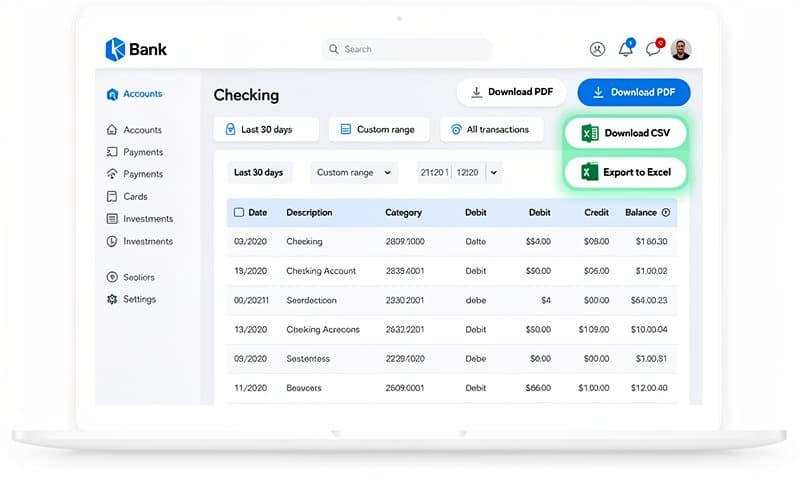
How to Export CSV in Capitec Bank (Step-by-Step Guide)
Exporting a CSV from Capitec Bank is straightforward once you know the process — but it's not as obvious as clicking a single button. Capitec's app and internet banking give you PDF statements by default, not CSV files. This guide shows you exactly how to get your transactions into CSV format, step by step.
Does Capitec Have a Direct CSV Export?
Short answer: not quite.
Capitec lets you download your statement as a PDF from both the app and internet banking. There's no dedicated "Export to CSV" button — you get a PDF, and then you need to convert it.
This is different from some international banks that offer CSV downloads natively. For Capitec users in South Africa, the workaround is simple: download the PDF, then convert it.
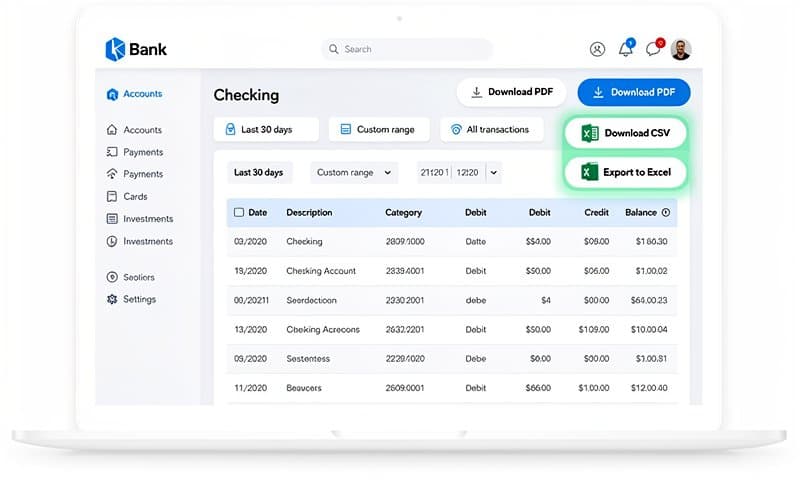
Step 1: Download Your Capitec Statement as a PDF
Before you can export to CSV, you need the statement.
From the Capitec App
- Open the Capitec app on your phone
- Tap your account (Global One or savings account)
- Tap Documents or Statements at the bottom
- Select the month or date range you need
- Tap Download or Share to save the PDF
The statement downloads as a PDF to your phone. You can email it to yourself or save it to Google Drive if you're working on a desktop.
From Capitec Internet Banking
- Log in at capitecbank.co.za
- Click My Accounts in the menu
- Select Statements
- Choose your account and date range
- Click Download Statement
Capitec stores up to 3 years of statements online. For older records, you'll need to visit a branch.
Step 2: Convert Your Capitec PDF to CSV
With your PDF ready, the fastest way to get a CSV is with an online converter.
- Go to ConvertBankToExcel.com
- Drag and drop your Capitec PDF into the upload area
- Select CSV as your output format
- Click Convert
- Download your CSV file
The converter reads Capitec's PDF layout — including the date, description, debit/credit amounts, and running balance — and outputs a clean, structured CSV file.
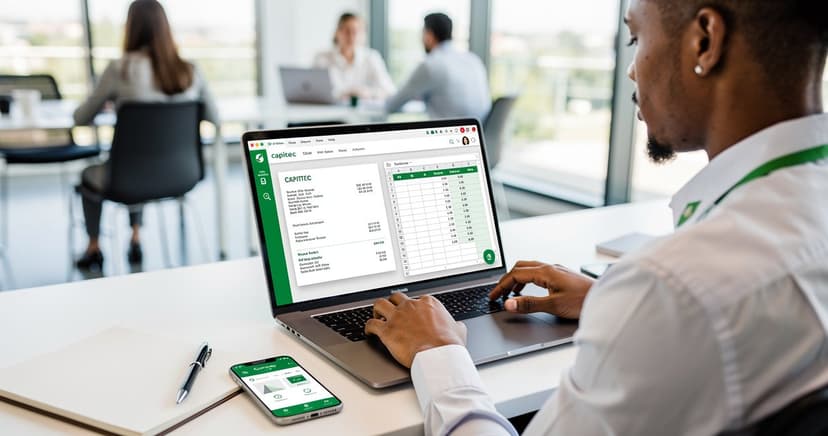
The whole process takes about 90 seconds. No signup required.
Try it free — upload your Capitec statement
Step 3: Use Your CSV File
Once downloaded, the CSV opens in Excel, Google Sheets, or any accounting software. Columns are typically:
- Date — in DD/MM/YYYY format (South African standard)
- Description — transaction reference or merchant name
- Debit — money out
- Credit — money in
- Balance — running balance after each transaction
Importing into Accounting Software
If you're using South African accounting tools:
- Sage Accounting: Use Date, Description, Amount columns. Set the date format to DD/MM/YYYY.
- Xero: Needs Date, Payee, Description, Amount. You may need to split Capitec's description field.
- Pastel: Use the Pastel import template. Map Debit and Credit as separate columns.
For Capitec to Excel specifically, see the Capitec bank statement to Excel guide which covers formatting tips for spreadsheet users.
Alternative: Copy-Paste from PDF (Manual Method)
If you only have a few transactions and don't want to use an online tool:
- Open the Capitec PDF in your browser or Adobe Reader
- Select the transaction table
- Copy and paste into Excel or Google Sheets
- Manually fix column alignment
This works for a handful of rows. For anything more than 20-30 transactions, it becomes painful — Capitec PDFs don't copy cleanly into columns.
What About the "transaction csv file capitec bank" Option?
Some users look for a way to export a raw transaction CSV directly from Capitec's systems. Capitec doesn't expose this through their consumer banking portal. Business banking clients may have additional export options — check with your relationship manager if you have a Capitec Business account.
For personal accounts, the PDF-to-CSV method above is the standard approach.
If you need your Capitec CSV in a specific format (like OFX for accounting import), the Capitec CSV converter page covers format-specific exports for different use cases.
FAQ
Can I export a Capitec statement directly as CSV without converting?
Not from the standard Capitec app or internet banking. Capitec only offers PDF downloads for personal accounts. You need to convert the PDF to CSV as a second step.
Does the converter work with Capitec business account statements?
Yes. The converter handles both personal and business Capitec PDFs. Business statements often have more columns (VAT, reference numbers) — these are preserved in the CSV output.
How many months of Capitec statements can I convert at once?
The converter handles multi-page PDFs. You can upload a single PDF covering several months, and it will extract all transactions into one CSV. Capitec's internet banking lets you download up to 12 months in a single PDF if you set the date range accordingly.
Bottom Line
Capitec doesn't have a one-click CSV export, but getting your transactions into CSV format takes about 2 minutes:
- Download your PDF from the Capitec app or internet banking
- Upload it to ConvertBankToExcel.com
- Download your CSV