
![How to Convert Capitec Bank Statement to Excel [2026 Guide]](/_next/image?url=https%3A%2F%2Fconvertbanktoexcel.com%2Fapi%2Fuploads%2Fimages%2Fsouth-african-professional-converting-capitec-bank-statement-pdf-to-excel-1771446671361.jpg&w=1920&q=75)
How to Convert Capitec Bank Statement to Excel [2026 Guide]
Getting your Capitec bank transactions into Excel used to mean copying rows by hand — a task that could eat up 2 to 3 hours for a single month's statement. Today, there are faster options. Whether you bank through the Capitec app, use internet banking on your laptop, or deal with PDF statements sent by your employer, this guide walks you through three working methods to get your data into a proper Excel spreadsheet.
We'll cover what Capitec actually gives you by default, where Excel fits in, and when it makes sense to use a dedicated converter tool instead of doing it manually.
Ready to skip straight to the fastest method? Try ConvertBankToExcel free — no account needed
Why Convert Your Capitec Statement to Excel?
Capitec is one of South Africa's most popular banks, with over 22 million clients. But like most banks, it does not hand you a ready-to-use Excel file out of the box. What you typically get is a PDF — clean to read, but difficult to work with.
Here's why people convert to Excel specifically (and not just any format):
- Budgeting and expense tracking. Excel lets you sort, filter, and sum transactions in seconds. A PDF forces you to scroll and calculate manually.
- Tax preparation. Accountants need to categorize income and expenses. Excel formulas and pivot tables make that fast. PDFs do not.
- Reconciliation with other accounts. If you run a small business and need to match Capitec transactions against invoices or QuickBooks records, Excel is the standard format.
- Sharing with a bookkeeper. Most bookkeepers work in spreadsheets. Sending them a PDF creates extra friction and extra cost.
- Spotting patterns. Sorting by merchant, filtering by amount, graphing spending over time — these are things you can do in Excel in under a minute.
I've seen clients spend 3 hours manually re-entering a single month's worth of transactions. That's time that simply doesn't need to be wasted anymore.
Method 1: Download from Capitec Internet Banking (Step-by-Step)
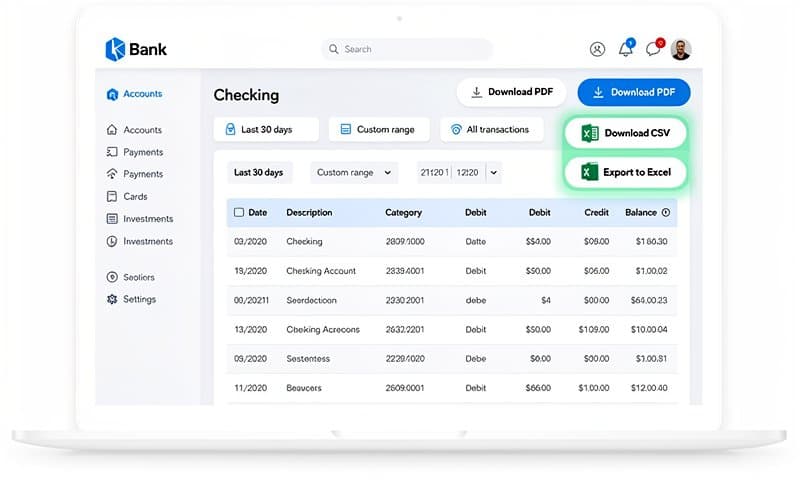
Capitec's internet banking portal at capitecbank.co.za gives you the most control over your statement format and date range. Here's the exact process:
Step 1: Log In to Internet Banking
Open your browser and go to the Capitec internet banking login page. Enter your South African ID number and your internet banking password. If you haven't registered for internet banking yet, you'll need to do that first via the Capitec app or at a branch.
Step 2: Navigate to Transactions
Once logged in, look for the Accounts section in the top menu. Click on the account you want — savings, cheque, or credit card — and then look for the Statements or Transaction History option in the left sidebar or account detail page.
Step 3: Set Your Date Range
Capitec lets you pull statements going back several years through internet banking. Select your start and end dates carefully. For reconciliation purposes, I'd recommend pulling full calendar months to make the data easier to work with in Excel.
Step 4: Choose Your Download Format
This is the critical step. Capitec internet banking offers multiple download options depending on the account type:
- PDF — Good for record-keeping, but not editable
- CSV — Comma-separated values, opens in Excel but lacks formatting
- Excel (XLS/XLSX) — Direct Excel format, available on some account types
If you see an Excel or XLS option, select it and click download. Your browser will save the file, and you can open it directly in Microsoft Excel or Google Sheets.
Step 5: Open and Review in Excel
Open the downloaded file. You should see columns for Date, Description, Debit, Credit, and Running Balance. At this point, the data is in Excel — but raw. You may want to:
- Add a header row if it's missing
- Remove blank rows at the top
- Format the date column (sometimes dates import as text)
- Add a Category column for expense tracking
Note on CSV vs Excel: If Capitec only gives you a CSV option for your account type, the data will still open fine in Excel — just double-click the file and Excel will handle it. The main difference is that CSV doesn't preserve formatting like column widths or formulas. See also our Capitec CSV guide for tips specific to working with CSV output.
Method 2: Export from the Capitec App (Step-by-Step)
Most Capitec users access their banking through the mobile app. The export process is slightly different on mobile and has a few limitations worth knowing about.
Step 1: Open the App and Select Your Account
Launch the Capitec app on your phone. From the home screen, tap the account you want to export — for example, your Global One savings account or credit card account.
Step 2: Tap on Transaction History
Scroll down to find the Transaction History section or tap the three-line menu icon and look for Statements. The app shows your recent transactions by default, but you can pull a formal statement for a longer period.
Step 3: Request a Statement
Tap Get Statement or Email Statement (the exact wording varies slightly by app version). You'll be asked to choose:
- A date range (typically up to 12 months in a single request)
- The email address to receive the statement
The app will send a PDF to your registered email address within a few minutes.
Step 4: The App's Limitation — PDFs Only
Here's the honest reality: the Capitec app sends statements in PDF format only. There is no direct Excel or CSV export from the mobile app as of 2026. This is the main reason people look for a separate conversion tool.
You can open the PDF on your phone, but to get it into Excel you have two options:
- Transfer the PDF to a computer and use internet banking to re-download in a different format
- Use a bank statement converter tool (covered in Method 3 below)
Step 5: Open the PDF Email
Check your email for the Capitec statement. The file will arrive as a password-protected PDF in some cases — the password is typically your South African ID number. Once you have the PDF, you're ready for the next method if you need it in Excel.
Method 3: Use an Automated Converter (ConvertBankToExcel)
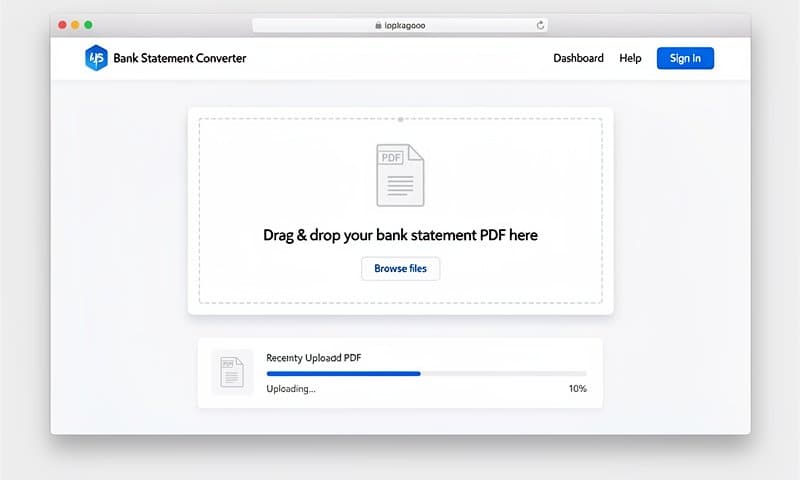
If you received a PDF from the Capitec app, or if internet banking only gave you a format that's hard to work with, a dedicated converter is the fastest path to a clean Excel file.
ConvertBankToExcel handles Capitec PDF statements directly — no manual data entry, no copying and pasting, no reformatting.
Why Use a Converter Instead of Doing It Manually?
Our users report saving an average of 2.5 hours per statement when switching from manual entry to automated conversion. For anyone processing multiple months at once — say, for a tax return or audit — that time adds up fast.
The tool achieves 99.8% accuracy across supported bank formats, including Capitec's standard statement layout.
Step 1: Go to ConvertBankToExcel
Open your browser and navigate to https://convertbanktoexcel.com. No account creation required to try it.
Step 2: Upload Your Capitec PDF
Drag your Capitec PDF statement into the upload area, or click Browse to find it on your computer. The tool accepts standard Capitec statement PDFs, including password-protected ones (you'll be prompted to enter the password).
File size limit is generous — up to 50MB, which comfortably handles even multi-year statements.
Step 3: Select Excel as Your Output Format
Choose Excel (.xlsx) from the output format dropdown. You can also choose CSV if that's what your accounting software prefers, but for most use cases Excel gives you more flexibility with formatting and formulas.
Step 4: Review and Download
The conversion happens in seconds. You'll see a preview of the extracted data before downloading — check that dates, amounts, and descriptions look correct. Click Download Excel to save your file.
Step 5: Open in Excel and Start Working
The downloaded .xlsx file opens immediately in Microsoft Excel, Google Sheets, or LibreOffice Calc. Transactions are organized in clean columns:
| Date | Description | Debit (ZAR) | Credit (ZAR) | Balance |
|---|---|---|---|---|
| 2026-01-03 | Pick n Pay Tokai | 487.20 | 12,341.80 | |
| 2026-01-04 | Salary - ABC Corp | 28,500.00 | 40,841.80 | |
| 2026-01-05 | Capitec Insurance | 235.00 | 40,606.80 |
From here, you can add formulas, create pivot tables, apply conditional formatting, or import directly into accounting software.
What You Can Do With Your Capitec Data in Excel
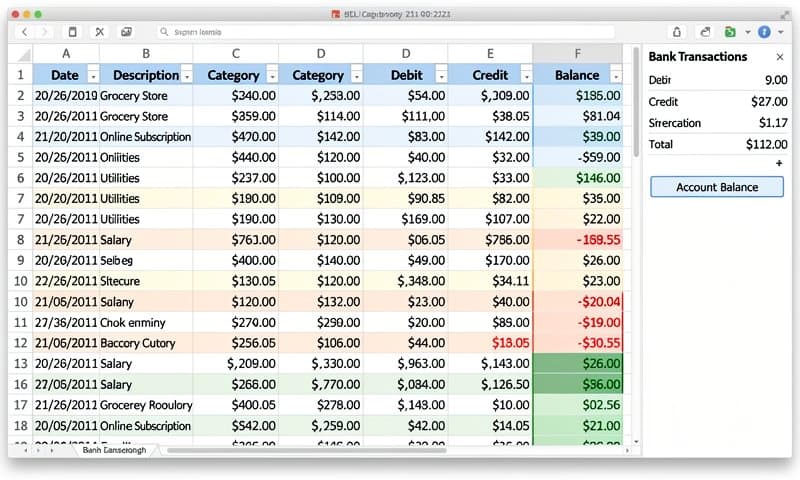
Once you have your Capitec transactions in Excel, the real work can begin. Here are the most practical things people do with this data.
Build a Monthly Budget Tracker
Add a Category column next to the Description column and tag each transaction — Groceries, Rent, Transport, Eating Out, and so on. Then use a SUM formula or a pivot table to total up each category. This alone gives you a clearer picture of your spending than any bank app dashboard.
=SUMIF(D:D, "Groceries", C:C)
This formula adds up every transaction in column C where column D says "Groceries." Simple, but powerful.
Prepare for Tax Season
If you're self-employed or a freelancer, your bank statement is often your primary financial record. Sort your Excel data by description to group similar transactions. Use the AutoFilter feature to isolate business expenses from personal ones. Your accountant will appreciate receiving organized Excel data instead of a PDF they have to interpret manually.
Reconcile Against Invoices
For small business owners, paste your Capitec Excel data into one sheet and your invoice records into another. Use VLOOKUP or XLOOKUP to match payments against outstanding invoices. Unmatched rows immediately flag potential problems.
Spot Unusual Transactions
Sort by Amount (largest to smallest) to quickly identify your biggest expenses. Sort by Description and scan for unfamiliar merchant names. This is something many people only do when they're worried about fraud — but doing it monthly takes under 5 minutes and catches problems early.
Import Into Accounting Software
Both Xero and QuickBooks accept Excel and CSV imports. Once your Capitec data is in Excel, you can import it directly into your accounting platform, apply category rules, and have your books up to date in minutes rather than hours.
Common Issues and How to Fix Them
Issue 1: Dates Imported as Text Instead of Date Format
What happens: Excel shows dates like "03 Jan 2026" as plain text. Formulas that rely on date sorting or filtering don't work correctly.
Fix: Select the date column, go to Data > Text to Columns, choose Delimited, click Next twice, then select Date and choose the format that matches your data (DMY for South African dates). Click Finish. Excel will convert the text to proper date values.
Alternatively, if you use ConvertBankToExcel, dates are already formatted correctly in the output file.
Issue 2: Amounts With Commas Treated as Text
What happens: South African number formatting uses spaces or commas in amounts like "1 234,56" or "1,234.56". Excel may read these as text rather than numbers, breaking SUM formulas.
Fix: Use Find & Replace (Ctrl+H) to remove spaces or swap commas for periods. Then select the column and change the format to Number.
Issue 3: PDF Won't Open or Is Password Protected
What happens: Capitec sometimes sends password-protected PDFs. When you try to open the file, it asks for a password you don't know.
Fix: The default password for Capitec statement PDFs is typically your South African ID number (13 digits). Enter it when prompted. If you're using ConvertBankToExcel, you'll be asked to enter the password during the upload step — the tool handles the rest.
Issue 4: Missing Transactions in the Export
What happens: You download a statement but some transactions from the period seem to be missing.
Fix: Check your date range selection. Capitec internet banking's date picker can be finicky — confirm that both the start and end dates are set correctly. Also check whether you selected the right account (savings vs. credit card statements are separate).
Issue 5: Excel File Opens With Everything in One Column
What happens: You open the downloaded file and all the transaction data appears crammed into column A, separated by commas.
Fix: This usually means you downloaded a CSV file but Excel is treating it as plain text. Go to Data > Text to Columns, select Delimited, check Comma as the delimiter, and click Finish. The data will spread across separate columns properly.
Conclusion
Converting your Capitec bank statement to Excel doesn't have to be complicated. If you use internet banking on a desktop, the direct download option is the fastest route — look for the XLS or CSV format under Statements. If you're working from a PDF sent by the Capitec app, a converter tool removes the manual work entirely.
The end result is the same either way: structured data you can actually use for budgeting, tax prep, reconciliation, or reporting. That's worth the few minutes it takes to set up.
Try ConvertBankToExcel free today — upload your Capitec PDF and get a clean Excel file in under 30 seconds. Get started at convertbanktoexcel.com
Frequently Asked Questions
Can I download my Capitec statement directly as an Excel file?
Yes, in some cases. Capitec internet banking offers XLS or CSV download options for certain account types when you go to Statements and select a date range. The availability depends on your account type. If you only see PDF, use a converter tool to get Excel output.
Does the Capitec app export to Excel?
No. The Capitec mobile app only sends statements as PDFs via email as of 2026. To get an Excel file from an app-generated statement, you need to either re-download it via internet banking or use a PDF-to-Excel converter.
How far back can I get Capitec statements?
Through internet banking, Capitec typically allows you to access statements going back 5 years. The mobile app shows recent transactions but for historical statements you'll need to request them through internet banking or contact Capitec directly.
Is it safe to upload my Capitec statement to a converter?
Reputable converter tools like ConvertBankToExcel use bank-level encryption (AES-256) and do not store your financial data after conversion. The file is processed and then deleted from the server. Always check a tool's privacy policy before uploading sensitive documents.
What's the difference between CSV and Excel for Capitec data?
Both formats open in Excel, but they behave differently. CSV is plain text — no formatting, no formulas, no multiple sheets. Excel (.xlsx) can store all of that. For simple transaction lists, CSV is fine. For anything involving formulas, formatting, or multiple worksheets, Excel is better. For more on working with CSV output specifically, see our Capitec CSV guide.
Can I convert multiple months of Capitec statements at once?
Yes. ConvertBankToExcel supports batch uploads — you can process multiple PDF statements simultaneously and receive a consolidated Excel file with all transactions organized by date. This is particularly useful for annual tax preparation or audit purposes.