
Those who search for a scanner for QuickBooks aren't trying to label warehouse shelves. They're trying to get a month, quarter, or full year of bank statements into the books without burning half a day on manual entry.
That usually starts the same way. A client emails a stack of PDFs. Or they hand over paper statements with staples, folds, missing corners, and faded print. The work isn't scanning in the literal sense. The hard part is turning those pages into clean, importable transaction data that QuickBooks can use.
Bookkeepers feel that gap every week. The software can store transactions, categorize them, and help reconcile them. It does not magically transform messy statement documents into accounting-ready records on its own. That's why so many hardware-focused articles miss the core issue.
The Real Reason You Need a Scanner for QuickBooks
When people say they need a scanner for QuickBooks, they often mean one of two very different jobs.
One job is inventory barcode scanning. That's a real QuickBooks Desktop workflow. The other job, and the one that creates more pain for accounting teams, is document extraction from statements, receipts, and scanned PDFs. Those are not the same problem, and they don't use the same tools.
The search term hides the real workload
A warehouse manager may want a Zebra or Honeywell barcode scanner. A bookkeeper usually wants something else entirely. They need a way to bridge the gap between a bank statement and a QuickBooks import.
That distinction matters because image capture alone doesn't save much time. A 2025 accounting technology survey reported that 61% of accounting professionals still rank data entry and document handling among their most time-consuming tasks, and 73% said automation helps most when it reduces manual review rather than just capturing images.
Practical rule: If a tool only gives you a picture of the statement, you still have the accounting work ahead of you.
That is why "scanner for QuickBooks" is often the wrong question. The better question is this. How do you get from a paper or PDF statement to a file QuickBooks can ingest without cleanup, retyping, and reconciliation surprises?
Why statement workflows break down
Bank statements are messy input. They can include:
- Multi-page transaction lists with running balances
- Mixed formatting across banks and credit unions
- Scanned images instead of searchable PDFs
- Noise on the page like stamps, shadows, or skewed text
QuickBooks doesn't solve those format issues for you. It expects structured data. That's why the essential workflow starts before QuickBooks, not inside it.
If your work revolves around statement cleanup and import prep, a more useful starting point is a workflow built specifically for QuickBooks statement conversion, not another barcode scanner buying guide.
Choosing Your Statement Capture Method
Before you can import anything, you need a usable source file. The capture method affects extraction quality, review time, and how much cleanup you'll do later.
Here's the comparison most accounting teams need:
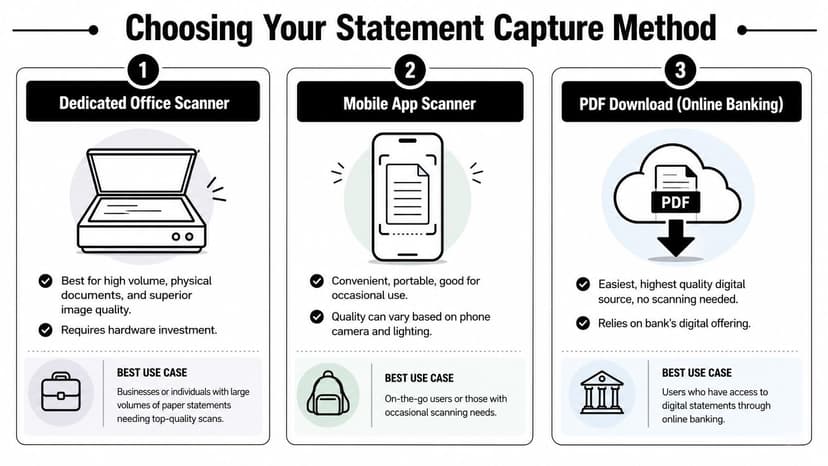
Dedicated office scanner
This is the most dependable option for paper statements in volume.
A decent office scanner handles uneven pages better than a phone camera. It also gives you consistency. Same lighting, same angle, same page size. That matters when you're feeding multi-page statements into OCR.
Use this route when you have:
- Backlog work from past months
- Client paper files with staples, folds, or handwritten notes
- Long statements that would be annoying to photograph page by page
The trade-off is obvious. Hardware costs money, and someone still has to load the pages correctly.
Mobile app scanner
Phone scanning is convenient, but it has limits.
For a few clean pages, a mobile app is fine. For thick statements, it usually creates extra review work because pages end up slightly tilted, shadowed, or cropped too tight. That's manageable for one bill. It's not ideal for a bank statement with dense transaction lines.
QuickBooks' own receipt capture helps with single receipts, but a review of QuickBooks receipt scanning notes that it's built for individual receipts and often needs manual verification beyond date and total, which makes it impractical for multi-page, transaction-dense bank statements.
A phone scan is useful when access matters more than precision. It isn't the format I'd choose for monthly statement processing if a cleaner source exists.
PDF download from online banking
This is the cleanest source and usually the fastest path.
If the client can log into the bank and download the original PDF, start there. Native PDFs avoid camera distortion and usually preserve the bank's layout more cleanly than a second-generation scan. Even when the PDF isn't text-searchable, it still tends to be easier to process than a phone image of a printed page.
Use downloaded PDFs when:
- The bank portal still has the statement
- You need full monthly history
- You want the least manual prep
A practical OCR workflow matters more than the physical scanner brand in this case. If you're comparing extraction approaches, a guide to bank statement parser OCR workflows is usually more useful than another hardware roundup.
Quick decision table
| Capture method | Best fit | Main risk |
|---|---|---|
| Dedicated office scanner | Physical statements, multi-page batches | Extra hardware and setup |
| Mobile app scanner | Occasional capture, remote situations | Inconsistent image quality |
| PDF download | Online banking statements | Depends on bank access and file availability |
How to Prepare Statements for Flawless Conversion
Most conversion problems start before the file ever reaches QuickBooks. The issue isn't the import. It's the source document.
If the statement is skewed, incomplete, out of order, or too faint to read, you'll spend your time fixing extraction errors instead of reviewing transactions. Preparation is the part many teams skip because it feels minor. It isn't.

Start with page quality
For paper statements, scan all pages into one continuous PDF. Don't upload twelve separate pages for one statement period if you can avoid it. Keeping the statement intact preserves order and makes review easier.
Use practical settings:
- Grayscale first: It usually captures statement text cleanly without bloating file size.
- Readable resolution: Avoid tiny, blurry scans. The transaction rows should be legible when zoomed in.
- Straight pages: Crooked scans often cause the most annoying field errors.
Crinkled paper, dark shadows near the spine, and cutoff margins cause more damage than people expect. If you can fix those before scanning, do it.
Keep the statement logically complete
A clean file isn't just readable. It also has to be complete and ordered.
Check these before conversion:
- All pages are present. Missing the final page can remove fees, interest entries, or ending balances.
- The pages are in sequence. Out-of-order pages can scramble date flow.
- The statement covers one account and one period. Mixing two months or two accounts in one file creates review headaches.
- Rotations are fixed. Sideways pages interrupt extraction and slow review.
QC shortcut: Before uploading, scroll the PDF from page one to the last page without zooming. If you can visually follow the statement with no confusion, the extraction tool has a much better chance too.
Remove avoidable sources of noise
Scanned statements often carry visual clutter that humans can ignore but OCR can't. Coffee rings, stamps, handwritten circles, and dark copier streaks all compete with transaction text.
If the page is damaged, a fresh scan helps. If the bank offers the original PDF, use that instead of re-scanning a printed copy. If the only source is poor, review expectations should change with it. You may still get usable output, but you'll want a tighter review pass.
For teams converting lots of statements, a practical reference is this walkthrough on turning a PDF bank statement into Excel. Even if your final destination is QuickBooks, the core discipline is the same. Better input produces cleaner structured data.
Pre-flight checklist
| Check | Why it matters |
|---|---|
| One full statement per file | Keeps periods and accounts separate |
| Correct page order | Preserves transaction sequence |
| Legible transaction rows | Reduces date and amount misreads |
| No clipped margins | Prevents missing amounts or balances |
| Minimal skew or rotation | Improves OCR consistency |
The ConvertBankToExcel Workflow Step by Step
Once the statement file is clean, the next step is conversion into a QuickBooks-friendly format. For statement work, that's the part a traditional scanner doesn't handle.
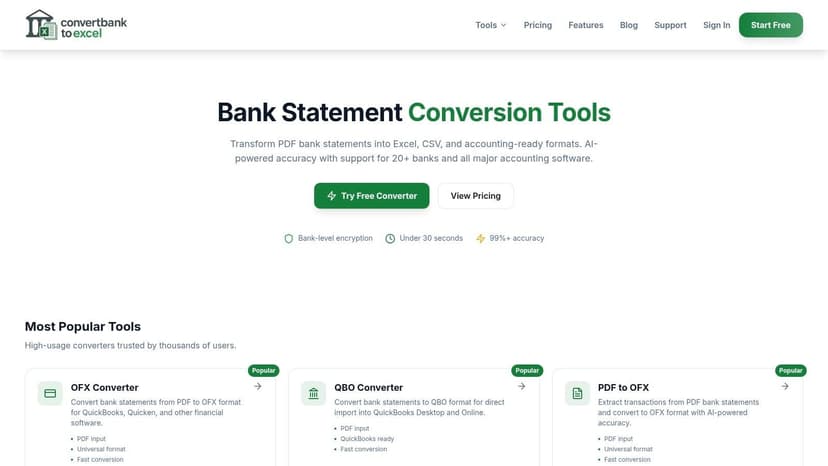
A tool such as ConvertBankToExcel's PDF to QBO converter takes a bank statement PDF and turns it into structured output for QuickBooks import. That matters because QBO files spare you from manually reshaping CSV columns and hoping QuickBooks reads them correctly.
Step 1 upload the statement file
Upload the statement PDF you prepared earlier. This can be a downloaded bank PDF or a scanned version of a paper statement.
The goal here isn't just to store the document. The system needs to identify:
- transaction rows
- dates
- descriptions
- debit and credit amounts
- running or ending balances where available
If the statement spans several pages, keeping it in one file helps preserve context.
Step 2 let the extraction run
After upload, the conversion engine reads the document and maps statement content into transaction-level data.
Statement conversion differs from a generic scan. A generic scanner gives you a PDF image. A statement converter attempts to understand the accounting structure of the page. It separates transactions from headers, identifies columns, and prepares data for export.
That saves the step bookkeepers hate most. Manually retyping lines from a PDF into Excel, then reshaping them again for QuickBooks.
Step 3 review the extracted transactions
Review still matters. Good workflows reduce review time. They don't eliminate judgment.
Look at:
- Date consistency: Are the dates in the right order and format?
- Description breaks: Did merchant names or memo fields split oddly?
- Amount direction: Are withdrawals and deposits correctly separated?
- Balance logic: Does the sequence align with the statement flow?
This pass is usually quick when the source document is clean. It's much faster than manual entry because you're checking structured rows, not typing them.
The real time saver isn't skipping review. It's replacing transcription with verification.
Step 4 export in QuickBooks format
Once the transaction list looks right, export to QBO.
That file type matters because QuickBooks reads it as bank activity rather than as a generic spreadsheet. You avoid the usual mess of custom column mapping, date reformatting, and trial-and-error imports.
For statement processing, this is the moment the phrase scanner for QuickBooks finally makes sense. The scanner created the image. The conversion workflow created the accounting file.
Step 5 keep a review trail
Even when the import file is ready, keep a copy of:
- the original statement
- the converted output
- any notes about unusual lines, corrections, or missing pages
That simple habit helps when a client asks why a transaction imported a certain way or when you need to retrace a reconciliation issue later.
Why this workflow beats manual spreadsheet cleanup
Many firms still use a patchwork process. Scan statement. Open PDF. Retype transactions. Build CSV. Test import. Fix format. Retry.
That process works, but it's fragile. A single column mismatch can stop the import. A single transposed amount can create a reconciliation gap that takes longer to find than the import itself.
A cleaner workflow starts with the statement, converts it directly into structured accounting output, and limits human effort to review rather than re-entry. That's the practical difference between having a scanner and having a usable QuickBooks statement workflow.
Importing Data and Reconciling in QuickBooks
Once you have the QBO file, the work shifts into QuickBooks. At this point, clean input pays off.
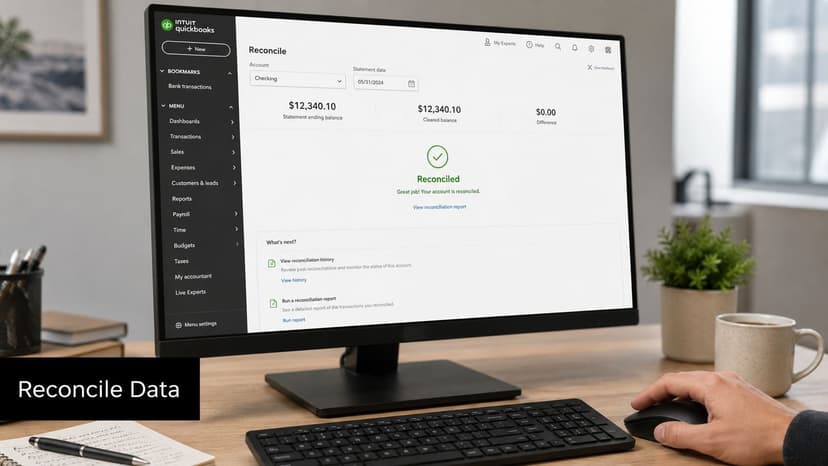
For QuickBooks Online, import the file through the banking area, then review the transactions as they appear in the bank transactions screen. If the statement conversion was done well, most of your effort at this point is validation and categorization, not repair.
What shows up after import
After import, QuickBooks presents the transactions for review. You check dates, payees, descriptions, and amounts, then match or categorize as needed.
This is far easier when the file came from statement extraction instead of hand-built spreadsheet work. The rows are already structured around the banking workflow QuickBooks expects.
Here is the key distinction many users miss. QuickBooks Online has no native barcode scanning for inventory, and financial document workflows such as receipts and statements rely on OCR-style extraction rather than barcode scanning, which is why QBO users need clean QBO-ready files instead of barcode hardware for this task.
A practical import sequence
A reliable import routine looks like this:
- Open the target bank account in QuickBooks Online and start the file import from the banking area.
- Upload the QBO file for the statement period you converted.
- Check the date range before accepting the data, especially if the account already has partial bank feed activity.
- Review imported lines for duplicates, unusual descriptions, or transactions that need immediate categorization.
- Complete reconciliation against the bank statement ending balance.
If reconciliation doesn't tie, don't start editing random transactions. First confirm the statement period, opening balance, and whether any transactions were already in the feed.
Where teams lose time
The expensive part of reconciliation usually isn't reconciliation itself. It's bad source data.
When statement transactions are entered manually, errors show up in familiar ways:
- deposit signs reversed
- duplicate rows
- missing lines near page breaks
- dates shifted because of format mismatch
- memo text chopped into the wrong columns
Those mistakes don't look dramatic at import. They show up later as unexplained differences.
What a cleaner workflow changes
A good import file gives you a short review path:
- match obvious transactions
- assign categories where needed
- compare the ending balance
- finish reconciliation without hunting for avoidable input errors
That doesn't mean no review. It means your review is focused on accounting judgment, which is where bookkeepers add value. You're deciding how to classify and confirm. You're not acting as a human OCR engine.
Advanced Tips for High-Volume Professionals
If you process statements for multiple clients, the workflow has to survive volume. A method that works for one account at month-end can collapse when twenty clients all send documents on the same day.
Build a repeatable intake system
High-volume teams do better when every client statement follows the same intake rules.
Use a standard naming pattern. Keep one statement period per file. Separate accounts before conversion. If a client sends screenshots, partial scans, and mislabeled PDFs in one email thread, fix that before any conversion starts. The cleanup is cheaper at intake than during reconciliation.
For firms handling lots of statement files, it helps to use a workflow designed for batch processing across multiple documents instead of handling each file as a one-off task.
Use two levels of quality control
One person doesn't need to do everything.
A practical team split looks like this:
- Processor role: checks file completeness, page order, and readability
- Reviewer role: checks extracted transactions, import readiness, and reconciliation exceptions
That separation catches routine issues early and keeps senior staff focused on accounting review instead of file prep.
Multi-client work gets faster when you standardize decisions. It gets safer when you standardize checks.
Know when barcode hardware is relevant
If your shop also supports inventory clients, keep the distinction clear. For QuickBooks Desktop inventory workflows, Intuit's barcode guidance says the standard setup is an HID keyboard-emulation scanner, and commonly recommended models include the Zebra DS2208 and Honeywell Voyager series for QuickBooks Enterprise Advanced Inventory.
That's useful for receiving, shipping, and stock movement inside Desktop. It does not solve statement imports.
Troubleshooting habits that save time
When a QuickBooks import fails or reconciliation goes sideways, check the boring things first:
- Wrong account file: The QBO import may be headed into the wrong bank account.
- Overlapping date range: Existing bank feed activity can create duplicates or confusion.
- Incomplete statement source: A missing page often explains a balance mismatch.
- Mixed documents: Two months or two accounts in one file can break review logic.
Most statement problems aren't software failures. They're workflow failures. The firms that move fastest usually aren't using magic tools. They just protect the path from source document to import file much more carefully.
If you're tired of using a scanner for QuickBooks as a workaround instead of a real workflow, ConvertBankToExcel is built for the gap between bank statements and accounting-ready imports. It converts scanned or digital statements into structured files, including QBO output for QuickBooks, so your team can spend less time typing and more time reviewing, categorizing, and reconciling.