
![How to Upload Bank Statements to QuickBooks Online [2026]](/_next/image?url=https%3A%2F%2Fconvertbanktoexcel.com%2Fapi%2Fuploads%2Fimages%2F1778579725603-85edc2d2.jpg&w=1920&q=75)
Many users searching how to upload bank statements to QuickBooks Online are already stuck.
You have a client folder full of PDF statements. The bank feed won't connect. The direct sync only brings in recent activity. Or QuickBooks accepts the file, then turns the review tab into a duplicate-filled mess. That is a significant workflow problem. The issue is not the final upload click, but everything that happens before it.
After enough cleanup jobs, one pattern becomes obvious. QuickBooks import problems usually start long before QuickBooks. They start with bad source files, weak conversion, and no validation between the statement and the books.
Why Direct Bank Feeds Are Not Always the Answer
A bank feed is great when it works. It's also the first thing most tutorials assume you have.
In practice, bookkeepers get handed whatever exists. That might be monthly PDFs from a closed account, exported statements from a regional bank, or scans from a client who printed everything and fed it through an office copier. None of that fits the tidy “just connect your bank” advice.
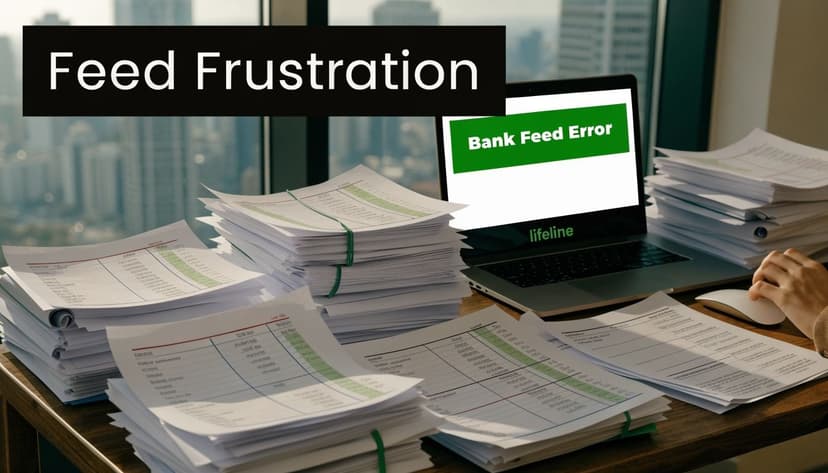
The situations that break the ideal workflow
I see the same scenarios over and over:
- Historical catch-up work. A client needs last year rebuilt for taxes, audit support, or a financing request.
- Feed failures. The bank connection breaks, then reconnecting creates overlap risk.
- Unsupported formats. The bank only offers PDFs, not a clean transaction export.
- Client-controlled access. You don't want staff logging into client bank portals just to pull data.
This is why manual import isn't some backup method for beginners. It's a core bookkeeping skill.
A lot of firms are also more cautious now about direct connections and credential-sharing. If you're thinking through that side of the process, Senki's piece on securely analyzing PDF bank statements is a useful read because it frames the privacy and control trade-offs clearly.
Raw access to a live bank feed is convenient. A controlled file workflow is often safer, easier to document, and better for historical work.
PDF statements are the real bottleneck
The pain is widespread, not niche. According to a 2025 CPA survey by Accounting Today, 52% of respondents reported PDF conversion as a top pain point, especially when banks, legacy systems, or international institutions don't offer CSV exports, as cited in this discussion of PDF conversion pain points.
That tracks with real bookkeeping work. The hard part usually isn't importing. It's getting from a messy statement to a file QuickBooks can trust.
If you're deciding which output format fits your workflow, this comparison of OFX vs QBO vs IIF formats is worth reviewing. Picking the wrong target format creates extra cleanup later.
What works better
A stable workflow starts with one rule. Don't treat a bank statement PDF like it's already accounting data.
A PDF is a document. QuickBooks wants structured transactions. Until you convert and verify that data properly, the upload step is just the last move in a bad process.
From PDF Chaos to Import-Ready Files
Most guides blur together “bank statement” and “import file” as if they're the same thing. They aren't.
A PDF statement is built for a human to read. A QBO, OFX, or properly formatted CSV is built for software to parse. That difference matters because QuickBooks is strict about structure even when the screen makes the process look casual.
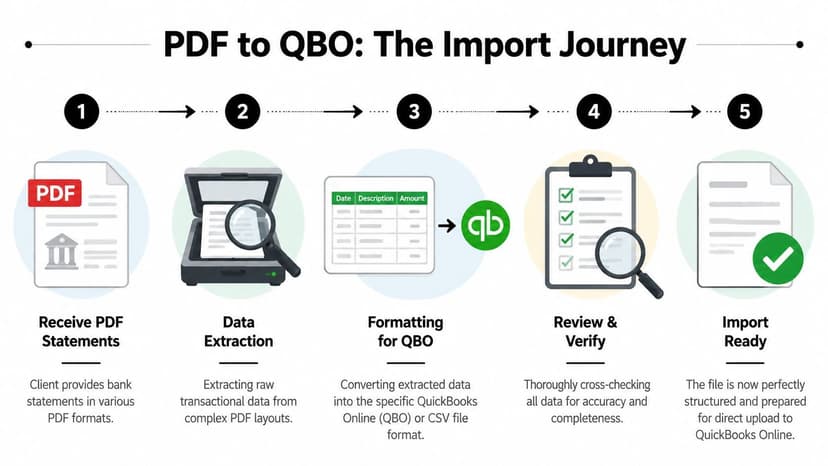
What a PDF actually contains
When a client sends a statement PDF, the file can include:
- Headers and footers on every page
- Running balances mixed into transaction rows
- Split lines where a long description wraps
- Image-based text from scans instead of selectable text
- Rotated pages or skewed scans
- Noise like stamps, handwritten marks, or shadows
QuickBooks doesn't “understand” those issues the way a trained bookkeeper does. It tries to extract rows and guess what belongs where. Sometimes that works. Sometimes it doesn't.
That same challenge shows up in other document-heavy finance workflows too. If you want a broader view of how extraction quality affects downstream automation, Zenfox has a practical piece on Zenfox.ai for automated invoice workflows. The document type is different, but the lesson is the same. Garbage in creates expensive review work later.
Good PDFs and bad PDFs
There's a big difference between a clean source file and a risky one.
| Source file type | What usually happens |
|---|---|
| Bank-issued digital PDF with selectable text | Easiest to convert and verify |
| Clean multi-page PDF export | Usually workable with light review |
| Low-resolution scan | Needs closer validation |
| Crooked phone photo of a printed statement | High failure risk |
| Statements with stamps or handwriting | Often need manual correction |
A clean PDF gives you a fighting chance. A poor scan turns every later step into detective work.
If your input files are scans, photos, or older archived statements, these examples of handling scanned bank statements reflect the kind of edge cases that ordinary import guides usually skip.
Practical rule: If you can't reliably copy and paste the transaction text from the PDF, don't assume your import tool will read it cleanly either.
Native PDF upload has limits
QuickBooks has improved its PDF handling, but professionals still run into predictable problems with statements that aren't clean. Low-quality scans, odd layouts, and foreign-language formatting are where native extraction starts to wobble.
That's why the preparation step matters more than most tutorials admit. Before you upload bank statements to QuickBooks Online, verify four things:
Transaction rows are separated correctly
Wrapped descriptions shouldn't create fake extra entries.Debits and credits are interpreted correctly
Parentheses, minus signs, and CR/DR formatting often cause issues.Dates follow one consistent pattern
Mixed formats can scramble imports.The statement balance agrees with the extracted activity
If the math doesn't tie, stop there and fix it before import.
The professional mindset
Bookkeepers who do this well don't start in QuickBooks. They start by asking whether the source file is trustworthy enough to convert, review, and reconcile.
That small shift changes the whole job. Instead of hoping QuickBooks cleans up a messy statement, you hand QuickBooks a file it can process with minimal drama.
Converting PDFs to a QBO File in 60 Seconds
When the statement is messy, the fastest route is usually a dedicated conversion step before QuickBooks ever sees the file.
That workflow is straightforward. You upload the PDF, extract the transactions, review the output for obvious exceptions, and export a format QuickBooks accepts cleanly. For QuickBooks Online, that usually means QBO, though CSV and OFX can also fit depending on the account and your internal process.
What specialized conversion handles better
The biggest difference is how the tool treats messy source material. QBO's native OCR can have an accuracy of 75% for low-quality scans, while specialized tools can reach 99%+ CPA-verified accuracy, handle foreign languages and complex layouts, and process files in under 60 seconds, according to this 2026 PDF upload benchmark video.
That matters because low-quality bank statements rarely fail in obvious ways. They fail without warning. A zero becomes an O. A debit becomes positive. A wrapped merchant line becomes two transactions.
A practical conversion workflow
If I'm preparing a file for import, I want these checks before export:
- Multi-page extraction that keeps the statement in order
- Balance validation against the statement totals
- Confidence scoring so weak rows stand out fast
- Export options that match QuickBooks instead of forcing spreadsheet cleanup
- No manual column surgery unless there's a real exception
If you need a direct utility for that stage, a dedicated PDF to QBO converter is the kind of tool built for this specific handoff.
QBO Native PDF Upload vs. ConvertBankToExcel
| Feature | QuickBooks Native PDF Upload | ConvertBankToExcel |
|---|---|---|
| Handles clean bank PDFs | Yes | Yes |
| Handles low-quality scans well | Limited | Better suited for difficult files |
| Foreign-language and complex layouts | Can struggle | Better suited for mixed layouts |
| Output format options | Mostly tied to QuickBooks flow | QBO, OFX, CSV, and other export choices |
| Confidence-based review | Limited in practice | Built around validation workflow |
| Balance reconciliation checks | Partial review in QuickBooks | Included before export |
| Best use case | Quick, simple imports from clean statements | Professional prep for difficult or high-volume statement work |
What to review before exporting
Don't treat a successful extraction as a finished job. Review the exceptions first.
Look for merchant names split across lines, ATM or fee rows with unusual formatting, and any transaction where the amount sign looks suspicious. If a statement contains foreign currency references, branch codes, or scanned page artifacts, those rows deserve a closer look before the QBO file is created.
If the conversion stage is weak, QuickBooks becomes your error detector. That's the slowest and most expensive place to find mistakes.
A good converter shortens review because it gives you structure, not just raw text. That's the difference between a usable import file and a spreadsheet someone still has to rescue by hand.
The QuickBooks Online Import Process
Once the file is clean, QuickBooks Online becomes the easy part.
That's the piece many users expect to be difficult. It usually isn't. The hard work was preparing the data so QuickBooks doesn't have to guess.
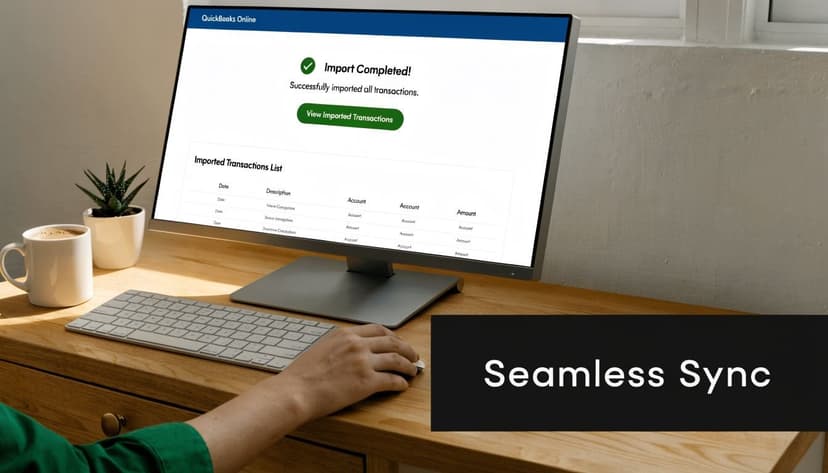
Click path inside QuickBooks Online
As of May 2026, Intuit's documented process is to go to All apps > Accounting > Bank transactions, choose Link account > Upload from file, and upload a supported file such as CSV, QBO, or OFX, with up to 1,000 transactions per upload. Intuit also notes that properly formatted files can reduce manual entry errors by up to 95% in this guide to the QuickBooks Online import process.
That error reduction is why format quality matters so much. When the file is right, the import screen becomes confirmation work instead of cleanup work.
What to do in order
Use this sequence:
Open the correct QuickBooks company
Double-check before importing. Undoing an import into the wrong file is annoying.Go to Bank transactions
Start from the banking area, not from general journal or sales workflows.Choose Upload from file
Select your QBO, OFX, or CSV file.Assign the destination bank or credit card account Many avoidable mistakes happen during this step. Match the file to the exact register.
Review mapping if prompted
A well-prepared file should make this simple.
If you're starting from statement PDFs and want the file type QuickBooks handles most naturally, a bank statement to QBO tool is designed for that handoff.
The mapping screen should be boring
That's the goal.
For CSV imports, QuickBooks may ask you to map columns like Date, Description, and Amount, or separate Credit and Debit fields. If the file was built correctly, you're confirming the structure, not inventing it on the fly.
For QBO imports, there's usually less manual mapping because the file carries more structure. That's one reason many bookkeepers prefer QBO over CSV when they can get it.
Here's a quick visual walkthrough of the in-product flow:
What a smooth import looks like
After import, transactions land in For Review. That doesn't mean they're wrong. It means QuickBooks is waiting for you to match, categorize, or confirm them.
A clean import has three signs:
- The account balance direction makes sense
- Descriptions look intact
- The date range matches the statement exactly
If any of those fail, stop before categorizing. The fix is usually easier at the file level than after transactions have been partially reviewed.
Matching Transactions and Fixing Common Import Errors
Importing is not reconciliation. It only gets the data into the queue.
Bookkeeping judgment begins in For Review. You decide in this section whether each transaction should be matched to existing activity, added as new, excluded as a duplicate, or investigated further.
The duplicate problem shows up constantly
The most common post-import issue is overlap. According to Intuit forum data from 2025, duplicate transactions from date overlaps are common in 35% of manual uploads, which is why review and matching matter so much, as noted in this article on common upload issues in QuickBooks workflows.
That usually happens when someone imports:
- a statement range that overlaps a previous manual upload
- transactions already pulled by a bank feed
- a replacement file after a failed first attempt
How to review the queue without making it worse
Use a deliberate order.
Check for overlap first
Before you add anything, compare the imported date range against what already exists in the bank register. Don't start categorizing until you know whether the file overlaps old activity.
If the beginning or ending dates touch an existing import, search by amount and date before accepting entries. One repeated payroll run or credit card batch can distort the whole month.
Match before you add
If QuickBooks suggests a match to an invoice payment, bill payment, transfer, or existing expense, inspect that suggestion first. Matching keeps the books tied together. Adding a duplicate creates cleanup work in both the register and the underlying transaction flow.
Review habit: The right question isn't “Can I add this?” It's “Does QuickBooks already know about this from somewhere else?”
Use rules carefully
Bank rules help after the import process is stable. They don't fix bad input.
Rules are useful for recurring vendors, standard bank fees, and clear transfer patterns. They're dangerous when descriptions vary across accounts or when one vendor line could belong to multiple expense categories depending on context.
Common errors and what usually fixes them
| Problem | What it usually means | Best fix |
|---|---|---|
| Duplicate transactions | Overlapping date range or prior feed activity | Exclude duplicates before adding |
| Wrong account hit | File imported to the wrong register | Remove and re-import to the correct account |
| Debits and credits reversed | Sign formatting issue in source file | Correct the source file and import again |
| Missing transactions | Extraction failure or filtered source data | Recheck the statement against the imported list |
| Reconciliation off by a small amount | Fees, interest, or one misread row | Compare statement totals line by line |
If reconciliation keeps drifting and you can't find the source quickly, these examples of resolving reconciliation mismatches are useful because they focus on where import-stage errors tend to hide.
The best cleanup mindset
Don't try to “work around” a flawed import by forcing categories until the account roughly looks right. That approach buries the problem.
When the statement and the register disagree, go back to the imported data and trace the break. Good bookkeeping is usually slower for five minutes and faster for the next five months.
Time-Saving Workflows for Accounting Professionals
The payoff isn't one clean import. It's turning this into a repeatable process your firm can hand off without losing quality.
That matters because volume changes everything. A one-off statement cleanup can survive some improvisation. A multi-client bookkeeping workflow can't.
Standardize the intake before the import
The firms that move fastest usually standardize three things early:
What clients should send
Ask for original digital statements when possible, not screenshots or print-to-PDF copies of copies.How files are named
Include client, institution, account nickname, and statement period.Who reviews exceptions
Junior staff can prep and flag. A more experienced reviewer should handle unclear extraction results, odd transfers, and reconciliation gaps.
Workflow design matters as much as accounting skill in this context. If you're building broader ops around repetitive document tasks, BuildForm's guide to conversational workflow automation has useful ideas for reducing back-and-forth during intake and follow-up.
Build around review, not data entry
A 2024 Intuit survey found that 65% of CPAs using QBO save an average of 12 hours weekly by automating imports. In practice, the value isn't just speed. It's where you redirect that time.
Use the saved hours for:
- historical cleanup projects
- month-end review
- exception handling
- client advisory work
- training staff on judgment instead of keyboard labor
A workflow that scales better
The strongest internal process usually looks like this:
- Intake and file naming
- Conversion and validation
- Import to the right account
- Duplicate check
- Match and categorize
- Reconcile against the statement
- Archive the source and output files
That sequence is boring on purpose. Boring workflows scale.
Good firms don't win this work by typing faster. They win by turning unpredictable statement cleanup into a controlled review process.
When you handle PDF-heavy clients, historical rebuilds, or broken bank feeds regularly, that process becomes part of capacity planning. You stop treating statement imports as admin work and start treating them like production work.
Frequently Asked Questions
Can QuickBooks Online import a bank statement PDF directly
Sometimes, but that doesn't mean it should be your default method. Native PDF handling is more dependable with clean, bank-issued digital statements than with scans, blurry exports, or files with unusual layouts. If the statement quality is poor, convert it into a structured import file first.
Is QBO better than CSV for QuickBooks Online imports
Usually, yes. QBO is designed for QuickBooks-style bank imports and often requires less manual mapping. CSV can work well, but it's easier to break with date issues, amount formatting problems, or extra columns.
What if my client only has scanned statements
That's common. The key is to review extraction quality before import. Scanned statements are more likely to produce split rows, sign errors, and missing transactions, so validation matters more than speed.
Why are transactions duplicated after import
The usual cause is overlap with a previous import or an active bank feed. Check the imported date range against what's already in the register before adding anything from the For Review tab.
Should I connect the live bank feed and also upload files
Only if you're controlling the date ranges carefully. Mixing both methods without a clear cutoff invites duplicates and messy review queues.
What's the safest workflow for historical statements
Use a controlled file-based workflow. Prepare the files, import them in date order, review the queue, and reconcile each statement before moving to the next period. That gives you a cleaner audit trail and makes mistakes easier to isolate.
If you're stuck with PDF, scanned, or low-quality statements and need a cleaner path into QuickBooks, ConvertBankToExcel is built for that exact prep step. It helps turn difficult bank statements into import-ready files for accounting workflows, so you can spend less time fixing source data and more time reviewing books that tie out.