

OFX vs QBO vs IIF: Which Format Does Your Software Need?
If you've ever tried importing a bank statement and hit a wall because the file format was wrong, you're not alone. OFX, QBO, IIF — three acronyms that look almost interchangeable but behave very differently depending on which accounting software you're using. Pick the wrong one and you get an import error. Pick the right one and your transactions land cleanly in seconds.
This guide cuts through the confusion. No filler, no jargon. Just a clear breakdown of what each format actually is, which software uses it, and how to get your bank statement converted into whichever one you need.
The Quick Answer
If you're in a hurry, here's the short version:
| Accounting Software | Format to Use |
|---|---|
| QuickBooks Online | QBO |
| QuickBooks Desktop (modern) | QBO or IIF |
| QuickBooks Desktop (legacy workflows) | IIF |
| Quicken | OFX or QFX |
| Microsoft Money | OFX |
| Xero | OFX or CSV |
| Sage | CSV |
| FreshBooks | CSV |
| Wave | CSV |
| MYOB | OFX or CSV |
Still need to convert your bank statement into one of these formats? Convert your bank statement now — free, no signup required.
What Is OFX Format?
OFX stands for Open Financial Exchange. It was developed in 1997 as a joint standard between Microsoft, Intuit, and CheckFree — a partnership that was meant to give financial institutions and software vendors a common language for sharing transaction data.
The format is XML-based (or SGML in older versions) and is genuinely open. No single company owns it. That openness is why OFX has stayed relevant for almost three decades while other formats have come and gone.
File extension: .ofx
What it contains: Account balances, transaction history, dates, amounts, payee names, transaction IDs. Some versions include investment data, loan information, and bill payment records.
Who uses it:
- Quicken (though Quicken's proprietary variant is
.qfx) - Microsoft Money
- Xero
- MYOB
- Many bank export tools
- Some credit unions and smaller banks that offer statement downloads
The main strength of OFX is portability. Because it's an open standard, a wide range of software can read it. If you're not sure which format to use and your software isn't QuickBooks, OFX is usually the safest starting point.
One thing to know: Quicken uses a variant called QFX (Quicken Financial Exchange). It's almost identical to OFX but has a header that identifies it as Quicken-specific. Most bank statement converters can output either one.
Our bank statement to OFX converter supports both OFX and QFX output, so you can target whichever version your software expects.
What Is QBO Format?
QBO stands for QuickBooks Online — and unlike OFX, this is a proprietary format owned by Intuit. It was designed specifically for importing bank and credit card transactions into QuickBooks.
The file structure is actually very similar to OFX. In fact, QBO files are essentially OFX files with a specific header that tells QuickBooks to accept them. But that small difference matters: QuickBooks Online is strict about recognizing .qbo files over generic .ofx files.
File extension: .qbo
What it contains: Transactions (date, amount, payee, memo), account type, account number, currency, and bank ID. It does not carry over categories, tax codes, or custom fields — those get assigned inside QuickBooks after import.
Who uses it:
- QuickBooks Online (primary use case)
- QuickBooks Desktop (as an alternative to IIF for importing bank feeds)
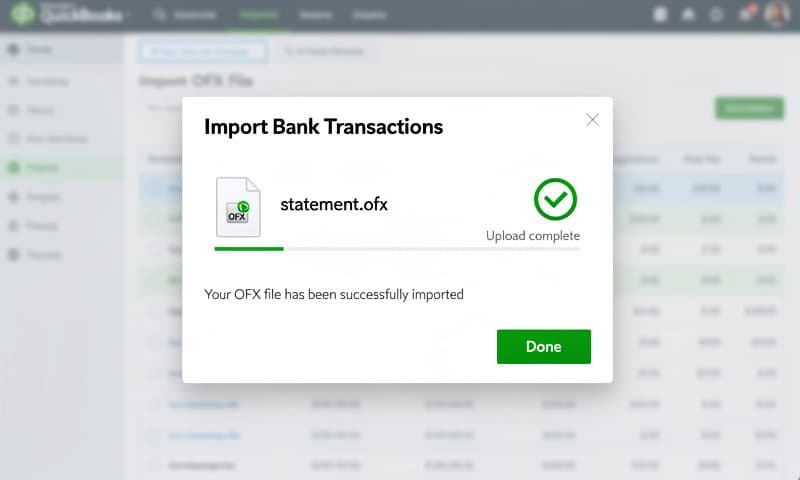
When someone says they need to "import bank transactions into QuickBooks," QBO is almost always the correct format. Banks that support direct feeds with QuickBooks Online use QBO behind the scenes. If your bank doesn't offer a direct feed or has a delay, downloading a QBO file and uploading it manually is the next best option.
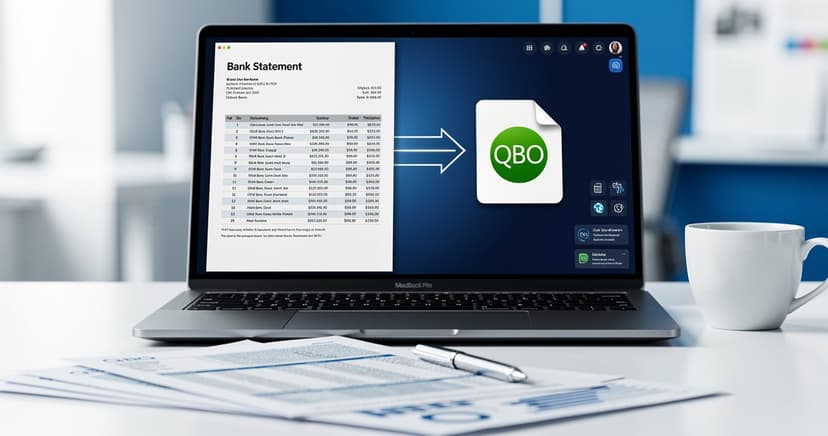
The QuickBooks QBO import tool converts PDF bank statements to QBO with the exact structure QuickBooks expects, including the correct bank ID and account type headers.
What Is IIF Format?
IIF stands for Intuit Interchange Format. This one is older — it was Intuit's original data exchange format before QBO came along, and it's tab-delimited text (think spreadsheet rows) rather than XML.
File extension: .iif
What it contains: IIF is more flexible than QBO or OFX. It can carry not just transactions but also customer lists, vendor lists, accounts, payroll data, and journal entries. That flexibility made it useful for migrating data between QuickBooks Desktop installations or doing bulk imports of non-bank data.
Who uses it:
- QuickBooks Desktop (legacy and current)
- Some payroll providers that export to QuickBooks Desktop format
- Data migration tools that move data between QuickBooks Desktop companies
Here's the important nuance: IIF is not the same as QBO, even though both work with QuickBooks. QBO handles bank feed imports. IIF handles broader accounting data imports — including lists, journal entries, and transactions that don't come from bank feeds.
For most people importing bank statements into QuickBooks Desktop today, QBO is the better choice. IIF still matters if you're dealing with payroll imports, data migrations, or legacy integrations that were built around IIF years ago.
If you're working with IIF files that need to go into a spreadsheet, the IIF to Excel converter handles the tab-delimited structure cleanly without reformatting errors.
Side-by-Side Comparison Table
| Format | Full Name | Owner | File Extension | Primary Use Case | Best For |
|---|---|---|---|---|---|
| OFX | Open Financial Exchange | Open standard | .ofx |
Bank & investment transaction import | Quicken, Xero, MYOB, multi-platform use |
| QBO | QuickBooks Online format | Intuit (proprietary) | .qbo |
QuickBooks bank feed import | QuickBooks Online, QuickBooks Desktop bank imports |
| IIF | Intuit Interchange Format | Intuit (proprietary) | .iif |
Broad QuickBooks data import (lists, transactions, payroll) | QuickBooks Desktop legacy workflows, data migration |
| CSV | Comma-Separated Values | Open standard | .csv |
Generic data exchange | Sage, Wave, FreshBooks, any software with import wizard |
| QFX | Quicken Financial Exchange | Intuit (Quicken-specific) | .qfx |
Quicken bank feed import | Quicken only |
Key differences at a glance:
- OFX is open and portable. QBO and IIF are Intuit-proprietary.
- QBO is for bank transactions. IIF is for broader accounting data.
- OFX and QBO are structurally similar (both XML-based). IIF is tab-delimited text.
- CSV works almost everywhere but carries no financial metadata.
QuickBooks: OFX, QBO, or IIF?
This is where most people get confused, because the answer depends on which version of QuickBooks you're using — and what you're trying to import.
QuickBooks Online
Use QBO. Full stop. QuickBooks Online's bank feed import is designed around the .qbo format. If you're downloading a file from your bank or using a converter, you want QBO output.
Some banks also provide OFX downloads, and QuickBooks Online can sometimes accept those, but QBO files have the specific headers that QBO expects and you'll have fewer errors.
QuickBooks Desktop (Current Versions)
Use QBO for bank imports. QuickBooks Desktop still supports QBO files for bank and credit card transaction imports. This is the most common workflow: download a QBO file, go to File > Utilities > Import > Web Connect Files, and select your file.
Use IIF for non-transaction data. If you're importing a chart of accounts, customer list, or vendor list — or if you have a payroll integration that outputs IIF — then IIF is the right format. QuickBooks Desktop's import wizard handles IIF through File > Utilities > Import > IIF Files.
QuickBooks Desktop (Legacy Versions, Pre-2016)
Older versions of QuickBooks Desktop relied heavily on IIF for transaction imports. If you're working with a company file that hasn't been updated in years, IIF may be your primary option. Many accountants who maintain books for clients running older software still encounter IIF regularly.
Xero, Sage, and Quicken: What They Accept
Xero
Xero accepts OFX and CSV. For bank feed imports, OFX is the cleaner option because it carries structured transaction data (dates, amounts, payee names) without requiring you to map columns manually.
CSV works too, but you'll need to match columns to Xero's expected format — date, amount, payee, description. If your bank exports CSV with unusual column ordering, you'll need to reformat it first.
Xero's bank rules engine works well with both formats once you get past the initial import step. For a streamlined experience, see the Xero import guide which walks through the exact column format Xero expects.
Sage
Sage (including Sage 50, Sage 100, and Sage Intacct) primarily uses CSV for bank transaction imports. Sage does not natively support OFX or QBO.
The CSV format Sage expects varies somewhat by version, but the standard approach is: date in MM/DD/YYYY format, debit and credit as separate columns, and a description field. Some Sage versions want a reference number column as well.
If you're converting a PDF bank statement for Sage, CSV output is what you need.
Quicken
Quicken prefers QFX (Quicken Financial Exchange) — its proprietary variant of OFX. Most banks that support Quicken downloads provide QFX specifically. If you're using a third-party converter, look for QFX output rather than generic OFX.
That said, Quicken can also import OFX in many versions. If QFX isn't available, try OFX next. CSV is a fallback but lacks the structured financial data that makes Quicken's categorization and reconciliation features work well.
How to Convert Your Bank Statement to Any Format
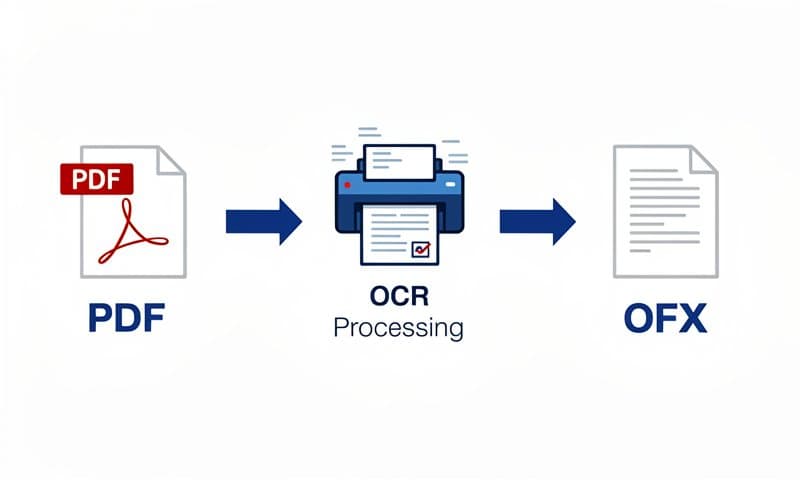
Most banks let you download statements as PDF. A few offer direct OFX or CSV exports. Rarely do banks provide QBO or IIF downloads — those are formats you typically need to create from a PDF or CSV source.
Here's the practical workflow:
Step 1: Download Your Bank Statement
Log into your bank's online portal and download your statement as PDF. If your bank offers OFX or CSV download, use that instead — it saves a conversion step.
Step 2: Choose Your Target Format
Based on the tables above:
- QuickBooks Online → QBO
- QuickBooks Desktop (bank import) → QBO
- QuickBooks Desktop (data migration) → IIF
- Quicken → QFX or OFX
- Xero → OFX or CSV
- Sage → CSV
- Wave, FreshBooks → CSV
Step 3: Convert
Try the free converter — it supports all formats (OFX, QBO, IIF, CSV, Excel) and works directly from a PDF upload. No account required, no software to install.
The converter uses OCR technology to read transaction data from your PDF, then structures it correctly for your target format — including the proper headers that QuickBooks, Xero, and Quicken expect.
Step 4: Import into Your Software
Each software has its own import path:
QuickBooks Online: Banking > Upload transactions > select your QBO file
QuickBooks Desktop: File > Utilities > Import > Web Connect Files (for QBO) or IIF Files (for IIF)
Xero: Accounting > Bank Accounts > Import a Statement > select OFX or CSV
Sage: Bank Feeds > Import > select CSV
Quicken: Tools > Account List > Edit (your account) > Import transactions > select QFX or OFX
Which Format Should You Choose?
Let me give you a simple decision framework:
Are you using QuickBooks Online? Use QBO. Always.
Are you using QuickBooks Desktop for bank imports? Use QBO. It's the modern standard and fewer things go wrong.
Are you using QuickBooks Desktop for data migration or payroll? Use IIF. It's designed for structured data beyond just transactions.
Are you using Quicken? Use QFX. If QFX isn't available, use OFX.
Are you using Xero? Use OFX for the cleanest import experience. CSV works but requires more column-matching.
Are you using Sage, Wave, or FreshBooks? Use CSV. These platforms don't support OFX or QBO.
Are you unsure which software you'll use? Export CSV and OFX both. CSV is universally readable. OFX covers the most accounting software options.
One more thing worth mentioning: if your accounting workflow involves multiple people or software tools, formats matter for consistency. A firm that uses QuickBooks Desktop for some clients and Xero for others needs a converter that handles both QBO and OFX output — ideally from the same source file.
Conclusion
OFX, QBO, and IIF are not interchangeable, but they're not that complicated once you match each format to its intended software. The core takeaway:
- OFX is the open, portable standard. Works well across Quicken, Xero, and MYOB.
- QBO is Intuit's bank-feed format. Use it for QuickBooks Online and QuickBooks Desktop bank imports.
- IIF is Intuit's older, broader data format. Use it for QuickBooks Desktop data migrations and payroll imports.
Get the format right and your import takes thirty seconds. Get it wrong and you're troubleshooting file rejection errors for an hour.
If you need to convert a PDF bank statement to any of these formats — OFX, QBO, IIF, or CSV — try the free converter. It handles all major formats and supports over 1,000 banks. No signup, no credit card, results in under a minute.
Related resources: