
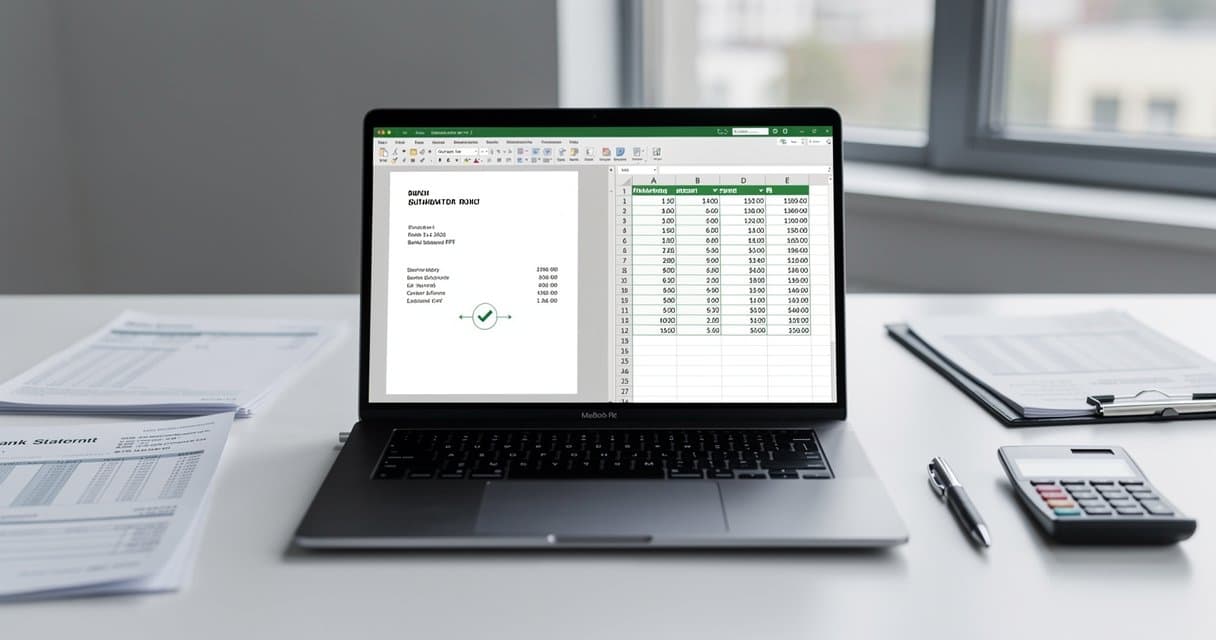
Bank Statement Converter: A Guide for Small Business
I spent six months testing bank statement converters. As a bookkeeper handling 15 small business clients, I needed something that actually worked—not another tool that promised "seamless conversion" and delivered garbage.
Here's what I found: most converters fail on real-world bank statements. The ones that work fall into three categories, and choosing the right one depends on your specific situation.
What Bank Statement Converters Actually Do
A bank statement converter takes a PDF (the format your bank gives you) and transforms it into structured data (the format your accounting software needs).
That sounds simple. It isn't.
Bank statement PDFs aren't designed for data extraction. They're designed to look good when printed. The dates, descriptions, and amounts are positioned visually, not logically. A converter needs to figure out which numbers are dates, which are amounts, which are reference numbers—and put them in the right columns.
Good converters do this automatically. Bad converters give you a jumbled mess that takes longer to fix than manual entry would have.
Who Needs One?
Bookkeepers and accountants processing client statements. If you're manually entering transactions from PDFs into QuickBooks, you're wasting hours every week.
Small business owners reconciling accounts. Your bank gives you a PDF. Your accounting software wants CSV or Excel. Something has to bridge that gap.
Anyone dealing with old statements. Banks typically only let you download transaction history for 90 days to 2 years. Older records? PDF statements are all you've got.
People with multiple accounts. One business checking, one savings, two credit cards—that's four statements per month. Manual entry adds up fast.
Types of Converters
OCR-Based Converters
OCR (Optical Character Recognition) converters can read scanned documents. If your PDF is an image—you can't highlight the text—you need OCR.
Pros: Works on scanned statements, photographed documents, old records
Cons: Accuracy depends on scan quality; slower processing
Text Extraction Converters
These work on "native" PDFs where the text is actual text, not an image. They're faster and more accurate than OCR—when they work.
Pros: Fast, high accuracy on digital PDFs
Cons: Useless on scanned documents
Specialized Financial Converters
Built specifically for bank statements. They understand financial document structure: date columns, description columns, debit/credit amounts, running balances.
Pros: Highest accuracy on bank statements, handles edge cases
Cons: Usually cost money; may not work on non-financial PDFs
The Best Converters I've Tested
ConvertBankToExcel.com
My daily driver. It's built specifically for bank statements, which matters more than you'd think.
I've run statements from Chase, Bank of America, Wells Fargo, Capital One, PNC, US Bank, several credit unions, and a few foreign banks through it. Works on all of them. Scanned documents work too—I tested with some 2015 statements I'd photographed years ago.
What I like:
- 7 free pages per day (enough for most small businesses)
- Handles scanned documents automatically
- Gets the column structure right 97-99% of the time
- Fast—usually under 90 seconds per statement
What I don't:
- Free tier has limits (7 pages/day)
- Doesn't work on non-bank-statement PDFs
Pricing: Free tier available, subscription for heavy users
Try it free—no signup required.
Adobe Acrobat Pro
The industry standard for PDF editing includes export features. If you already pay for Creative Cloud, you have access.
What I like:
- Full-featured PDF editor
- Works on any PDF type
- Good for occasional use
What I don't:
- $23/month is expensive just for conversion
- Not optimized for bank statements
- Table detection is inconsistent
Accuracy on bank statements: 70-85% (requires manual cleanup)
Tabula (Free, Open Source)
A downloadable tool that extracts tables from PDFs. Technical users love it.
What I like:
- Completely free
- Good table detection
- Works offline
What I don't:
- No OCR (useless on scanned documents)
- Requires installation
- Learning curve for non-technical users
Accuracy on bank statements: 75-90% (digital PDFs only)
DocuClipper
Cloud-based converter with bank statement specific features.
What I like:
- Good accuracy
- Multiple export formats
- API available
What I don't:
- Subscription pricing
- Slower than some alternatives
Accuracy on bank statements: 85-95%
Bank2CSV
Simple tool focused specifically on bank statements.
What I like:
- Straightforward interface
- Decent accuracy
What I don't:
- Limited free tier
- Fewer format options
Accuracy on bank statements: 80-90%
PDFTables
General-purpose PDF table extractor.
What I like:
- Works on many document types
- API available
What I don't:
- Not optimized for bank statements
- Complex tables confuse it
Accuracy on bank statements: 65-80%
Docparser
Document parsing platform with template system.
What I like:
- Customizable extraction rules
- Good for repetitive documents
What I don't:
- Setup required for each document type
- Overkill for simple conversion needs
Accuracy on bank statements: Varies by setup (can be very high with good templates)
Integration with Accounting Software
The whole point of conversion is getting data into your accounting system. Here's how the main platforms handle imports:
QuickBooks Online
Accepts CSV imports through the Banking tab. ConvertBankToExcel.com has a QuickBooks-specific export format that maps columns correctly.
Steps:
- Convert your statement to CSV
- In QuickBooks, go to Banking → Upload Transactions
- Select your bank account
- Upload the CSV
- Map columns if prompted
- Review and accept transactions
QuickBooks Desktop
Uses QBO or IIF file formats. Some converters output these directly; otherwise, you'll need an additional conversion step.
Xero
Accepts CSV with specific column requirements. Date, Amount, and Description are required; Payee is optional but helpful.
Steps:
- Convert to CSV
- In Xero, go to Accounting → Bank Accounts
- Select your account → Import Statement
- Upload CSV and map columns
FreshBooks
Limited import options. You may need to use their API or enter transactions through their web importer.
Wave
Free accounting software with bank connection features, but manual CSV import is also supported.
What Affects Accuracy
After testing hundreds of statements, patterns emerged:
PDF quality matters. Clean digital PDFs convert best. Scanned documents depend on scan resolution. Phone photos are hit-or-miss.
Bank formatting varies wildly. Chase statements convert easily. Some credit union statements with unusual layouts cause problems.
Multi-currency statements. Transactions in multiple currencies confuse converters that expect one currency.
Running balances. Some converters grab these as transaction amounts. Good converters ignore them or put them in separate columns.
Page breaks. Transactions that span pages can get split. Quality converters handle this; cheap ones don't.
Security Considerations
You're uploading financial documents. Be careful.
Check these before using any converter:
- Is the connection HTTPS?
- Does the service delete files after processing?
- Where are the servers located?
- Is there a clear privacy policy?
ConvertBankToExcel.com deletes files immediately after conversion and never stores your data. I verified this before trusting it with client statements.
Avoid converters that:
- Don't use HTTPS
- Keep your files indefinitely
- Have vague or missing privacy policies
- Require unnecessary permissions
Pricing Models
Per-page: Pay for each page converted. Good for occasional use.
Subscription: Monthly fee for unlimited (or high-volume) conversions. Better for regular users.
Free with limits: Limited daily/monthly conversions. Test before committing.
One-time purchase: Desktop software you own forever. Higher upfront cost, no recurring fees.
For most small businesses, a service with a generous free tier plus affordable subscription makes the most sense. You can handle normal volume free and only pay during busy periods.
How to Choose
Start with free options. Test with actual statements from your banks. Accuracy varies by source.
Match the tool to your documents. Scanned statements need OCR. Digital PDFs work with simpler tools.
Consider your volume. One statement per month? Free tiers are fine. 50 statements per month? Subscription makes sense.
Check the output format. Make sure the converter exports in a format your accounting software accepts.
Test before committing. Every converter works great on demo documents. Real-world statements reveal the truth.
Getting Started: Step by Step
Gather your statements. Download recent PDFs from your bank.
Check if they're scanned or digital. Try selecting text. If you can highlight individual words, it's digital. If the whole page selects as one block, it's scanned.
Start with ConvertBankToExcel.com. The free tier handles 7 pages per day. Upload a statement and see if the output is clean.
Verify the results. Spot-check transactions against the original PDF. Dates, amounts, and descriptions should match.
Import into your accounting software. Follow your platform's CSV import process.
Iterate. If results aren't perfect, try different converters or adjust your workflow.
Common Problems and Solutions
"Columns are mixed up"
The converter misidentified column boundaries. Try a specialized bank statement converter, or manually adjust columns in Excel.
"Some transactions are missing"
Check page breaks in the original PDF. Multi-page statements sometimes lose data at boundaries.
"Amounts have wrong signs"
Some banks use positive numbers for everything; credits are indicated separately. You may need to add formulas to fix signs.
"Dates formatted incorrectly"
Excel sometimes interprets dates as text or in the wrong format. Use Format Cells to correct.
"Scanned statement won't convert"
You need OCR. Free tools without OCR fail on scanned documents. Use ConvertBankToExcel.com or Adobe Acrobat Pro.
Conclusion
Bank statement converters save hours every month—if you pick the right one. Free general-purpose tools work for simple documents. Complex bank statements need specialized tools.
My recommendation: start with the free tier at ConvertBankToExcel.com. It handles most bank statements accurately, includes OCR for scanned documents, and the 7 free pages per day cover typical small business needs.
If you're converting statements regularly, the subscription pays for itself in time saved. One hour of manual data entry costs more than a month of service.
Upload your first statement and see the difference. No signup, no credit card—just upload and convert.