
![Nedbank Statement to Excel [2026 Guide]](/_next/image?url=https%3A%2F%2Fconvertbanktoexcel.com%2Fapi%2Fuploads%2Fimages%2Ffeatured-image-for-nedbank-bank-statement-to-excel-guide-for-south-african-users-1774292849624.jpg&w=1920&q=75)
Nedbank Statement to Excel [2026 Guide]
Nedbank PDFs come out of the online banking portal in a layout that most Excel import tools struggle with. The columns are inconsistently spaced, running balances appear mid-page, and if you have a multi-month statement, the page breaks land in the middle of transaction blocks.
This guide covers the three methods that actually work for Nedbank, with step-by-step instructions for each. The fastest option gets you a clean Excel file in about 90 seconds.
Step 1: Download Your Nedbank Statement PDF
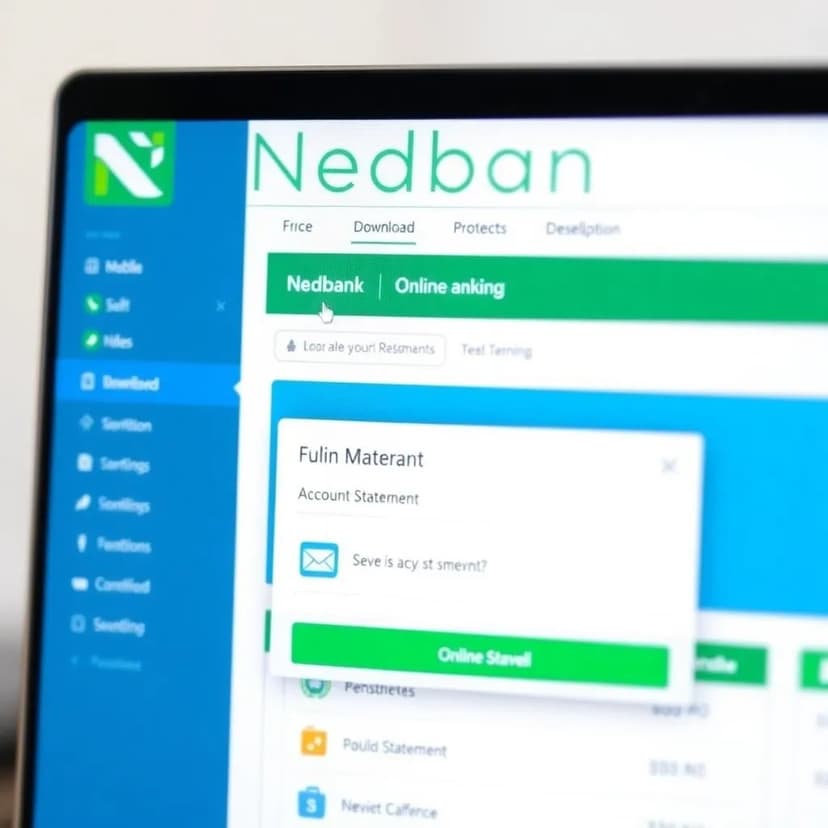
Before converting anything, you need the PDF from Nedbank's online banking portal.
- Log in at nedbank.co.za or open the Nedbank Money app
- Go to My Accounts and select the account you need
- Click Statements in the left sidebar
- Choose your date range — most converters handle up to 12 months at once, but 3 months per file is more manageable
- Download as PDF (not CSV — the CSV from Nedbank's portal is formatted differently and this guide covers PDF conversion)
If you need a statement for a specific period for immigration or visa purposes, select a custom date range and download. Nedbank typically provides up to 5 years of statement history depending on your account type.
Tip: If you're on mobile and the portal won't show the download option, switch to desktop view or use a browser on your laptop instead. The Nedbank Money app sometimes restricts statement downloads to specific formats.
3 Methods to Convert Nedbank PDF to Excel
Method 1: Online Converter (Fastest — Recommended)
Convertbanktoexcel.com handles Nedbank's PDF format including multi-page statements. It extracts transaction dates, descriptions, debit amounts, credit amounts, and running balance automatically.
Time required: 60–90 seconds.
Steps:
- Go to convertbanktoexcel.com
- Upload your Nedbank PDF (drag and drop or click to browse)
- The converter processes the file and outputs an Excel file
- Download the Excel file — it opens directly in Microsoft Excel or Google Sheets
No account or login needed for basic conversion. The output includes all transactions exactly as they appear on the statement, formatted into clean rows.
Method 2: Nedbank's Built-in CSV Export
Nedbank's online banking portal can export transactions directly as CSV for some account types. This skips the PDF step entirely.
- Go to Transactions (not Statements) in your online banking portal
- Look for an Export or Download button at the top right of the transactions list
- Choose CSV or Excel format
- Set the date range and download
This method works well when it's available, but it isn't offered on all account types — investment accounts and some business accounts may not have it. If you don't see the export button, use Method 1 instead.
The CSV export gives you raw transaction data without the bank statement formatting, which is often better for importing directly into accounting software.
Method 3: Adobe Acrobat (Slower, Requires License)
If you have Adobe Acrobat Pro (not Reader), it can convert PDFs directly to Excel. For Nedbank statements, results vary — simple statements convert cleanly but statements with running balance columns or branch address details sometimes produce extra rows.
Steps:
- Open the Nedbank PDF in Adobe Acrobat Pro
- Go to Tools → Export PDF → Microsoft Excel
- Save the output file
- Open in Excel and clean up any extra rows from headers and footers
Adobe Acrobat costs R580–R900/month depending on the plan. Unless you're already using it for other purposes, Method 1 is faster and free.
Step-by-Step: Using the Online Converter for Nedbank
Here's the full process using the online converter for a typical Nedbank personal account statement:
1. Prepare the PDF
Download the PDF from Nedbank online banking as described above. Make sure it's the complete statement, not a mini-statement or provisional statement (those have different formatting and fewer transaction details).
2. Upload to the Converter
Go to convertbanktoexcel.com and upload the file. You can drag the PDF directly onto the upload area.
3. Processing
The converter reads the PDF and identifies transaction rows. For Nedbank statements, it correctly handles:
- Running balance column (doesn't merge it with the debit/credit columns)
- Page headers and footers (excludes them from the output)
- Multi-page statements (merges all pages into one continuous sheet)
- The "brought forward" balance line (keeps it as the first row for reference)
4. Review and Download
Once processing is complete, you'll see a preview of the extracted transactions. Verify the first few rows and the last few rows match what's on your statement. Then download the Excel file.
5. Open in Excel
The file opens in Microsoft Excel or Google Sheets. Columns are already formatted: Date (sortable), Description (full text), Debit, Credit, Balance.
For South African users: amounts are formatted in ZAR by default. You can change the currency symbol in Excel under Format Cells → Currency if needed.
Common Nedbank PDF Problems
Statement is a scanned image, not text-based
Older Nedbank statements (before 2020 approximately) were scanned images embedded in PDFs. These look like text but aren't — copying text from them doesn't work. The online converter handles these using OCR (optical character recognition), though accuracy can vary for very old or low-resolution scans. For best results, download a fresh digital statement from the portal.
Statement shows "no transactions" in the output
This usually means the PDF is password-protected. Nedbank sometimes applies a password to emailed statements. Open the PDF, go to File → Properties → Security, and remove the password protection before uploading. You'll need the password Nedbank sent you when they emailed it.
Transactions missing from specific pages
If a multi-page statement is missing transactions from one page, the PDF may have been generated with a rendering issue. Try downloading the statement again from the portal — a fresh download usually fixes this.
Running balance column is off by one row
This is a known quirk in some Nedbank statement versions where the running balance is printed one row below the transaction it belongs to. The converter corrects for this, but if you're converting manually, shift the balance column up by one row.
Monthly fee and VAT show as two separate rows
Nedbank's service fee is often listed as a debit, followed immediately by VAT as a second debit. In your Excel output they'll appear as two separate transactions. This is correct — they are two separate line items on the bank's side.
What to Do With the Excel File
Once you have the transactions in Excel, the most common next steps:
For bookkeeping and accounting: Import directly into QuickBooks, Xero, FreshBooks, or Sage using CSV format. Save the Excel file as CSV first, then import using each software's bank import feature. The bank statement to CSV guide covers the import process for major accounting platforms.
For reconciliation: Compare the Excel totals against your general ledger or accounting software. The bank statement reconciliation guide explains how to identify and fix common discrepancies.
For immigration or visa applications: You typically need the original PDF, not the Excel conversion. The converter output is for your own analysis — submit the original Nedbank PDF for official purposes.
For personal budgeting: Import into a spreadsheet template, add a category column, and build a pivot table by category. A month of categorized Nedbank transactions gives you a clear picture of where your money goes.
Nedbank Statement Formats Explained
Nedbank issues several different statement formats depending on your account type and how you request it:
Full Account Statement (PDF): The standard PDF downloaded from online banking or mailed monthly. Includes all transaction details, running balance, branch information, and account holder details at the top. This is what most people are converting.
Mini Statement: A summary showing only the last 5-10 transactions. Not useful for full conversion — get the full statement instead.
Provisional Statement: Available between formal statement dates. Looks similar to the full statement but is marked "PROVISIONAL" and may have slightly different formatting. Converts fine.
eStatement (email): Same content as the full statement but delivered by email as a PDF attachment. May be password-protected — check the email from Nedbank for the password.
Business Statement: Nedbank business accounts have a different header layout with VAT number and company registration. The transaction rows are identical — conversion works the same way.
Knowing which format you have saves time troubleshooting. Most conversion issues come from trying to convert mini statements or password-protected eStatements without removing the password first.
Nedbank Foreign Currency Transactions
If your Nedbank account has foreign currency transactions (USD, EUR, GBP, etc.), they appear on the statement in ZAR at the rate applied on the transaction date. The original foreign currency amount appears in the description column as part of the merchant detail.
When converting to Excel, the amounts in the Debit and Credit columns will be in ZAR — the converter doesn't modify amounts. The foreign currency detail in the description column is preserved exactly as it appears on the statement.
For users who need to track foreign currency exposure or reconcile against foreign invoices, add a manual column to your Excel output for the original foreign amount — you'll need to pull this from the description text.
Related South African Bank Guides
The same converter and methods work for other South African banks:
- ABSA: ABSA bank statement to Excel — covers ABSA's PDF format and common layout issues
- FNB: FNB statement to Excel — First National Bank statement conversion
- Standard Bank: Standard Bank OFX to Excel — includes OFX format which Standard Bank supports for direct software import
Each South African bank generates PDFs with slightly different formatting, but the online converter handles all of them.
Conclusion
Nedbank PDFs don't need to stay as PDFs. Upload to the converter, download the Excel file, and you have clean, sortable transaction data in under two minutes.
Try it free at convertbanktoexcel.com — no signup required. Upload your Nedbank statement and download the Excel file immediately.
For ongoing bookkeeping, pair the converter with an Excel template or import the CSV directly into your accounting software. Either way, the manual-entry step is gone.