
![Bank Statement Reconciliation: Fix Discrepancies [2026]](/_next/image?url=https%3A%2F%2Fconvertbanktoexcel.com%2Fapi%2Fuploads%2Fimages%2Faccountant-comparing-bank-statement-with-computer-spreadsheet-looking-for-reconciliation-discrepancy-1771446708260.jpg&w=1920&q=75)
Bank Statement Reconciliation: What to Do When Numbers Don't Match [2026]
You sit down to close the books. Your bank balance says $24,847.12. Your accounting software says $24,799.89. That's a difference of $47.23 — and now you have to find it.
I've seen clients waste three hours hunting for a $0.01 rounding error. I've watched small business owners second-guess every transaction for a week over a discrepancy that turned out to be a bank charge they forgot to record. Bank reconciliation discrepancies are frustrating, but almost every one of them has a logical explanation. The trick is knowing where to look.
This guide walks you through the full process: why reconciliation mismatches happen, how to find the exact cause systematically, how to fix it in your accounting software, and how to stop it from happening again.
Why Bank Reconciliation Matters (and Why It Goes Wrong)
Bank reconciliation is the process of comparing your internal accounting records against your bank statement to make sure they agree. Done monthly, it catches errors before they compound, flags fraud early, and gives you a clean picture of your actual cash position.
When the two don't match, it doesn't always mean something is wrong. Sometimes it's just timing. Your books might show a check you wrote on January 30th, but the bank won't clear it until February 3rd. That's normal. What's not normal is a difference that persists after you account for timing, or one that grows each month.
The most common reason reconciliations fail isn't fraud or big mistakes. It's small, overlooked items that accumulate: a monthly bank fee you forgot, a payment you entered twice, a vendor who cashed a check three weeks late. These are fixable. But you need a method.
The Most Common Causes of Reconciliation Discrepancies
Before you start digging, know what you're looking for. Most bank reconciliation discrepancies fall into one of these categories:
1. Timing differences
This is the most frequent cause and often the least serious. Outstanding checks are payments you've recorded in your books but the payee hasn't deposited yet. Deposits in transit are funds you've recorded but that haven't cleared the bank. Both are normal — they just need to be accounted for in your reconciliation.
2. Bank charges and fees not recorded
Monthly service fees, wire transfer charges, NSF fees, merchant processing costs — banks deduct these directly from your account. If you don't record them in your books as they happen, they show up as a discrepancy. A $15 wire fee you missed in October compounds into a confusing mismatch by December.
3. Duplicate transactions
A transaction entered twice is more common than you'd think. It happens when you manually enter a payment and also import bank transactions, or when a bookkeeper enters a bill payment and also records a bank transfer. The duplicate inflates one side of the ledger by the exact amount of the transaction.
4. Transposition errors
You recorded $1,245.00 but the actual amount was $1,254.00. The difference is $9.00 — and transposition errors are often divisible by 9. If your discrepancy divides evenly by 9, start checking for transposed digits.
5. Payments to the wrong account
A payment applied to the wrong bank account in your software doesn't show on the statement for the account you're reconciling. The amount disappears from your books without appearing in the bank data.
6. Currency conversion errors
If you deal with international payments, exchange rates at the time of recording vs. the time of clearing can create small but persistent discrepancies. These require matching the exact converted amount on the statement.
7. Fraudulent or unauthorized transactions
Unrecognized charges do appear on bank statements. Always treat an unfamiliar transaction as potentially unauthorized until confirmed otherwise.
Step 1: Get an Accurate Digital Copy of Your Bank Statement
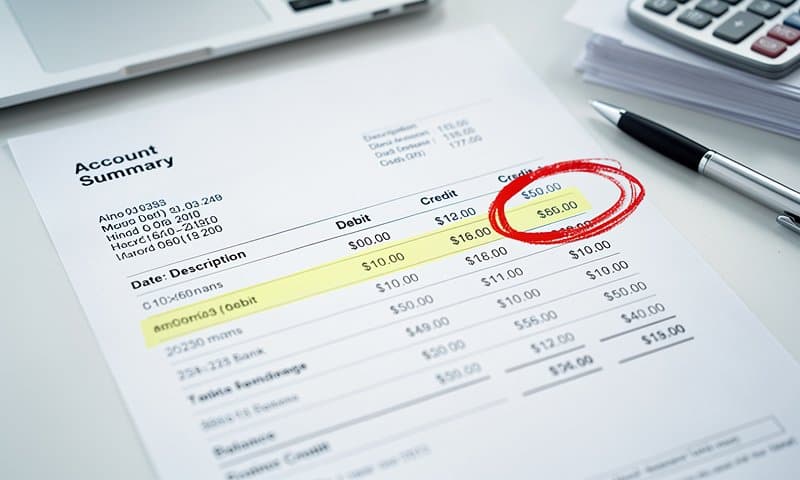
You can't reconcile what you can't read clearly. The first step is getting your bank statement into a format you can actually work with.
Most banks provide PDF statements. PDFs are fine for reading, but reconciliation requires comparing numbers side by side — which means you need the data in rows and columns, not locked in a PDF.
Your options:
- Download a CSV directly from your bank. Many banks offer this under "Download Transactions" or "Export." The format varies widely, and some banks only export 90 days of history.
- Import the statement into your accounting software. QuickBooks, Xero, and most modern accounting platforms accept OFX, QFX, or CSV bank feeds. If you haven't set this up, now is the time — it cuts reconciliation time dramatically. You can import bank statement into accounting software directly from most major banks.
- Convert your PDF bank statement to Excel. If your bank only provides PDFs and no export option, you'll need to convert it. A good converter extracts every transaction with the correct date, description, and amount — no manual re-entry. Convert bank statement to Excel for reconciliation to get a clean, editable file you can compare directly against your books.
Once you have the statement data in Excel or a comparable spreadsheet, you're ready to start matching.
Step 2: Match Transactions Line by Line
Open two lists side by side: your bank statement transactions and your accounting software transactions for the same period.
For each transaction, you're looking for a match on three criteria:
- Date (within a reasonable window for clearing times)
- Amount (exact match, to the cent)
- Description or payee (partial match is fine — bank descriptions are often truncated)
Manual matching in Excel:
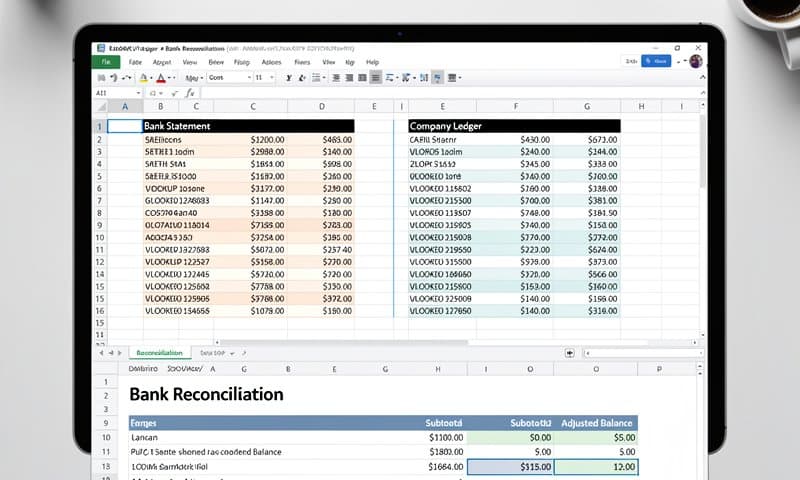
If you've exported both lists to Excel, use a VLOOKUP to flag matches. For example, if your bank amounts are in column B of Sheet1 and your book amounts are in column B of Sheet2:
=IFERROR(VLOOKUP(B2, Sheet2!$B:$B, 1, FALSE), "NO MATCH")
This returns the amount if found in Sheet2, or "NO MATCH" if it doesn't appear. Sort by the result column to group all unmatched items together.
You can also use conditional formatting to highlight rows where the amount in column B doesn't exist in your other list. Color-coded mismatches are much faster to spot than scanning rows manually.
In accounting software:
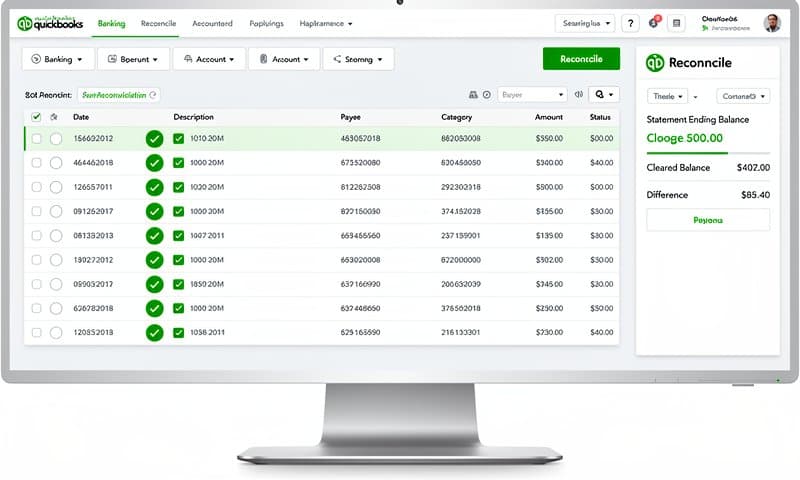
QuickBooks, Xero, and similar platforms have built-in reconciliation screens that show your statement transactions on one side and your book entries on the other. You check off matches. Anything left unchecked at the end is a discrepancy.
Mark every transaction you can confirm. When you're done, the items left unmarked are your problem list.
Step 3: Find the Discrepancy (Systematic Method)
You've matched what you can. Now you have a difference — let's say it's $134.50. Here's how to track it down without losing your mind.
Start with the total difference, then work backwards.
Check if the difference equals a single transaction. Search your book entries and your bank statement for any transaction that's exactly $134.50 (or close to it). A single missing or duplicate entry is the most common cause.
Check if the difference is exactly double a transaction amount. A difference of $134.50 that equals 2 × $67.25 suggests a duplicate — you recorded a $67.25 payment twice.
Check for transposition. Is $134.50 divisible by 9? $134.50 ÷ 9 = 14.94. Not in this case, but it's a quick check worth doing.
Look at the sign. Is your book balance higher or lower than the bank? If your books show more cash than the bank, you have either an unrecorded expense or a payment your books recorded that the bank doesn't show yet (outstanding check). If the bank shows more, you might have unrecorded income or a deposit in transit.
Filter by amount range. In your unmatched list, sort by amount and look for anything in the $130-$140 range. You might have a $134.50 bank fee that didn't get recorded, or a payment entered as $134.50 that cleared as a different amount.
Check the date range edges. Timing differences cluster at the beginning and end of the statement period. Transactions from the last few days of the month often clear in the next period. Check your outstanding checks register and deposits-in-transit list against the difference.
Once you find the culprit, note exactly what it is: the transaction date, amount, description, and what's wrong (missing from books, duplicate, wrong amount, wrong account).
Step 4: Fix the Error in Your Accounting Software
The fix depends on what you found.
Missing bank charge or fee:
Create a new expense transaction for the correct date and amount. Categorize it appropriately (bank charges, interest expense, etc.). The entry reduces your book balance to match the bank.
Duplicate transaction:
Find both entries in your books and delete the one that shouldn't be there. Be careful: if one was already reconciled in a prior period, deleting it will throw off that period's reconciliation. In that case, create a reversing entry in the current period instead.
Transposition error:
Void the incorrect entry and re-enter it with the correct amount. If the payment has already cleared, you'll need an adjusting journal entry for the difference.
Outstanding checks older than 90 days:
Checks that have gone stale (typically 90-180 days depending on your bank) need to be voided and reissued, or written off to miscellaneous income if the payee is no longer claiming them. Check your state's unclaimed property laws before writing off old checks.
Payment applied to wrong account:
If a payment hit the wrong bank account in your software, find the entry and edit the bank account field. This moves it to the correct account and should resolve the discrepancy on both sides.
After making corrections, run your reconciliation again. The adjusted book balance should now match the bank statement ending balance, minus any legitimate outstanding items.
Step 5: Prevent Future Discrepancies
Finding and fixing a reconciliation discrepancy is one thing. Stopping it from happening every month is another.
Set up automatic bank feeds. Direct bank feeds pull transactions into your accounting software daily, in real time. You're not relying on manual entry or monthly batch imports. Most major US banks support this through QuickBooks, Xero, or third-party aggregators like Plaid.
Reconcile more often. Monthly reconciliation means a 30-day window for errors to hide. Weekly reconciliation means you're looking at 7 days of transactions at a time — much easier to spot the one thing that doesn't belong.
Establish a cut-off discipline. At month end, stop entering transactions for the prior month after a defined date (e.g., the 5th of the following month). Backdated entries are a major source of reconciliation confusion.
Use a consistent chart of accounts. Ambiguous account categories lead to transactions being posted to different places by different team members. Documented policies about what goes where reduce posting errors.
Download statements before reconciling. Always reconcile against the official bank statement, not just the running balance in your software. The statement is the authoritative record.
If you're still doing manual statement entry, that's the single biggest thing you can change. A bank reconciliation solution that converts your PDF statements automatically removes the data entry step entirely — and with it, most transcription errors.
When to Call Your Bank vs When It's Your Error
Not every discrepancy is your mistake. Sometimes the bank is wrong.
Call your bank when:
- You see a transaction you don't recognize and cannot identify after reviewing receipts, purchase history, and your team
- A charge appears twice in the same statement for the same amount and merchant
- A deposit you know you made doesn't appear on the statement
- The bank's ending balance doesn't match the previous statement's closing balance plus all the transactions listed
- You see an interest calculation that looks incorrect based on your balance and rate
It's almost certainly your error when:
- The discrepancy amount matches a transaction you can find in either your books or the statement
- The difference appeared in the same month you changed bookkeepers or accounting software
- The discrepancy is a round number (suspiciously round numbers often indicate missing fees or incorrectly posted payments)
- You have any new team members who've been entering transactions
If you do find an unauthorized transaction, dispute it in writing with your bank immediately. Most banks have a 60-day window for reporting errors on personal accounts, and up to 60 days for business accounts under UCC Article 4. Don't wait.
Tools That Make Reconciliation Faster
Accounting software with bank feeds:
QuickBooks Online, Xero, and FreshBooks all offer bank feed integrations that pull transactions automatically. The reconciliation screen in each lets you match and clear transactions with a click. This is the baseline for any business doing more than a handful of transactions per month.
Excel with imported bank data:
For businesses that prefer manual control, Excel remains powerful. The key is getting your bank statement into a structured format first. Once you have a clean two-column list (date, amount, description), VLOOKUP, COUNTIF, and conditional formatting do most of the work. The bottleneck is always getting the bank data out of the PDF and into a usable format.
Bank statement conversion tools:
Get your bank statement in Excel format — free, instant — and you skip the manual re-entry completely. Tools like ConvertBankToExcel extract transactions from PDF statements with 99.8% accuracy, handling even multi-page statements and unusual bank formats. The output is a clean Excel file with date, description, debit, credit, and balance columns — ready to use in your reconciliation workflow without editing.
Dedicated reconciliation software:
For finance teams handling multiple entities or high transaction volumes, tools like BlackLine, ReconArt, or Trintech automate the matching logic and flag exceptions. These are enterprise-grade and priced accordingly, but they eliminate most manual reconciliation work for large operations.
Conclusion
A bank reconciliation discrepancy is never fun to find, but it's almost always solvable. Start with the total difference. Work through the common causes in order: timing items first, then fees, then duplicates, then amounts. Use VLOOKUP in Excel or your accounting software's built-in reconciliation tools to narrow it down. Once you find it, the fix is usually straightforward.
The real goal is getting to a point where reconciliation takes 20 minutes per month, not two hours. That means clean data going in — which starts with an accurate, structured version of your bank statement.
Try it free today — no signup required — and see how much faster reconciliation gets when your bank statement is already in Excel before you start.
Frequently Asked Questions
What is a bank reconciliation discrepancy?
A bank reconciliation discrepancy is any difference between the balance shown in your accounting records and the balance shown on your bank statement for the same period. Discrepancies must be investigated and resolved to ensure your financial records are accurate.
How do I find a reconciliation discrepancy?
Start by comparing your book balance to your bank statement balance and calculating the exact difference. Then look for single transactions matching that amount, check for duplicates, review timing items (outstanding checks, deposits in transit), and scan for unrecorded bank fees.
What causes bank statement reconciliation issues most often?
The most common causes are bank fees not recorded in the books, outstanding checks that haven't cleared yet, duplicate transaction entries, and transposition errors where digits were swapped (e.g., $1,245 entered as $1,254).
How long should bank reconciliation take?
For a small business with 50-200 monthly transactions, reconciliation should take 20-40 minutes with proper tools and clean data. If it's taking longer, the bottleneck is usually data entry or formatting issues with the bank statement.
When should I call my bank about a discrepancy?
Contact your bank when you see transactions you don't recognize, when a confirmed deposit doesn't appear on the statement, or when you notice duplicate charges. For potential fraud, report it immediately — most banks have strict time limits for dispute claims.
Can I reconcile using only Excel?
Yes. Export your accounting transactions and convert your bank statement to Excel, then use VLOOKUP or COUNTIF formulas to match amounts. Conditional formatting highlights unmatched rows. This works well for small transaction volumes.
What is the difference between a bank error and a bookkeeping error?
A bank error is a mistake made by the financial institution — an incorrect charge, a processing error, or a missing deposit. A bookkeeping error is a mistake in your own records — wrong amount, duplicate entry, wrong account. Bank errors are rare but do happen. Always verify against the official statement before assuming it's your mistake.