
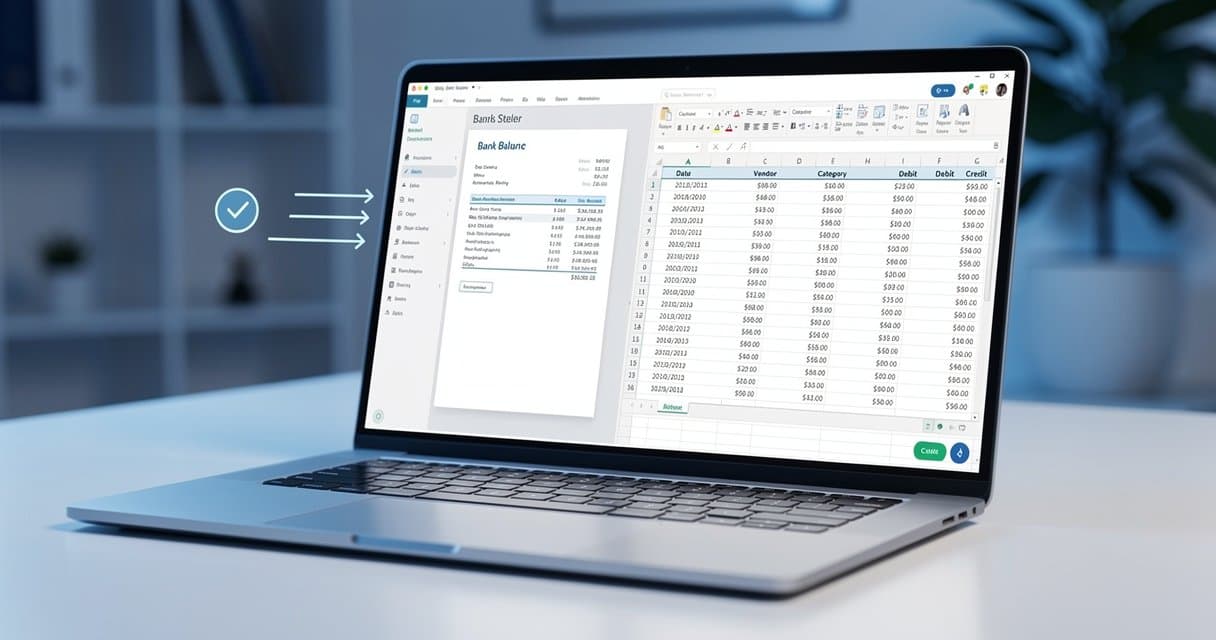
How to Convert Bank Statement PDF to CSV: Import Into Any Software
CSV (Comma-Separated Values) is the universal format for importing financial data into accounting software, budgeting apps, and data analysis tools. If you have bank statements in PDF format, converting them to CSV opens up countless possibilities for automation and analysis.
This guide covers everything you need to know about converting PDF bank statements to CSV format, including specialized instructions for popular accounting platforms like Xero and QuickBooks.
Why Convert Bank Statements to CSV?
Universal Compatibility
CSV files work with virtually every financial software:
- Accounting Software: QuickBooks, Xero, FreshBooks, Wave, Sage
- Spreadsheets: Excel, Google Sheets, LibreOffice Calc
- Budgeting Apps: YNAB, Mint, Personal Capital
- Custom Software: Any application that accepts data imports
Clean, Structured Data
Unlike PDF exports, CSV files contain:
- Properly separated columns
- Machine-readable dates
- Numeric amounts ready for calculations
- No formatting overhead
Easy Batch Processing
When you need to import multiple months of statements, CSV files can be:
- Merged together easily
- Processed by scripts
- Imported in bulk
- Validated automatically
How to Convert PDF Bank Statement to CSV
Step 1: Choose Your Conversion Method
Online Converter (Fastest)
- Visit ConvertBankToExcel.com
- Upload your PDF bank statement
- Select CSV as the output format
- Download your converted file
Manual Conversion
- Convert PDF to Excel first
- Open in Excel or Google Sheets
- Save As / Download as CSV
Step 2: Verify Column Mapping
Most accounting software expects specific column headers. Common CSV columns include:
| Column | Purpose | Example |
|---|---|---|
| Date | Transaction date | 2025-01-15 |
| Description | Transaction details | Amazon Purchase |
| Amount | Transaction value | -45.99 |
| Balance | Running balance | 1,234.56 |
| Reference | Bank reference | TXN123456 |
Step 3: Format for Your Target Software
Different software has different requirements. Below are formatting guides for popular platforms.
Converting Bank Statement to CSV for Xero
Xero accepts CSV files with specific formatting requirements.
Xero CSV Format Requirements
Date,Amount,Payee,Description,Reference
2025-01-15,-45.99,Amazon,Online Purchase,TXN123456
2025-01-14,2500.00,Employer Inc,Salary Deposit,SAL20250114
Steps to Format for Xero
- Date Format: Use YYYY-MM-DD or DD/MM/YYYY
- Amount: Single column with negative for debits
- Payee: Extract from description if separate
- No Currency Symbols: Remove $ or other symbols
Importing into Xero
- Go to Accounting > Bank Accounts
- Select your bank account
- Click Import a Statement
- Choose your CSV file
- Map columns to Xero fields
- Review and import
Converting Bank Statement to CSV for QuickBooks
QuickBooks Online and Desktop have slightly different requirements.
QuickBooks Online CSV Format
Date,Description,Amount
01/15/2025,Amazon Purchase,-45.99
01/14/2025,Salary Deposit,2500.00
QuickBooks Desktop Format
QuickBooks Desktop prefers IIF or QBO format, but CSV works too:
"Date","Description","Amount"
"01/15/2025","Amazon Purchase","-45.99"
"01/14/2025","Salary Deposit","2500.00"
Importing into QuickBooks
- Go to Banking > Upload Transactions
- Select your bank account
- Browse for your CSV file
- Map date, description, and amount columns
- Confirm and import
Free Online PDF to CSV Conversion
Looking to convert PDF bank statement to CSV online free? Here are your options:
Option 1: ConvertBankToExcel.com
Our converter offers free conversions with:
- No signup required for basic use
- Instant processing
- Support for all banks
- Direct CSV download
Option 2: Manual Two-Step Process
- Use a free PDF to Excel converter
- Open Excel file and Save As CSV
This works but requires more effort and may lose formatting.
Option 3: Google Drive
- Upload PDF to Google Drive
- Open with Google Docs
- Copy text to Google Sheets
- Download as CSV
Limitation: Often produces messy results requiring significant cleanup.
CSV Formatting Tips for Perfect Imports
Date Formatting
Different regions use different date formats. Ensure consistency:
| Format | Example | Common In |
|---|---|---|
| YYYY-MM-DD | 2025-01-15 | ISO Standard |
| MM/DD/YYYY | 01/15/2025 | USA |
| DD/MM/YYYY | 15/01/2025 | UK, EU, Australia |
| DD-MMM-YYYY | 15-Jan-2025 | International |
Amount Formatting
Keep amounts consistent:
- No currency symbols: 45.99 not $45.99
- Decimal point: 1234.56 not 1234,56
- Negative for debits: -45.99 or (45.99)
- No thousand separators: 1234567 not 1,234,567
Character Encoding
Use UTF-8 encoding for:
- International characters
- Currency symbols (if needed)
- Special characters in descriptions
Handling Commas in Descriptions
If transaction descriptions contain commas, they must be:
- Enclosed in quotes: "Amazon, Inc"
- Or use a different delimiter (semicolon)
Common Problems When Converting to CSV
Problem: Dates Not Recognized
Symptoms: Dates appear as text or numbers in your software.
Solution: Ensure consistent date formatting. Most software auto-detects ISO format (YYYY-MM-DD).
Problem: Negative Amounts Not Importing
Symptoms: All transactions show as positive.
Solution: Check your CSV uses negative numbers (-45.99) not parentheses ((45.99)), or vice versa depending on software requirements.
Problem: Special Characters Corrupted
Symptoms: Accented characters or symbols appear wrong.
Solution: Ensure your CSV is saved with UTF-8 encoding, not ANSI or other formats.
Problem: Extra Columns Causing Errors
Symptoms: Import fails with column mismatch errors.
Solution: Delete any extra columns (balance, reference) that your target software doesn't expect.
Advanced: Automating CSV Conversion
For accountants and businesses processing many statements, automation saves hours.
Python Script Approach
# Example: Basic PDF to CSV conversion
# (Simplified - use our API for production)

import pandas as pd

# After converting PDF to structured data
transactions = [
    {"date": "2025-01-15", "description": "Amazon", "amount": -45.99},
    {"date": "2025-01-14", "description": "Salary", "amount": 2500.00},
]

df = pd.DataFrame(transactions)
df.to_csv("bank_statement.csv", index=False)
API Integration
Our converter offers an API for automated processing:
- Upload PDF via API
- Receive structured JSON or CSV
- Import into your system automatically
- Process hundreds of statements without manual work
CSV vs Excel: Which Format Should You Choose?
| Feature | CSV | Excel (.xlsx) |
|---|---|---|
| File Size | Smaller | Larger |
| Compatibility | Universal | Microsoft-focused |
| Formatting | None | Full support |
| Multiple Sheets | No | Yes |
| Formulas | No | Yes |
| Import Speed | Faster | Slower |
Choose CSV when:
- Importing into accounting software
- Processing with scripts
- Maximum compatibility needed
- File size matters
Choose Excel when:
- You need to analyze data
- Formatting matters
- Multiple sheets needed
- Working primarily in Excel
Conclusion
Converting bank statements from PDF to CSV format is essential for anyone working with financial data. Whether you're importing into Xero, QuickBooks, or any other software, CSV provides the universal format that just works.
The key to successful conversion is:
- Using a reliable converter that understands bank statement formats
- Formatting dates and amounts correctly for your target software
- Verifying the data before importing
Ready to convert your bank statement to CSV? Try our converter now - it's fast, accurate, and works with statements from any bank.