
![FNB Bank Statement to Excel [2026 Guide]](/_next/image?url=https%3A%2F%2Fconvertbanktoexcel.com%2Fapi%2Fuploads%2Fimages%2Ffnb-first-national-bank-statement-to-excel-conversion-workflow-on-modern-laptop-south-africa-1773515097529.jpg&w=1920&q=75)
How to Convert FNB Bank Statement to Excel [2026 Guide]
FNB's PDF statements don't open in Excel. You download the file, try to open it, and get a mess of columns that don't line up.
Here's how to fix that — three methods, all tested, starting with the fastest.
Why FNB Statements Are Tricky to Convert
FNB (First National Bank) is one of South Africa's Big Four banks. Their PDF statements use a specific layout: multi-column transaction rows with a running balance on the right. Date, description, debit, credit, and balance sit in separate columns that look clean on screen but fall apart when you try to copy them into Excel.
Basic PDF converters choke on this structure. They either merge all columns into one long text string, scramble amounts into the wrong rows, or drop the running balance column entirely.
You need a tool that understands banking statement structure — not just generic text extraction.
Method 1: Online PDF Converter (Fastest, Recommended)
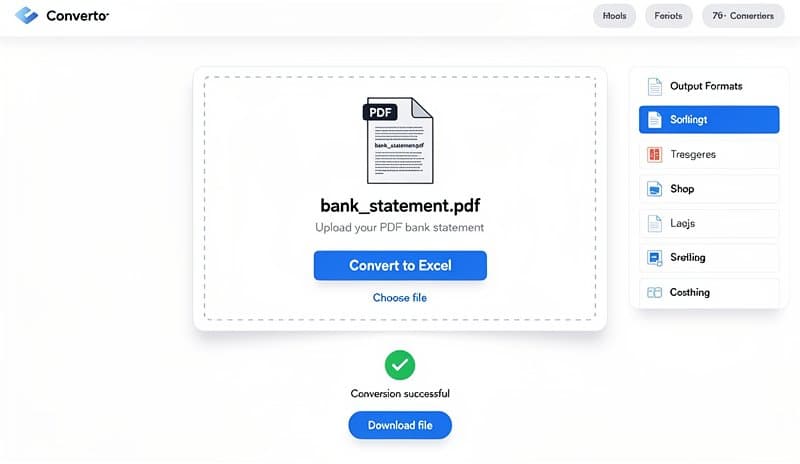
This takes about 90 seconds. Nothing to install.
- Download your FNB statement as a PDF (see next section)
- Go to convertbanktoexcel.com
- Upload your PDF
- Choose Excel or CSV as output
- Download the converted file
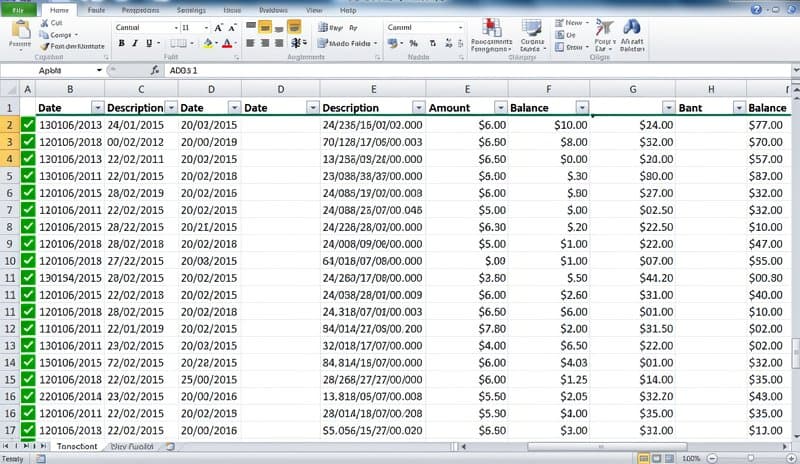
What you get: a clean spreadsheet with Date, Description, Debit, Credit, and Balance in separate columns — ready for Excel, Sage, Xero, or QuickBooks.
Tested with FNB's standard personal cheque account statement (orange header, FNB logo, multi-month format). Three months of transactions, zero data landing in the wrong row.
The converter uses OCR technology that recognises South African bank statement layouts specifically. It doesn't just try to read text — it understands the table structure and maps columns correctly.
How to Download Your FNB Statement
You need the PDF before converting. FNB provides it in two places.
FNB Online Banking (fnb.co.za):
- Log in with your username and password
- Click Accounts on the left menu
- Select the account you want
- Click Statements then Statement Period
- Set your start and end dates (FNB allows up to 3 years back)
- Select PDF as the format
- Click Download
The PDF downloads immediately to your browser's default download folder.
FNB App (iOS or Android):
- Open the FNB app and log in with your PIN or biometrics
- Tap the account on the home screen
- Tap the Statement icon — it's in the top right corner, looks like a document
- Set your date range
- Tap Download or Share
The app gives you a PDF that saves to your phone. Transfer it to your computer or upload directly from mobile.
FNB Statement Formats: What's Available
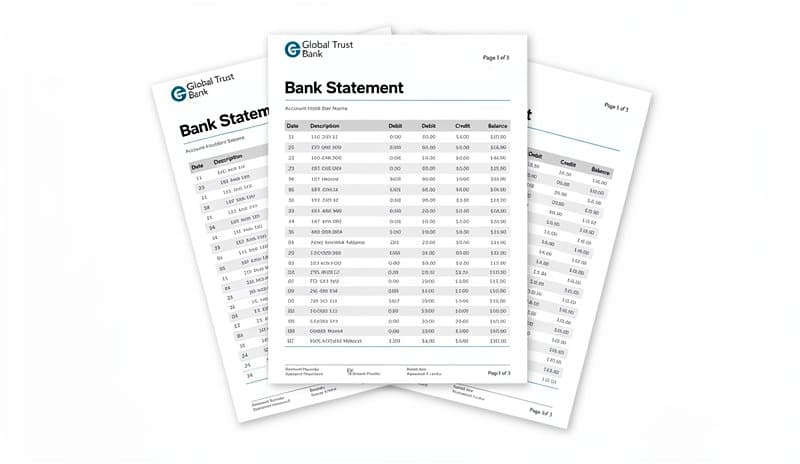
FNB offers more than one format, and knowing the difference saves time:
| Format | How to Get It | Excel Compatible? | Best For |
|---|---|---|---|
| PDF statement | Online Banking / App | Needs converter | Full reconciliation, accounting imports |
| CSV download | Online Banking only | Yes — direct | Basic transaction lists |
| OFX file | Not available directly | Needs conversion | QuickBooks, Sage import |
PDF: The most complete format. Includes opening balance, closing balance, transaction details, and account summary. Required for accountant submissions and formal records.
CSV: FNB's Online Banking has a hidden CSV option under Statements → Download CSV. Fast and opens straight in Excel. Missing the running balance column and account summary, so less useful for full reconciliation. Our guide on converting bank statements to CSV covers when CSV works and when you need the full PDF.
OFX: FNB doesn't offer OFX natively. If your accounting software needs OFX (QuickBooks Desktop, Quicken), you'll need to convert your PDF to OFX — the same converter handles this.
Method 2: FNB CSV Direct Download
For transaction-only data without account summaries:
- Log in to FNB Online Banking
- Go to Accounts → select your account → Statements
- Look for Download CSV (sometimes under a dropdown menu)
- Open the file in Excel
No converter needed. The CSV is plain text: Date, Description, Amount. Clean and usable.
The limitation: no running balance, no opening/closing balance, no account details. Fine for spreadsheet tracking. Not enough for formal reconciliation or software imports that need a complete statement.
Method 3: Manual Copy-Paste (Only for Small Amounts)
Works for 5 transactions or fewer. Painful beyond that.
- Open the FNB PDF in Adobe Reader or your browser's PDF viewer
- Switch Adobe to Select mode (Edit menu → Select All, or click the selection icon)
- Click and drag across the transaction rows
- Copy (Ctrl+C or Cmd+C)
- Paste into Excel
FNB's multi-column layout doesn't paste cleanly. You'll typically get all the text in one column, needing manual splitting with Data → Text to Columns. For a three-month statement (90+ rows), this is an hour of work. For anything more than a week of transactions, use Method 1.
Fixing Common Issues After Conversion
Even with a good converter, FNB statements sometimes need a few adjustments.
Dates showing as text: FNB uses DD/MM/YYYY. If Excel treats dates as text, select the date column, go to Data → Text to Columns → Fixed Width → Next → Next → Date: DMY → Finish.
Amounts with commas: South African number formatting uses commas for thousands (R1,234.56). Excel may import these as text. Fix: Find and Replace , with nothing (blank), then multiply the column by 1 to convert to numbers.
Blank rows between transactions: Some statements have a separator row between months. Select the column, go to Home → Find & Select → Go To Special → Blanks → Delete rows. Or just filter and delete manually.
Running balance not matching: If the balance column looks off, check whether the converter captured both debit and credit columns separately. Debits should be negative or in a separate column, not mixed with credits.
Importing FNB Data into Accounting Software
Once your Excel is clean, the next step depends on your software.
Xero: Export your Excel as CSV. In Xero, go to Bank Accounts → Import Statement → Upload CSV. Map the columns on the next screen. Xero accepts Date, Description, Amount (or Debit/Credit separately).
Sage: Similar CSV import process. Sage One accepts the same column structure. Go to Banking → Import Transactions.
QuickBooks: QBO and QuickBooks Desktop both prefer OFX format. If you need OFX, upload your FNB PDF to convertbanktoexcel.com and choose OFX instead of Excel. Same upload, different output.
Wave: Wave accepts CSV imports. Same process as Xero.
FNB vs Other South African Bank Statements
If you bank with multiple South African banks, here's how they compare for conversion:
| Bank | Statement Layout | Typical Conversion Quality |
|---|---|---|
| FNB | Multi-column, orange header | Good — standard layout |
| Capitec | Simpler table, color-coded | Excellent — very clean |
| Standard Bank | Multi-section, blue header | Good — consistent format |
| ABSA | Two-column layout, red header | Good — similar to FNB |
| Nedbank | Table-based layout | Good — consistent |
FNB's layout is representative of the Big Four. If you also use Capitec, the Capitec Bank Statement to Excel guide covers that bank's specific export options — Capitec actually makes it easier with a direct CSV export from the app.
Supported FNB Account Types
The converter works with all main FNB account products:
- Personal cheque accounts
- Savings accounts (FNB Savings Pocket, Money Maximiser)
- Credit card statements
- eBucks reward statements
- Home loan account statements
- FNB Business bank accounts
- FNB Private Banking accounts
Business accounts occasionally use a slightly different statement template. If columns look misaligned, try uploading a single-page sample first to verify the output before processing a full 12-month statement.
FNB-Specific Tips
A few things that catch people out:
Password-protected PDFs: FNB sometimes emails password-protected statements. The password is typically your South African ID number (13 digits). Open in Adobe Reader, enter the ID number, then save an unlocked copy before uploading to the converter.
Older statements: FNB statements from before 2019 use a slightly different layout. The converter handles these, but you may see extra blank rows or minor formatting differences.
Joint accounts: Joint account statements show both account holder names. This doesn't affect conversion — the data structure is the same.
FNB Forex accounts: Currency columns are slightly different (shows ZAR equivalent). These convert correctly, with the ZAR equivalent in the amount column.
Frequently Asked Questions
Can I convert FNB statements without creating an account?
Yes. Upload your PDF and download the result — no registration required.
How many months can I convert at once?
FNB typically issues statements covering 1-3 months per file. Upload multiple files if needed. For full-year reconciliation, download quarterly statements and convert each separately, then consolidate in Excel.
Does this work with FNB business accounts?
Yes — personal and business account statements both convert. Business statements sometimes have a different template, but the converter handles both.
Which other banks are supported?
FNB is one of 2,000+ banks supported globally, including all major South African, UK, US, and European institutions.
Is my data secure?
Files are processed for conversion and deleted from the server after the session. Financial data is not stored, sold, or retained.
Conclusion
FNB statements convert cleanly when you use the right tool. Three options: the 90-second online conversion at convertbanktoexcel.com, FNB's own CSV download for simple transaction lists, or manual copy-paste if you have just a few rows.
For accountants, bookkeepers, or anyone doing month-end reconciliation, the PDF converter gives you the complete data: dates, descriptions, debits, credits, running balance — all in separate Excel columns, ready to import or analyse.
Start converting for free — no signup, no software, works with all FNB account types.