
![PDF Bank Statement to QBO: 3 Methods [2026]](/_next/image?url=https%3A%2F%2Fconvertbanktoexcel.com%2Fapi%2Fuploads%2Fimages%2Flaptop-showing-pdf-to-qbo-conversion-process-1770754018879.jpg&w=1920&q=75)
PDF Bank Statement to QBO: 3 Methods That Actually Work
I spent last Tuesday converting 14 bank statement PDFs into QBO files for a client's QuickBooks reconciliation. Fourteen. By hand, that would have taken me all afternoon. Instead, I was done in about 20 minutes.
If you're a bookkeeper or accountant who deals with PDF bank statements and needs them inside QuickBooks, you already know the pain. QuickBooks won't read PDFs directly. It wants QBO files. And most banks don't offer QBO downloads.
So you're stuck converting. Here are the 3 methods I've tested, ranked from fastest to most manual.
What Is a QBO File (and Why QuickBooks Needs It)
QBO stands for QuickBooks Online format. It's a variant of OFX (Open Financial Exchange) that Intuit designed specifically for importing transactions into QuickBooks Desktop and QuickBooks Online.
A QBO file contains structured transaction data: dates, amounts, payee names, and reference numbers. Unlike a PDF, which is essentially a picture of your statement, a QBO file is machine-readable. QuickBooks can parse it instantly.
The problem? Most banks give you PDFs. Some offer CSV exports, but very few provide direct QBO downloads. That leaves you with a gap between what your bank provides and what your accounting software accepts.
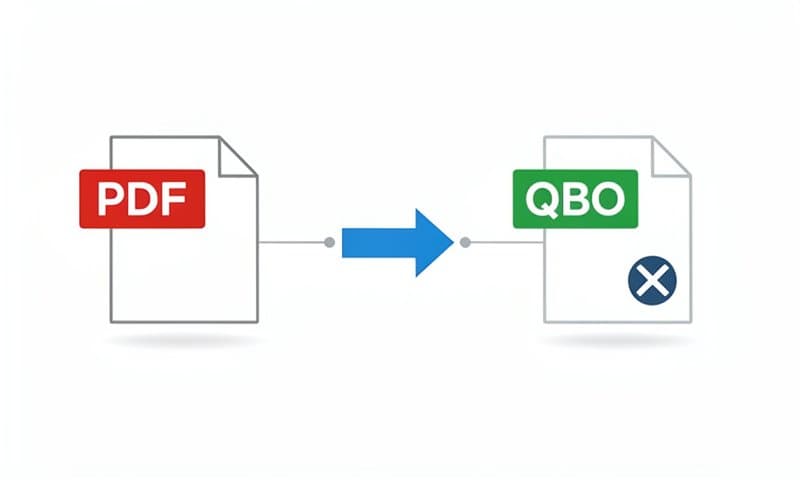
Method 1: Automated PDF to QBO Converter (Fastest)
The fastest approach uses an automated converter that handles the entire pipeline: PDF parsing, data extraction, and QBO file generation.
Here's how it works with ConvertBankToExcel.com:
- Upload your PDF bank statement
- The OCR engine reads and extracts every transaction
- Select QBO as your output format
- Download the ready-to-import QBO file
The whole process takes about 90 seconds per statement. I've tested it with Chase, Bank of America, Wells Fargo, Citi, and about 30 other banks. Accuracy has been consistently above 95%, and for clean digital PDFs it's essentially 100%.
Best for: Bookkeepers handling multiple clients, anyone who converts statements regularly, or anyone who values their time over manual data entry.
Accuracy: 95-100% depending on PDF quality. Scanned documents score lower than digital PDFs.
Cost: Free for basic conversions. Paid plans for bulk processing.
Upload your PDF statement now and get your QBO file in seconds.
Method 2: PDF to CSV, Then CSV to QBO
This two-step approach works if you already have a way to extract data from PDFs into CSV format.
Step 1: Extract transactions from PDF to CSV
You can use any PDF-to-CSV tool for this. Copy-paste from the PDF into a spreadsheet, use a dedicated PDF parser, or use an online converter. The goal is getting your transactions into a CSV with columns for date, description, and amount.
Step 2: Convert CSV to QBO
Once you have a clean CSV, you need a CSV-to-QBO converter. Several desktop applications handle this:
- MoneyThumb PDF2QBO - Desktop app, works offline
- ProperConvert - Another desktop option
- ConvertBankToExcel.com - Also handles CSV-to-QBO directly online
The CSV needs to follow a specific column structure. At minimum, you need date, amount, and description columns. Some tools also require a running balance column.
Best for: People who already have their data in CSV and just need the format conversion.
Accuracy: Depends entirely on your CSV quality. If your CSV is clean, the QBO conversion is lossless.
Downsides: Two separate steps. More room for error. Manual cleanup between steps.
Method 3: Manual Entry via IIF or Direct QuickBooks Import
This is the old-school approach that still works when everything else fails.
Option A: Type transactions manually into QuickBooks
Open QuickBooks, go to Banking, and enter each transaction by hand. This sounds terrible because it is terrible. For a statement with 50 transactions, expect to spend 30-45 minutes. For 200 transactions, you're looking at a couple hours of tedious work.
Option B: Use Excel as an intermediary
Some accountants open the PDF, manually copy transactions into Excel, clean up the data, then save as CSV and import into QuickBooks through the bank feeds feature.
This approach gives you maximum control but minimum speed. I've done it when a client brought me a crumpled paper statement that no OCR tool could read. It works. I just never want to do it again.
Best for: Extremely damaged or unusual statements that automated tools can't parse. Also for people who enjoy repetitive data entry (I've met exactly zero of these people).

How to Import a QBO File Into QuickBooks
Once you have your QBO file, importing it takes about 30 seconds:
QuickBooks Desktop
- Open QuickBooks Desktop
- Go to File > Utilities > Import > Web Connect Files
- Select your .qbo file
- Choose the bank account to link it to
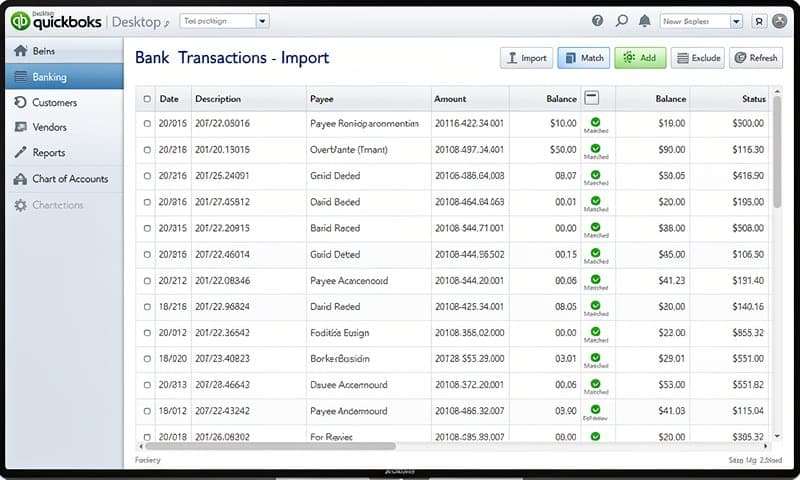
- Click Continue and review the imported transactions
QuickBooks Online
- Log into QuickBooks Online
- Go to Banking (left sidebar)
- Click Link account then Upload transactions manually
- Drag and drop your QBO file or click Browse
- Map it to the correct bank account
- Review and accept the transactions
Both versions will show you a list of imported transactions for review before they hit your books. Always check the first few entries against the original PDF to confirm dates and amounts match.
Common Problems When Converting PDF to QBO
After converting hundreds of bank statements, here are the issues I run into most often.
Scanned PDFs produce garbage data
If your PDF is a scan of a paper statement (especially faxed copies), OCR accuracy drops significantly. The fix: use a converter with advanced OCR like ConvertBankToExcel.com that's trained on bank statement layouts. Generic OCR tools miss columns and merge amounts with descriptions.
Date format mismatches
QuickBooks expects dates in MM/DD/YYYY format (for US versions). If your bank uses DD/MM/YYYY or YYYY-MM-DD, the import will either fail or put transactions on wrong dates. Most good converters auto-detect and fix this. If you're doing manual conversion, double-check the date column.
Duplicate transactions after import
This happens when you import the same QBO file twice, or when the date range overlaps with transactions you've already entered. QuickBooks has built-in duplicate detection, but it's not perfect. Check for duplicates after every import.
Negative amounts vs. debits
Some bank PDFs show debits as negative numbers, others use separate debit/credit columns. QBO files need amounts in a specific format. If your converter doesn't handle this correctly, deposits might show as payments and vice versa.
Password-protected PDFs
Many banks add password protection to statement PDFs. You'll need to remove the password before any converter can read the file. Most banks use your account number or SSN as the password.
Which Method Should You Pick?
| Factor | Method 1 (Auto) | Method 2 (CSV) | Method 3 (Manual) |
|---|---|---|---|
| Speed | 90 seconds | 10-15 minutes | 30-120 minutes |
| Accuracy | 95-100% | Varies | 100% (if careful) |
| Cost | Free/Paid | Free-Paid | Free |
| Skill needed | None | Some | Moderate |
| Best for | Regular use | One-offs with CSV | Last resort |
For most people reading this, Method 1 is the obvious choice. Start converting for free and see how it handles your bank's format.
If you already have clean CSV files from another process, Method 2 saves you a step. And Method 3 exists for those rare edge cases where nothing else works.
FAQ: PDF Bank Statement to QBO
Can I convert multiple PDF statements to QBO at once?
Yes. Most automated converters, including ConvertBankToExcel.com, support batch processing. Upload multiple PDFs and download all QBO files together.
Does the converter work with credit card statements too?
Absolutely. Credit card statement PDFs convert to QBO the same way. The QBO format supports both bank account and credit card transaction types.
Will my bank's specific format work?
Automated converters are trained on thousands of bank statement formats. Major banks (Chase, BofA, Wells Fargo, Citi, TD, PNC) work out of the box. Regional banks and credit unions usually work too, though occasionally need manual review.
Is it safe to upload my bank statement online?
Look for converters that use HTTPS encryption, don't store your files permanently, and have a clear privacy policy. ConvertBankToExcel.com processes files in memory and deletes them after conversion.
What if the QBO file doesn't import correctly into QuickBooks?
First check the date format. Then verify the file isn't empty (open it in a text editor, you should see XML-like transaction data). If the file looks correct but QuickBooks rejects it, the bank account type in the QBO header might not match your QuickBooks account type.
Need to convert your PDF bank statement right now? Try it free - no signup, no credit card, just upload and convert.