
![QBO to CSV Converter: Free Tool [2026]](/_next/image?url=https%3A%2F%2Fconvertbanktoexcel.com%2Fapi%2Fuploads%2Fimages%2Flaptop-showing-quickbooks-qbo-to-csv-conversion-workflow-professional-office-setup-1772309158772.jpg&w=1920&q=75)
QBO to CSV Converter: Free Tool [2026]
You exported your QuickBooks data as a QBO file. Now you want it in CSV—for Google Sheets, a different accounting tool, or just a clean spreadsheet.
QBO and CSV aren't the same format. QBO is a proprietary QuickBooks bank feed format. CSV is plain comma-separated text. You need a converter.
Here's how to do it, plus why you might want CSV over QBO in the first place.
Why Convert QBO to CSV?
QBO files work great if you're importing back into QuickBooks. But CSV opens everywhere:
- Google Sheets: CSV imports in seconds, QBO doesn't
- Excel: Native CSV support, no plugin needed
- Xero, Wave, FreshBooks: All accept CSV imports
- Data analysis tools: Python, R, Power BI all read CSV natively
- Custom systems: Any developer can parse a CSV in minutes
I've also run into situations where a client's accountant needs the data but doesn't use QuickBooks. CSV is the universal format. Everyone has a way to open it.
Method 1: Free Online Converter (Quickest)
This is the cleanest solution for most people.
- Go to ConvertBankToExcel.com
- Upload your QBO file
- Select CSV as your output format
- Download the result
Try it free now — no account, no software, no credit card.

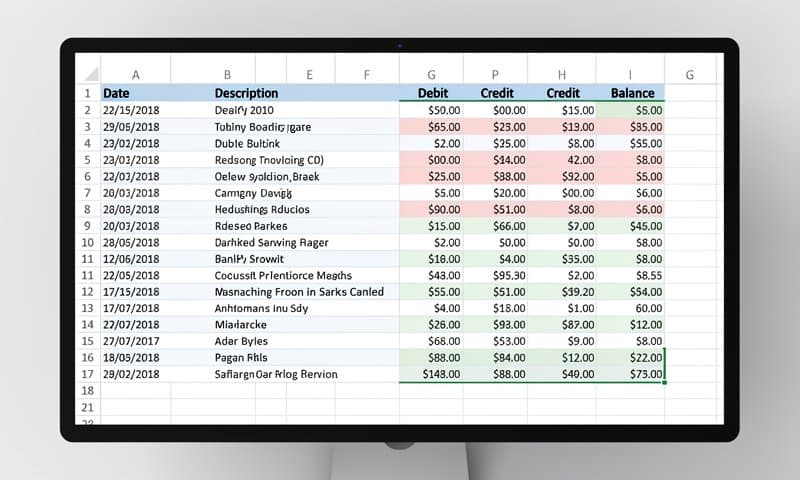
The output CSV will have columns for: date, payee/description, amount, and transaction type. Clean, ready to import anywhere.
What gets preserved from QBO:
- Transaction dates
- Payee names and descriptions
- Debit and credit amounts
- Transaction type (debit, credit, payment)
- Reference numbers (where included)
What doesn't carry over: QBO category assignments (those are QuickBooks-specific and don't exist in CSV). You'll need to re-categorize in your target software.
Method 2: Export Directly from QuickBooks as CSV
If you still have access to QuickBooks, skip the QBO file entirely.
In QuickBooks Desktop:
- Go to Reports → Banking → Transaction Detail by Account
- Set your date range
- Click Excel → Create New Worksheet
- Save as CSV from Excel
In QuickBooks Online:
- Go to Banking → select your account
- Click the Export icon (top right)
- Choose Export to CSV
This method skips the QBO format entirely and gives you a CSV directly. Use it when you have active QuickBooks access.
Method 3: Open QBO in a Text Editor, Convert Manually
QBO is a structured text format—similar to XML. For small files (under 100 transactions), a manual approach works.
- Open the QBO file in any text editor (Notepad, VS Code)
- Each
<STMTTRN>block is one transaction - Extract
<DTPOSTED>,<TRNAMT>,<NAME>,<MEMO>fields - Paste into a CSV manually
Realistic assessment: this is tedious. It works for 10-20 transactions. For anything larger, use Method 1.
What's the Difference Between QBO and CSV?
| Feature | QBO | CSV |
|---|---|---|
| Opens in Excel natively | No | Yes |
| Works in Google Sheets | No | Yes |
| Import to non-QB software | Limited | Universal |
| Preserves categories | Yes (QB only) | No |
| Human-readable | Partially | Yes |
| File size | Small | Small |
QBO is purpose-built for QuickBooks bank feeds. CSV is purpose-built for everyone else.
Common Issues
"The CSV has wrong date formats"
QuickBooks exports dates as YYYYMMDD in QBO (e.g., 20260115). The converter reformats these to standard MM/DD/YYYY or YYYY-MM-DD automatically.
"Negative amounts aren't showing correctly"
QBO uses positive/negative values for debits and credits. CSV can represent these as separate columns (Debit/Credit) or as signed numbers. Specify your preference in the conversion settings.
"My accounting software says the CSV format is wrong"
Different software expects different column orders. Our converter lets you map columns before downloading—drag date to column A, description to B, amount to C, etc.
"The QBO file is password protected"
Some bank-exported QBO files are locked to specific QuickBooks versions. You'll need to open them in QuickBooks first and re-export, or use the CSV direct export from Method 2.
When to Use QBO vs CSV
Keep QBO when:
- You're importing back into QuickBooks
- You need to preserve existing QuickBooks categories
- You're doing a bank reconciliation in QB
Convert to CSV when:
- Moving to a different accounting platform
- Sharing data with someone who doesn't use QuickBooks
- Importing into Google Sheets or Excel for review
- Building a custom report or analysis
Conclusion
QBO to CSV conversion takes about 30 seconds with the right tool. If you're moving data out of QuickBooks—to a new platform, to a spreadsheet, or to a client—CSV is your best format.
Convert your QBO file to CSV now — free, instant, no signup required.