
Bank Statement Conversion: A Complete 2026 Guide
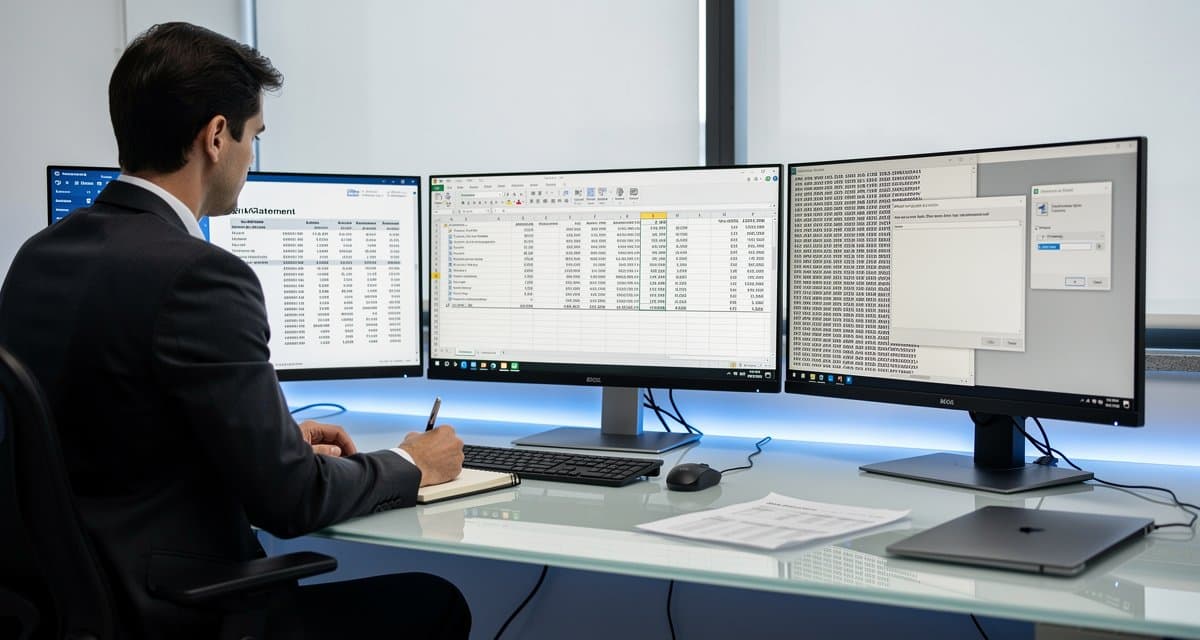
I used to spend Monday mornings copying numbers from PDFs into spreadsheets. Date. Description. Amount. Repeat 200 times. One wrong decimal and the whole thing was off.
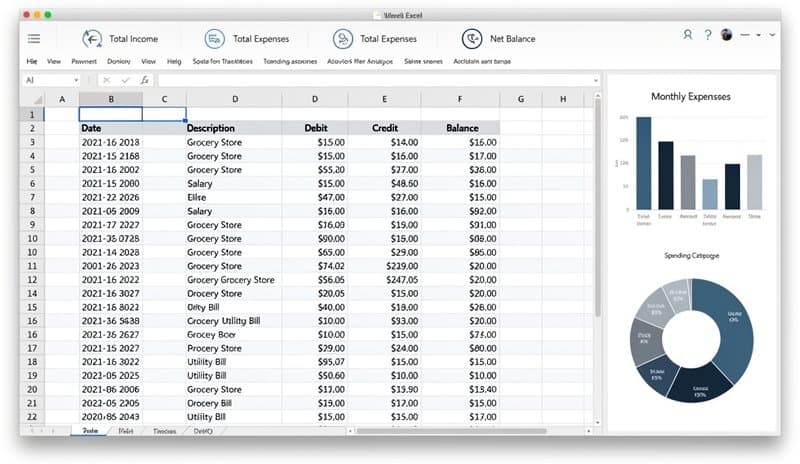
Bank statement conversion fixes that. You take a PDF — or sometimes an image, a printed page — and turn it into structured data: Excel, CSV, OFX, QBO, whatever your accounting software needs.
This guide covers every method I've tested, who each one suits, and where each one breaks down.
What Bank Statement Conversion Actually Is
A bank statement is a record of transactions — deposits, withdrawals, fees, transfers — over a given period. Banks issue them as PDFs. Some banks let you download CSV or OFX files directly. But many don't, or the format is wrong for what you need.
Conversion is the process of extracting that transaction data and reformatting it for a spreadsheet or accounting tool.
The tricky part: PDFs don't store data in rows and columns. They store characters at pixel coordinates. So "converting" a PDF isn't a simple copy-paste — it requires parsing. That's why some tools get it right and others produce garbage.
4 Methods for Bank Statement Conversion
Method 1: Automated Online Converter (Fastest)
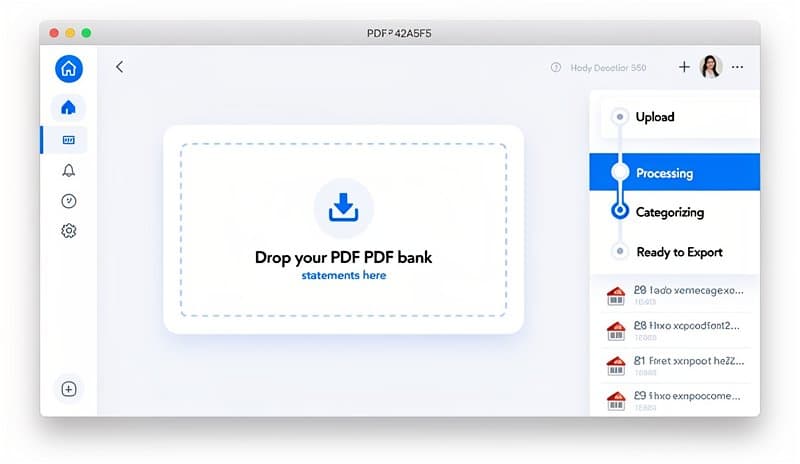
The fastest method by far. You upload your PDF, and an AI-powered tool extracts the transactions. The good ones use OCR plus layout analysis to identify column headers, amounts, and dates.
Try it free at convertbanktoexcel.com — upload your statement and download clean Excel or CSV in under 90 seconds. No signup required.
Best for: accountants processing multiple statements monthly, bookkeepers handling client files, anyone who values their time.
Watch out for: scanned PDFs with poor image quality sometimes need a retry. If your bank uses an unusual layout (two-column statements, tables without borders), accuracy can drop to 90-95% instead of 99%.
Method 2: Copy-Paste from PDF (Free, Slow)
Open the PDF in Adobe Reader or your browser. Select all text. Paste into Excel.
What you get: a mess. Columns collapse into a single column, amounts lose their position, dates scramble. You'll spend 30 minutes cleaning up what took 5 seconds to paste.
Best for: a single statement with fewer than 20 transactions and you're never doing it again.
Method 3: Bank's Own Export Tools
Many banks let you download transactions directly — but only from their online portal, and often with date range limits.
- Chase: Download up to 90 days as CSV or OFX
- Bank of America: CSV download from account activity
- Wells Fargo: QFX (Quicken format) or CSV
- HSBC: PDF only in most regions (no direct export)
The problem: this only works for your own accounts. If you're an accountant processing client statements, you're back to dealing with PDFs.
Method 4: Manual Excel Entry
The old way. Open the statement. Type each row. Double-check the totals.
100 transactions takes about 45 minutes if you're fast. Errors happen. This method exists only as a last resort.
Choosing Your Output Format
Not all conversion outputs are equal. What you need depends on where the data goes next.
| If you need this | Use this format |
|---|---|
| Budget tracking in Excel | XLSX or CSV |
| QuickBooks import | QBO or IIF |
| Quicken | QFX |
| MYOB / Xero | OFX or CSV |
| Tally ERP | XML |
| Google Sheets | CSV |
For a deeper look at how free vs paid bank statement converters stack up across these formats, that comparison breaks down exactly what each tier handles well.
Common Conversion Problems (and Fixes)
Problem: Transactions missing from the output
Cause: Multi-page PDFs where page breaks split a transaction row across two pages.
Fix: Use a converter that handles multi-page PDFs natively. Most online tools do. Manual copy-paste almost never does.
Problem: Amounts in the wrong column (debits showing as credits)
Cause: Banks use different conventions — some use separate Debit/Credit columns, others use a single Amount column with negative numbers for debits.
Fix: Check the converter's output settings. Good tools auto-detect the convention. Otherwise, a simple find-replace in Excel fixes it.
Problem: Dates in wrong format (DD/MM vs MM/DD)
Cause: Regional date formatting. A statement from a UK bank will use DD/MM/YYYY. US banks use MM/DD/YYYY. Excel often misinterprets these.
Fix: After conversion, format the date column explicitly in Excel (right-click → Format Cells → Date).
Problem: Scanned statements produce garbled text
Cause: The PDF is an image, not a text PDF. OCR is required.
Fix: Use a converter with OCR support. Our bank statement OCR parser guide covers exactly how this technology works and which tools handle scans best.
What Makes a Good Bank Statement Converter
I've tested about 15 tools over the past two years. The differences that actually matter:
Accuracy rate: The best tools hit 99%+ on standard digital PDFs. For scanned statements, 95%+ is excellent. Anything below 90% means manual cleanup that erases the time savings.
Format support: Can it output QBO, OFX, and CSV — not just Excel? Flexibility matters if you work with multiple accounting packages.
Multi-page handling: A 3-month statement is often 10-15 pages. The converter needs to stitch those pages together correctly.
Security: You're uploading financial documents. The tool should use HTTPS, not store files beyond the session, and ideally be SOC 2 compliant. For a full rundown on this topic, see PDF bank statement to Excel conversion which covers the security angle in detail.
Speed: Under 60 seconds per statement is the benchmark. Anything slower suggests the tool isn't using modern processing.
How to Verify Your Conversion is Accurate
Don't trust the output blindly. Spot-check with this 3-step process:
- Check row count: The number of rows in your Excel file should match the number of transactions on the original statement. Count a page manually and multiply.
- Verify totals: Sum the Amount column. Compare to the closing balance minus opening balance on the statement. They should match.
- Spot-check 5 random rows: Pick 5 transactions from the statement and verify the date, description, and amount are correct in your spreadsheet.
This takes 3 minutes and tells you immediately if something went wrong.
Who Needs Bank Statement Conversion
CPAs and bookkeepers: Processing multiple client statements monthly. Automated conversion saves 2-3 hours per client per month.
Small business owners: Reconciling accounts without a full-time accountant. Converting to Excel lets you build your own monthly P&L without paying for accounting software.
Loan applicants: Lenders increasingly want transaction data, not just PDFs. Converting to Excel lets you organize and present your finances clearly.
Finance teams: Month-end close requires pulling transactions from multiple banks. Automated conversion standardizes the format across all sources.
The Fastest Path Forward
If you have more than 5 statements to convert per month, manual methods don't make sense. The math is straightforward: a 100-transaction statement takes 45 minutes by hand, 90 seconds with a converter. At 10 statements per month, that's 7+ hours saved.
Start converting for free at convertbanktoexcel.com — handles PDF, scanned images, and most major bank formats. No credit card required.
For complex formats or specific accounting software integrations, the free vs paid comparison will help you decide whether the free tier covers your needs or if a paid plan is worth it.