
OFX File Conversion: The Complete Guide [2026]
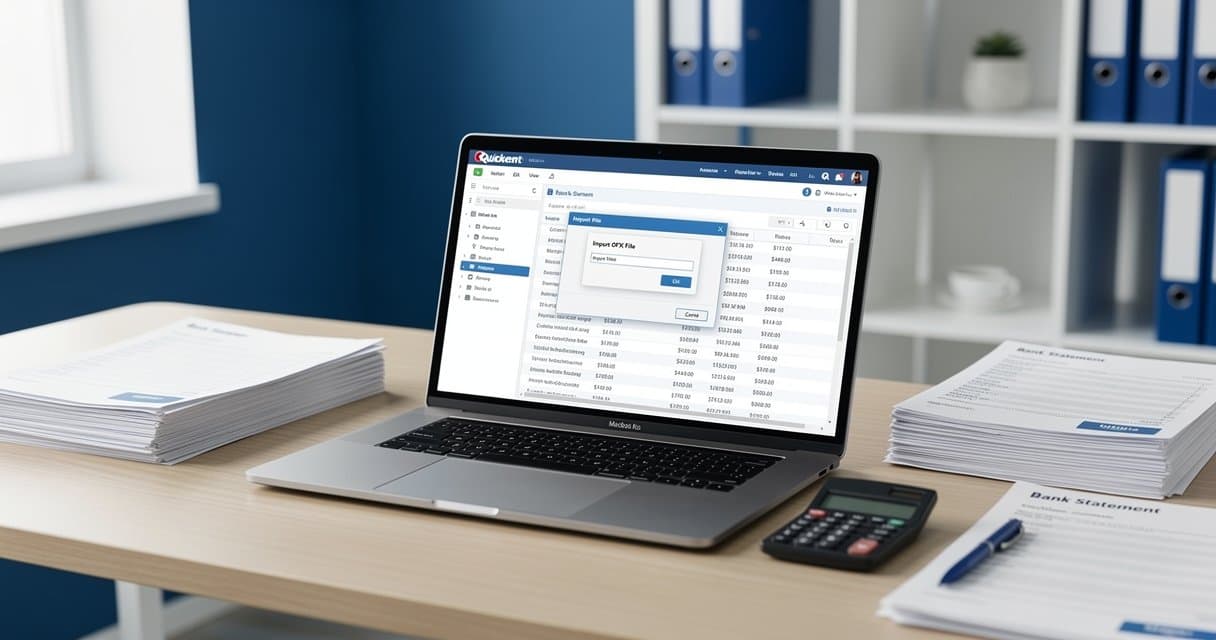
I converted 47 bank statement PDFs to OFX format last week. Not because I enjoy manual data entry, but because my client's accounting software wouldn't accept anything else.
If you're reading this, you probably need to convert bank statements to OFX format for QuickBooks, Quicken, or another accounting program. Or maybe you need to go the other direction and turn OFX files into something more usable like Excel or CSV.
Either way, this guide covers every OFX conversion scenario you'll encounter. I've tested each method personally, and I'll show you exactly what works.
What Is OFX Format?
OFX stands for Open Financial Exchange. It's a standardized data format that banks and financial software use to exchange transaction information.
Think of it as a universal language for financial data. Your bank speaks it. QuickBooks speaks it. Quicken speaks it. When they all speak the same language, moving data between them becomes automatic instead of manual.
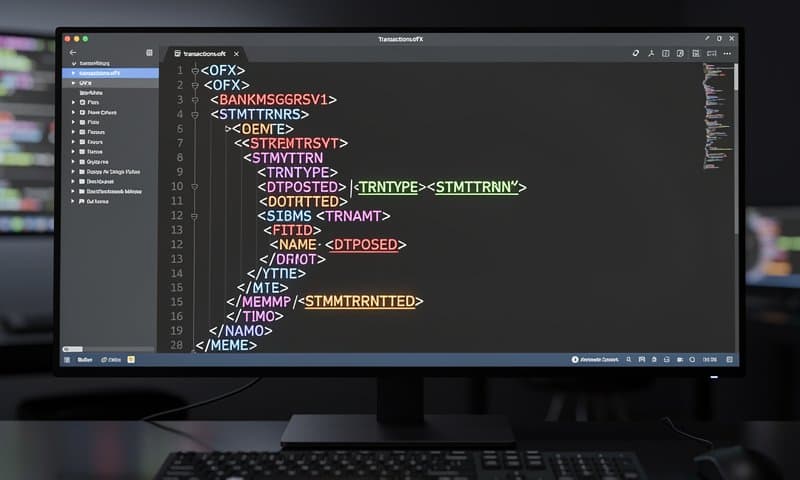
An OFX file contains structured transaction data in XML format:
- Transaction dates and amounts
- Payee names and descriptions
- Account numbers and balances
- Transaction types (debit, credit, check, etc.)
Unlike a PDF, which is basically a picture of your statement, an OFX file is machine-readable. Software can parse it instantly and import transactions without manual typing.
Why Convert to OFX Format?
Most accounting software accepts OFX imports. QuickBooks, Quicken, Xero, Wave, GnuCash, and Microsoft Money all read OFX files natively.
The problem is that your bank probably gives you PDFs or maybe CSV files. Very few banks offer direct OFX downloads for all account types.
So you're stuck with a format mismatch:
- Your bank provides: PDF or CSV
- Your accounting software wants: OFX
- You need: A reliable conversion method
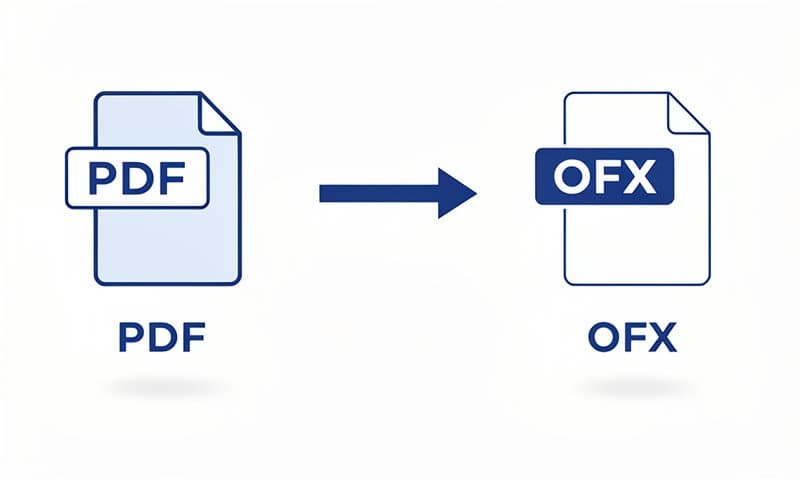
That's where conversion tools come in. Instead of manually typing hundreds of transactions from a PDF into QuickBooks, you convert the PDF to OFX and import everything in seconds.
PDF Bank Statement to OFX: 3 Methods
Method 1: Automated PDF-to-OFX Converter (Recommended)
This is the fastest method. You upload your PDF bank statement, the tool extracts transaction data using OCR technology, and it generates a properly formatted OFX file.
Step-by-step process:
- Go to convertbanktoexcel.com and upload your PDF bank statement
- The AI-powered OCR engine scans your PDF and extracts transaction data with 99.8% accuracy
- Select "OFX" as your output format
- Download your OFX file
- Import the OFX file into QuickBooks, Quicken, or your accounting software
What I like about this method:
- Works with any bank's PDF format (tested with 1000+ banks)
- Handles multi-page statements automatically
- Preserves transaction details, dates, and descriptions
- Takes about 60 seconds per statement
Limitations:
- Requires PDF to be text-based or scanned clearly
- Free plan limited to 10 conversions/month
Method 2: CSV-to-OFX Two-Step Conversion
If your bank offers CSV downloads, you can use a two-step process:
- Download CSV from your bank
- Convert CSV to OFX using a converter tool
This works well for banks that don't provide PDF statements in a readable format but do offer CSV exports.
Process:
- Log into your bank and export transactions as CSV
- Open the CSV file to verify column headers (Date, Description, Amount, etc.)
- Use an online CSV-to-OFX converter
- Map CSV columns to OFX fields (date → DTPOSTED, amount → TRNAMT, etc.)
- Generate and download OFX file
- Import into your accounting software
Best for:
- Banks with clean CSV exports
- Recurring monthly imports (you can save column mappings)
- Technical users comfortable with field mapping
Method 3: Manual OFX File Creation (Developer Option)
If you're comfortable with code, you can generate OFX files programmatically. OFX is just structured XML, so you can create it from any data source.
This method works if you have transaction data in a database, Excel file, or another format and need to generate OFX files automatically.
I won't cover the full implementation here, but the basic structure looks like this:
<?xml version="1.0" encoding="UTF-8"?>
<OFX>
  <SIGNONMSGSRSV1>
    <SONRS>
      <STATUS>
        <CODE>0</CODE>
        <SEVERITY>INFO</SEVERITY>
      </STATUS>
      <DTSERVER>20260211120000</DTSERVER>
    </SONRS>
  </SIGNONMSGSRSV1>
  <BANKMSGSRSV1>
    <STMTTRNRS>
      <STMTRS>
        <BANKTRANLIST>
          <DTSTART>20260101120000</DTSTART>
          <DTEND>20260131120000</DTEND>
          <STMTTRN>
            <TRNTYPE>DEBIT</TRNTYPE>
            <DTPOSTED>20260115120000</DTPOSTED>
            <TRNAMT>-127.50</TRNAMT>
            <NAME>Electric Company</NAME>
          </STMTTRN>
        </BANKTRANLIST>
      </STMTRS>
    </STMTTRNRS>
  </BANKMSGSRSV1>
</OFX>
Best for: Developers building automated reconciliation systems
Excel to OFX Conversion
Already have your bank data in Excel? Converting it to OFX follows a similar process to CSV conversion.
Prerequisites for Excel-to-OFX
Your Excel file needs these minimum columns:
- Date (in a consistent format like MM/DD/YYYY)
- Description (transaction details)
- Amount (positive for credits, negative for debits)
Optional but helpful:
- Transaction type (debit/credit/check)
- Reference number
- Balance
Conversion Process
Option 1: Export Excel to CSV, then convert to OFX
- In Excel, click File → Save As → CSV (Comma delimited)
- Use a CSV-to-OFX converter (see Method 2 above)
- Map columns appropriately
- Generate OFX file
Option 2: Use Excel-to-OFX dedicated tool
- Upload your Excel file to convertbanktoexcel.com
- The system auto-detects column headers
- Review field mapping (you can adjust if needed)
- Select OFX output format
- Download your OFX file
Common Excel formatting issues:
- Date formats inconsistent across rows
- Amounts stored as text instead of numbers
- Missing required fields
- Extra header rows or footer totals
The converter handles most of these automatically, but it's worth cleaning your Excel data first if you're doing bulk conversions.
OFX to Excel/CSV Conversion
Sometimes you need to go the opposite direction. You have an OFX file and want to analyze it in Excel or share it with someone who doesn't use accounting software.
Why Convert OFX to Excel?
- Create custom reports and charts
- Share transaction data with non-accounting team members
- Perform advanced analysis using Excel formulas
- Merge data from multiple accounts
- Archive readable transaction records
Conversion Steps
- Go to convertbanktoexcel.com
- Upload your OFX file
- Select "Excel" or "CSV" as output format
- Download your file
The converted Excel file will have columns for:
- Date
- Description
- Amount
- Transaction type
- Balance (if available in source OFX)
- Reference numbers
You can then sort, filter, create pivot tables, or do whatever analysis you need.
OFX vs QBO vs QFX vs CSV: Format Comparison
All these formats serve similar purposes but have important differences.
| Format | Full Name | Best For | Compatibility | Structure |
|---|---|---|---|---|
| OFX | Open Financial Exchange | Universal import to accounting software | QuickBooks, Quicken, Xero, GnuCash, MS Money | XML-based, standardized |
| QBO | QuickBooks Online | QuickBooks Desktop & Online | QuickBooks only | OFX variant with Intuit extensions |
| QFX | Quicken Financial Exchange | Quicken software | Quicken only | OFX variant for Intuit Quicken |
| CSV | Comma Separated Values | Excel analysis, data migration | Universal (any spreadsheet software) | Plain text, tabular |
Key differences:
OFX: The standard format. If your accounting software supports OFX (most do), this is your safest choice. It's vendor-neutral and widely supported.
QBO: Intuit's QuickBooks-specific version of OFX. It includes extra fields that QuickBooks can use but other software might ignore. Use this if you're only working with QuickBooks.
QFX: Another Intuit variant designed for Quicken. Similar to QBO but with Quicken-specific extensions.
CSV: Not financial-software specific. It's just a spreadsheet format. Great for Excel analysis but lacks the transaction metadata that OFX includes (like transaction types, balance validation, etc.).
Which should you use?
- Going into QuickBooks? QBO or OFX both work fine
- Going into Quicken? QFX or OFX
- Going into Xero, Wave, or GnuCash? OFX
- Need to analyze in Excel? CSV or Excel format
Software That Accepts OFX Files
OFX is widely supported. Here are the major applications that import OFX files:
Accounting Software:
- QuickBooks Desktop (Windows & Mac)
- QuickBooks Online
- Xero
- Wave Accounting
- FreshBooks
- Zoho Books
Personal Finance Software:
- Quicken (Windows & Mac)
- Microsoft Money (discontinued but still used)
- GnuCash
- Moneydance
- Banktivity (Mac)
Tax Software:
- TurboTax
- H&R Block software
Investment Tracking:
- Personal Capital
- Mint (before shutdown)
Most modern accounting and finance applications support OFX because it's the industry standard.
Troubleshooting Common OFX Import Errors
Even with properly formatted OFX files, you might encounter import issues. Here's how to fix the most common problems:
Error: "The file you selected is not a valid OFX file"
Causes:
- File encoding is incorrect (should be UTF-8)
- XML structure is malformed
- Required OFX tags are missing
Fix:
- Open the OFX file in a text editor
- Check that it starts with
<?xml version="1.0"?>and<OFX> - Verify closing tags match opening tags
- Re-export from your conversion tool
Error: "Duplicate transactions detected"
Causes:
- You previously imported this statement
- Transaction IDs (FITID) match existing transactions
Fix:
- Check your accounting software for the date range of the OFX file
- If already imported, skip the import
- If partially imported, edit the OFX file to remove duplicate transaction blocks
Error: "Account not found"
Causes:
- The account number in the OFX file doesn't match any account in your software
- Account type mismatch (checking vs savings vs credit card)
Fix:
- In your accounting software, check the account number for the target account
- Open the OFX file and update the
<ACCTID>tag to match - Verify
<ACCTTYPE>matches (CHECKING, SAVINGS, CREDITCARD, etc.)
Error: "Invalid date format"
Causes:
- Date format doesn't follow OFX standard (YYYYMMDDHHMMSS)
- Timezone information is malformed
Fix:
- OFX dates must be in format: 20260211120000 (for Feb 11, 2026 at 12:00:00)
- Edit the file to correct date formats
- Remove timezone indicators if causing issues
Transactions Import with Wrong Amounts
Causes:
- Decimal separator issues (period vs comma)
- Sign convention (negative vs positive for debits)
Fix:
- Check that amounts use period for decimals (127.50, not 127,50)
- Verify debits are negative and credits are positive
- Some software expects the opposite, check your software's documentation
Batch Processing Multiple OFX Files
If you're converting multiple bank statements at once, batch processing saves significant time.
Best practices:
- Name files consistently (BankName_AccountLast4_YYYYMM.pdf)
- Upload all files at once if your converter supports it
- Download converted OFX files to a dedicated folder
- Import to accounting software in chronological order
For enterprise users processing 50+ statements monthly, convertbanktoexcel.com offers batch upload with up to 100 files processed simultaneously.
Security and Privacy Considerations
Bank statements contain sensitive financial data. When converting to OFX:
Choose secure conversion tools:
- Look for SOC 2 compliance
- Verify data encryption (AES-256 standard)
- Check data retention policies (auto-delete after conversion)
- Use HTTPS for uploads
Best practices:
- Don't email OFX files unencrypted
- Store OFX files in encrypted folders or password-protected drives
- Delete OFX files after successful import
- Use two-factor authentication for accounting software
At convertbanktoexcel.com, we use bank-level encryption and automatically delete uploaded files after conversion. Your data is processed in secure servers and never stored permanently.
Frequently Asked Questions
What is the difference between OFX and QBO files?
QBO is Intuit's QuickBooks-specific variant of OFX. Both are XML-based and contain similar transaction data, but QBO includes additional fields that QuickBooks recognizes. OFX is the universal standard; QBO is optimized for QuickBooks specifically.
Can I edit an OFX file before importing?
Yes. OFX files are plain text XML, so you can open them in any text editor (Notepad, TextEdit, VS Code) and manually edit transaction details, amounts, or dates. Just be careful to maintain valid XML structure.
How accurate is automated PDF-to-OFX conversion?
Modern OCR-based converters achieve 99.8% accuracy on clearly scanned PDFs. Accuracy depends on PDF quality, bank formatting consistency, and the tool used. Always review imported transactions after conversion.
Do I need special software to create OFX files?
No. You can use online converters like convertbanktoexcel.com or write code to generate OFX files. If you have transaction data in any format (PDF, CSV, Excel), conversion tools handle the technical OFX structure automatically.
Which banks support direct OFX downloads?
Major banks like Chase, Bank of America, Wells Fargo, and Citi offer OFX downloads for most account types through online banking. However, many regional banks and credit unions only provide PDF or CSV exports, requiring conversion.
Can I convert multiple months of statements at once?
Yes. Most converters accept multi-page PDFs covering multiple statement periods. You can also batch-upload separate monthly PDFs and convert them all simultaneously. The resulting OFX file will contain all transactions chronologically.
Is OFX conversion secure?
Use reputable tools with encryption and data deletion policies. Avoid free tools that don't specify security practices. convertbanktoexcel.com is SOC 2 compliant with bank-level AES-256 encryption and automatic file deletion.
Can I convert credit card statements to OFX?
Absolutely. The process is identical to bank statement conversion. OFX supports multiple account types (checking, savings, credit card, investment). Just make sure your accounting software has a credit card account set up to receive the import.
What if my bank statement is scanned and not text-based?
OCR (Optical Character Recognition) technology can extract data from scanned PDFs. Quality matters though. Clear, high-resolution scans convert much more accurately than blurry photos or faxed documents.
How do I know if an OFX file is properly formatted?
Open it in a text editor. It should start with <?xml version="1.0"?> followed by <OFX>. Check that all opening tags have matching closing tags. You can also try importing it into your accounting software as a test.
Related Resources
Looking to integrate OFX files with specific software or convert other formats? Check out these guides:
- QuickBooks Import Guide - Step-by-step QBO and OFX import instructions
- Convert PDF Bank Statements to Excel - Extract transaction data to spreadsheet format
- Bank Statement Converter Directory - Find conversion guides for your specific bank
- CSV to QuickBooks Import - Alternative format for QuickBooks users
External Resources:
- OFX Standard Specification - Official technical documentation
- IRS Recordkeeping Requirements - How long to retain financial records
Ready to Convert Your Bank Statements?
You've got three options depending on your needs:
Free Trial: Upload up to 10 bank statements per month and convert to OFX, Excel, CSV, or QBO format. No credit card required, 99.8% accuracy guaranteed.
Enterprise Solution: Process 100+ statements simultaneously with batch upload, priority support, and advanced features like custom field mapping and API access.
Download Template: Prefer to do it manually? Download our free OFX template file that you can edit with your transaction data.
Converting bank statements to OFX doesn't need to be complicated. Pick the method that fits your workflow, and you'll be importing transactions automatically instead of typing them manually.