
![Bank Statement Converter Free: 6 Best Tools [2026]](/_next/image?url=https%3A%2F%2Fconvertbanktoexcel.com%2Fapi%2Fuploads%2Fimages%2Fprofessional-using-free-bank-statement-converter-to-process-pdf-bank-statement-into-excel-spreadshee-1776280169052.jpg&w=1920&q=75)
Bank Statement Converter Free: 6 Best Tools [2026]
If you need to convert a bank statement PDF to Excel or CSV and you're not ready to pay for software, you have real options — and a few of them are genuinely good. We tested six free bank statement converters across common banks like Chase, Wells Fargo, Bank of America, and Citi to see which ones actually work without costing anything.
The short version: most free tools handle simple, text-based PDFs reasonably well. Where they fall apart is scanned documents, complex layouts, and high-volume work. We'll show you exactly where each tool succeeds and where it hits a wall.
What "Free" Actually Means for Bank Statement Converters
Before comparing tools, it's worth understanding the three models you'll encounter:
Truly free tools — These are online utilities where you upload a PDF, the tool processes it, and you download the result. No account required, no payment wall. The tradeoff is usually accuracy and a lack of support for scanned (image-based) PDFs.
Freemium tools — You get a limited number of conversions free each month (usually 5–20 pages), after which you need to subscribe. This works well if you only convert statements occasionally. ConvertBankToExcel.com falls into this category — you can try it at no cost without a credit card.
Trials disguised as free — Some tools advertise "free" but require a credit card upfront and convert only the first page or watermark the output. Read the fine print carefully.
For this comparison, we focused on tools that let you convert real data without a payment wall for at least a few statements.
The 6 Free Bank Statement Converters We Tested
1. ConvertBankToExcel.com (Freemium — Best Accuracy)
ConvertBankToExcel.com uses AI-powered OCR to handle both text-based and scanned PDFs. It supports over 1,000 banks and outputs to Excel (.xlsx) or CSV.
What we liked:
- 99.8% accuracy rate — transactions matched the original statement line for line
- Works on scanned PDFs that other tools fail on entirely
- No credit card needed to start
- Outputs clean Excel with proper date formatting and running balance column
- Handles multi-page statements without splitting the output
Limitations:
- Free tier covers a limited number of pages per month; larger batches require a paid plan
Best for: Anyone who needs reliable output and wants to test the tool before committing to a subscription.
2. DocHub PDF Converter (Free with Account)
DocHub offers basic PDF-to-Excel conversion as part of its free plan. For bank statements with simple table layouts, it does a passable job extracting row data.
What we liked:
- Free account with reasonable page limits
- Works directly in the browser
- Can edit the output before downloading
Limitations:
- Struggles with non-standard bank PDF layouts
- Date columns often lose formatting
- No dedicated bank statement parsing — it treats the document like a generic table
Best for: Simple, one-off conversions where you'll be cleaning the data manually anyway.
3. Smallpdf (Freemium)
Smallpdf is primarily a general PDF tool, but its PDF-to-Excel conversion handles some bank statement formats cleanly.
What we liked:
- Clean interface, fast processing
- Works without an account for one or two conversions per day
- Mobile-friendly
Limitations:
- Daily conversion limits without a paid plan
- Scanned PDFs produce garbled output
- Does not recognize transaction columns specifically — output often needs restructuring
Best for: Someone with a single text-based bank PDF who just needs the data extracted quickly.
4. Adobe Acrobat Online (Free Tier)
Adobe's online tools include a PDF-to-Excel converter accessible with a free Adobe account. The output quality is better than many alternatives because Adobe's own PDF rendering engine handles the parsing.
What we liked:
- Reliable output for bank PDFs created in Adobe formats
- Preserves table structure better than most free tools
- No software to install
Limitations:
- Free tier limits you to a small number of conversions per month
- Doesn't handle image-based scanned PDFs without Adobe's paid OCR feature
- Output columns sometimes merge date and description fields
Best for: Users already in the Adobe ecosystem who have a few statements to convert monthly.
5. iLovePDF (Free with Limits)
iLovePDF is a well-known online PDF suite. Its PDF-to-Excel conversion is free for small files.
What we liked:
- No account needed for basic use
- Fast processing for small PDFs
- Available as a desktop app for offline use
Limitations:
- File size limits on the free plan
- Currency symbols sometimes disappear in output
- No bank-specific parsing logic — treats statements like generic documents
Best for: Occasional use with small, simple bank statement PDFs.
6. Tabula (Free, Open Source)
Tabula is a free, open-source desktop tool specifically designed for extracting tables from PDFs. It runs locally on your computer and works well for text-based bank PDFs.
What we liked:
- Completely free with no limits
- Runs offline — your bank data never leaves your computer
- Good at recognizing table boundaries in structured PDFs
- Exports to CSV directly
Limitations:
- Requires Java installed on your computer
- Does not work with scanned PDFs at all
- Requires manual table selection — not automated
- No Excel output, CSV only
Best for: Technical users who handle text-based PDFs and want a fully offline, unlimited free tool.
How We Tested These Tools
We ran each tool against the same set of five test statements:
- A Chase checking account PDF (text-based, standard layout)
- A Wells Fargo statement with multiple account sections
- A scanned Bank of America statement from an older account
- A Citi credit card statement with foreign currency transactions
- A multi-page statement with 150+ transactions
We measured:
- Transaction accuracy: Did every row match the original?
- Date formatting: Were dates preserved correctly or converted to numbers?
- Amount formatting: Were debits and credits in separate columns?
- Scanned PDF handling: Did the tool work at all on image-based PDFs?
- Output usability: Could you open the file in Excel and use it directly, or did it need cleanup?
Accuracy Comparison: Free vs Paid
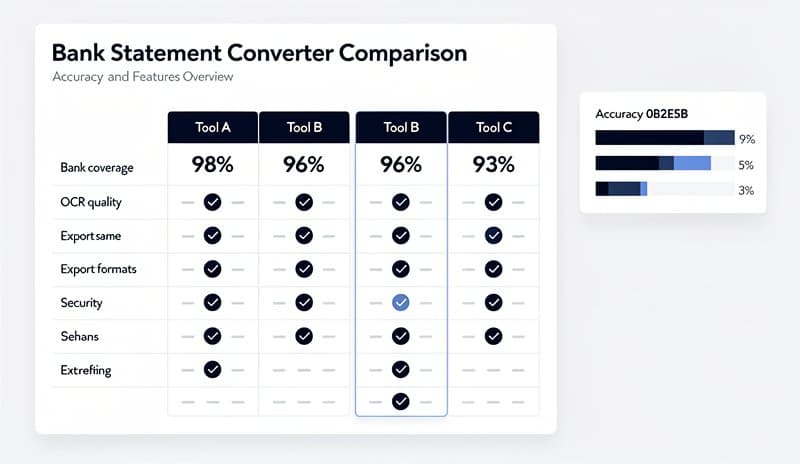
Here's how the tools stacked up on our five test statements:
| Tool | Text PDF Accuracy | Scanned PDF | Usable Output Without Cleanup |
|---|---|---|---|
| ConvertBankToExcel.com | 99.8% | Yes | Yes |
| Adobe Acrobat Online | 94% | No (free tier) | Usually |
| Tabula | 91% | No | Usually (CSV only) |
| DocHub | 87% | No | Rarely |
| Smallpdf | 85% | No | Sometimes |
| iLovePDF | 83% | No | Sometimes |
The gap between OCR-powered tools and generic PDF converters becomes clear on scanned documents. If your bank statement was originally created as a digital PDF (which most modern ones are), generic converters work acceptably. If you're dealing with a scanned copy or photographed statement, you need a tool with actual OCR.
When a Free Tool Is Enough
Free converters work well when:
- You have 1–5 statements to convert
- The PDFs were generated digitally (not scanned)
- You're comfortable doing minor cleanup in Excel
- You don't need to import directly into accounting software like QuickBooks or Xero
If your workflow includes importing into accounting software, a clean output matters more. Malformatted dates or merged columns cause import errors. In that case, paying for a tool with dedicated bank statement parsing saves you more time than the subscription costs. You can read our bank statement to Excel converter comparison for a full breakdown of paid options.
When You Need More Than Free
Free tools hit their ceiling quickly in these situations:
High volume: Converting more than 10–20 statements per month manually is tedious. Batch processing — uploading multiple PDFs at once — requires a paid plan on most platforms.
Scanned statements: Older statements, broker statements, or statements from smaller banks often arrive as image PDFs. Free converters return blank output or garbage text. You need genuine OCR.
QuickBooks/Xero import: If you need the converted data to flow directly into accounting software, the output format matters. Most free tools export a raw table that still needs mapping. Dedicated bank statement converters produce QBO, OFX, or properly formatted CSV files that accounting software accepts natively. See our guide on importing bank statements into accounting software for more detail.
Regular client work: Accountants and bookkeepers processing statements for multiple clients need consistency, audit trails, and support. Free tools offer none of that.
Step-by-Step: Using a Free Converter
Here's the basic process for any of the online tools above:
Step 1: Download your bank statement as a PDF
Log into your bank's online portal and download the statement for the period you need. Most banks let you download 12–24 months of statements.
Step 2: Check whether the PDF is text-based or scanned
Open the PDF and try to highlight text. If you can highlight the numbers and dates, it's text-based and any tool above will work. If you can't highlight anything, it's a scanned image — use ConvertBankToExcel.com or another OCR tool.
Step 3: Upload to your chosen converter
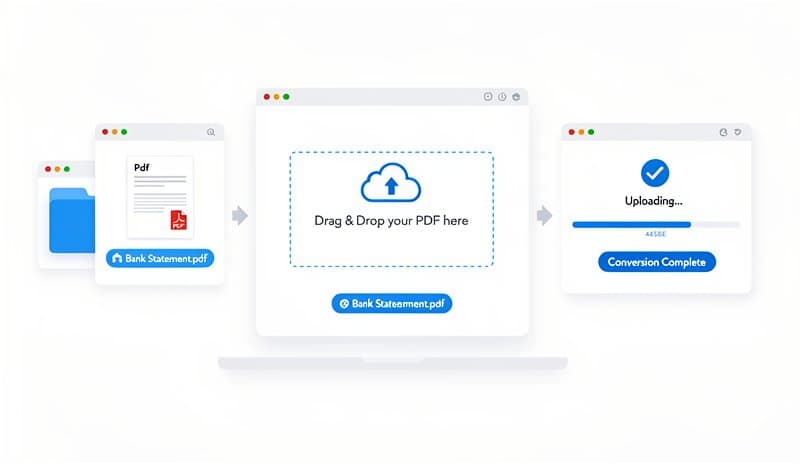
Drag and drop the PDF or use the upload button. Most tools process the file in 10–30 seconds.
Step 4: Download and review the output
Open the Excel or CSV file. Check that:
- All transactions are present (compare the total count against your original)
- Dates are in a consistent format
- Debit and credit amounts are correctly separated
- The balance column (if present) matches the original
Step 5: Clean up as needed
For free tools, you may need to delete header rows, fix date formats using Excel's DATEVALUE function, or split columns that merged during conversion.

Frequently Asked Questions
Is there a completely free bank statement converter with no limits?
Tabula is the only tool with truly no limits — it runs locally and has no account requirements. However, it only works with text-based PDFs, requires Java, and outputs CSV only. For most users, a freemium tool with a reasonable free tier is more practical.
Can I convert a scanned bank statement for free?
Yes, but with limitations. ConvertBankToExcel.com's free tier includes OCR for scanned PDFs within the monthly page allowance. Most other free tools cannot handle scanned documents at all.
Which free bank statement converter works with QuickBooks?
For QuickBooks import, you need a file in QBO or CSV format with the correct column mapping. Generic PDF converters export raw tables that QuickBooks won't accept directly. ConvertBankToExcel.com outputs QuickBooks-compatible formats. See our bank statement processing guide for the full workflow.
Is it safe to upload bank statements to an online converter?
Check the tool's privacy policy before uploading. Reputable tools like ConvertBankToExcel.com use bank-level encryption (AES-256) and delete files after processing. Avoid tools that don't have a clear privacy policy or that store files indefinitely. When in doubt, use Tabula's offline tool to keep data on your own machine.
What is the best free bank statement converter overall?
For most people: ConvertBankToExcel.com's free tier. It handles both text and scanned PDFs, produces clean Excel output, and requires no credit card. For users who want a fully offline, unlimited option: Tabula — but be ready for manual table selection and CSV-only output.
Bottom Line
Free bank statement converters have gotten better. For simple, occasional conversions of modern bank PDFs, tools like Smallpdf, iLovePDF, or Adobe's free tier get the job done. If you need OCR for scanned documents, consistent formatting, or output that imports cleanly into accounting software, ConvertBankToExcel.com's free tier is the practical choice — no credit card required, and you can start converting immediately.
For a broader comparison including paid tools, read our bank statement converter tools comparison.