
A client sends the file at 4:47 p.m. It’s a “PDF,” but it’s really a stack of phone photos trapped inside a PDF wrapper. Page one is tilted. Page two is shadowed. Page three is cropped so the running balance disappears. The month-end close is waiting, and the software everyone swears is “automatic” suddenly looks very manual.
This is the core problem with bank statement images. Most failures don’t start in the OCR tool. They start earlier, when the original image is blurry, skewed, compressed, split badly, or captured with no thought for how a machine will read columns, dates, and signs.
After years of cleaning up client statements, I’ve learned that the fastest workflow is rarely the one that starts with conversion. It starts with document prep, then controlled extraction, then a review pass that catches the predictable mistakes before they land in QuickBooks or Xero. If you skip those middle details, you get false confidence, imported junk, and a reconciliation mess that takes longer to unwind than manual entry would have.
The Hidden Cost of Bad Bank Statement Images
The usual story goes like this. A client insists the statements are “clear enough.” You open the file and see faint gray text on a dark background, with one page scanned sideways and another page chopped off at the margin. The request sounds simple. Convert bank statement images to Excel. The actual job is document salvage.

That pain is common. A 2025 AICPA survey on manual PDF data entry challenges indicated that 68% of accounting firms struggle with manual PDF data entry from bank statement images, wasting 12+ hours weekly, with error rates up to 15% on image-based documents. Those numbers line up with what many firms already know from experience. The ugly file costs more than the actual bookkeeping.
Bad input creates expensive downstream work
A poor scan doesn’t just slow extraction. It creates second-order problems:
- Missed transactions: Dense rows disappear when contrast is low.
- Wrong signs: Debits and credits get flipped when symbols are faint.
- Broken dates: OCR reads 08/03 as 03/08 or drops the year context.
- Merged fields: Description, reference, and memo collapse into one string.
- False confidence: The export looks clean enough until reconciliation fails.
The most expensive part is the review nobody planned for. Staff end up tracing balances line by line because the original image never gave the software a fair chance.
Practical rule: If the statement is hard for a tired bookkeeper to read on a laptop screen, it’s too poor for reliable automation.
Most advice online misses the real issue
Search results for “bank statement images” are packed with stock visuals and decorative mockups, not operational guidance. Accountants don’t need another glossy picture of a fake statement on a desk. They need a repeatable workflow for intake, cleanup, extraction, and QA.
If your team is still retyping transactions from ugly PDFs, it’s worth tightening the intake side before buying more software. This is the same reason firms look for automated data entry software in the first place. The labor drain isn’t abstract. It’s sitting in your inbox as bad source files.
Preparing Bank Statement Images for Perfect OCR
The best OCR fix is often not an OCR fix. It’s a scanning fix.
A lot of accountants accept whatever file the client sends and hope the extraction tool can compensate. That’s backwards. Good bank statement images are built before upload.
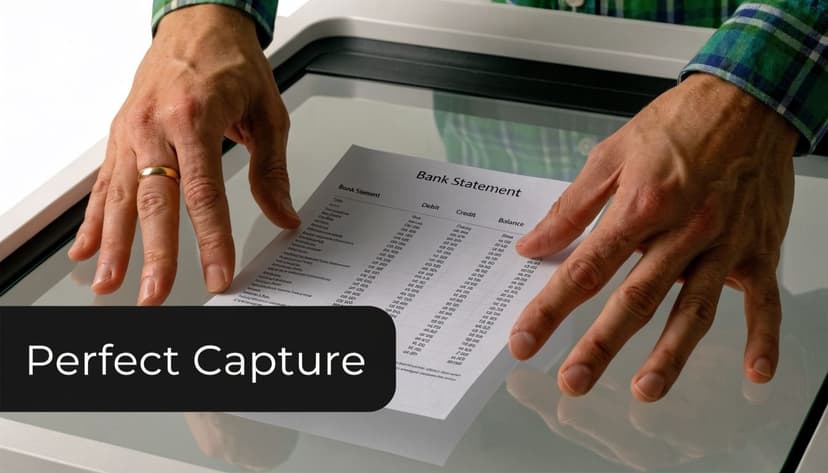
Physical statements still matter. In this note on printed bank statement images and paper statement decline, the shift to paperless banking is clear, but it also notes a 50% drop in mailed paper statements within six months in 2020. Even so, accountants still receive legacy records, mailed copies, and scans from clients who don’t use bank portals well. That means scanning technique still matters.
If you control the scanner use it properly
Flatbed scanners beat phone photos when the original is paper. They give you consistency, fewer shadows, and cleaner edges.
Use this baseline setup:
- Resolution first: Scan at 300 DPI for standard statements. Lower settings often blur small text and decimal points.
- Prefer grayscale for ordinary text documents: It usually preserves contrast without inflating file size. Use color only if the statement relies on colored highlights or shaded transaction markers.
- One page, one orientation: Don’t combine pages with different orientations in the same file unless the original content dictates it.
- Keep margins intact: Cropped running balances and partial account numbers create avoidable extraction failures.
- Turn off aggressive compression: “Smallest file size” settings often destroy the fine detail OCR needs.
What doesn’t work is the office copier default. Many all-in-one devices are set for speed, not fidelity. They flatten text, over-compress pages, and introduce background noise.
If the client uses a phone teach capture discipline
Phone scans can work. Casual phone photos usually don’t.
Send clients a short capture checklist instead of a vague request for “a clearer copy”:
- Place the statement on a dark, flat surface. White paper on a white countertop loses edges.
- Use even light. Overhead glare wipes out balances and date columns.
- Hold the phone square to the page. Angled shots distort columns and row spacing.
- Capture the full page. Missing edges often means missing totals.
- Review each page before sending. A blurred page in the middle of a multi-page file is enough to break extraction.
Adobe Scan is a practical option because it helps crop and flatten pages, but even good apps can’t rescue bad lighting or motion blur.
For teams handling mixed-quality client uploads, it also helps to understand where banking OCR goes wrong at the document level. This overview of OCR in banking is useful if you want to train staff on why quality and layout matter before import.
Salvage tactics for bad files you can’t replace
Sometimes the client is traveling, the banker is unresponsive, or the statement is old. You have to work with what you’ve got.
Use a quick triage process:
| Problem | What to do first | Why it helps |
|---|---|---|
| Crooked page | Deskew before OCR | Straight rows improve line detection |
| Faint text | Increase contrast | Helps distinguish characters from background |
| Dark gray background | Convert to cleaner grayscale or black and white | Reduces visual noise |
| Oversized PDF with blurry pages | Re-render pages carefully | Some “PDFs” are low-quality images inside a large file |
| Mixed page orientations | Rotate pages into one consistent direction | Prevents layout misreads |
A common mistake is over-editing. If you sharpen too aggressively, characters start breaking apart. If you push contrast too hard, commas and decimal points vanish. Aim for readability, not graphic perfection.
Here’s a good visual refresher on document capture technique before you hand scanning back to a client or junior staff member:
A client-facing checklist saves more time than another cleanup pass
Most firms should standardize intake instructions for bank statement images. Keep it short enough that clients will follow it.
Send all pages in order, avoid screenshots from banking apps, don’t photograph pages in dim light, and don’t crop margins.
That one instruction set prevents a surprising amount of rework. Better files don’t just improve OCR. They reduce review time, lower exception handling, and make the final import less risky.
Converting Images to Structured Data Step-by-Step
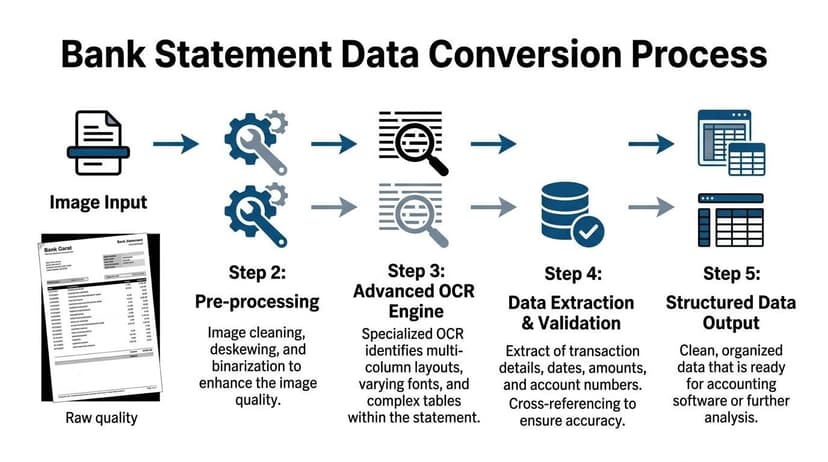
Once the image is clean enough, the core processing begins. At this stage, basic OCR and statement-aware extraction diverge.
Simple OCR tools read characters. Bank statement conversion has to read structure. It has to identify opening balance, closing balance, transaction rows, date formats, debit and credit behavior, and sometimes multiple accounts inside one statement.
Bank statements are crowded documents. According to this bank statement data-density reference, business accounts can average 150 line items per month, or over 1,800 transactions a year per account. That’s exactly why manual entry from bank statement images doesn’t scale.
Why generic OCR tools fail on statements
A plain OCR app often gives you text that looks usable at first glance. Then you open the spreadsheet and see this:
- Dates stacked in one column but detached from amounts
- Descriptions broken across two rows
- Debits treated as positive values
- Running balances mixed into transaction amounts
- Header text inserted as fake transactions
That happens because bank statements aren’t simple paragraphs. They’re visual grids with inconsistent spacing and bank-specific labels.
The actual conversion workflow
A reliable process usually follows five stages.
Upload the cleanest source available
If you have both a raw phone scan and a portal PDF, use the portal PDF. If all you have is an image-based PDF, upload the cleaned version, not the untouched original with shadows and skew.
At this stage, the goal isn’t convenience. It’s preserving transaction geometry so the tool can detect rows correctly.
Let the system detect the layout
A statement-aware converter should identify where the transaction table begins and ends, separate summary areas from activity rows, and recognize whether the file contains one account or several.
This is the first place weak tools break. They treat the statement as one text block. Better systems map zones before they extract anything.
Extract fields with context
Good extraction doesn’t just capture text. It assigns meaning:
- Date
- Description
- Amount
- Debit or credit direction
- Running balance
- Account identifiers
- Statement period
That context matters because many statements don’t explicitly label every line in a machine-friendly way. Some use one amount column. Others use separate withdrawal and deposit columns. Some bury the year in the statement header instead of each row.
A bank statement converter should understand the table, not just read the page.
Review confidence and exceptions
These measures enable professionals to avoid messy data imports. If the tool offers confidence scoring, use it. Low-confidence rows deserve human review before export.
The rows I check first are always the same:
- Lines with unusual spacing
- Transactions near page breaks
- Foreign-language descriptors
- Negative amounts shown with parentheses or trailing symbols
- Duplicate-looking rows created by header bleed or line wrap
The point of confidence review isn’t to manually redo the statement. It’s to focus attention where the machine is least certain.
Export in the right format for the next system
Excel and CSV are the broadest options for review. But they aren’t always the best import targets.
Choose export format based on the next step:
| Format | Best use | Watch-out |
|---|---|---|
| Excel | Human review, cleanup, audit notes | Easy for staff to alter unintentionally |
| CSV | Simple imports and universal compatibility | Loses some accounting-specific context |
| QBO | QuickBooks import workflows | Requires cleaner transaction typing |
| OFX | Banking and finance software imports | Field mapping has to be consistent |
| XML | Structured downstream processing | More technical to validate manually |
If your downstream process depends on structured accounting data, generic spreadsheets can become a halfway house. They’re useful, but they can also invite unnecessary hand edits. For teams that need structured machine-readable output for integrations, this guide on converting PDF to XML is worth reading.
What works better than “one-click” promises
The marketing pitch is always instant conversion. The practical reality is controlled automation.
What works:
- Starting with a readable image
- Using a statement-aware extraction tool
- Reviewing low-confidence rows
- Matching export type to the destination system
- Checking balances before import
What’s mostly a waste of time:
- Running bad scans through three generic OCR apps hoping one guesses correctly
- Manually fixing hundreds of rows after a poor first pass
- Exporting directly into accounting software without a review layer
- Assuming every bank layout behaves the same way
The output is only good if it reconciles
The final test isn’t whether the spreadsheet looks tidy. It’s whether the numbers behave like the original statement.
Check that the opening balance, ending balance, and transaction flow all make sense. If they don’t, the problem is usually one of four things: a missed row, a sign error, a date misread, or a split description that pushed values into the wrong columns.
That review step feels slow when you’re in a hurry. It’s still faster than cleaning a damaged ledger after import.
Troubleshooting Common OCR and Conversion Errors
Every experienced bookkeeper has seen the same ugly outputs. The tool imports all deposits as positive but also turns withdrawals positive. It merges merchant names with reference numbers. It decides that 04/05 is April 5 on one page and May 4 on the next. None of this is rare.
The reason is straightforward. Accountants deal with over 2,000 different bank statement layouts worldwide, and up to 30% of uploaded statements are low-quality scans, as noted in the earlier data reference on bank statement processing complexity. A troubleshooting process isn’t optional. It’s part of the job.
Start with symptom not software
When conversion fails, people often jump straight to “the tool is bad.” Sometimes that’s true. Often the faster route is to diagnose the failure pattern first.
Use this table as a first-pass triage sheet.
| Error Symptom | Likely Cause | Primary Solution |
|---|---|---|
| Description and memo merged | Tight column spacing or wrapped text | Reprocess with cleaner image and review row boundaries |
| Debits imported as positive | Statement uses one amount column without explicit sign markers | Check transaction direction against running balance |
| Dates swapped | DD/MM and MM/DD ambiguity | Confirm statement locale before final export |
| Missing rows near page bottom | Page break or cropped margin | Compare row count page by page against original |
| Running balance appears as amount | OCR confused adjacent numeric columns | Remap columns and validate opening to closing balance |
| Duplicate transactions | Header lines or continued rows parsed twice | Remove repeated page headers and inspect page transitions |
| Amount missing decimals | Low contrast or compression artifacts | Increase contrast and re-run extraction |
| Foreign-language labels ignored | Layout detection found the table but not the labels | Validate rows by balance behavior, not headers alone |
Four errors deserve special attention
Sign flips
This is the one that damages books fastest. Some statements show withdrawals in a dedicated column. Others show a single amount column and rely on context. If the extraction logic misses that context, expenses become income or vice versa.
The fastest check is balance logic. A withdrawal should move the running balance in the expected direction. If it doesn’t, review signs before anything goes into the ledger.
Date ambiguity
International clients create this problem constantly. A statement can be perfectly legible and still be wrong after import because the parser guessed the wrong date convention.
Don’t trust your eyes alone. Use the statement period, bank locale, and sequence of transactions to confirm whether the file is using day-first or month-first formatting.
If a statement has transactions that seem to occur out of order, suspect date parsing before you suspect duplicate activity.
Missing transactions at page breaks
Rows near the bottom of a page often get clipped, split, or visually merged with the top of the next page. This presents a common failure point for many “almost correct” exports.
Review page transitions manually when:
- The row count seems light
- One page ends without a clear subtotal or separator
- A long merchant description starts on one page and ends on the next
- A dense transaction day has suspiciously few entries
Merged text fields
This usually shows up in CSV exports where “Description,” “Reference,” and “Memo” become one long cell. That’s annoying but fixable if the amount and date stayed intact. It’s much worse when a broken description pushes numbers out of alignment.
When that happens, go back to the source image. Cleaner spacing often fixes more than post-export spreadsheet surgery ever will.
Don’t overcorrect in Excel
A lot of teams try to patch a bad conversion manually in spreadsheets. That’s acceptable for isolated exceptions. It’s a mistake when the underlying parse is broadly wrong.
Use Excel for targeted review, not as a rescue platform for structurally broken data. If a file is consistently misaligned, reprocess it or switch output format. This matters just as much when working with intermediary exports like text files. If your team still receives rough plain-text outputs from older systems, this guide on how to convert TXT to CSV can help normalize them before review.
A practical review order
When an export looks suspicious, inspect in this order:
- Opening and closing balance
- Transaction count by page
- Sign logic on debits and credits
- Date sequencing
- Only then, descriptions and memo detail
That order catches the damaging errors first. Cosmetic cleanup can wait. Ledger integrity can’t.
Optimizing Workflows with Batch Processing and QA
Single-file thinking is how firms stay stuck. One statement at a time feels safe, but it creates stop-start work, inconsistent reviews, and too much staff judgment on minor formatting issues.
A better system treats bank statement images as a managed intake queue. Files come in, get pre-checked, processed in batches, reviewed against exceptions, and moved into the accounting stack only after a defined QA pass.
Batch processing is how firms get their time back
Batch workflows matter most when you’re handling monthly bookkeeping across many clients, year-end catch-up work, or cleanup for tax season. Instead of opening, converting, renaming, and reviewing each statement individually, staff can group files by client, period, or entity.
That changes the work in three useful ways:
- Less task switching: Staff stay inside one review flow instead of bouncing between inbox, downloads, OCR, spreadsheets, and bookkeeping software.
- More consistent output: Similar statements get reviewed under the same rules.
- Faster exception handling: Problem files stand out because they’re the minority, not the whole workload.
Firms that never formalize batch review usually pay for it in senior review time. The preparer finishes “conversion,” then a manager spends too long checking basics that should’ve been standardized.
QA should be boring and repeatable
At this stage, many teams get sloppy. They trust a clean-looking spreadsheet and skip validation. That’s not efficiency. That’s deferring risk.
Build a QA sequence that every preparer follows:
Confirm statement identity
Check account holder, account number fragment, and period before touching the data.Verify balance continuity
Opening balance, transaction activity, and ending balance should agree with the original statement.Review exceptions only
Don’t reread every row if the tool provides confidence flags or exception markers. Focus on what needs judgment.Spot-check edge zones
Look at page breaks, the first few rows after headers, and the final rows before totals.Import only after review notes are closed
If something is unresolved, the file isn’t ready.
The goal of QA isn’t to prove the software wrong. It’s to prove the books right.
Reconciliation belongs inside the workflow
A lot of firms still treat reconciliation as a later accounting task. For statement conversion, that’s too late. Reconciliation is part of extraction QA.
If your workflow includes a balance check before import, you’ll catch most serious conversion failures early. That’s one reason many accounting teams also use automated bank reconciliation software alongside statement conversion. Extraction and reconciliation should reinforce each other, not live in separate silos.
The practical trade-off
Batch processing isn’t always ideal for one-off urgent jobs. If a partner needs one statement cleaned up in the next half hour, you process the one statement.
But for normal firm operations, ad hoc handling is inefficient. Standardized batch review wins because it reduces judgment calls, surfaces exceptions faster, and creates a process you can defend if a client or auditor asks how imported bank data was validated.
Security and Compliance for Client Bank Statements
A bank statement is not just another PDF. It contains account information, balances, transaction history, names, and sometimes address or employer data. Uploading that file to a random free converter is a professional risk, not a convenience.
That risk is getting harder to ignore. According to this reference on fraud pressure and secure handling of financial images, financial fraud cases surged 25% according to FBI data, and the same source stresses the need for 256-bit SSL and a zero-retention policy with auto-deletion of files for client confidentiality and compliance.

Free tools are often expensive in the wrong way
If a tool doesn’t clearly explain how it handles uploaded documents, assume the policy is not good enough for client financial records.
I look for these essential requirements:
- Encryption in transit: At minimum, 256-bit SSL for uploaded statement data.
- Zero-retention posture: Files should be deleted automatically, not stored indefinitely.
- Controlled access: Strong session controls and user authentication matter when teams share work.
- Clear deletion policy: “We may retain files for service improvement” is not acceptable for statement handling.
- Auditability: Staff should know who uploaded what and when.
Generic PDF tools often optimize for convenience, not fiduciary responsibility.
Compliance isn’t only a legal issue
Accountants usually think about security in terms of client trust first, regulation second. That’s fine. The practical conclusion is the same.
GDPR and CCPA expectations keep pushing firms toward tighter data handling. Even if a local engagement doesn’t trigger complex legal review, the standard should still be simple: collect the minimum, retain it for the shortest sensible time, and avoid exposing raw statements where structured data would do.
For a broader security perspective, this explainer on bank data breach threats and responses is useful background for firms reviewing how financial data can leak beyond the immediate bookkeeping workflow.
A short vetting checklist for statement tools
Before you approve any converter for client bank statement images, ask:
| Question | Acceptable answer |
|---|---|
| Are files encrypted during upload and processing? | Yes, with strong transport security |
| Are files retained after processing? | No, or only briefly with explicit deletion |
| Can staff access other clients’ files by mistake? | No, access should be segmented |
| Is there a documented deletion window? | Yes, and it should be clear |
| Does the vendor explain privacy controls plainly? | Yes, without vague language |
Client confidentiality doesn’t end when the PDF leaves your inbox.
A fast converter that mishandles statement data is not a productivity tool. It’s a liability.
Frequently Asked Questions for Bookkeepers
Can handwritten or very old statements be converted reliably
Sometimes. Usually not cleanly enough for blind import.
If the statement is faded, handwritten, or copied multiple times, treat automation as an assist, not a final record. Extract what’s readable, then verify against balances and totals. For very poor originals, manual entry of key fields may be safer than pretending the OCR result is dependable.
What should I do with mixed business and personal transactions
Don’t try to solve classification during OCR. First extract the statement accurately. Then classify transactions in the review layer or inside the accounting system.
Trying to separate personal and business activity during initial conversion creates too many judgment errors. Keep extraction factual. Keep categorization separate.
Is CSV enough or should I export to QBO or OFX
Use CSV when you want flexibility, spreadsheet review, or custom mapping. Use QBO or OFX when the next step is a direct accounting or finance-software import and you want less manual handling.
CSV is more forgiving. Structured financial formats are more efficient when the extracted data is already clean.
Can screenshots from banking apps work
Sometimes for one or two visible transactions. They’re poor source files for full statement extraction.
Screenshots cut off context, lose statement totals, and often omit the running balance. For bookkeeping work, ask for the full statement PDF or a proper scan.
What’s the fastest way to catch a bad conversion
Check balances first. Then inspect page breaks and dates.
If opening balance, activity, and ending balance don’t line up, stop there. Don’t waste time polishing descriptions in a dataset that’s already wrong.
Should I clean data in Excel or reprocess the statement
For a few exceptions, clean it in Excel. For recurring structural problems, reprocess the source.
That’s the dividing line. If the issue affects one or two rows, fix the rows. If it affects column logic, date interpretation, or sign handling across the file, go back to the image and run the conversion again.
If your team is tired of wrestling with messy bank statement images, ConvertBankToExcel is built for the actual accounting workflow, not a generic OCR demo. It converts scanned or digital statements into Excel, CSV, QBO, OFX, XML, and other structured formats, supports 2,000+ banks worldwide, and uses balance reconciliation plus confidence scoring so you can review exceptions instead of retyping transactions. For firms that need speed without giving up control, it’s a practical way to turn bad statement handling into a repeatable process.