

The last time I had to clean a “simple” TXT export from a bank, it looked fine until row 214, where one transaction description wrapped onto a second line and shifted every field after it. That is how txt to csv conversion usually goes. Easy for clean files, ugly for financial ones.
If you want to know how to convert txt to csv fast, the answer depends on one thing. Is your text file structured, or does it only look structured?
The Quickest Ways to Convert Simple Text Files
If the TXT file is clean, use Excel first. It has been the default choice for decades for a reason. The CSV format was formalized decades ago by IBM, and Excel helped make it mainstream; Microsoft’s own import tools have been available since Excel 97, and Excel’s Data > From Text/CSV workflow reduces manual parsing errors by an estimated 85% compared with using basic text editors for data structuring, according to Microsoft’s import and export guidance.

Use Excel when the file is already well behaved
This method works best when the file uses one consistent delimiter across all rows. Usually that means commas or tabs.
- Open Excel.
- Go to Data > From Text/CSV.
- Select the TXT file.
- Check the preview pane before you click Load.
- Confirm the delimiter Excel detected.
- Confirm whether the first row contains headers.
- Load the data.
- Save the file as CSV UTF-8 if you need broad compatibility.
That preview pane matters more than most guides admit. If the columns look correct there, you are probably safe. If they do not, stop and fix the import settings before you save anything.
What “simple” looks like
A TXT file is simple if it has these traits:
- One separator only: Every row uses the same comma, tab, or semicolon.
- A clean header row: Field names appear once, at the top.
- No wrapped records: Each transaction or line item stays on one line.
- No decorative junk: No page headers, footers, report titles, or totals mixed into the data.
If your file checks those boxes, Excel is the shortest path.
Tip: Open the TXT file in a plain text editor before importing. A ten-second glance often tells you whether you are dealing with tabs, commas, semicolons, or a bigger mess.
Google Sheets works for lightweight jobs
If you do not have Excel handy, Google Sheets is fine for one-off conversion.
Use this sequence:
- Upload the TXT file: Put it in Google Drive first.
- Import into Sheets: Open a blank sheet, then use File > Import.
- Choose separator options: Let Sheets detect the delimiter, or set it manually.
- Check the first few rows: Bad parsing shows up immediately.
- Download as CSV: Use File > Download > Comma-separated values (.csv).
Sheets is convenient, but I trust Excel more for import control. Sheets is great when the file is already neat. It is less pleasant when delimiters are inconsistent or the source file needs careful handling.
The fastest decision rule
Use this short test before you waste time:
| File condition | Best tool | Why |
|---|---|---|
| Clean tab-delimited export | Excel | Best preview and delimiter control |
| Clean comma-delimited export | Excel or Google Sheets | Both handle it easily |
| Short file, quick browser-based task | Google Sheets | No desktop setup |
| Anything irregular | Not the quick method | Diagnose the file first |
The mistake people make is assuming TXT means unstructured. It does not. Many TXT files are already structured data wearing a plain extension. When that is the case, conversion is just import plus save-as.
Handling Complex and Fixed-Width Text Data
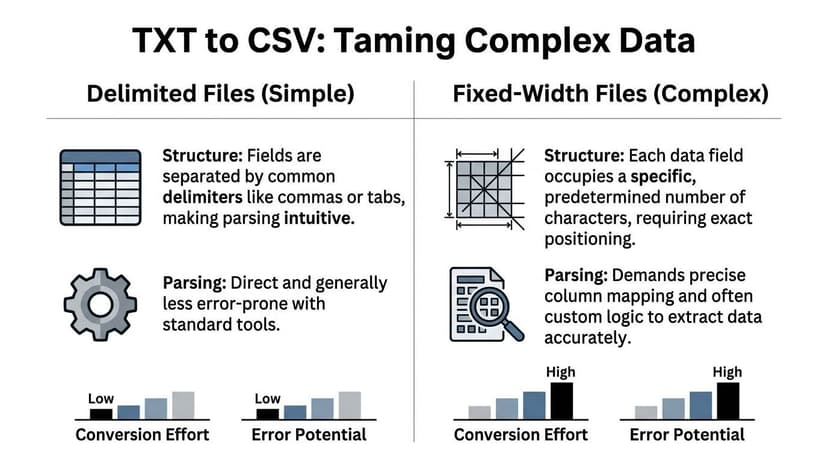
Some text files are not delimited at all. They only pretend to be columns because the spacing lines up visually.
Others use delimiters, but not cleanly. One bank uses tabs. Another uses pipes. A third uses semicolons except on lines where a description field contains one. Such conditions often cause casual import habits to fail.
Diagnose the file before you import it
Open the TXT file in Notepad++, VS Code, or even plain Notepad. Do not start in Excel when the file looks messy.
Look for these clues:
- Repeated separators: Tabs, commas, semicolons, or pipes between fields.
- Lined-up spacing: Columns appear aligned because each field uses a fixed number of characters.
- Quoted text: Descriptions may be wrapped in double quotes.
- Mixed row patterns: Header rows, subtotal rows, and detail rows may not follow the same structure.
The main technical risk is delimiter parsing. If you pick the wrong separator in the import wizard, entire rows can collapse into a single cell, which makes the data unusable for reconciliation in tools like QuickBooks or Xero, as noted by PassFab’s delimiter parsing discussion.
Fixed-width files need manual column breaks
Fixed-width data is common in older exports and internal finance systems. There may be no commas or tabs at all. Instead, each field occupies a set number of characters.
A line might look like this in plain text:
20260115PAYROLL DEPOSIT 2500.00 8450.12
A human eye sees date, description, amount, balance. Excel sees one long string unless you tell it where each column starts and ends.
How to import fixed-width data in Excel
- Open Excel and start a text import.
- Choose Fixed Width instead of Delimited.
- Use the preview to place column breaks manually.
- Remove any extra breaks Excel guesses incorrectly.
- Assign formats carefully, especially for dates and text-heavy fields.
- Load the data, then save as CSV.
This part is slow, but it is still faster than repairing a broken CSV later.
Quotation marks and embedded separators
Delimited files become tricky when the text inside a field includes the delimiter itself.
Example:
01/15/2026,"Payment, Vendor A",125.00
That file is still valid because the comma inside the description is wrapped in quotes. But if the export uses inconsistent quoting, Excel may split the description in the wrong place.
Use these checks:
- Text qualifier settings: Make sure double quotes are treated as text qualifiers.
- Preview validation: Scan rows with long descriptions before loading.
- One ugly row test: If one line imports badly, the whole file probably needs adjustment.
Key takeaway: A file that imports “mostly right” is not right. Financial data fails in edge cases, not obvious cases.
Non-standard delimiters need explicit handling
Many guides assume your file is comma- or tab-delimited. Real finance exports often are not.
You may see:
- Pipes like
| - Semicolons instead of commas
- Spaces used inconsistently
- Multi-character separators in proprietary exports
Excel can handle some of this through the Other delimiter option. But once separators are inconsistent, you are no longer doing conversion. You are doing parsing and cleanup.
A practical rule helps here:
| File pattern | What to do |
|---|---|
| Consistent pipe-delimited rows | Import with custom delimiter |
| Consistent semicolon-delimited rows | Import with semicolon |
| Spacing used as alignment | Treat as fixed-width |
| Mixed delimiters in the same file | Clean in editor or script first |
When manual parsing is worth it
Manual import work is worth doing when:
- the file comes from a trusted system,
- the structure is stable,
- and you expect to receive the same format again.
It is not worth doing repeatedly for a one-off format that keeps changing. In that case, use a script or a specialized workflow.
Automating Conversions with Developer Tools
If you convert one TXT file a month, Excel is enough. If you convert batches, repeat the same cleanup steps, or regularly receive odd delimiters, stop clicking and start scripting.
The reason is not speed alone. It is repeatability. A script does the same thing every time, which matters when you are cleaning financial data and trying to avoid subtle import drift.

Many financial exports use pipes or semicolons, and basic tutorials skip those formats. That gap matters because it forces accountants and operations teams into manual workarounds that can consume 30+ minutes per file, according to Datablist’s discussion of non-standard delimiters.
A practical Python approach
For recurring work, Python is the cleanest option. You can explicitly define the delimiter, preserve text fields, inspect bad rows, and export a normalized CSV.
A basic example using pandas:
import pandas as pd

# Change sep to '\t', ';', '|', or another delimiter as needed
df = pd.read_csv(
    "input.txt",
    sep="|",
    dtype=str,
    engine="python"
)

# Basic cleanup
df.columns = [c.strip() for c in df.columns]
df = df.apply(lambda col: col.str.strip() if col.dtype == "object" else col)

# Save to CSV
df.to_csv("output.csv", index=False, encoding="utf-8")
A few deliberate choices matter here:
dtype=strprevents Python from guessing and changing account numbers or dates.engine="python"is often more forgiving with messy delimiters.encoding="utf-8"gives you a safer output file for downstream systems.
When the delimiter is not obvious
You do not always know the separator upfront. In that case, inspect the raw file first or test a few likely candidates.
A simple workflow:
- Open the file in a code editor.
- Check whether the separator appears consistently.
- Test one import with
|, then\t, then;if needed. - Print the first few rows and column names.
- Stop the moment you see shifted columns or merged fields.
If you do this work frequently but do not want to maintain the scripts yourself, bringing in experienced Python developers can save time. The value is not just code. It is building a repeatable import process that handles edge cases instead of hoping users remember the right wizard settings.
Add validation, not just conversion
A script should do more than output a CSV. It should tell you whether the result looks sane.
Useful checks include:
- Row count comparison: Did the imported row total match what you expected?
- Required field checks: Are date, description, and amount present?
- Duplicate detection: Did duplicate rows appear during cleanup?
- Empty column scan: Did one column import as blank because the delimiter was wrong?
Here is a simple pattern:
required = ["Date", "Description", "Amount"]

missing_cols = [col for col in required if col not in df.columns]
if missing_cols:
    raise ValueError(f"Missing required columns: {missing_cols}")

if df.duplicated().any():
    print("Warning: duplicate rows detected")

print(f"Rows imported: {len(df)}")
That is the difference between a script that “runs” and a workflow you can trust.
A visual walkthrough can help if you are building your first automated pipeline:
Command-line tools for fast inspection
If you prefer the terminal, csvkit is useful after conversion. It helps inspect headers, sample rows, and basic structure without opening Excel.
A practical pattern looks like this:
- Convert the file with Python or another parser.
- Use command-line inspection to verify the resulting CSV.
- Spot malformed rows before anyone imports the file into accounting software.
This approach is especially good for teams processing the same bank exports every week. Once the script works, you stop relearning the file every time.
Tip: The best automation is boring. It should convert the file, flag anomalies, and produce the same column order every run.
The Accountant’s Nightmare Converting Bank Statements
A generic TXT export from a CRM or ecommerce tool is usually manageable. A bank statement in TXT format is different. It often carries the scars of the system that produced it, or worse, the scars of OCR after someone turned a PDF into text and hoped for the best.
One file may start clean, then insert a page header in the middle of the transaction list. Another may split one transaction across two lines because the description is long. A third may mix date formats in the same statement. None of that shows up in a cheerful “upload and convert” tutorial.
Where bank statement conversions break
The worst problems are structural, not cosmetic.
A statement might contain:
- Multi-line descriptions: The merchant name appears on one line, extra details on the next.
- Mid-file noise: Repeated headers, page numbers, running balances, or footer text interrupt the table.
- Inconsistent dates: One row uses slashes, another spells out the month.
- Negative amount quirks: Debits may be shown with minus signs, trailing symbols, or bracketed text.
If you force that into CSV without review, the file may still open. It just will not reconcile.
Why generic conversion advice falls short
Most conversion guides stop at “pick the delimiter and save as CSV.” That is not enough for accounting work.
The deeper issue is validation. For accounting, you need to verify row counts, detect duplicates, and identify missing fields after conversion. Guides that skip those checks push the work downstream, where someone has to manually verify every file and chase reconciliation errors later, as explained in GeekSeller’s note on TXT to CSV validation gaps.
That is why finance teams end up building side processes around conversion:
- open the TXT file,
- import it,
- export the CSV,
- compare balances,
- scan for dropped rows,
- and manually patch exceptions.
At that point, the conversion was never the job. Trusting the output was the job.
The main cost is not the conversion step
The cost shows up later, usually when someone tries to close the books.
A malformed row becomes a duplicate charge. A broken description merges with the next transaction. An empty amount field slips through and turns a balance review into detective work.
This is the same reason teams that automate invoice processing focus so heavily on extraction accuracy and review workflows. In finance operations, a file that looks usable but contains hidden defects is more dangerous than a file that fails loudly.
A lot of firms eventually realize that this is not just an import issue. It is part of a wider data-entry problem, which is why process discussions like https://convertbanktoexcel.com/blog/automated-data-entry-software matter. The conversion step sits inside a broader chain of extraction, validation, coding, and reconciliation.
Key takeaway: For bank statements, conversion without validation creates false confidence. False confidence is what burns time at month-end.
What experienced teams do differently
They stop asking, “How do I turn this TXT into a CSV?” and start asking, “How do I prove this CSV is faithful to the statement?”
That shift changes the workflow:
- They inspect raw structure before import.
- They treat OCR-generated text as suspect.
- They check whether each line maps to one transaction.
- They confirm critical fields before exporting anything downstream.
That is the professional mindset. Not conversion for its own sake. Conversion with auditability.
The Professional Workflow for Financial and Bank Data
For routine business data, a generic txt to csv workflow can be good enough. For bank and credit card data, good enough is where errors hide.
The professional standard is different. You need a workflow that assumes the source may be messy, that fields may be inconsistent, and that the final export must hold up under reconciliation.

Start with structure, not file extension
A bank file called .txt does not tell you much. It might be:
- a clean delimited export from online banking,
- a fixed-width report from a legacy system,
- or text extracted from a PDF statement.
Those are different problems. Treating them as the same problem is why teams lose hours cleaning output by hand.
The right workflow starts with three questions:
| Question | Why it matters |
|---|---|
| Is each line one transaction? | If not, row-based import will break |
| Are the fields explicit or implied by spacing? | Determines delimiter vs fixed-width parsing |
| Can the result be validated against the statement? | Prevents silent conversion errors |
Use a validation-first workflow
For finance data, the conversion step should sit inside a control process.
A workable professional sequence looks like this:
- Inspect the source format in raw view before import.
- Choose the parsing method based on the file’s actual structure.
- Normalize field output so date, description, amount, and balance land in predictable columns.
- Run validation checks for missing values, duplicate records, and row integrity.
- Export only after review if the file will feed accounting or audit workflows.
That sequence is less glamorous than “instant conversion,” but it is what keeps downstream systems clean.
Use specialized conversion when the source is financial
Specialized financial extraction tools earn their place when the input is messy, accuracy is critical, or the volume is large.
This matters even more when firms handle statement formats alongside adjacent reporting formats. In practice, teams that need structured output from finance documents often run into related transformation problems such as PDF-based reporting pipelines, which is why a workflow reference like https://convertbanktoexcel.com/blog/convert-pdf-to-xml is useful in the same operational stack.
The broader point is simple. Financial documents are not generic text. They carry balances, posting logic, transaction grouping, and formatting artifacts that ordinary text import tools do not understand.
What works in the real world
A reliable finance workflow favors these traits:
- Consistent output schema: The same fields in the same order every time.
- Exception visibility: Bad rows should be obvious, not buried.
- Batch readiness: Teams should be able to process many files without handholding each one.
- Reviewable exports: Someone should be able to trace the CSV back to the source document.
What does not work:
- one-click converters with no preview,
- tools that guess delimiters and give you no control,
- and processes that assume “opened in columns” means “correct.”
Tip: The best financial conversion workflow is the one that reduces review effort without removing review discipline.
A good system should make clean files easy, ugly files manageable, and suspicious files impossible to ignore.
Common Conversion Pitfalls and How to Fix Them
Most txt to csv failures look different on the surface, but they usually come from a short list of causes. Wrong delimiter. Wrong encoding. Broken quoting. Misread dates.
When everything lands in one column
Symptom: You open the file and every row appears in column A.
Likely cause: The import tool used the wrong delimiter.
Fix: Re-import the file and explicitly choose tab, comma, semicolon, pipe, or fixed-width based on what you see in the raw TXT file. Do not try to repair the CSV manually in Excel after the fact if the source parsing was wrong.
When text turns into gibberish
Symptom: Names, currency symbols, or punctuation display as corrupted characters.
Likely cause: Encoding mismatch.
Commercial online converters often impose limits such as 100 MB per file or 5 files per session, and they also commonly mishandle encoding by defaulting to system-locale settings instead of UTF-8, which can corrupt non-ASCII characters in financial data, according to Aiseesoft’s discussion of converter limits and encoding issues.
Fix: Reopen the source with the correct encoding and export the final CSV as UTF-8. If the file contains international vendor names or currency markers, inspect those rows first.
When quotes break the file structure
Symptom: A description field spills into the next column or row.
Likely cause: Embedded delimiters inside quoted text, or inconsistent quotation marks in the source.
Fix: Use an importer that recognizes text qualifiers. If the quoting is malformed, clean the raw text before conversion or script around the bad rows.
When dates sort wrong
Symptom: Dates look mixed, sort incorrectly, or convert to unintended values.
Likely cause: The importer guessed the data type, or the source contains multiple date formats.
Fix: Import date fields as text first, then normalize them after the data is in columns. This problem shows up constantly in OCR-heavy finance workflows, which is part of why topics like https://convertbanktoexcel.com/blog/ocr-in-banking matter for anyone handling bank-source documents.
A quick troubleshooting table
| Problem | Cause | Best fix |
|---|---|---|
| Single-column import | Wrong delimiter | Re-import with explicit separator |
| Corrupted special characters | Wrong encoding | Export as UTF-8 |
| Split descriptions | Bad quote handling | Use text qualifiers or clean source |
| Broken date sorting | Auto type conversion | Import as text, normalize later |
The common pattern is simple. Do not patch the final CSV blindly. Go back to the import stage and fix the parsing logic there.
Choosing Your Best Conversion Method
If the TXT file is clean and consistent, use Excel. It is the fastest answer for most one-off jobs.
If the file is repetitive, large, or arrives on a schedule, use Python or another scripted workflow. Automation wins when you need the same result every time without hand-editing.
If the file is financial, messy, OCR-derived, or headed into accounting software, treat conversion as a controlled data process, not a format change. That means validating rows, checking required fields, and refusing to trust a pretty preview.
The best answer to how to convert txt to csv is not one universal tool. It is the tool that matches the file’s structure and the risk of getting it wrong.
If you handle bank statements, credit card exports, or messy finance documents, ConvertBankToExcel is built for that exact problem. It converts statements into structured CSV and Excel outputs without the usual manual cleanup, which is a much better fit when accuracy matters more than a quick file-format swap.