
![PDF Bank Statement to Accounting Software [2026]](/_next/image?url=https%3A%2F%2Fconvertbanktoexcel.com%2Fapi%2Fuploads%2Fimages%2Flaptop-showing-pdf-bank-statement-import-into-accounting-software-with-clean-professional-interface-1771963761258.jpg&w=1920&q=75)
PDF Bank Statement to Accounting Software: Complete Guide [2026]
Your bank gives you a PDF. Your accounting software wants structured data. That gap costs accountants and business owners hours every month.
This guide shows you exactly how to get from PDF bank statement to imported transactions in QuickBooks, Xero, Wave, FreshBooks, and other accounting platforms—with the fastest method for each.
Why You Can't Import a PDF Directly
Accounting software doesn't read PDFs. It reads structured data—CSV files, OFX files, QBO files. These formats have defined columns (date, amount, description, balance) that the software can parse and match against existing records.
A PDF is essentially a picture of your statement. Before it can go into accounting software, you need to extract the transaction data into a structured format.
There are three ways to do this:
- Manual entry — type each transaction by hand (slow, error-prone)
- Bank feed / direct import — your bank sends data directly to the software (best option when available)
- PDF converter — extract structured data from the PDF automatically (best for PDFs without direct feeds)
The Fastest Method: PDF Converter
ConvertBankToExcel.com converts PDF bank statements to the formats your accounting software accepts:
- CSV — works with Wave, FreshBooks, Excel, Google Sheets
- OFX — works with QuickBooks, Sage, MYOB
- QBO — optimized specifically for QuickBooks Online
- Excel — manual review and import into any system
The workflow:
- Download your PDF statement from your bank
- Upload to ConvertBankToExcel.com
- Choose your output format
- Import the file into your accounting software
Total time: 2-3 minutes for a monthly statement.
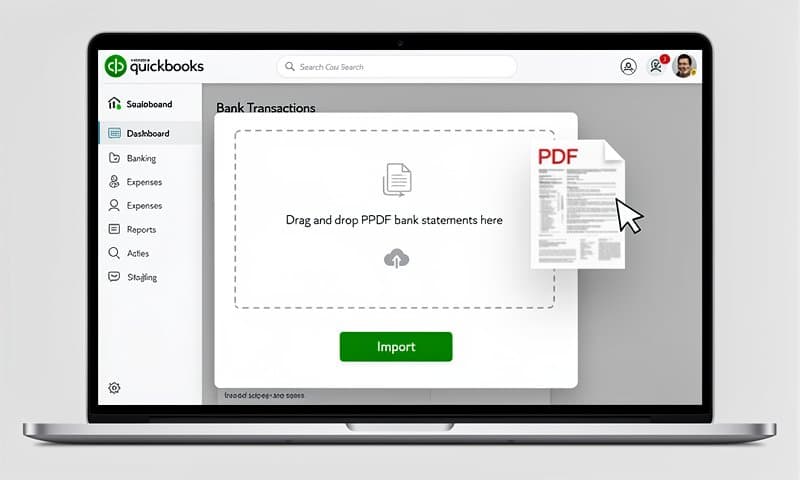
How to Import Into Each Accounting Platform
QuickBooks Online
QuickBooks accepts OFX and QBO files for bank imports. Both formats include transaction dates, amounts, and descriptions.
Steps:
- Convert your PDF to QBO using ConvertBankToExcel.com
- In QuickBooks: go to Banking > Upload transactions
- Select your QBO file
- Map to the correct bank account
- Review and accept imported transactions
QuickBooks will automatically try to match transactions to existing rules. New merchants get flagged for manual categorization on the first import.
Tip: QBO format preserves more transaction metadata than OFX for QuickBooks—use QBO when available.
QuickBooks Desktop
QuickBooks Desktop uses IIF or OFX format. Use OFX for best compatibility.
- Convert PDF to OFX
- In QBDT: File > Utilities > Import > Web Connect Files
- Select your OFX file
- Choose the account to import into
Xero
Xero accepts CSV and OFX files for manual import.
CSV import (recommended for bulk):
- Convert PDF to CSV
- In Xero: Accounting > Bank Accounts > [Account Name] > Import a Statement
- Upload CSV
- Map columns: Date, Description, Amount (or separate Debit/Credit columns)
- Click Import
Bank feed (if available): Xero's direct bank feeds are faster for ongoing use. The PDF converter approach is best for historical data or banks without Xero feeds.
Wave Accounting
Wave uses CSV for manual imports.
- Convert PDF to CSV
- In Wave: Accounting > Transactions > Import
- Select your bank account
- Upload CSV
- Wave auto-maps columns if they match standard headers
Wave's CSV format requires: date, description, amount. The converter outputs exactly this.
FreshBooks
FreshBooks imports OFX and CSV.
- Convert PDF to CSV or OFX
- In FreshBooks: Accounting > Bank Reconciliation > Import Transactions
- Upload file
- Review and confirm
Sage 50 / Sage Accounting
Sage accepts OFX and CSV files. OFX is the more reliable format for bank statement imports.
- Convert PDF to OFX
- In Sage: Banking > Import > Bank Statement
- Select account and upload OFX file
MYOB
MYOB uses OFX for bank imports.
- Convert PDF to OFX
- In MYOB: Banking > Bank Feeds > Import Transactions
- Upload OFX file
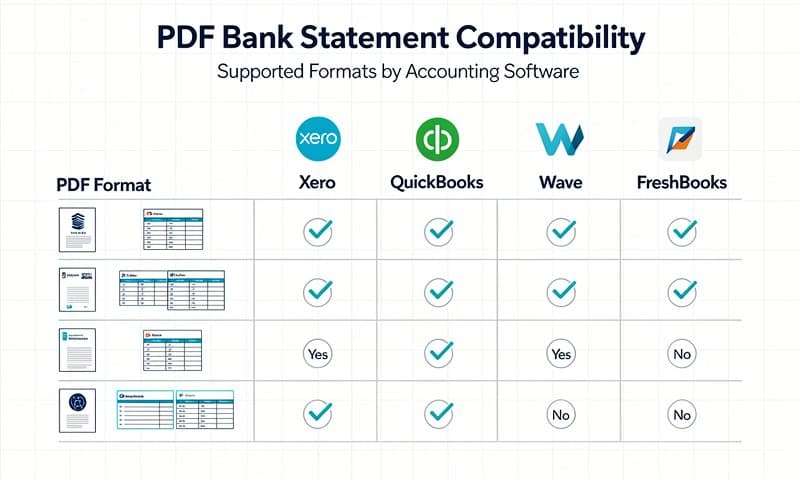
Format Compatibility Reference
| Software | CSV | OFX | QBO | Excel |
|---|---|---|---|---|
| QuickBooks Online | No | Yes | Yes (best) | No |
| QuickBooks Desktop | No | Yes | Yes | No |
| Xero | Yes | Yes | No | No |
| Wave | Yes | No | No | No |
| FreshBooks | Yes | Yes | No | No |
| Sage | Yes | Yes | No | No |
| MYOB | No | Yes | No | No |
| Excel / Sheets | Yes | No | No | Yes |
ConvertBankToExcel.com outputs all four formats—pick the right one for your software.
Direct Bank Feeds vs. PDF Import: Which to Use?
Use direct bank feeds when: Your bank and accounting software both support it. QuickBooks, Xero, and Sage all have extensive bank feed partnerships. Check your bank's list of supported accounting connections.
Use PDF import when:
- Your bank doesn't offer direct feeds to your accounting software
- You're importing historical statements (3-12 months back)
- You switched accounting software and need to backfill data
- You received a statement PDF from a client or accountant
- Your bank's direct feed is unreliable or has a data delay
Handling Common Import Problems
Duplicate transactions: Accounting software usually detects duplicates by date and amount. If you're importing a period that overlaps with existing data, review carefully before accepting all.
Wrong currency: Check that your bank account currency settings match the statement currency before importing.
Date format mismatch: If dates import incorrectly, verify the CSV date column format (MM/DD/YYYY vs DD/MM/YYYY). The converter defaults to ISO format (YYYY-MM-DD) which most software handles correctly.
Missing transactions after import: Some PDFs have two-page tables that converters may handle inconsistently. If the count looks low, check if the statement spans multiple pages.
Multiple Accounts in One Statement
Some banks send a combined PDF with multiple accounts (checking + savings + credit card). Most converters handle these as separate sheets or prompt you to select which account to extract.
For combined statements, extract each account separately and import into the corresponding account in your accounting software.
Conclusion
Getting from PDF to your accounting software is a 3-step process: convert the PDF to the right format, then import using your software's standard import tools.
ConvertBankToExcel.com handles the conversion step for every format you need—OFX for QuickBooks, CSV for Xero and Wave, QBO for QuickBooks Online. Upload your PDF and download the right format in under a minute.
Start converting for free — no signup required.