
![Bank Statement to XLSX Converter: 4 Methods [2026]](/_next/image?url=https%3A%2F%2Fconvertbanktoexcel.com%2Fapi%2Fuploads%2Fimages%2Fprofessional-accountant-viewing-xlsx-bank-statement-spreadsheet-with-excel-ribbon-visible-1777575920443.jpg&w=1920&q=75)
Bank Statement to XLSX Converter: 4 Methods [2026]
XLSX is just Excel's file extension. Yet people search "bank statement converter xlsx" specifically because they've been burned before — downloaded a "converted" file, opened it in Excel, and got a wall of unformatted text.
The difference between a real XLSX and a renamed CSV is obvious the moment you try to sum a column.
Here are 4 methods that produce genuine XLSX output, tested in 2026.
What XLSX Actually Is (and Why It Matters)
Three formats dominate accounting workflows:
XLS — Excel's legacy format, pre-2007. Opens in Excel, but row limit is 65,536 and it lacks modern structured table support. Most banks stopped exporting this years ago.
XLSX — Excel's current Open XML format. Supports 1,048,576 rows, named tables, proper data typing, formulas, and full formatting. This is what your accounting software expects when you say "Excel file."
CSV — plain text with comma separators. No formatting, no column types, no formulas. Everything looks fine until you open it and account numbers lose leading zeros, dates reformat based on your system locale, and amounts shift to scientific notation.
When someone searches for a bank statement converter that outputs XLSX, they want the real thing — not a CSV with a different extension.
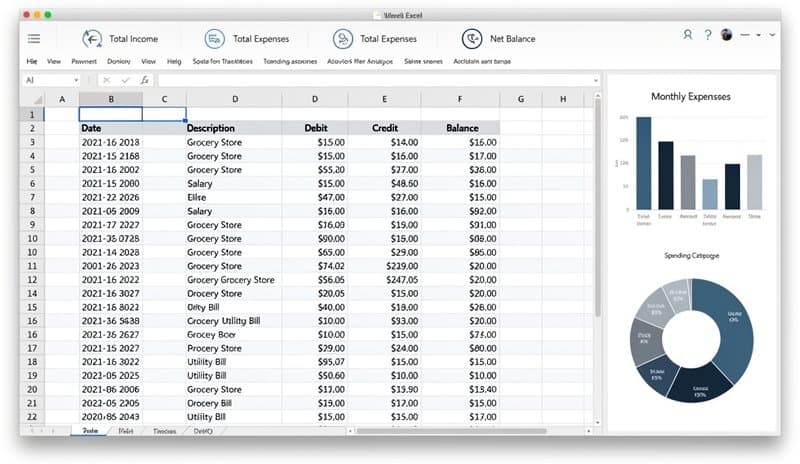
Why XLSX Beats CSV for Bank Statement Data
CSV has one job — be compatible with everything. It does that job. But it destroys your data in the process.
Here's what you lose when a converter outputs CSV instead of XLSX:
Date formatting: CSV stores dates as text strings. Excel guesses the format based on your locale and often guesses wrong. "01/04/2026" becomes January 4th in the US and April 1st in Europe. In XLSX, dates are stored as actual Excel date values — unambiguous.
Leading zeros: Account numbers, routing numbers, check numbers — anything starting with zero gets stripped in CSV. In XLSX, columns can be typed as text, preserving every digit.
Numeric precision: Large transaction amounts can shift to scientific notation in CSV. XLSX stores them as exact numbers.
Multi-sheet exports: Some banks provide multi-month or multi-account statements. XLSX supports multiple tabs; CSV doesn't.
For reconciliation or audit work, XLSX isn't just a preference — it's what actually works.
Method 1: Dedicated Bank Statement Converter (Fastest, Most Accurate)
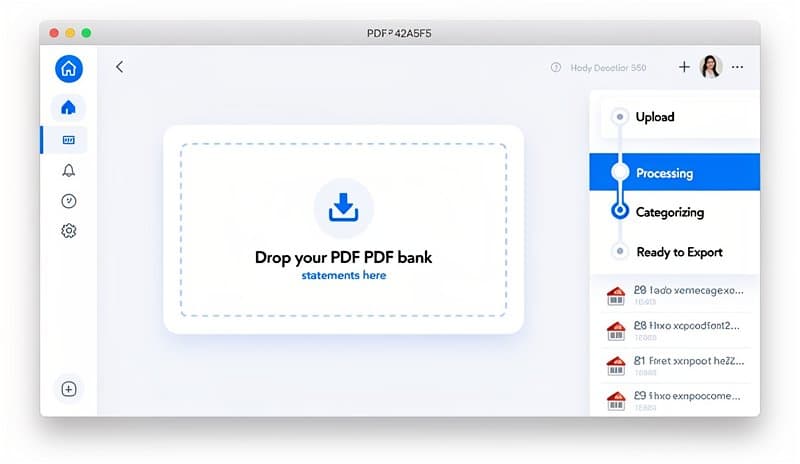
ConvertBankToExcel.com converts PDF bank statements directly to XLSX. You upload a PDF, select Excel as your output format, and download a properly structured file.
What makes it different from generic PDF-to-Excel tools: it understands bank statement layouts. Transactions land in typed columns — date, description, debit, credit, balance — rather than raw text parsed line by line. Scanned PDFs work too, using OCR to extract the data before conversion.
The conversion takes about 90 seconds. Free tier available, no signup required.
For a detailed comparison of accuracy across different bank formats, the bank statement to Excel converter guide tests multiple tools on real-world PDFs.
Method 2: Export Directly From Online Banking
Most banks offer some form of direct export — though the format and reliability vary:
- Log into your online banking dashboard
- Navigate to transaction history or statements section
- Look for Download, Export, or Print options
- Select your format — typically CSV, XLS, or OFX
If you get CSV: open in Excel, then File → Save As → select Microsoft Excel Workbook (.xlsx). This converts it to XLSX, but you'll still need to fix any formatting issues the CSV introduced.
The main limitation: banks typically only expose 90 days of history via direct export. For older statements, you're back to PDF — which means Method 1.
Chase, Bank of America, and Wells Fargo all offer reliable direct exports. Credit union and smaller bank exports tend to be inconsistent in format and completeness.
Method 3: Google Sheets Import, Then Download as XLSX
Google Sheets can sometimes extract data from PDFs:
- Open Google Drive → New → Google Sheets
- File → Import → Upload your PDF
- Check "Convert text to numbers and dates"
- After import: File → Download → Microsoft Excel (.xlsx)
This works reasonably well for simple PDF layouts with clean text. It fails on multi-column layouts, PDFs with graphics or headers disrupting the flow, or scanned images.
The output is XLSX, but the accuracy of data extraction depends entirely on your PDF structure. Expect to spend time cleaning up merged cells and misaligned columns for anything other than simple statements.
Method 4: Python + pandas (For Bulk Monthly Processing)
If you're processing dozens of statements regularly, scripting the conversion pays off quickly:
import pdfplumber
import pandas as pd

with pdfplumber.open("statement.pdf") as pdf:
    tables = []
    for page in pdf.pages:
        table = page.extract_table()
        if table:
            tables.extend(table)

df = pd.DataFrame(tables[1:], columns=tables[0])
df.to_excel("statement.xlsx", index=False, engine="openpyxl")
This produces proper XLSX output via openpyxl. Install requirements:
pip install pdfplumber pandas openpyxl
The limitation: pdfplumber handles text-based PDFs well, but fails on scanned images. For scanned statements, you'd need to add OCR preprocessing with pytesseract or a cloud OCR API — significantly more setup and maintenance.
For most accounting teams, Method 1 handles the same job without any code.
Comparison: Which Method Is Right for You?
| Method | Speed | Accuracy | Works on Scans | Free? |
|---|---|---|---|---|
| ConvertBankToExcel.com | ~90 sec | High | Yes | Free tier |
| Bank direct export | Instant | Medium | N/A | Yes |
| Google Sheets import | ~5 min | Medium | No | Yes |
| Python + pandas | Minutes/setup | High | No (needs OCR) | Yes |
One-off conversions: Method 1 wins on speed and accuracy. Bulk monthly automation: Method 4 if you have Python skills; otherwise Method 1 supports batch uploads.
Common XLSX Problems After Conversion (and Fixes)
Dates display as numbers — Excel stored the date as a serial number. Select the column → Format Cells → Date → choose your format.
Amounts won't sum — Numbers were imported as text. Select the column → Data → Text to Columns → Finish. This forces Excel to reparse as numbers.
Extra empty rows — Common with manual imports. Filter the sheet, select all blank rows, delete.
Columns misaligned — Description text overflows into adjacent cells. Select all → double-click any column divider to auto-fit widths.
If you're consistently getting formatting issues across different banks, the bank statement converter PDF to Excel comparison covers how each tool handles edge cases like two-column layouts and merged header cells.
Which Banks Produce Clean XLSX Output?
Results from testing with Method 1:
- Chase, Bank of America, Wells Fargo — standard PDF structure, high accuracy
- Goldman Sachs, Citibank — two-column PDF layout requires a bank-aware parser to handle correctly
- HSBC, Barclays, Santander — international formatting works well with dedicated converters
- Credit unions — variable; test a sample before processing in bulk
The most accurate bank statement converter review tests 7 tools specifically on difficult formats like Goldman Sachs and HSBC.
The Short Version
If you need a real XLSX file from a PDF bank statement:
- Upload to ConvertBankToExcel.com — 90 seconds, free, handles scans
- Use your bank's direct export if available and your history is within 90 days
- Google Sheets if you want free and don't mind fixing formatting afterward
- Python if you're processing 20+ statements per month and comfortable with code
XLSX is worth the extra step over CSV. Your accounting software will thank you.
Start converting for free — no signup required.