
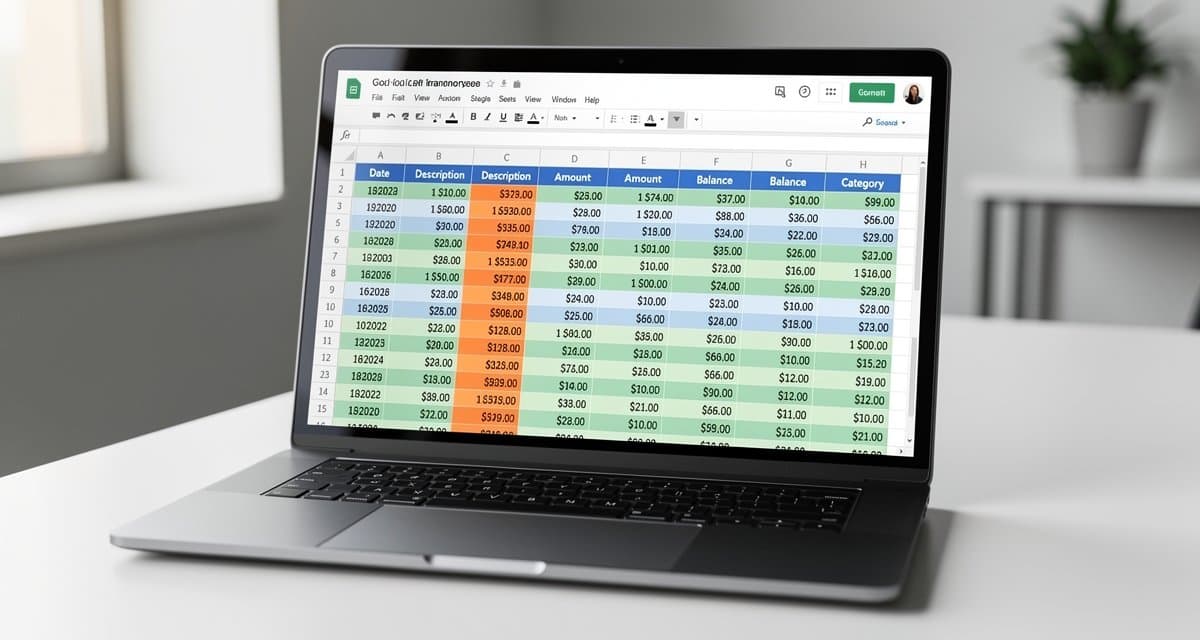
Import Bank Statements into Google Sheets Safely
Use Google Sheets for a shared transaction workbook, not as a direct PDF-table importer. Begin with a bank-provided CSV or an extracted CSV/XLSX file, then keep the original statement beside the workbook for comparison.
Google's spreadsheet import documentation supports CSV, XLSX, and other spreadsheet or text formats; PDF is not among those listed.[9] Turning a PDF into text through Google Docs is a separate operation and does not reliably preserve the transaction table.[11]
Choose the source and set the locale
If your bank offers a transaction CSV covering the statement period, start there. Confirm the account, date range, and currency. If the source is a PDF, use a table-extraction workflow and review the file before import. Open the converter if you need to review its CSV or Excel export options.
In the destination spreadsheet, choose File → Settings and set the locale appropriate to your source data. Google explains that locale affects default currency, date, and number formatting across the spreadsheet.[10] Agree on this setting with collaborators before importing a regional bank export.
Do not combine currencies into one unlabeled Amount column. Keep each currency separate or add an explicit currency field and separate controls. Import one statement first; establish a reviewed structure before appending a year of data.
Import into a new sheet
- Open your spreadsheet and choose File → Import.
- Upload the non-password-protected CSV or XLSX file.
- Choose Insert new sheets or Create new spreadsheet to avoid overwriting reviewed work.
- For CSV, choose the actual separator rather than accepting a visibly incorrect automatic split.
- Complete the import and inspect the columns.[9]
Keep this sheet as a source snapshot and perform categorization on a separate working sheet. If the dialog offers a control for converting text into numbers, dates, and formulas, consider leaving it disabled for the initial source import. Then explicitly convert the columns that need numeric or date behavior, while keeping references as text.
Do not assume formatting an identifier column as plain text afterward restores leading zeros lost during conversion. Compare the imported reference with the original CSV and reimport affected data deliberately.
Worked example: illustrative regional CSV
Assume the bank confirms UK dates and supplies a semicolon-delimited file:
Date;Description;Amount;Reference
03/09/2026;Office supplies;-42.50;000731
14/09/2026;Client payment;900.00;000732
Choose semicolon as the separator and interpret dates as day/month/year. The first payment occurred on September 3. Keep 000731 as text; it is a reference, not a quantity.
Once the Amount values are numeric, =ROUND(SUM(C2:C3),2) gives the illustrative movement of 857.50. An opening balance of 1,000.00 produces a closing balance of 1,857.50. In a checking-account working table, this example uses positive receipts and negative payments.
If the source has decimal commas, establish the correct locale before numeric conversion. Do not globally replace commas: that can alter merchant descriptions or CSV field boundaries. Display dates unambiguously after parsing and compare an ambiguous date with the PDF.
Why Drive OCR is only a fallback
Google Drive can open a PDF or image with Google Docs to extract text, but Google warns that tables and columns are unlikely to be detected.[11] For a small, legible statement, you could reconstruct rows manually; treat that as transcription, not an automatic bank-data import. Check every date and amount against the source.
Review before sharing or exporting
Confirm complete page coverage, transaction counts, amount signs, and opening-to-closing balance movement. Flag missing references and uncertain rows instead of filling them from assumptions. Review duplicate candidates across overlapping statements without deleting legitimate same-value payments.
Limit sharing to the people who need the workbook, and preserve a checked source copy. For desktop type controls, see CSV to Excel. For extracting a text-based PDF locally, follow free CSV methods.
Official sources
[9] Google: Import data sets and spreadsheets.
[10] Google: Spreadsheet location and calculation settings.
[11] Google Drive: Convert PDF and photo files to text.