
![Bank Statement Converter to Excel: Free Download [2026]](/_next/image?url=https%3A%2F%2Fconvertbanktoexcel.com%2Fapi%2Fuploads%2Fimages%2Fmodern-web-interface-showing-pdf-bank-statement-upload-with-conversion-progress-1777143822370.jpg&w=1920&q=75)
Bank Statement Converter to Excel: Free Download [2026]
Searching for a bank statement converter that outputs Excel and lets you actually download the file for free? You're not alone. Most tools bait you in with "free" claims, then hit you with a paywall right before you can save your file.
I've tested 6 converters specifically for this: which ones genuinely let you download the Excel output at no cost. Here's the honest breakdown.
What "Free Download" Means (and Doesn't Mean)
Before comparing tools, it helps to clarify what you're actually searching for. The phrase "bank statement converter to excel free download" covers two very different things:
Type A: Download the converter software itself
Some users want a desktop application they can install on Windows or Mac, run offline, and use without a monthly subscription.
Type B: Download the converted Excel file for free
Most users actually want this — they're fine with an online tool, they just don't want to pay $15/month just to save a file.
This guide covers both. Start with Type B (online free tools) since that's what 90% of people actually need. If you specifically need offline desktop software, jump to the section below.
Best Free Online Bank Statement Converters (With Excel Download)
These tools let you upload a PDF bank statement and download the Excel file without any payment required.
1. ConvertBankToExcel — Best Overall
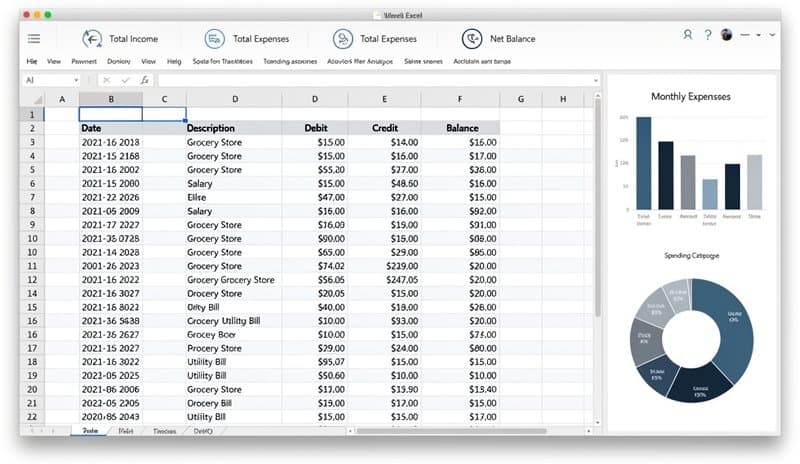
ConvertBankToExcel handles the tricky layouts that trip up simpler tools — multi-column PDFs, scanned images, statements with merged cells.
What matters for "free download": you get the converted Excel file directly, no email required, no account creation gate.
Try the free converter — upload your PDF, download Excel in under a minute.
Supported banks: all major US, UK, Canadian, South African, and European banks.
Best for: Anyone who wants accuracy without wrestling with formatting errors.
2. Smallpdf
Smallpdf offers a PDF-to-Excel conversion that works for simple, text-based statements. The free tier gives you 2 conversions per hour.
Catch: The converted file is a generic Excel export — it doesn't understand bank statement structure specifically. You'll often get merged cells and formatting that needs cleanup before the data is actually usable.
Best for: One-off conversions of simple statements.
3. Adobe Acrobat (Free Tier)
Adobe's free tier allows limited PDF-to-Excel exports. Quality is decent for clean, text-based PDFs.
The main issue: Adobe converts the visual layout to Excel, not the underlying data. If your statement has a complex layout, the resulting spreadsheet may not be sortable or filterable without significant manual cleanup.
Best for: Users who already have Adobe and need a quick export of a simple statement.
4. ILovePDF
Similar to Smallpdf — PDF-to-Excel conversion with a free tier (limited daily conversions). Works for simple statements but struggles with scanned PDFs and complex layouts.
Doesn't parse bank statement data intelligently. You're getting a raw conversion, not a structured transaction list.
Best for: Text-based PDFs where you just need the data in a spreadsheet format.
5. PDF2Go
PDF2Go provides free PDF-to-Excel conversion without requiring signup. Works reasonably well for text PDFs.
Same limitation as the others above — it's a generic converter, not purpose-built for bank statements. Expect some manual reformatting.
Best for: Quick exports where you don't mind some cleanup.
6. Tabula (Desktop — Truly Free)
Tabula is an open-source desktop tool specifically for extracting tables from PDFs. It's free, runs locally, and you keep all your data on your machine.
The tradeoff: you need to manually select the table region in each PDF, and it only works on text-based PDFs (not scanned images). There's a learning curve.
Best for: Tech-comfortable users who want a fully offline, open-source option.
Free vs Paid: What's the Actual Difference?
When a tool says "free," here's what they usually limit:
| Tool | Free Tier Limit | Download Without Paying? |
|---|---|---|
| ConvertBankToExcel | Try free, no signup | Yes ✅ |
| Smallpdf | 2 tasks/hour | Yes ✅ |
| Adobe Acrobat | Limited pages | Yes ✅ (with limits) |
| ILovePDF | Daily limit | Yes ✅ |
| PDF2Go | File size limit | Yes ✅ |
| Tabula | Unlimited (desktop) | Yes ✅ |
The free download itself usually isn't the issue — it's the conversion quality and the statement volume limits that differ.
For one or two statements, any free tool works. For ongoing use (weekly or monthly statements), the quality and accuracy differences become significant. Generic PDF converters require cleanup every time. Purpose-built bank statement converters like ConvertBankToExcel handle the structure automatically.
To understand when a paid plan actually makes sense, see our free vs paid bank statement converter comparison which goes deeper into cost-per-conversion math.
Desktop Software: Downloadable Converters
If you specifically want software you can install on your computer (not an online tool), the options are more limited.
Tabula (mentioned above) is the main genuinely free desktop option. It runs in your browser locally via Java, handles text PDFs well, but doesn't work on scanned statements.
Most commercial desktop converters (like Able2Extract, ABBYY FineReader) have trials but are paid software. If your main concern is keeping bank data off the internet, Tabula is the practical free answer.
For scanned statements offline, you'd need OCR software like Tesseract (free, open source, command-line) combined with a spreadsheet tool — technically doable but not beginner-friendly.
Which Tool Should You Actually Use?
Three quick scenarios:
You have a PDF bank statement and want Excel in the next 5 minutes
→ ConvertBankToExcel. Upload, select Excel format, download. Done.
You need to process statements regularly and care about data accuracy
→ ConvertBankToExcel or Tabula, depending on whether you need a human-readable interface or are comfortable with a desktop tool.
You're concerned about privacy and don't want to upload to any online service
→ Tabula (free desktop, open source) or set up Tesseract OCR locally.
How the Conversion Process Works
For an online converter, the process is:
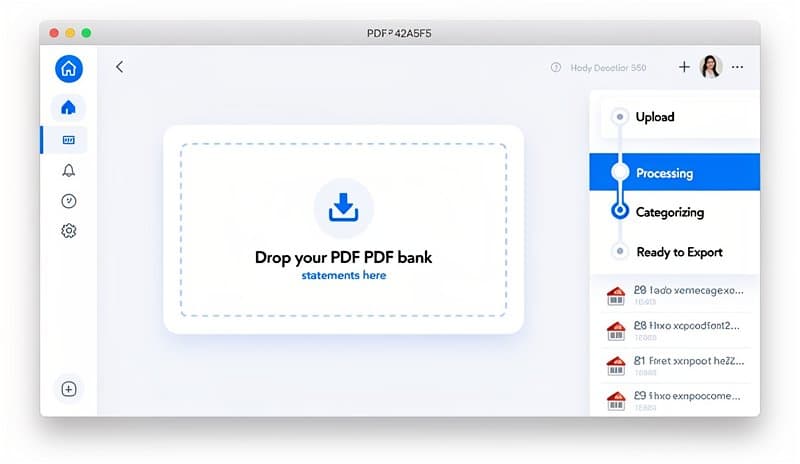
- Upload your PDF — drag and drop or click to select
- Choose output format — select Excel (.xlsx) or CSV
- Convert — the tool processes your statement, parsing transactions
- Download — click to save your Excel file locally
For a purpose-built converter (vs generic PDF tools), Step 3 includes understanding bank statement structure: identifying the header row, separating debits from credits, handling continuation pages, and cleaning up formatting artifacts.
That's why output quality varies so much between tools — a generic PDF-to-Excel converter just maps the visual layout. A bank-statement-aware converter parses the financial data.
For more on how OCR and AI parsing work under the hood, the bank statement OCR converter guide explains the technical differences in plain English.
Common Questions
Is it safe to upload bank statements to an online converter?
Reputable tools use HTTPS encryption and don't store your files after conversion. ConvertBankToExcel processes and immediately discards files. For extra caution, redact account numbers before uploading (the transaction data is what you need, not the account details).
Can I convert a scanned bank statement (image PDF) to Excel for free?
Yes, but generic free tools won't work — they only handle text PDFs. You need an OCR-based converter. ConvertBankToExcel handles image PDFs. Tabula does not.
Does the free download include all transactions, or is it capped?
This varies by tool. Most free tiers limit by page count or file size, not by transaction count. For a typical monthly bank statement (1-2 pages, 20-50 transactions), free tiers are usually sufficient.
What's the difference between a bank statement converter and a PDF-to-Excel converter?
A general PDF-to-Excel tool converts the layout. A bank statement converter understands the financial structure — it knows which column is the date, which is the debit, which is the balance — and outputs structured data you can immediately analyze in Excel.
Conclusion
If you need a bank statement converter to Excel with a free download, you have real options. For most users, the fastest path is ConvertBankToExcel — upload your PDF, download Excel, no payment required.
For offline use, Tabula is the best free desktop option, though it's limited to text-based PDFs.
The "free" part isn't usually the hard part — it's finding a converter that produces clean, structured Excel output that you don't have to spend 30 minutes reformatting afterward.
Try ConvertBankToExcel free — no signup, no credit card, Excel output in under a minute.
Tips for Getting Clean Excel Output
A few things that improve results regardless of which tool you use:
Use the original PDF, not a screenshot. Screenshots create image-only files that require OCR. If your bank gives you a downloadable PDF, always use that rather than printing and scanning.
Check for multi-page statements. Some tools process each page separately. If your statement is 3 pages, verify all transactions appear in the output before you rely on it.
Verify the balance column. After converting, quickly check that the running balance column matches your final statement balance. This catches parsing errors immediately.
Keep the original PDF. After downloading your Excel file, don't delete the original PDF. If anything looks off in Excel, you want the source document to cross-check.
These steps add 2 minutes to the process and save a lot of headaches.