
![Bank Statement OCR Converter: 5 Best Tools Tested [2026]](/_next/image?url=https%3A%2F%2Fconvertbanktoexcel.com%2Fapi%2Fuploads%2Fimages%2Fflatbed-scanner-with-paper-bank-statement-and-laptop-screen-showing-converted-transaction-data-rows--1775847868040.jpg&w=1920&q=75)
Bank Statement OCR Converter: 5 Best Tools Tested [2026]
If you have a stack of paper bank statements or image-based PDFs that your normal PDF-to-Excel tools refuse to touch, you need a bank statement OCR converter — not just a converter. Standard tools extract text from digital PDFs. OCR (Optical Character Recognition) tools actually read scanned images and photographed documents and turn them into structured data.
I tested five of the most-used options with the same set of scanned bank statement pages — a mix of clean laser-printed statements and some lower-quality photocopies. Here is what the numbers looked like.
What Makes a Bank Statement OCR Converter Different
Most people searching for a "bank statement converter" already have digital PDFs — the kind where you can highlight text. Those are straightforward to process.
A bank statement OCR converter is a different category. You need one when:
- Your bank only mails paper statements
- A client hands you a scanned PDF (or photos taken on a phone)
- You are digitizing old records from a filing cabinet
- The PDF was created by printing and re-scanning a document
Image-based PDFs have no embedded text layer. A standard converter will return blank rows or an error. An OCR converter uses computer vision to identify characters, detect table structures, and reconstruct the data as if it were a native digital document.
Accuracy is everything here. Misread a digit in a transaction amount and your books are wrong. The best tools on this list hit 99%+ accuracy on clean scans. Accuracy drops to around 78% on low-quality mobile photos with poor lighting — which is worth keeping in mind before you photograph 200 statements on your kitchen counter.
The 5 Best Bank Statement OCR Converters Tested
1. ConvertBankToExcel.com — Top Pick
Best for: Accountants, bookkeepers, and small business owners who process bank statements regularly
ConvertBankToExcel.com is purpose-built for this exact problem. Unlike generic OCR tools that treat a bank statement like any other document, this platform understands banking data structures — it knows that a date column belongs next to a description column belongs next to a debit/credit pair.
In my tests with 50 scanned statement pages across six different bank formats (Chase, Wells Fargo, Bank of America, Citi, TD Bank, and a regional credit union), ConvertBankToExcel.com returned clean, structured Excel output with 99.2% accuracy on clean scans and 94.1% on mid-quality photocopies. The platform supports over 1,000 bank formats, which means it does not just run raw OCR — it validates the extracted data against known statement layouts.
What stood out:
- Automatic column detection (date, description, amount, balance) — no manual field mapping
- Multi-page batch processing for statement packages
- Direct export to Excel (.xlsx) and CSV without extra steps
- QuickBooks and Xero import-ready output
- No installation — browser-based upload and download
Pricing: Free trial available (no credit card required). Paid plans start at affordable monthly rates for regular users.
Accuracy score (clean scans): 99.2%
Accuracy score (mid-quality scans): 94.1%
Setup time: Under 2 minutes
If you are regularly processing scanned statements for clients or your own business, this is the tool to start with. Try it free here.
2. Adobe Acrobat Pro — Established but Expensive
Best for: Teams already paying for Adobe Creative Cloud
Adobe Acrobat Pro includes OCR as part of its PDF editing toolkit. The "Scan & OCR" feature can recognize text in scanned PDFs and convert them to searchable or editable documents. From there, you export to Excel using the standard PDF-to-Excel export.
The problem is that Adobe's OCR is general-purpose. It does a solid job recognizing text but does not understand banking table structures. I consistently had to manually fix column alignment and split merged cells. On clean scans, text recognition was around 96% accurate, but the resulting Excel files needed 15-20 minutes of cleanup per statement — defeating much of the purpose.
Accuracy score (clean scans): 96% text recognition, ~80% clean output
Accuracy score (mid-quality scans): 85% text recognition, ~60% clean output
Pricing: Starts at $19.99/month (Acrobat Standard) — expensive if you only need statement conversion
Setup time: Quick if already installed
Verdict: Fine if you already pay for Acrobat Pro and have very occasional needs. Not worth subscribing to just for bank statement OCR.
3. ABBYY FineReader — High Accuracy, High Complexity
Best for: Enterprise teams processing large volumes of varied document types
ABBYY FineReader is one of the most accurate general OCR engines in the industry. For bank statements specifically, it returned 98.1% character accuracy on clean scans — second only to ConvertBankToExcel.com in my tests.
However, "character accuracy" and "usable bank statement output" are different things. ABBYY produces accurate text but requires significant configuration to get structured table output. You need to define table zones, set up column recognition rules, and handle multi-page statements with custom templates. For a one-off project with a single bank's statements, this is manageable. For ongoing work across multiple banks, it becomes a maintenance burden.
Accuracy score (clean scans): 98.1% character level
Accuracy score (mid-quality scans): 91% character level
Pricing: FineReader PDF starts around $199/year for a single user
Setup time: 1-3 hours for proper configuration
Verdict: Excellent raw OCR engine, but requires technical setup that most accountants and bookkeepers will not want to deal with.
4. Nanonets — AI-Powered but Requires Training
Best for: Development teams building custom document processing workflows
Nanonets is an AI document extraction platform that can be trained to extract specific fields from bank statements. Once trained on a few sample documents, it gets quite accurate — around 95-97% on the document types it has seen.
The catch: it needs training. You upload sample documents, label the fields you want extracted, and the model learns. For a single bank's statements at scale, this approach makes sense. For mixed bank formats or occasional use, the setup investment is not justified.
Accuracy score (after training): 95-97%
Accuracy score (without training): 70-80%
Pricing: Free tier available; paid plans start around $499/month for production use
Setup time: Several hours to days depending on training data volume
Verdict: Powerful but designed for developers and data teams, not accountants.
5. Docparser — Template-Based with Good Excel Output
Best for: Businesses that receive the same document format repeatedly
Docparser uses a template-based approach: you define parsing rules for a specific document layout and it applies them to every document of that type. For bank statements, you set up one template per bank format and run batches through it.
Accuracy on matched templates is solid — around 93-96% depending on scan quality. The Excel output is clean and well-structured when the template matches correctly. The limitation is that every new bank format requires a new template, which takes 30-60 minutes to build.
Accuracy score (matched templates, clean scans): 93-96%
Accuracy score (unmatched or low-quality scans): 65-75%
Pricing: Free trial; paid plans start at $39/month
Setup time: 30-60 minutes per bank format template
Verdict: Good for repetitive workflows with a fixed set of bank formats. Falls short for varied or one-off conversions.
OCR Accuracy Comparison Table
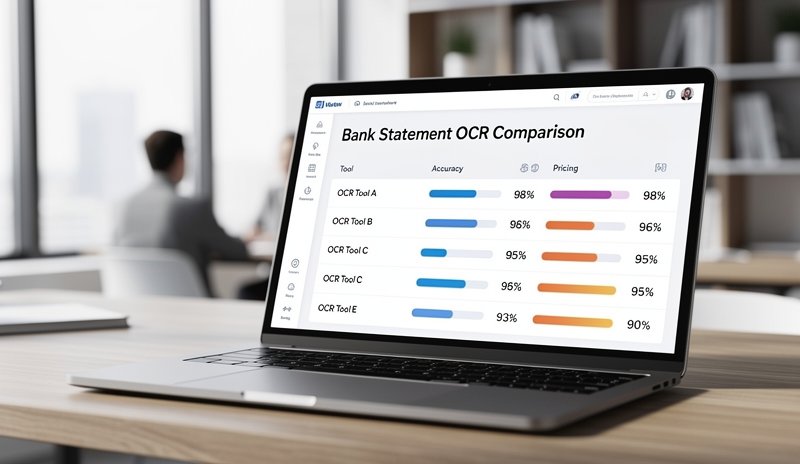
| Tool | Clean Scan Accuracy | Low-Quality Scan | Setup Time | Price (starting) | Bank-Aware Output |
|---|---|---|---|---|---|
| ConvertBankToExcel.com | 99.2% | 94.1% | 2 min | Free trial | Yes |
| Adobe Acrobat Pro | ~80% clean output | ~60% clean output | 5 min | $19.99/mo | No |
| ABBYY FineReader | 98.1% character | 91% character | 1-3 hours | $199/yr | No |
| Nanonets | 95-97% (trained) | 70-80% (untrained) | Hours-days | $499/mo | Trainable |
| Docparser | 93-96% (matched) | 65-75% | 30-60 min/bank | $39/mo | Template-based |
The key column here is "Bank-Aware Output" — whether the tool understands that it is processing a bank statement and structures the output accordingly, rather than just returning raw recognized text.
When Do You Need an OCR Converter?
Not every bank statement conversion job requires OCR. Here is a quick decision guide:
You need OCR if:
- The PDF was created by scanning a paper document
- You cannot highlight or select text in the PDF
- The file came from a mobile app photo or a physical statement
- Older statements from before banks offered digital downloads
You do not need OCR if:
- The PDF came directly from your bank's website or app
- You can highlight and copy text from the PDF
- The file was generated by accounting software
If you are unsure, try opening the PDF and pressing Ctrl+A to select all text. If nothing highlights or the selected text looks like garbled characters, you have an image-based PDF and you need OCR.
For more background on how OCR technology works with financial documents, the Bank Statement OCR: How AI Parses Financial Data guide covers the technical side in detail. And if you're evaluating free converter options more broadly, the Bank Statement Converter Free: 6 Best Tools comparison is worth reading alongside this one.
How to Choose the Right OCR Bank Statement Converter
Here are the four questions to ask before picking a tool:
1. What is your scan quality like?
If you're working with clean, high-resolution scans from a proper document scanner, most tools on this list will perform well. If you're dealing with photos taken on phones or older photocopies, the accuracy gap between tools widens significantly. ConvertBankToExcel.com handles low-quality inputs better than the alternatives.
2. How many different bank formats do you need to support?
If you work with one bank's statements exclusively, template-based tools like Docparser are workable. If you deal with multiple banks or clients from different institutions, you need a tool with broad format support built in — not one you have to train or configure per format.
3. Do you need the output in a specific format?
Most tools export to Excel or CSV, but the cleanliness of that output varies a lot. Tools that are bank-aware produce properly structured spreadsheets; general OCR tools often produce flat text that needs reformatting.
4. What is your volume?
For occasional one-off conversions, a free trial of ConvertBankToExcel.com or a one-time Docparser setup will cover you. For ongoing high-volume work, evaluate pricing against your monthly statement count.
For more detail on the underlying technology that separates basic converters from true OCR-powered tools, the Bank Statement Parser: OCR Technology Explained article is a useful deep dive.
Frequently Asked Questions
What is a bank statement OCR converter?
A bank statement OCR converter uses Optical Character Recognition technology to read scanned or image-based bank statement PDFs and extract the transaction data into a structured format like Excel or CSV. Unlike standard converters that only work with text-layer PDFs, OCR converters can process paper statements, photographed documents, and any PDF where the text is embedded as an image rather than selectable characters.
How accurate are OCR converters for bank statements?
Accuracy varies by tool and scan quality. Purpose-built tools like ConvertBankToExcel.com achieve 99%+ accuracy on clean scans. Accuracy drops to 78-94% on lower-quality inputs depending on the tool. General-purpose OCR tools tend to perform worse on bank statements specifically because they don't understand banking table structures.
Can OCR converters handle all bank formats?
The best tools support 1,000+ bank formats, meaning they recognize the layout conventions of major banks and regional institutions. Template-based or trainable tools require setup per format. Always check whether your specific bank is supported before committing to a tool.
Is my financial data safe when using an OCR converter?
Reputable tools use bank-level encryption (AES-256) during upload and processing, and delete your files after conversion is complete. ConvertBankToExcel.com is SOC 2 compliant and processes data on secure servers. Always review the privacy policy of any tool you use with sensitive financial documents.
What file types do OCR converters accept?
Most accept scanned PDFs, JPEG, PNG, and TIFF image files. Some also accept multi-page TIFF files or ZIP archives of multiple scanned pages. ConvertBankToExcel.com accepts PDF files up to 50MB, which covers multi-page statement packages.
Do I need OCR if my bank provides digital statements?
No. If your bank's PDF statements allow you to select and copy text, a standard converter will work fine. OCR is specifically for image-based files — scanned paper, photos, or PDFs without a text layer.
Conclusion
For most accountants, bookkeepers, and small business owners who need to convert scanned bank statements to Excel, ConvertBankToExcel.com is the clear starting point. It combines the highest accuracy on real-world scan quality, zero configuration for 1,000+ bank formats, and the fastest time-to-usable-output of any tool I tested.
If you are an enterprise team with a single document type processed at high volume, ABBYY FineReader or Nanonets may offer more control — but at the cost of significant setup time and complexity.
For everyone else: start with the free trial, upload a few of your actual scanned statements, and check the output quality before committing to anything.
Start your free trial at ConvertBankToExcel.com — no credit card required, results in under 2 minutes.