

You get the XML file at the worst possible time. A client emails a bank export. An ERP spits out an API response. A tax system gives you a download that opens in a browser and looks like a wall of tags.
What you need is not “XML support.” You need a clean worksheet, usable columns, preserved values, and a process you can repeat next week without redoing everything from scratch.
That’s the gap most tutorials miss. They show a perfect sample file and stop at File > Open. Real finance data isn’t that polite. It comes nested, inconsistent, namespace-heavy, and just structured enough to make you think Excel will handle it automatically. Sometimes it does. Often it doesn’t.
If you want to know how to convert xml to excel in a way that holds up under deadlines, audits, and ugly source files, you need more than one method. You need to know when native Excel is enough, when Power Query is the right middle ground, when Python earns its keep, and when manual cleanup will cost more than the conversion itself.
Why Converting XML to Excel Is Still a Core Task
XML is old, but it’s not gone. In finance, accounting, banking, and system integrations, it still shows up constantly because structured systems still need a structured exchange format.
That matters more than many teams admit. The W3C established XML in 1998, and its use in financial data exchange remains embedded. The spread of XML-to-Excel methods has driven significant growth in adoption among accounting professionals, and XML now underpins a substantial portion of global banking APIs, according to industry data cited in this summary from RAC. The same source states that a 2024 Intuit survey found 62% of small business owners and 75% of tax preparers convert XML for accounting software imports, with reconciliation errors cut by 92%.
Those numbers fit what practitioners see every week. XML rarely arrives because someone likes XML. It arrives because a bank, ERP, payroll platform, invoicing system, or government portal exported data in the format its machines prefer.
Why finance teams keep ending up in Excel
Excel is still the place where people validate, reconcile, annotate, filter, and explain data.
A raw XML file can hold the transactions perfectly and still be unusable for review. You can’t hand most reviewers a nested tag structure and expect them to spot a duplicated payment or a missing date. Once the same data is flattened into a sensible worksheet, they can sort it, pivot it, compare periods, and trace exceptions.
That’s also why XML conversion sits next to broader process work like automated data entry software. The conversion itself isn’t the final goal. The goal is reducing manual handling without losing auditability.
Why simple tutorials break down fast
A clean demo XML file usually has one repeating node, one obvious table, and no structural surprises.
Production files are different:
- Nested records: One account contains many transactions, each with multiple child elements.
- Optional fields: Some records have tags others don’t.
- Namespaces: Excel or Power Query may show an empty result if the XML uses prefixes awkwardly.
- Mixed use cases: You may need one output for Excel review and another for QuickBooks or another accounting package.
XML is easy right up until the moment it isn’t. The trouble starts when one parent node contains several business objects and Excel has to pretend that all of them belong in one flat table.
If you only know one conversion approach, you’ll either overcomplicate a simple file or force a complex file into the wrong workflow. Both waste time. The practical answer is to choose the lightest method that still gives you a reliable result.
Excel's Built-in Tools Direct Import vs Power Query
Excel remains the default starting point for a reason. Microsoft introduced native XML import in Excel 2003, then strengthened the workflow with Power Query in Excel 2016. A 2023 Gartner report cited in Microsoft-focused guidance says 78% of Fortune 500 finance teams rely on Excel’s XML import for integrating API outputs, reducing manual entry by 65%, and with over 1.2 billion Excel installations, these native capabilities power over 90% of professional XML-to-Excel conversions according to the cited summary at this reference.
The mistake is thinking Excel offers one method. It doesn’t. It offers two very different ones for this job, and they solve different problems.
Direct import when the file is simple and you need speed
If the XML is flat or close to flat, direct import is the fastest route.
Use Excel’s built-in path:
- Open Excel
- Go to Data
- Choose Get Data
- Select From File
- Choose From XML
- Pick the XML file
- Load it
In many cases, Excel will preview the structure in the Navigator window and let you load it as a table.
This method is good when:
- The XML has one obvious repeating record
- You only need a one-off conversion
- You don’t expect to refresh the file repeatedly
- You can tolerate minor cleanup after load
This method is weak when:
- The XML has deep nesting
- The file structure changes between exports
- You need transformation logic before load
- You need a repeatable process for the next batch
The biggest practical issue is false confidence. A direct import can appear successful while flattening data in a way that duplicates parent values or hides structural relationships. For a quick list of simple records, that may be fine. For financial data with balances, sub-lines, tax elements, or multiple transaction types, it can become a cleanup project.
Power Query when the file needs shaping, not just opening
Power Query is where Excel becomes useful instead of merely convenient.
It gives you a controlled import workflow. You can inspect the nodes, expand nested records, remove columns you don’t need, change data types, and keep the query for refresh later. If direct import is a grab-and-go option, Power Query is the method I trust when accuracy matters.
Use this route:
- Data > Get Data > From File > From XML
- Select the XML file
- In Navigator, choose Transform Data
- Open the Power Query editor
- Expand nested tables or records
- Rename columns to business-friendly labels
- Set data types before loading
- Click Close & Load
What direct import gets right and wrong
A side-by-side view helps.
| Method | Best use | Strength | Weak point |
|---|---|---|---|
| Direct Import | One-off, simple XML | Fastest path into a worksheet | Very little control over structure |
| Power Query | Nested or recurring imports | Better shaping and refreshability | More setup and more user decisions |
Direct import is not “bad.” It’s just narrow. If you only need a readable table right now, it’s perfectly reasonable.
Power Query is the better default when the XML matters enough that you’d notice if the structure got distorted.
Practical rule: If the XML will be imported again next month, start in Power Query even if direct import works today.
A workflow that holds up under repeated use
The part many tutorials skip is the discipline around the import.
When I review XML conversions built by finance teams, the avoidable errors usually come from skipping these checks:
- Confirm the repeating node first: Make sure you know what should become one row in Excel.
- Set types early: Dates and amounts imported as text will haunt every pivot and reconciliation after that.
- Keep raw and transformed versions separate: Don’t overwrite your source logic with ad hoc sheet edits.
- Name the query clearly: “XML Import Final v2 NEW” is not a process.
Power Query also becomes more valuable when you pair it with broader reporting automation. If your team is trying to reduce repetitive workbook wrangling after import, Querio has a useful piece on how to automate your Excel reporting workflows without turning every report into a manual spreadsheet project.
When I would choose each one
Choose direct import if the file is simple, disposable, and low risk.
Choose Power Query if the file is nested, recurring, or tied to reconciliations, management reporting, or audit support.
If you’re unsure, start in Power Query. The extra setup usually costs less than fixing a bad flattening job after the fact.
Tackling Complex and Hierarchical XML Data
Most XML conversions go wrong here. The file loads, but not in a form a human can use.
A typical financial XML file doesn’t map neatly into one table. One <Account> can contain many <Transaction> nodes. One invoice can contain multiple line items, tax components, and references. Excel likes rows and columns. XML likes hierarchy. Your job is to decide what the row represents.

Flatten the hierarchy one business object at a time
In Power Query, the common pattern is expand, inspect, then expand again.
Suppose your XML has this logic:
- One account
- Many transactions under that account
- Optional detail tags under each transaction
If you load the top node and stop there, Excel may show one row per account with a nested table sitting inside one column. That’s not analysis-ready. You need to expand the transaction node until each transaction becomes its own row.
A reliable approach looks like this:
- Open the XML in Power Query
- Find the parent node that contains the repeating records
- Expand that column
- Keep only the fields needed for the transaction-level table
- Expand any nested detail nodes only after the repeating transaction rows are visible
- Check whether the expansion created duplicate parent data
- Load the result only after the row grain is clear
The key phrase is row grain. In accounting work, every row needs a business meaning. One transaction. One invoice line. One payment. If you can’t state that clearly, the table is not finished.
A practical example with repeating nodes
Take a multi-transaction invoice export. One invoice contains several <Transaction> or <LineItem> nodes.
You have two sensible outputs:
- Invoice summary sheet: One row per invoice
- Detail sheet: One row per line item or transaction
Many users try to force both into one table. That’s where the mess begins. Parent fields repeat across every child row, and totals become easy to misread. A better practice is to build separate query outputs if the XML naturally contains multiple business layers.
If your end goal is CSV instead of XLSX in one part of the workflow, this walkthrough on XML to CSV is useful because the same flattening decisions apply before export.
Namespace errors and the dreaded empty preview
One of the most irritating XML problems is the file that looks valid but loads strangely, or appears blank.
Often the issue is namespaces. The XML includes prefixes or namespace declarations that affect how nodes are identified. Power Query may still parse the file, but the structure can look less obvious than expected, or the element names can appear qualified in a way that hides the node you meant to use.
What usually helps:
- Inspect the actual node names in the first Power Query preview
- Don’t assume the visible tag name is the one Power Query uses internally
- Try expanding from the root downward instead of jumping straight to a guessed node
- If the file is malformed or oddly encoded, clean it in a text editor first
For ugly exports, basic preprocessing can save a lot of time. Even a pass through a text editor to normalize formatting can make the hierarchy easier to inspect.
If Power Query shows structure but not meaning, don’t load it yet. Keep drilling until each row represents one thing you’d be willing to reconcile.
What works and what doesn’t
A few trade-offs matter in practice.
What works
- Expanding nested columns gradually
- Building separate outputs for separate business grains
- Renaming columns during transformation instead of after load
- Checking totals after flattening
What doesn’t
- Loading the root node and hoping Excel guessed correctly
- Combining header, detail, and balance logic in one sheet
- Ignoring optional fields until later
- Treating a nested table in one cell as “close enough”
The accounting reality
A “successful import” is not the same as a usable workbook.
If your flattened result can’t support filtering, pivoting, tie-out work, or exception review, you haven’t converted the XML. You’ve only moved it. Complex XML needs shaping before analysis, and that shaping is where most of the significant work sits.
Programmatic Conversion with Python for Automation
If Excel is the right tool for review, Python is the right tool for volume.
This is the method I recommend when the problem is no longer “How do I open this file?” and has become “How do I process a folder full of these every week without babysitting Excel?”

The standard stack is straightforward: xml.etree.ElementTree to parse the XML, and pandas with openpyxl to write XLSX output. According to the cited summary at SysInfoTools, this approach can process thousands of XML files in minutes, has a 98% success rate on valid XML, and commonly uses XPath such as .//record to pull repeating nodes before exporting with df.to_excel(). The same source notes the trade-offs too. Files over 2GB can trigger memory problems, and malformed tags require explicit error handling.
The basic script that does the job
For many structured XML files, the core pattern looks like this:
import xml.etree.ElementTree as ET
import pandas as pd
tree = ET.parse('input.xml')
root = tree.getroot()
data = []
for elem in root.findall('.//record'):
data.append({child.tag: child.text for child in elem})
df = pd.DataFrame(data)
df.to_excel('output.xlsx', index=False, engine='openpyxl')
This script works because it assumes one repeating node, here .//record, should become one row in Excel.
That assumption is exactly what you must test before trusting the output. If the true business row is a transaction nested below record, this script will produce a technically valid but structurally wrong spreadsheet.
Why Python is worth the extra setup
Excel handles interaction well. Python handles repetition well.
Use Python when you need to:
- Batch process many XML files
- Apply the same logic every time
- Log failures for review
- Split outputs into multiple sheets
- Integrate conversion into a wider ETL workflow
If you’re building broader ingestion processes, CloudDevs has a practical guide to using Python in ETL data pipelines that fits well with this kind of XML-to-XLSX automation.
A safer version for real files
The copy-paste version above is fine for a clean file. Real files need a little more protection.
Add these habits:
- Wrap parsing in try/except: malformed XML should fail cleanly.
- Inspect the node path first: don’t assume
.//recordis correct. - Validate output columns: XML generators often vary field presence across records.
- Write a log file: if one file fails in a batch, you need traceability.
Here’s the practical question to ask before you automate: what happens when the source structure changes? Python gives you control, but it also gives you responsibility. If the vendor adds a new nested section or changes a tag name, your script won’t complain politely. It will either break or produce a workbook that needs review.
A related issue shows up in adjacent file-conversion work too. If your upstream process still hands you text exports before XML normalization, this guide on how to convert TXT to CSV is useful because the same principle applies. Clean, structured input saves downstream transformation time.
What Python does better than Excel
Python wins on scale and repeatability. It also lets you enforce your own logic instead of relying on Excel’s interpretation of the hierarchy.
It’s especially useful when you want to:
| Need | Why Python helps |
|---|---|
| Batch conversion | Process folders instead of one file at a time |
| Custom flattening | Write logic around nested nodes and exceptions |
| Controlled exports | Create multiple sheets or filtered workbooks |
| Audit support | Keep logs and reproducible scripts |
A short demo can help if you want to see the workflow in action:
What Python does poorly
Python is not a magic fix.
It’s a poor choice when:
- The team can’t maintain code
- The XML source changes constantly without notice
- The users need point-and-click review more than automation
- The conversion is a one-off task
Good automation removes repeat work. Bad automation turns a visible spreadsheet problem into an invisible script problem.
That’s the primary trade-off. Python is excellent when the process is stable enough to codify. If the inputs are chaotic and the users need immediate manual inspection, Power Query may still be the more practical choice.
The Recommended Automated Workflow for Bank Statements
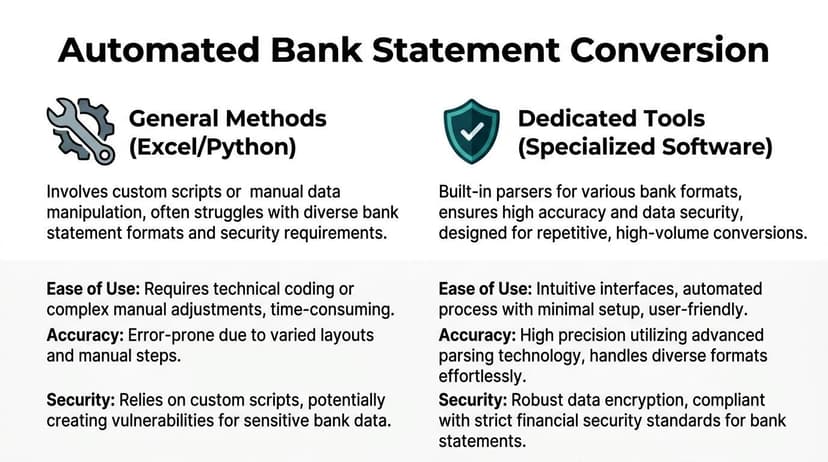
Bank statement XML is where generic methods start showing their limits.
In theory, a statement export is just another XML file. In practice, it often carries balances, transaction detail, references, foreign-language fields, layout quirks, and downstream accounting requirements that a plain import does not solve well. You don’t just need rows in Excel. You need something you can trust.
The biggest problem is what happens after import. Standard conversion methods often fail to preserve calculation formulas or perform balance reconciliations, and that manual post-processing introduces errors in 40% of cases according to the cited summary at Simon Sez IT. The same source states that newer AI-powered tools can handle XML and PDF statement formats from over 2,000 global banks using OpenAI Vision with OCR fallback, and can save high-volume firms over 12 hours weekly.
Why bank statements are different
A normal XML import asks, “Can I load the fields?”
A bank statement workflow asks tougher questions:
- Do the transactions tie to the opening and closing balance?
- Are debits and credits mapped consistently?
- Did the parser handle all pages and all sections?
- Can the output feed accounting software without more cleanup?
That’s why I don’t recommend treating bank statement conversion as a generic spreadsheet exercise if the files are high volume or client-facing.
General methods versus dedicated workflows
The contrast is blunt.
Excel and Python are strong when you control the source, understand the structure, and can maintain the process.
Dedicated bank-statement workflows are stronger when the files vary by institution, the users need confidence scoring or reconciliation, and the output has to be review-ready fast.
A simple comparison:
- General methods: flexible, but they rely on user judgment and more manual checks
- Dedicated tools: narrower use case, but much better aligned to repetitive statement extraction
- Manual cleanup: the hidden cost in almost every “free” approach
If your work includes statement reconciliation, month-end cleanup, or intake of client-submitted exports, it helps to think beyond conversion and into the larger process of automated bank reconciliation software.
What matters in a bank conversion workflow
For this use case, I’d prioritize four things over raw import convenience:
Accuracy of extracted transactions
If line items come in but signs, dates, or balances are off, the workbook is worse than useless.Handling of messy source files
Real statement files are not always clean XML. Some are scanned PDFs, hybrid exports, or inconsistent bank-generated structures.Reconciliation support
A statement conversion should help verify totals, not just display activity.Security and retention controls
Financial records should not be pushed through casual upload tools without understanding where the files go and how long they stay there.
For bank data, “it opened in Excel” is not the success criterion. “It tied out correctly” is.
That standard sounds stricter because it is stricter. Statement data gets used in books, tax files, audits, mortgage packages, and compliance reviews. A casual conversion method may still be acceptable for ad hoc analysis. It is not good enough for a workflow that has to be repeated and trusted.
Key Questions on XML to Excel Conversions Answered
Can I use a free online converter
You can, but I’d be careful with financial or client data.
The usual trade-off is convenience versus control. Online converters can be fine for non-sensitive samples or quick format tests. They’re a poor default for bank statements, accounting exports, or anything with confidential identifiers unless you’ve reviewed the provider’s security and retention practices closely.
Why did Excel import everything as text
Because XML structure does not guarantee Excel will infer business-friendly data types correctly.
Fix this at the transformation stage if possible. In Power Query, set data types before loading. In Python, cast fields deliberately before writing the workbook. If you wait until the sheet is loaded, you’ll spend more time cleaning dates, amounts, and leading-zero fields by hand.
Why does my XML open as one ugly column or one weird table
Usually one of three things is happening:
- The file is hierarchical and needs flattening
- The wrong node was loaded
- The encoding or namespace structure confused the import path
Open the file in Power Query and inspect the hierarchy instead of relying on the first sheet Excel offers.
Should I use XML Maps
Only for narrow cases.
XML Maps can still be useful if you have a stable schema and a very controlled workflow. For most finance teams, Power Query is the more practical native option because it gives you better transformation control without forcing manual mapping.
How do I handle very large XML files without freezing Excel
A few habits help:
- Work on a sample first: prove the node path and output shape before loading the full file.
- Trim unnecessary fields: don’t import every tag just because it exists.
- Use Python for bulk or oversized files: Excel is a review tool, not a high-volume parser.
- Split the workflow: extract first, analyze second.
Can I preserve formulas during conversion
Not directly in the way many users expect.
Standard XML imports focus on bringing in data, not rebuilding the logic of an existing workbook. The safer approach is to import XML into a staging sheet or query output, then reference that structured table from your reporting formulas or pivot tables.
What if my source file is a PDF or another format upstream
That happens all the time. Teams often think they need XML help when the core issue starts earlier in the pipeline.
If the upstream conversion path includes other document types, this article on convert PDF to XML is worth reviewing because input quality determines how much cleanup you’ll do later in Excel.
What’s the best method overall
There isn’t one best method. There’s a best fit.
- Use direct Excel import for quick, simple files.
- Use Power Query for nested XML you need to shape and refresh.
- Use Python for batch automation and controlled transformation logic.
- Use specialized workflows when the data is financial, repetitive, and high risk.
The right answer is the one that gives you a trustworthy workbook with the least manual rework.
If your problem isn’t generic XML but messy bank and credit card statements, ConvertBankToExcel is built for that exact workflow. It turns statement files into structured Excel, CSV, and accounting-ready outputs, with support for difficult formats, reconciliation-focused extraction, and batch processing that saves finance teams serious cleanup time.