

If you're searching for an excel bank statement template, you're probably in one of two situations. Either you need a clean file right now so you can start reconciling transactions today, or you're already knee-deep in PDF statements and tired of fixing broken copy-pastes line by line.
I’ve seen both. The spreadsheet itself is the easy part. The hard part is the bank data. A tidy CSV drops neatly into Excel. A scanned statement from an older bank portal, a credit card PDF with odd columns, or a multi-page foreign-language statement does not. That’s where most “free template” articles stop being useful.
A good template still matters. It gives you structure, catches mistakes, and helps you prove your closing balance. But if you handle statements for clients, loans, tax prep, or monthly bookkeeping, the template is only step one. The actual workflow starts when the input is messy.
The Manual Bank Reconciliation Headache
Month-end usually falls apart in the same place. The statement arrives as a PDF, the client wants numbers today, and someone starts keying lines into Excel by hand.
I still see this with small clients who insist on sending screenshots, locked PDFs, or exports from old banking portals. The spreadsheet is not the hard part. The hard part is getting transactions into clean rows without introducing errors that only show up when the ending balance refuses to match.
What the day-to-day pain actually looks like
Manual reconciliation breaks down in predictable ways:
- The PDF copies badly. Dates, descriptions, and amounts collapse into one cell or split across several.
- Amounts import with the wrong format. Negative values come in as text, brackets, or stray symbols that Excel will not calculate correctly.
- Rows shift without warning. A blank field in the source statement pushes the rest of the line out of place.
- Errors hide until the end. You can be 200 rows in before a broken running balance tells you something went wrong on page two.
That is why I treat reconciliation as a data-cleaning job first and an accounting job second. A proper bank statement reconciliation workflow starts with usable transaction data. If the import is messy, the review will be messy too.
One typo is enough. Enter a fee as a deposit, paste a debit with an invisible space, or miss one transfer between pages, and the whole worksheet becomes a search exercise.
Why a template still earns its place
A good Excel template gives structure to the review. It keeps debits and credits separate, shows whether the running balance still holds, and gives you one place to tag transactions before posting them to the ledger.
That matters in real work. For a single personal account with 30 clean lines, a manual template is often fine. For a bookkeeper handling five bank accounts, two credit cards, and monthly loan reviews, the trade-off changes fast. The template stays useful, but manual entry stops being efficient.
I use templates as a control sheet, not as a data-extraction method. They work well once the transactions are already clean. They do not solve bad source files, scanned statements, or bank PDFs with inconsistent layouts.
The same rule applies on the payments side. If you also prepare remittance files, structured input saves time there too. The ConversorSEPA trial for remittances is worth a look for that reason.
Your Free Excel Bank Statement Template
Start with a workbook you can trust under deadline. If a client emails a CSV at 4:45 p.m., you should be able to drop it into the file, clean it, and see whether the balance holds without rebuilding your sheet.
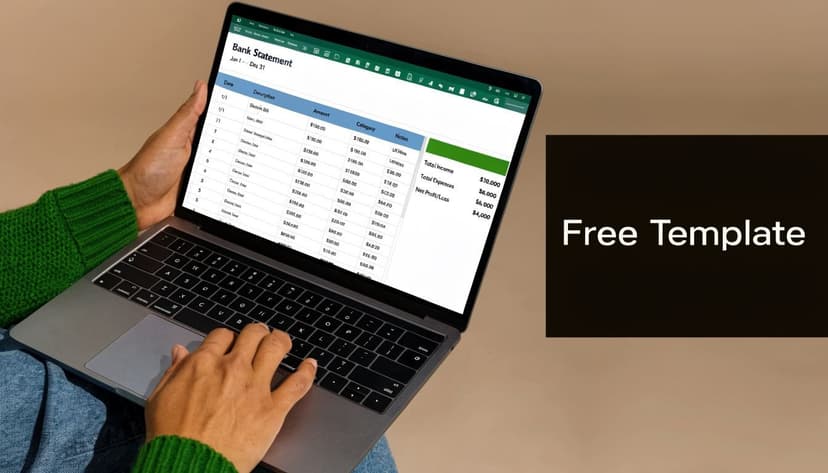
The core columns that matter
For a practical excel bank statement template, I keep the transaction sheet to six working columns:
| Column | Purpose | Why it matters |
|---|---|---|
| Date | Transaction or posting date | Needed for sorting, filtering, and imports |
| Description | Merchant, memo, or bank narrative | Gives you audit context |
| Category | Expense or income label | Makes review and coding faster |
| Debit | Money out | Keeps outflows separate |
| Credit | Money in | Avoids mixed-sign errors |
| Balance | Running account balance | Shows where the mismatch begins |
Those fields are enough for real bookkeeping work. They let you review activity, trace errors, and prepare data for your accounting system without stuffing the sheet with columns you rarely use.
If you want reporting on top of that, add categories that help you gain insights into your spending. Keep that separate from the raw bank narrative. The original statement text is often what saves you during review.
The workbook layout I actually use
One-sheet templates look tidy until the edits start. In client files, I use three tabs.
Raw Data
Paste the export, copy in the PDF text, or drop in the converted file exactly as received.Clean Ledger
Standardize dates, split debit and credit, trim descriptions, and calculate the running balance here.Summary
Check totals by category, scan for duplicates, and review the statement period at a glance.
That setup prevents a common problem. Once people clean directly in the source tab, they overwrite the original import and lose the audit trail. I have had to rebuild more than one month-end review because somebody pasted over the bank’s own wording.
The basic running balance formula
The formula should stay simple:
Previous Balance + Credit - Debit
That is the same logic I use when reviewing statements by eye. If the balance breaks on row 86, I know the issue is usually one of three things. A missing transaction, a debit sitting in the credit column, or an opening balance entered incorrectly.
Put formulas in the balance column only. Input fields should stay manual, visible, and easy to test.
What to build into the template on day one
Small controls save real time later:
- Freeze the header row
- Format debit and credit as currency
- Add a category dropdown for repeated labels
- Protect formula cells
- Leave space for account name, statement period, and opening balance
- Add a notes column only if you use it during review
I also recommend saving a blank master copy before the first use. Monthly files stay cleaner when the structure never changes.
This template works well when the bank data arrives in usable form. It stops working well when every month starts with copy-paste cleanup from PDFs. At that point, the better move is to automate bank statement data entry and keep Excel as the review layer instead of the extraction tool.
Populating and Cleaning Your Data Like a Pro
A bank export can look clean for about ten seconds. Then you notice half the dates are text, card refunds sit in the debit column, and one PDF paste has shoved the whole line into a single cell.
That is the part people underestimate. The template is the easy bit. The cleanup is where the time goes, and it is also where small mistakes turn into bad reconciliations.
Fix dates, amounts, and broken descriptions first
I clean bank data in the same order every time because the fields depend on each other. If the date is wrong, sorting is wrong. If the amount is text, totals and running balances are wrong. If the description is jammed into one field, categorization is guesswork.
These are the three problems I see most often:
Dates in mixed formats
One file shows 01/02/26. Another shows 02-Jan-2026. Some PDF copies bring dates in as plain text, which means Excel will not sort them properly. Convert everything to one true date format before reviewing the transactions.
Amounts stored as text
This usually happens after copy-paste from online banking or PDF statements. A minus sign may be detached, a currency symbol may stay in the cell, or a hidden space may stop Excel from treating the value as a number. Clean those cells first, then test with a simple sum.
Descriptions merged into one field
Scanned and copied statements often collapse date, payee, reference, and amount into one messy string. That is where manual cleanup starts to drag, especially on long statements.
The quickest cleanup sequence is usually:
- Use Text to Columns if the pasted data follows a repeatable pattern
- Use Find and Replace to strip repeated labels, extra spaces, or currency text
- Split reference numbers from merchant names only after the row structure is stable
- Standardize debit and credit columns before any review or categorization
For spreadsheet users who are tired of fixing the same formatting issues by hand, this guide on how to automate data entry shows where manual work starts costing too much time.
Protect the math before the file gets touched by anyone else
Running balance formulas do not usually fail because the formula is hard. They fail because someone pasted over a balance cell, inserted rows outside the table, or dragged a formula down unevenly.
In client files, unprotected sheets are one of the most common reasons a template stops being trustworthy. I have seen a statement reconcile perfectly until row 143, then fail because one balance formula got replaced with a typed number during a quick "fix." The error looked like a bank issue. It was just a broken cell.
Keep the formula structure boring and easy to audit. Lock formula cells after testing. If multiple people touch the workbook, I also keep a raw import tab and a separate cleaned tab so the original data stays intact.
A bank template should be easy to review, not clever. Fancy formulas are harder to troubleshoot when the source data is already messy.
A cleanup workflow that holds up in real bookkeeping
This is the order I use in month-end work:
- Paste or import transactions into a staging tab.
- Remove blank rows and obvious header noise.
- Split combined fields into date, description, debit, credit, and balance.
- Convert dates and amounts into real Excel values.
- Check for duplicates, reversed signs, and missing rows.
- Review the running balance line by line.
- Categorize only after the sheet behaves like a ledger.
That last step matters. Categorizing too early hides data problems because people focus on labels instead of transaction integrity.
If your goal is budgeting rather than ledger prep, tools that gain insights into your spending can help once the transactions are cleaned and structured.
For a visual walkthrough of how these cleanup steps look in a spreadsheet, this video is a good companion to the template process:
How to insert rows without breaking the sheet
Insert rows inside the active transaction range so formulas copy down with the table. Adding new rows below the last formula line is where balances often break.
I also keep a short review checklist beside the sheet:
| Check | What I’m looking for |
|---|---|
| Date continuity | No text dates or mixed regional formats |
| Amount integrity | No numbers stored as text |
| Debit and credit logic | No transaction entered in both columns |
| Running balance | No break between opening and closing balance |
This catches a lot of errors early.
It also shows where the free template reaches its limit. If every month starts with a scanned PDF, merged fields, and manual repairs across hundreds of rows, Excel is still useful for review, but it stops being the right extraction tool.
Reconciling Balances and Mapping Fields for Accounting
A filled-in template isn't finished work. It's only finished when the closing balance proves out and the data is shaped for your accounting system.

How I reconcile a statement in practice
I use a simple end-to-end check:
- Start with the opening balance from the statement.
- Confirm every transaction has landed in the right debit or credit column.
- Review the final running balance in Excel.
- Compare it with the bank statement’s closing balance.
- If they don’t match, isolate the first row where the balance diverges.
That last step matters. Don’t hunt randomly through the whole month. A running balance tells you exactly where the error starts. Most mismatches come from one of these causes:
- A missed row during copy or manual entry
- A sign error where money out was entered as money in
- A formatting problem where Excel treated a number as text
- A duplicated transaction after a second paste
Reconciliation is less about finding every mistake. It's about finding the first mistake. The rest usually follows from there.
If you want a worked spreadsheet structure for this stage, this reference on bank reconciliation format in Excel is a practical model.
Field mapping for QuickBooks, Xero, and similar systems
The second half of the job is mapping. A ledger can be accurate and still fail on import because the columns don’t match what the accounting platform expects.
I usually make a duplicate export tab and rename fields there rather than altering the working ledger. That preserves the clean workbook while giving me an import-ready file.
Typical mapping adjustments include:
| Ledger field | Common import expectation |
|---|---|
| Date | Transaction Date |
| Description | Description or Memo |
| Debit | Money Out or Expense |
| Credit | Money In or Deposit |
| Category | Often removed before bank feed import |
| Balance | Often removed before import |
What works and what doesn't
What works is keeping the import file lean. Most accounting platforms want transaction-level detail, not your full analysis layer. They rarely need your running balance or internal notes.
What doesn't work is trying to make one tab do everything. If the same sheet must serve as raw data store, reconciliation tool, spending analysis, and import file, someone eventually edits the wrong field and the workflow turns brittle.
For client work, I keep these three versions separate:
- Raw source tab
- Clean reconciled ledger
- Import-ready mapping tab
That sounds like extra work, but it prevents the classic bookkeeping problem where a “quick fix” for an import breaks the ledger you already reconciled.
When Manual Templates Fail The Scanned PDF Problem
The free template helps when you can get usable transactions into Excel. The problem is that many statements don't arrive that way.
Industry reports show that 70-80% of bank statements arrive as non-editable PDFs, forcing professionals to waste over 12 hours per week on manual data extraction. While AI-OCR tools can reduce this time by 90%, most free templates lack any integration for handling these scanned documents, according to Docparser’s analysis of bank statement template workflows.
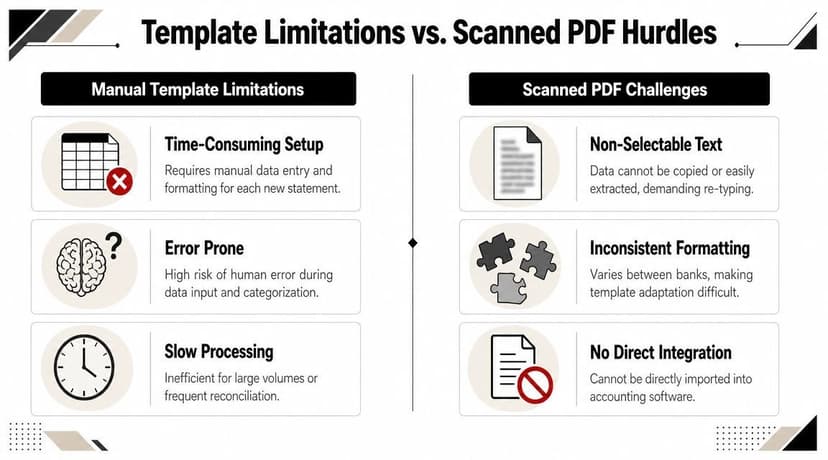
Why scanned statements break manual workflows
A scanned PDF isn't just a regular PDF with ugly formatting. In many cases, the text isn't selectable at all. Excel can’t split what it can’t read. You end up retyping line items or wrestling with inconsistent OCR output from generic tools.
That gets worse when you have:
- Multi-page statements with repeated headers
- Foreign-language banking terms
- Low-quality scans where decimals and dates blur
- Different layouts across banks and card providers
General spreadsheet advice becomes impractical. The issue is no longer the template. The issue is document extraction.
The point where automation becomes necessary
If you reconcile one clean statement a quarter, manual handling is still reasonable. If you’re working through client backlogs, mortgage evidence packs, tax records, or statements from multiple banks, it stops making sense.
I don't say that because automation sounds modern. I say it because manual templates don't solve unreadable source files. OCR and document extraction do.
If you want a broader view of how teams approach that layer of the process, Zemith's intelligent document processing gives useful context around document workflows beyond spreadsheets.
A template organizes transactions after extraction. It doesn't perform extraction for you.
A better workflow for image-based and scanned statements
The cleaner way to work is:
- Extract the statement into structured rows first.
- Review those rows in Excel.
- Reconcile the output.
- Export or map to accounting software.
That’s especially important for statements captured from photos or scans rather than exported PDFs. If you're dealing with image-based documents, this guide on extracting data from a picture covers the logic behind that workflow.
The core decision is simple. Use a manual template when the bank data is already usable. Use an extraction workflow when the statement itself is the obstacle. A lot of bookkeeping frustration comes from applying the wrong tool to the wrong stage of the job.
FAQ Your Bank Statement Workflow
Is a local Excel file safer than a cloud tool for bank statements
It depends on how you handle the file, not just where it lives.
A local workbook feels safer because it stays on your machine. But local files are also easy to duplicate, email unencrypted, misname, or leave in shared folders. A secure cloud workflow can be safer if access is limited, files are deleted on schedule, and your team uses consistent permissions.
The weak point is usually process discipline. If client statements move through inboxes, desktop downloads, and ad hoc versions of the same workbook, risk increases quickly.
What’s the best way to process many statements for different clients
Batch by client and by statement type. Don’t mix personal bank accounts, business current accounts, and credit cards in one ledger. Keep each account in its own workbook or import batch, then use a naming convention that includes the client, account, and statement period.
For full-year jobs, I also recommend separating the stages:
- Collection first. Gather all source files before cleanup starts.
- Extraction second. Convert all statements into a usable tabular format.
- Reconciliation third. Check balances statement by statement.
- Import last. Only send data into accounting software after the ledger is clean.
If you're comparing options for higher-volume work, this breakdown of free vs paid bank statement converter tools helps frame the trade-offs.
What final checks should I perform before importing into accounting software
Run a short pre-import review every time.
- Check date consistency so the software doesn’t misread regional formats.
- Remove balance columns if the platform doesn’t need them.
- Confirm one row equals one transaction.
- Scan for blanks in amount fields.
- Match the final ledger balance to the statement closing balance.
- Save a locked copy of the reconciled file before making import-specific edits.
The last point matters more than people think. Once a file has been reshaped for import, it’s no longer your best audit copy. Keep the reconciled version intact.
If you're handling clean exports, a manual template is still a solid starting point. If you're buried in scanned PDFs, mixed bank layouts, or high-volume bookkeeping, use a workflow built for extraction first. ConvertBankToExcel is designed for that exact handoff, turning bank statements into structured Excel-ready data so you can spend your time reviewing transactions instead of retyping them.