
![Extract Data From a Picture: A CPA's Guide [2026]](/_next/image?url=https%3A%2F%2Fconvertbanktoexcel.com%2Fapi%2Fuploads%2Fimages%2F1776667902817-6b307b85.jpg&w=1920&q=75)
Individuals searching how to extract data from a picture aren't dealing with a clean screenshot of a simple table. They're staring at scanned bank statements from different institutions, some emailed as PDFs, some photographed on a phone, some skewed, some faint, and some packed with transaction rows that don't line up cleanly.
That difference matters.
In accounting, the problem isn't getting text off an image. The problem is getting reliable, structured financial data out of a messy document without creating reconciliation errors. That's where generic OCR advice usually falls short. A CPA or bookkeeper doesn't need a clever demo. They need dates in the right column, debits and credits separated correctly, balances that can be checked quickly, and a workflow that doesn't collapse when the statement format changes.
The Hidden Costs of Manual Data Entry
If you've ever closed the month with a pile of scanned statements still waiting for cleanup, you already know manual entry isn't just annoying. It turns into a control problem.
A typical bad run looks familiar. One client sends a dark scan with cropped margins. Another forwards a phone photo of a printed statement. A third uploads a multi-page PDF where the transaction table shifts slightly from page to page. You start keying lines into Excel, then stop halfway through because a running balance doesn't tie out and now you have to work backward line by line.

The obvious cost is time. The less obvious cost is what that time replaces. Every hour spent retyping transactions is an hour not spent reviewing exceptions, talking to clients, or fixing the actual accounting issue behind the statement activity. Firms that want to move upstream into advisory work often get dragged back down by document cleanup.
Where the real risk shows up
Manual entry also introduces errors that don't announce themselves right away.
- Decimal mistakes: One mistyped amount can throw off the entire reconciliation and send you hunting through pages of otherwise correct data.
- Date shifts: A transaction posted at month-end can land in the wrong period if the date is read or entered incorrectly.
- Description loss: Truncated payees or missing memo details make categorization harder later.
- Process drift: Different staff members handle unclear lines differently, which weakens consistency across files.
Practical rule: If a process depends on perfect concentration for repetitive entry, it will eventually produce avoidable reconciliation work.
There's also a market gap here. A lot of mainstream content explains how to pull text from receipts, business cards, or screenshots. That advice can help with light-duty extraction, and if you're working outside finance, even resources on how to extract data from PDF pitch decks automatically can be useful for thinking about document parsing. But bank statements are a different class of problem. A 2025 Stack Overflow analysis discussed in this industry review found 40% of "OCR bank statement" queries go unresolved because complex table layouts break simpler methods, and industry benchmarks cited there note accounting professionals can lose over 12 hours weekly to manual correction.
For firms trying to reduce that drag, the operational question isn't whether to automate. It's whether the workflow is accurate enough to trust. That's why software built around automated data entry for financial documents gets attention from bookkeepers long before any flashy AI feature does.
Preparing Images for Accurate Extraction
I have seen the same pattern play out hundreds of times. A client sends a phone photo of a bank statement from a dim office, the OCR pulls in half the rows, drops a few decimals, and someone on the team spends the next hour figuring out whether the problem came from the tool or the image. For reconciliation work, that is the wrong place to burn time. Input quality decides how much review work lands on the back end.
A bank statement is not just text on a page. It is a structured table with dates, descriptions, debits, credits, balances, headers, footers, and page breaks that all need to stay in the right relationship. If the image loses that structure, extraction accuracy drops fast, especially on multi-page statements from different banks.

Start with scan quality
If you control document intake, ask for scans instead of photos whenever possible. Scans preserve alignment, reduce perspective distortion, and keep table borders and small numerals readable. That matters more on financial documents than on lighter OCR jobs because one broken row can throw off an entire reconciliation.
Resolution also matters, but the practical goal is simpler than chasing a single magic number. Use a setting high enough to keep small text, decimal points, and column boundaries sharp. Low-resolution files create soft characters and broken lines, which makes it harder for any extraction system to separate one transaction row from the next.
Research on document image preprocessing also shows that image cleanup can materially improve OCR on degraded records. A study on document imaging and extraction found that preprocessing methods improved recognition on distorted financial-style images, while very low scan resolution reduced readability and downstream OCR performance (document imaging study).
Fix the image before you blame the tool
General OCR apps often get blamed for errors that start with poor capture. Specialized financial extraction tools handle statement structure better, but they still perform best when the file is readable and properly framed.
Use this checklist before extraction:
- Straighten the page: Even minor tilt can break row grouping in transaction tables.
- Crop to the document edge: Remove desk surface, hands, scanner borders, and extra background.
- Increase contrast: Faint gray print and low-ink scans often merge into the page background.
- Remove shadows and glare: Uneven lighting can hide digits on one side of the statement.
- Keep all margins visible: Missing headers, balances, or trailing cents create exceptions later.
- Preserve page order: Multi-page statements need the original sequence intact for accurate running balances.
The image does not need to look polished. It needs to preserve the table.
Know when redaction changes the extraction job
Accounting teams often mask account numbers or personal details before sharing files internally. That is a reasonable control. It also changes the extraction problem.
Large black boxes can cover gridlines, shift line detection, or overlap adjacent rows. I have seen clean statements become messy extraction jobs because the redaction was placed too close to the transaction table. If you need to redact before processing, review how redacted bank statements can affect extraction accuracy.
A better workflow is to keep two versions when policy allows. Use the original for secure processing inside the approved system, and keep a redacted copy for email, review, or client sharing. That approach usually produces cleaner structured output and fewer reconciliation exceptions.
Comparing Data Extraction Approaches
Accountants usually learn this the expensive way. A statement arrives as a phone photo, a scanned PDF, or a cropped image from a client portal. Someone keys it in by hand, someone else checks it, and the reconciliation still breaks because one debit posted as a credit or a wrapped description shifted the running balance.
That is why the choice of extraction method matters. For finance work, the question is not whether a tool can read text from a picture. The question is whether it can return a transaction table you can trust enough to reconcile without redoing the whole statement.
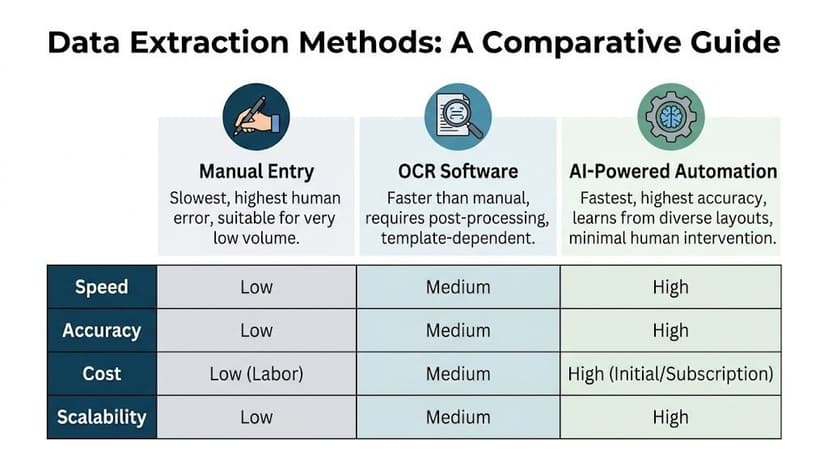
Side by side trade-offs
| Approach | Best use case | What works | Where it breaks |
|---|---|---|---|
| Manual entry | Very low volume, one-off corrections | Human judgment on unusual lines and poor scans | Slow throughput, inconsistent formatting, and high review time |
| General OCR tools | Simple tables and clean images | Fast capture of visible text and basic columns | Weak line grouping, weak balance preservation, and frequent cleanup on mixed layouts |
| Specialized financial extraction platforms | Multi-page bank statements and varied statement formats | Better table reconstruction, field mapping, and review workflows | Requires setup, testing, and disciplined exception handling |
Manual entry sets the baseline
Manual entry still has a place. I use it for isolated exceptions, damaged scans, or the odd statement page where no tool can separate two overlapping rows with confidence.
It fails as a system.
The labor cost is obvious, but the larger issue is consistency. Two staff members can read the same line differently when the image quality is poor or the description wraps into the next row. In bank reconciliation, those small interpretation differences create outsized cleanup later because totals still need to tie, dates still need to align, and balances still need to roll correctly across pages.
General OCR works for capture, not always for reconciliation
General OCR tools are useful for light-duty jobs. Excel's Data > From Picture can convert image content into a table and gives the user a review step before inserting the results (product walkthrough summary). For a screenshot of a short table or a clean list, that can save time.
The limitation shows up when accountants need structured financial data rather than text that merely looks close enough. Bank statements vary by institution, rows wrap, credits and debits may appear in separate columns or a single amount column, and running balances can shift position from one page to the next. A generic OCR pass often captures pieces of the table while losing the row relationships that reconciliation depends on.
- Good fit: clean screenshots, short tables, simple lists
- Mixed fit: standard statements with stable formatting and limited page counts
- Poor fit: scanned statements, inconsistent layouts, low-quality images, and multi-page files where balances must stay in sequence
For a closer look at the operational limits, this overview of OCR in banking workflows focuses on the problems that affect bookkeeping accuracy, not just text recognition.
Specialized platforms are built for financial structure
Tools designed for financial statement extraction usually perform better because they are built to identify transaction regions, preserve row structure, and separate fields such as date, description, debit, credit, and balance. That difference matters far more than marketing labels.
What matters in practice is whether the system holds the statement together when the document gets messy. Clean demo images are easy. A true test is a multi-page bank statement from a different institution each month, with faint print, shifting headers, and descriptions that spill onto a second line. In that setting, accountants need structured output, exception flags, and exports that fit the reconciliation process.
A generic OCR tool can still be part of the stack. But if the standard is reconciliation-ready data with very little rework, specialized financial extraction platforms usually give accounting teams a better starting point and a shorter review cycle.
A Walkthrough with a High-Accuracy Solution
At 6:30 p.m. on month-end close, the problem is rarely getting text off the page. The problem is getting a statement into a table you can trust enough to reconcile without retyping half of it. That is the gap generic OCR tools usually leave behind.
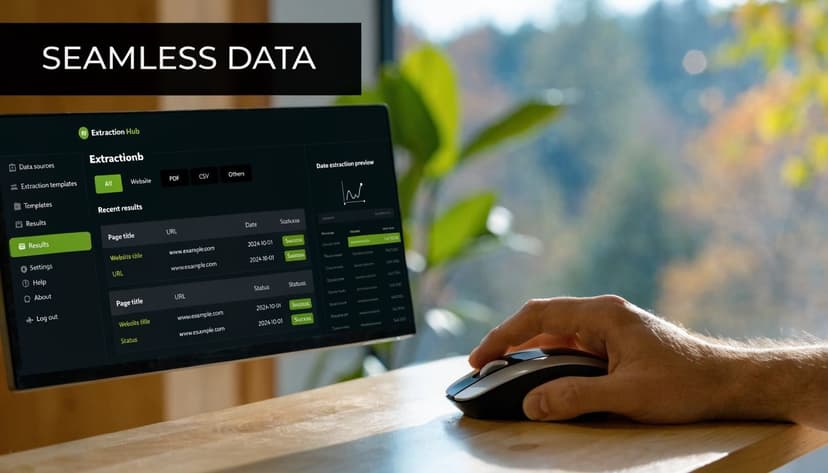
What a strong workflow looks like
Start with the file you receive from clients. A scanned bank statement image, a PDF made of embedded page images, or a phone photo with shadows in one corner all need to go through the same intake path. In a finance-focused extraction tool, the first job is document understanding. The system has to identify pages, find the transaction table, and preserve line order before it tries to assign values to columns.
That sequence matters. If the rows are broken early, no amount of cleanup later will make the balances tie out reliably.
A strong workflow usually handles five tasks in order:
- identify the statement layout by page
- locate transaction rows and summary fields
- split each row into date, description, money in, money out, and running balance
- flag low-confidence lines instead of forcing a guess
- export the result into a format the review team can work with immediately
The output should resemble a clean ledger. If it comes back as a block of text, the extraction step did not solve the accounting problem.
For a practical example of how image quality and page format affect this process, review this guide on working with bank statement images in extraction workflows before you standardize intake.
What high accuracy means in accounting work
In bookkeeping, "accurate" does not mean the tool found most of the words on the page. It means the extracted rows hold together well enough that review is targeted, not a second round of manual entry.
I learned that the hard way after spending too many hours correcting transactions that looked fine at first glance but broke the running balance three pages later. Date shifts, merged descriptions, and dropped negatives are small OCR mistakes. In reconciliation, they are expensive mistakes.
The better systems reduce that risk by combining text recognition with layout detection, field classification, and validation rules that check whether the statement still makes sense as a financial record. That is why specialized extraction tools usually outperform general OCR on bank statements. The goal is not transcription. The goal is structured financial data that survives balancing checks.
This same pattern shows up in adjacent finance workflows. Teams that automate invoice processing typically get better results once document AI starts classifying fields and validating structure instead of reading text alone.
A short demo helps make the workflow concrete:
What to look for in the output
Judge the run by how much review work remains, not by whether the platform extracted something.
A useful result should give you:
- Separate transaction columns: Dates, descriptions, withdrawals, deposits, and balances should land in distinct fields.
- Preserved row order across pages: Page breaks should not create duplicate lines, skipped transactions, or balance jumps.
- Visible exceptions: Faint rows, wrapped descriptions, and uncertain signs should be flagged for review.
- Review-ready exports: The file should open cleanly in Excel or map into your accounting workflow without rebuilding the table by hand.
If a platform cannot do those four things consistently, it still leaves the accountant holding the risk.
How to Verify and Reconcile Extracted Data
At this point, the question is simple. Would you trust this file enough to reconcile a bank account without inadvertently introducing a difference you have to chase later?
That is the standard that matters in accounting. A dataset can look clean in Excel and still fail reconciliation because one negative sign flipped, one wrapped description pushed an amount into the wrong column, or one transaction got dropped at a page break. I learned that the hard way after spending too many month-ends comparing scanned statements to exports line by line.
Review the exceptions, not every row
Good verification is a control process, not a second round of manual entry. The goal is to identify the rows most likely to be wrong, clear those quickly, and let balancing checks do the rest.
Layout-aware extraction models help because statement errors are not random. Problems usually cluster around specific trouble spots: low-quality scans, lines near stamps or shadows, rows split across pages, and descriptions that wrap into the amount columns. If the tool surfaces low-confidence fields or exception rows, review starts to look like accounting work instead of data cleanup.
A practical review flow looks like this:
- Match opening and closing balances first: If either balance is off, stop there and look for skipped, duplicated, or mis-signed transactions.
- Check row count and page transitions: A bad break between pages often creates the exact kind of one-line error that wastes 30 minutes in reconciliation.
- Sort by unusual amounts: Reversals, fees, refunds, and large credits expose parsing mistakes faster than ordinary card purchases.
- Inspect wrapped descriptions and split rows: These are common places where dates or amounts shift one column over.
- Confirm debit and credit signs: A statement can be extracted cleanly and still be wrong if withdrawals and deposits are interpreted inconsistently.
If those checks pass, the remaining rows are usually low risk.
Reconciliation is the proof
A key test is whether the extracted data ties back to the statement and enters your books without repair work. Compare statement totals, opening balance, closing balance, and the running balance pattern against the extracted table. If one of those checks fails, do not post the file yet. Find the break point and fix the underlying row issue first.
This is the same control logic firms use in adjacent workflows that automate invoice processing. Extract the data, validate it against document logic, route exceptions, and keep human review focused on judgment calls instead of routine transcription.
For bank statements, reconciliation should answer three questions quickly:
- Do the balances tie to the source statement?
- Do transaction totals make sense for the period?
- Can the cleaned file move into the accounting system without column fixes or manual remapping?
If the answer to any of those is no, extraction is not finished.
Teams tightening this handoff usually benefit from pairing statement extraction with a clearer matching process. This guide to automated bank reconciliation software is a useful next step once the export is accurate enough to trust.
Automating Workflows and Ensuring Client Security
The extraction step is only half the job. In practice, the time savings show up when a team can move from inbox to reviewed output without renaming files, reformatting columns, or copying transactions into a bookkeeping system by hand.
That is the point where many firms stall.
A tool may read a statement accurately, but the workflow still breaks if staff have to upload one file at a time, repair exports for each bank, or chase down which version of a CSV was posted. For accountants handling month-end close, catch-up books, or multi-entity work, those handoffs create as much risk as the OCR itself.
Where automation pays off
The best setup standardizes the path after extraction. Statement images and scanned PDFs come in through one intake process, the platform applies the same extraction rules every time, and the output lands in a format your accounting stack can use. That consistency matters more than flashy AI claims. A slightly slower process with predictable exports is usually better than a fast one that needs cleanup before import.
I learned this the hard way on bank statement work. Manual entry was painful, but semi-automated exports were often worse because they looked finished while still hiding broken date columns, split descriptions, or inconsistent debit and credit signs. Real automation reduces those repair steps.
It usually pays off in four places:
- Recurring monthly work: Batch similar client statements instead of assigning data entry file by file.
- Backlog cleanup: Convert prior-period statements into structured records without building a custom spreadsheet for each bank.
- Reviewer handoff: Keep columns and field names consistent so senior staff can review exceptions instead of re-reading the source document.
- System import: Export into a stable schema that fits the downstream ledger, cash app, or reconciliation workflow with minimal remapping.
That last point matters most. If the output still needs human restructuring before import, the process is only partially automated.
Security has to be built into the process
Bank statements carry account numbers, merchant data, balances, and client activity patterns. Sending those files through personal inboxes, local desktop folders, and ad hoc shared drives creates a control problem fast.
A sound workflow limits file exposure from the start. Use a controlled upload path, restrict access by role, define retention periods, and make deletion rules clear. Firms should also check whether the vendor documents encryption, audit logs, data residency, and administrator controls. Those details matter more than a polished dashboard.
Security and accuracy are tied together. The more often staff download, rename, email, and re-upload statement files, the more chances there are for both data leakage and version confusion. A cleaner workflow reduces both.
Faster processing only helps if it also reduces manual touchpoints and keeps client financial data inside a controlled system.
For accounting teams, that is the trade-off to watch. Convenience is useful. Chain of custody is better. The right setup gives you both.
Frequently Asked Questions
Can I extract data from a picture of a bank statement taken on a phone
Yes, but the image quality will decide how much review you need. Straight-on photos with good lighting and full page edges work far better than angled images with shadows or cut-off margins. If the phone image is poor, rescanning is often faster than cleaning up a bad extraction.
Does Excel work for this
Sometimes. Excel's Data > From Picture feature is useful for basic tables and clean images. For financial statements with varied layouts, wrapped descriptions, and multi-page transaction tables, generic spreadsheet extraction often needs more post-processing than accountants expect.
What if the statement has handwritten marks or highlights
You should assume more exceptions will need review. Handwritten notes, circles, and marker strokes can interfere with line detection and nearby text recognition. If possible, process the clean original rather than an annotated copy.
Can these tools handle foreign-language statements
Some can, especially platforms built for mixed bank formats and multilingual documents. The key issue isn't only language. It's whether the tool can still preserve transaction structure when headings, date formats, and column labels vary.
How do I know the extracted data is safe to use
Don't rely on extraction alone. Verify balances, scan exception rows, and confirm the statement summary ties back to the structured output. A good workflow reduces the review burden, but it doesn't eliminate the need for professional verification.
What's the best export format after extraction
That depends on your next step. Use Excel or CSV for review and cleanup, and use accounting-specific formats when you're sending the result into bookkeeping software. The best workflow is the one that avoids rekeying after extraction.
If you're tired of retyping transactions from statement images and scanned PDFs, ConvertBankToExcel is built for the accounting reality generic OCR tools often miss. It helps CPAs, bookkeepers, and finance teams turn bank statements into structured outputs for Excel and accounting systems, with workflow features designed around review, reconciliation, and scale rather than one-off text capture.