
![How to Extract Financial Statement Data: 5 Methods [2026]](/_next/image?url=https%3A%2F%2Fconvertbanktoexcel.com%2Fapi%2Fuploads%2Fimages%2Flaptop-showing-income-statement-and-balance-sheet-with-highlighted-data-extraction-professional-offi-1772481837979.jpg&w=1920&q=75)
How to Extract Financial Statement Data: 5 Methods [2026]
I've spent hours copying numbers from PDFs into spreadsheets. Revenue here, operating expenses there, net income buried in a footnote. One wrong decimal and the whole model breaks.
There's a better way. Here are 5 tested methods to extract values from financial statement documents — from free tools to Python automation — ranked by effort and accuracy.
What Counts as a Financial Statement Document?
Before diving in: financial statements are different from bank statements.
Bank statements show transaction history. Financial statements show business performance:
- Income Statement (P&L): Revenue, expenses, net income over a period
- Balance Sheet: Assets, liabilities, equity at a point in time
- Cash Flow Statement: Operating, investing, and financing cash flows
- Annual Report: All three combined, plus management commentary
These documents arrive as PDFs — often scanned, often inconsistent in layout. That's what makes extraction hard.
Why Extracting Values Is Harder Than It Looks
Three problems make this painful:
- PDF structure varies wildly: One company puts EBITDA in a table. Another buries it in a footnote. No standard layout exists.
- Scanned documents: Older annual reports are images inside a PDF — no selectable text at all.
- Multi-page tables: Cash flow statements often span 3-4 pages. Tools that miss page breaks return wrong totals.
The good news: the five methods below handle at least one of these problems well.
Method 1: Manual Copy-Paste (Baseline)
Best for: One-off extractions, simple text-based PDFs
Time: 30–90 minutes per document
Accuracy: High — if you're careful
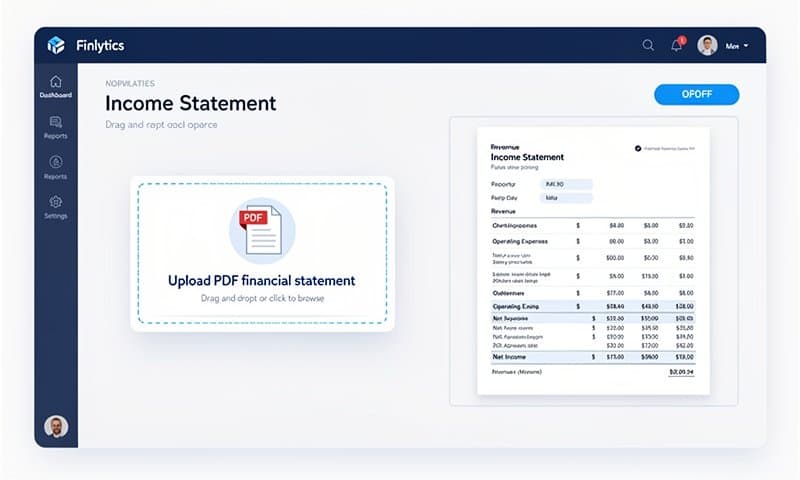
Open the PDF, find the values you need, type them into your spreadsheet. Works for clean, searchable PDFs. Falls apart immediately with scanned documents or when you need the same data from 50 annual reports.
Use this only when you have 1–2 documents and won't repeat the process.
Method 2: Adobe Acrobat — Export PDF to Excel
Best for: Clean, text-based PDFs
Time: 2–5 minutes per document
Accuracy: 70–85% (tables often need cleanup)
Adobe Acrobat Pro has a built-in export function that converts PDF tables to Excel format:
- Open the PDF in Acrobat Pro
- Click File → Export To → Spreadsheet → Microsoft Excel Workbook
- Review the output — merged cells and headers often need manual fixes
Limitation: Acrobat struggles with complex multi-column layouts and footnotes. Scanned documents require OCR to be enabled first via Edit → Enhance Scans.
Free alternative: Smallpdf or PDF2Go offer similar one-off conversion at no cost.
Method 3: AI-Powered OCR Tools
Best for: Scanned documents, bank-issued financial statements
Time: Under 2 minutes per document
Accuracy: 90–98% with modern AI models
AI OCR tools use computer vision to read document structure — they understand tables, headers, and relationships between values, not just text.
For bank financial documents (bank-issued statements, loan summaries, account summaries), ConvertBankToExcel.com handles both scanned and digital PDFs and outputs clean CSV or Excel. Upload your PDF and get structured data in under a minute — no signup required.
For corporate financial statements (annual reports, 10-K filings), tools like Docparser or Rossum let you define extraction rules for specific document templates.
Method 4: Python + pdfplumber or camelot
Best for: Repeated extraction from many documents with the same layout
Time: 2–4 hours initial setup, then seconds per document
Accuracy: 85–95% for structured tables
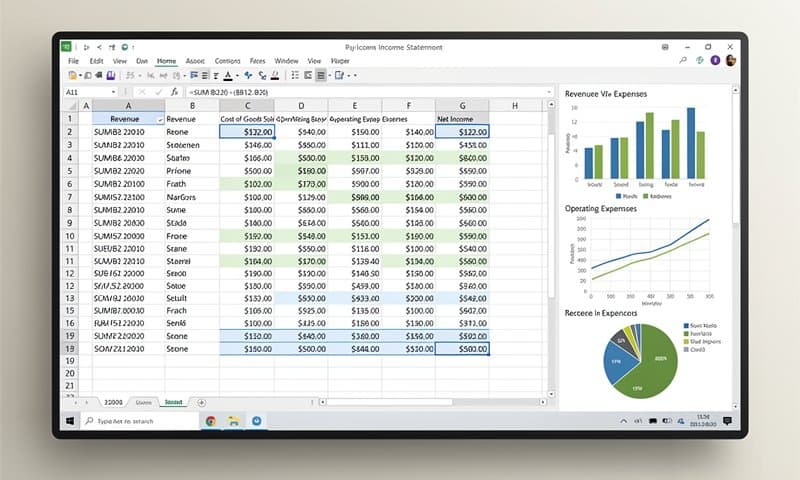
If you're pulling the same fields from 50 quarterly reports, Python automation pays off. Two libraries work well:
pdfplumber — simpler, handles most structured tables:
import pdfplumber
import pandas as pd

with pdfplumber.open("income_statement.pdf") as pdf:
    page = pdf.pages[0]
    tables = page.extract_tables()
    df = pd.DataFrame(tables[0])
    print(df)
camelot — better for complex multi-column tables:
import camelot

tables = camelot.read_pdf("financial_report.pdf", pages="1-3")
tables[0].df.to_excel("extracted.xlsx")
Limitation: Both require text-based PDFs. Scanned documents need an OCR preprocessing step — pytesseract or Google Vision API work well for this.
Method 5: Financial Data APIs (Public Companies Only)
Best for: Public company filings — 10-K, 10-Q, annual reports
Time: Minutes to set up, instant retrieval after
Accuracy: 100% — data comes pre-structured
If you only need data from publicly listed US companies, skip extraction entirely. The SEC provides structured data directly:
- SEC EDGAR API: Free access to all US public company filings in XBRL format
- Financial Modeling Prep: Pre-parsed financial statements via API ($0–$20/month)
- Simplywall.st API: Normalized data across global markets
# Get Apple's latest revenue from SEC EDGAR
curl "https://data.sec.gov/api/xbrl/companyfacts/CIK0000320193.json" \
  | jq '.facts["us-gaap"].Revenues.units.USD | sort_by(.end) | last'
This returns exact GAAP values with filing dates — no PDF parsing needed.
Method Comparison
| Method | Time per Doc | Accuracy | Cost | Handles Scans? |
|---|---|---|---|---|
| Manual copy-paste | 30–90 min | High | Free | Yes |
| Adobe Acrobat | 2–5 min | 70–85% | $20/mo | With OCR |
| AI OCR tool | Under 2 min | 90–98% | Free–$30/mo | Yes ✅ |
| Python automation | Setup 2–4h then fast | 85–95% | Free | With tesseract |
| Financial API | Instant | 100% | Free–$20/mo | N/A |
Which Method Fits Your Situation?
- One document, clean PDF → Adobe Acrobat or manual copy
- Scanned or messy PDFs → AI OCR tool
- Bank-issued financial documents → ConvertBankToExcel.com — free, no signup
- 50+ documents, same template → Python with pdfplumber
- Public US company filings → SEC EDGAR API
For most people dealing with scanned statements or bank financial documents, AI OCR is the right call. It handles messy PDFs without any coding, and you can try it free right now.
Quick Decision Guide
Is your document a bank statement or bank-issued financial report? Upload it directly — it converts in seconds.
Is it a corporate annual report or earnings filing?
- Public US company? → SEC EDGAR API (free and exact)
- Many documents to process? → Python automation
- Just need it once? → Adobe Acrobat or any AI OCR tool
Extracting financial data doesn't have to mean 90 minutes of careful typing. Match the method to your document type and volume — and spend the time saved on the analysis that actually matters.