
![Bank Statement to Tally XML Converter: 4 Methods [2026]](/_next/image?url=https%3A%2F%2Fconvertbanktoexcel.com%2Fapi%2Fuploads%2Fimages%2F1769900572017-b7f85d40.png&w=1920&q=75)
Bank Statement to Tally XML Converter: 4 Methods
I spent years typing bank transactions into Tally manually. Every month. Same tedious process.
Then I discovered converters that transform bank statement PDFs directly into Tally XML format. What took 2 hours now takes 5 minutes.
Here are 4 methods I've tested, ranked by speed and reliability.
Why Tally XML Format Matters
Tally ERP uses XML for data import. The format structures transactions with voucher types, ledger names, dates, and amounts in a specific schema that Tally can read.
Without the right format, Tally rejects the import. You're back to manual entry.
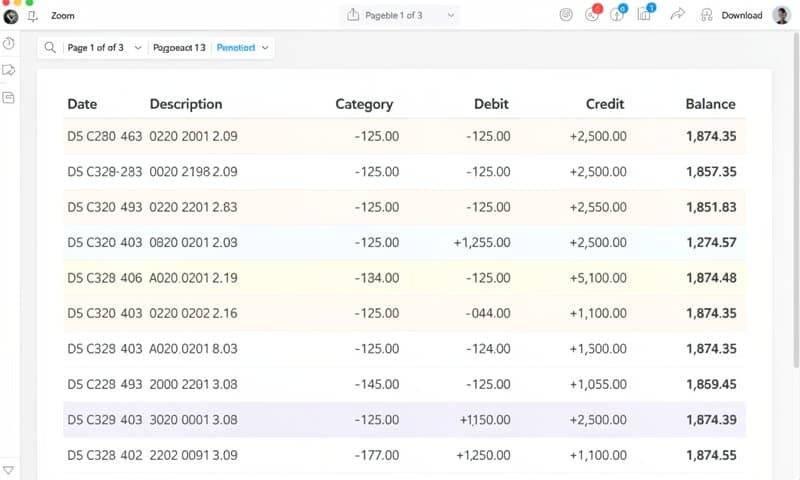
The goal: take your bank's PDF (or CSV) and generate valid Tally XML that imports cleanly.
Tally's XML schema includes:
- ENVELOPE — the root container
- HEADER — declares the import type
- BODY — contains your transaction data
- VOUCHER — individual transactions with date, type, and amount
Messing up any of these elements causes import failure.
Method 1: Manual XML Creation
Time: 2-4 hours per statement
Accuracy: High (if you're careful)
Cost: Free
You can write Tally XML by hand. Open Notepad, structure each transaction according to Tally's schema, save as .xml.
Here's the basic structure:
<ENVELOPE>
  <HEADER>
    <TALLYREQUEST>Import Data</TALLYREQUEST>
  </HEADER>
  <BODY>
    <IMPORTDATA>
      <REQUESTDESC>
        <REPORTNAME>Vouchers</REPORTNAME>
      </REQUESTDESC>
      <REQUESTDATA>
        <TALLYMESSAGE>
          <VOUCHER>
            <DATE>20260131</DATE>
            <VOUCHERTYPENAME>Receipt</VOUCHERTYPENAME>
            <AMOUNT>5000.00</AMOUNT>
            <NARRATION>Payment received</NARRATION>
          </VOUCHER>
        </TALLYMESSAGE>
      </REQUESTDATA>
    </IMPORTDATA>
  </BODY>
</ENVELOPE>
Tedious? Absolutely. But it works when you only have a few transactions.
Common mistakes to avoid:
- Forgetting closing tags
- Wrong date format (must be YYYYMMDD)
- Special characters in narration fields
- Missing required voucher elements
Verdict: Only use this for 5-10 transactions. Beyond that, you'll lose your mind.
Method 2: Excel to Tally XML Macro
Time: 30-60 minutes (first setup), then 5-10 minutes per statement
Accuracy: Medium (depends on macro quality)
Cost: Free
If your bank exports CSV or you can copy data into Excel, macros can generate Tally XML automatically.
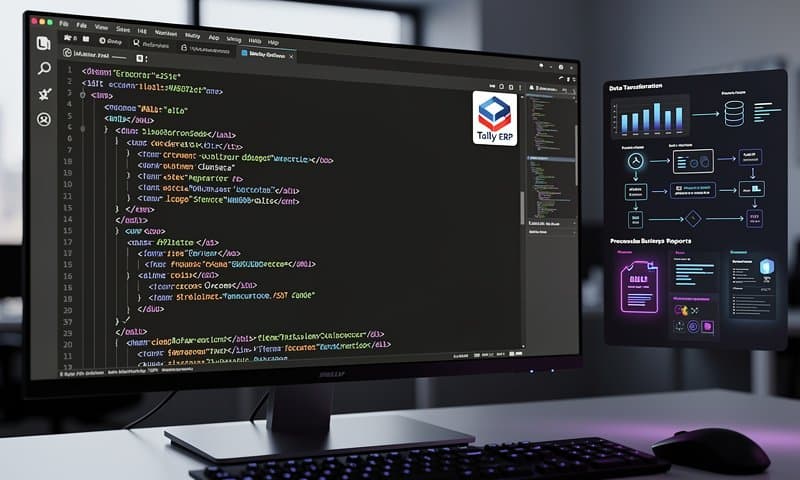
The process:
- Get your bank statement as CSV (or copy into Excel)
- Format columns: Date, Description, Debit, Credit
- Map ledger names to transaction types
- Run VBA macro to generate XML
- Import into Tally
You'll find free macros on accounting forums. Some work great. Others produce malformed XML that Tally rejects.
Sample VBA approach:
Sub GenerateTallyXML()
    Dim ws As Worksheet
    Dim xml As String
    Set ws = ActiveSheet

    xml = "<ENVELOPE><HEADER>..."
    ' Loop through rows, build vouchers
    ' Save to file
End Sub
Warning: Test with a few transactions first. One wrong field and the entire import fails.
Verdict: Good option if you're comfortable with Excel and have time to troubleshoot.
Method 3: Dedicated Bank Statement Converter
Time: 2-5 minutes per statement
Accuracy: High
Cost: Free tier available (7 pages/day)
Purpose-built converters handle the messy work. Upload your PDF, select your output format, download the file.
These tools:
- Parse PDF tables automatically (no manual copying)
- Handle different bank formats from multiple countries
- Generate valid Tally XML schema
- Catch common errors before export
- Support batch processing for multiple statements
I switched to this method after wasting a weekend debugging a broken Excel macro. Hasn't failed me since.
The workflow:
- Upload your bank statement PDF
- Review extracted transactions
- Select Tally XML as output format
- Download and import into Tally
Try it free—handles 7 pages per day without signup.
Verdict: Best balance of speed and reliability for most users.
Method 4: Tally's Built-in Bank Statement Import
Time: 5-15 minutes
Accuracy: Variable (depends on statement format)
Cost: Included with Tally
Tally Prime has native bank statement import. Gateway of Tally → Import → Bank Statements.
The catch: it only works with specific formats and banks. If your bank isn't supported, you're stuck.
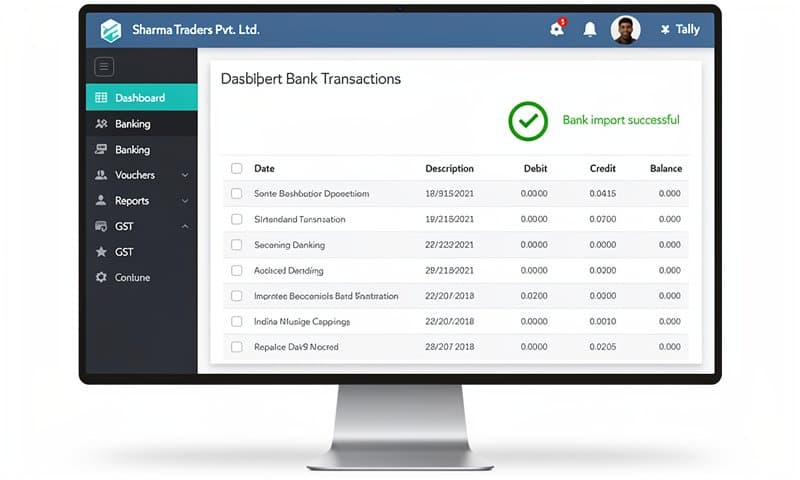
To check compatibility:
- Open Tally Prime
- Go to Gateway of Tally → Import
- Select Bank Statements
- See if your bank appears in the list
Supported banks vary by region. Indian banks have better coverage than international ones.
If your bank is supported, this is the simplest option. If not, you'll need one of the other methods.
Verdict: Use if your bank is on Tally's supported list. Otherwise, skip.
Comparison Table
| Method | Time | Cost | Skill Required | Best For |
|---|---|---|---|---|
| Manual XML | 2-4 hrs | Free | Medium | <10 transactions |
| Excel Macro | 30-60 min setup | Free | High | Tech-savvy users |
| Converter Tool | 2-5 min | Free tier | Low | Most users |
| Tally Import | 5-15 min | Included | Low | Supported banks only |
Common Errors and Fixes
"Invalid XML Format"
Tally's parser is strict. Check for:
- Missing closing tags
- Wrong date format (YYYYMMDD, not DD/MM/YYYY)
- Invalid characters in descriptions (remove &, <, >)
- Encoding issues (use UTF-8)
"Ledger Not Found"
Your XML references a ledger that doesn't exist in Tally. Create the ledger first, or map to an existing one during conversion.
"Duplicate Voucher"
You're importing transactions that already exist. Check the date range and voucher numbers.
"Amount Mismatch"
Debit and credit totals don't balance. Verify each voucher's amounts.
Tips for Smooth Tally Import
- Test with small batches — Import 5-10 transactions first to catch issues early
- Match ledger names exactly — Tally is case-sensitive
- Use consistent date formats — YYYYMMDD works best
- Remove special characters — Ampersands and angle brackets break XML
- Backup before importing — Things can go wrong
My Recommendation
If you process bank statements monthly, use a dedicated converter. The time saved pays for itself.
For one-time imports of small statements, manual XML or Tally's built-in import works fine.
Skip the Excel macro route unless you enjoy debugging VBA code at midnight.
Need to convert your bank statement now? Start here—no account required, 7 free pages daily.