
![CSV to QBO Converter: Free Online Tool [2026]](/_next/image?url=https%3A%2F%2Fconvertbanktoexcel.com%2Fapi%2Fuploads%2Fimages%2F1769986968116-63031f43.png&w=1920&q=75)
CSV to QBO Converter: Import Any Spreadsheet Into QuickBooks
I spent an embarrassing amount of time last month trying to get transaction data into QuickBooks. Had a perfectly good CSV export from my payment processor. QuickBooks wouldn't touch it.
Turns out QuickBooks Desktop only accepts three formats: QBO, QFX, or OFX. Not CSV. Not Excel. Not the format every other tool on the planet exports.
Here's how I solved it, and how you can convert any CSV to QBO in about 90 seconds.
Why QuickBooks Won't Import Your CSV
QuickBooks Desktop uses proprietary formats designed for bank feeds. The QBO (QuickBooks Online Bank Statement) format contains structured transaction data that QuickBooks can parse without ambiguity.
CSV files, by contrast, can have any structure. Different column orders, date formats, number formats. QuickBooks would need to guess what each column means, and that's a recipe for disaster in accounting software.
So they just don't support it.
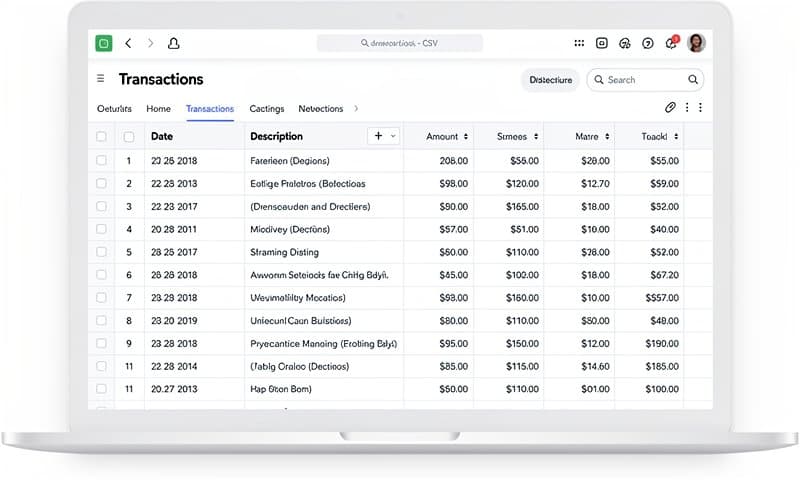
Method 1: Use an Online Converter (Fastest)
The quickest way is an automated converter. Upload your CSV, map the columns, get a QBO file.
Steps:
- Go to convertbanktoexcel.com
- Upload your CSV file
- Select QBO as the output format
- Map your columns (date, amount, description)
- Download the converted file
The whole process takes under 2 minutes. No software to install, no signup required for basic conversions.
When this works best:
- One-off conversions
- Standard transaction data (date, amount, description)
- Files under 1000 transactions
Method 2: Manual QBO File Creation
If you're technically inclined and need complete control, you can create QBO files manually. The format is based on OFX (Open Financial Exchange) which uses XML-like syntax.
Here's the basic structure:
OFXHEADER:100
DATA:OFXSGML
VERSION:102
SECURITY:NONE
ENCODING:USASCII
CHARSET:1252
COMPRESSION:NONE
OLDFILEUID:NONE
NEWFILEUID:NONE

<OFX>
<SIGNONMSGSRSV1>
<SONRS>
<STATUS>
<CODE>0
<SEVERITY>INFO
</STATUS>
<DTSERVER>20260201120000
<LANGUAGE>ENG
</SONRS>
</SIGNONMSGSRSV1>
<BANKMSGSRSV1>
<STMTTRNRS>
<TRNUID>1001
<STATUS>
<CODE>0
<SEVERITY>INFO
</STATUS>
<STMTRS>
<CURDEF>USD
<BANKACCTFROM>
<BANKID>123456789
<ACCTID>987654321
<ACCTTYPE>CHECKING
</BANKACCTFROM>
<BANKTRANLIST>
<DTSTART>20260101
<DTEND>20260131
<STMTTRN>
<TRNTYPE>DEBIT
<DTPOSTED>20260115
<TRNAMT>-50.00
<FITID>202601150001
<NAME>Coffee Shop Purchase
</STMTTRN>
</BANKTRANLIST>
</STMTRS>
</STMTTRNRS>
</BANKMSGSRSV1>
</OFX>
Required fields for each transaction:
- TRNTYPE: DEBIT or CREDIT
- DTPOSTED: Date in YYYYMMDD format
- TRNAMT: Amount (negative for debits)
- FITID: Unique transaction ID
- NAME: Description or payee name
When to use manual creation:
- Custom integrations
- Automated workflows
- When you need to control every field
Honestly? Use a converter. Manual QBO creation is tedious and error-prone.
Method 3: Excel + Macro Approach
Some accountants use Excel VBA macros to generate QBO files from CSV data. You create a template with the QBO structure and use macros to populate transaction data.
Pros:
- Reusable once set up
- Full control over mapping
- Works offline
Cons:
- Requires VBA knowledge
- Maintenance burden
- Easy to break with Excel updates
I used this approach for about six months before switching to an online converter. The time spent maintaining the macro wasn't worth it for my volume.
Importing Your QBO File Into QuickBooks
Once you have your QBO file, importing is straightforward:
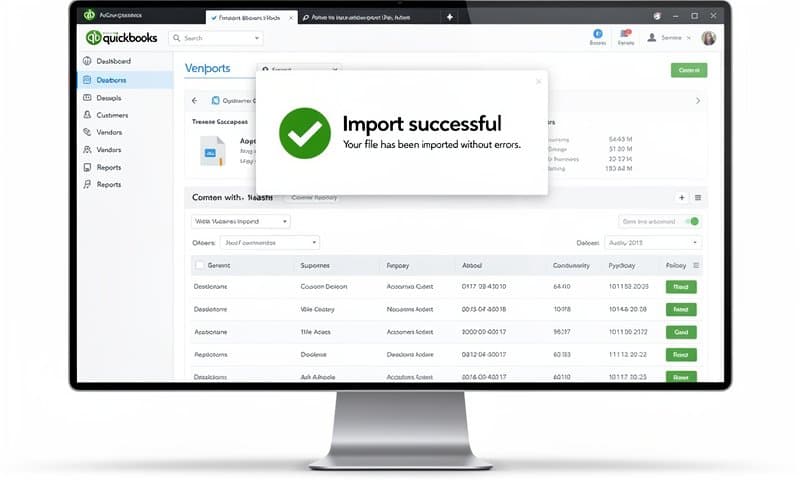
QuickBooks Desktop:
- Go to File > Utilities > Import > Web Connect Files
- Select your .qbo file
- Choose or create the target account
- Review imported transactions
- Match or add to register
QuickBooks Online:
- Go to Banking > Upload Transactions
- Select your bank account
- Upload the .qbo file
- Review and categorize transactions
Common import issues:
- "File cannot be read": Usually means malformed QBO structure. Check for missing closing tags.
- Duplicate transactions: QuickBooks uses FITID to detect duplicates. Make sure each transaction has a unique ID.
- Wrong account: QBO files contain account identifiers. Make sure they match your QuickBooks setup.
What About QuickBooks Online?
QuickBooks Online has slightly better CSV support than Desktop. You can import CSV files directly for some account types.
To import CSV to QuickBooks Online:
- Go to Settings > Import Data
- Select Bank Data
- Choose your CSV file
- Map columns manually
The catch: the column mapping is manual and must be done every time. For recurring imports, converting to QBO first is still faster.
CSV Column Mapping
When using a converter, you'll need to map your CSV columns to standard transaction fields. Here's what each field means:
| Field | Purpose | Required |
|---|---|---|
| Date | Transaction date | Yes |
| Amount | Transaction amount | Yes |
| Description | Payee or memo | Yes |
| Type | Debit/Credit indicator | Optional |
| Reference | Check number or ID | Optional |
| Balance | Running balance | Optional |
Tips for clean mapping:
- Make sure dates are in a consistent format (MM/DD/YYYY works best)
- Amounts should be numeric only (no currency symbols)
- Negative amounts indicate debits, positive indicate credits
- Remove header rows if your CSV has them
Best Practices for Regular Imports
If you're converting CSV to QBO regularly, a few practices will save you time:
1. Standardize your CSV format
If you control the CSV export, use consistent column names and formats. This makes mapping faster.
2. Use a consistent naming convention
Name your files with the account and date range: checking_2026_01.qbo. You'll thank yourself when troubleshooting.
3. Keep source files
Store the original CSV alongside the converted QBO. If something looks wrong in QuickBooks, you can verify against the source.
4. Test with small batches first
Before importing 12 months of transactions, test with a single month. Catch mapping errors early.
Troubleshooting Common Errors
"The file format is incorrect"
This usually means the QBO file structure is invalid. Common causes:
- Missing header lines
- Incorrect date format (should be YYYYMMDD)
- Special characters in descriptions
Transactions showing wrong amounts
Check for:
- Currency symbol issues ($100 vs 100)
- Thousand separators (1,000 vs 1000)
- Negative sign handling
Missing transactions after import
QuickBooks skips transactions it considers duplicates. Check:
- FITID values are unique
- Date range matches expected period
- Account number matches target account
When to Use QBO vs Other Formats
Use QBO when:
- Importing to QuickBooks Desktop
- You need bank-feed style matching
- Dealing with checking/savings accounts
Use OFX when:
- Importing to multiple accounting systems
- Need broader compatibility
- Credit card transactions
Use CSV when:
- Your software directly supports it
- You need to edit data before import
- Building custom integrations
Summary
Converting CSV to QBO doesn't have to be painful. For most people, an online converter is the fastest path. Upload, map, download, import.
If you need more control or have unusual requirements, manual creation or Excel macros work. Just be prepared for more setup time.
The goal is getting your data into QuickBooks accurately, with minimal manual effort. Pick the method that matches your volume and technical comfort.
Try the free converter and get your transactions imported in under 5 minutes.