
![How to Export Deutsche Bank Statement to CSV [2026]](/_next/image?url=https%3A%2F%2Fconvertbanktoexcel.com%2Fapi%2Fuploads%2Fimages%2Fdeutsche-bank-online-banking-portal-showing-transaction-history-export-options-with-csv-and-excel-do-1772223164404.jpg&w=1920&q=75)
How to Export Deutsche Bank Statement to CSV [2026]
You need your Deutsche Bank transactions in a spreadsheet. Maybe your accountant asked for a CSV. Maybe you're reconciling books in Excel or importing into QuickBooks. Whatever the reason, there are three reliable ways to get that data out — and this guide covers all of them.
Deutsche Bank is one of Germany's largest banks, with branches and customers across Europe and beyond. Whether you're banking through their German portal (Deutsche Bank Online-Banking), their international accounts, or you only have old PDF statements on hand, the approach below applies to your situation.
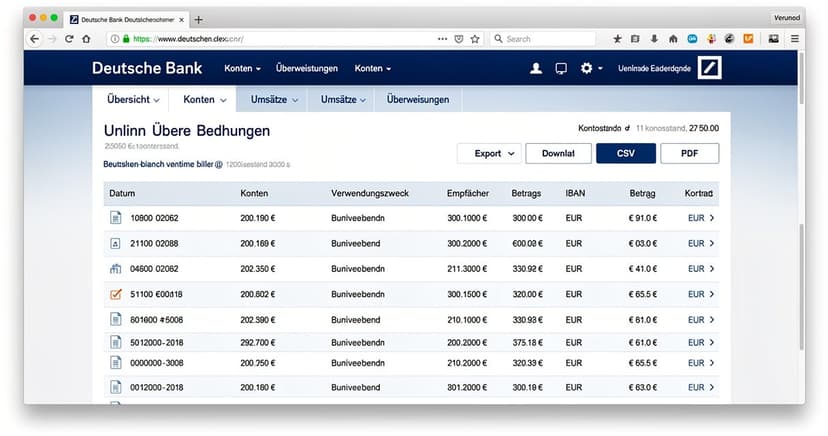
Table of Contents
- Method 1: Direct CSV Export from Online Banking
- Method 2: Convert a PDF Statement to CSV
- Method 3: Deutsche Bank Mobile App Export
- Which Method Should You Use?
- Import Deutsche Bank CSV into Accounting Software
- FAQ
Method 1: Direct CSV Export from Deutsche Bank Online Banking {#method-1}
Deutsche Bank's online banking portal allows you to export your transaction history directly. This is the fastest route if you have active online banking access.
Steps for Deutsche Bank Germany (db.com):
- Log in to your account at Deutsche Bank Online-Banking
- Click on Konten (Accounts) in the main navigation
- Select the account whose transactions you want to export
- Go to Umsätze (Transaction history / Movements)
- Look for the Exportieren or download icon — usually a small arrow pointing downward
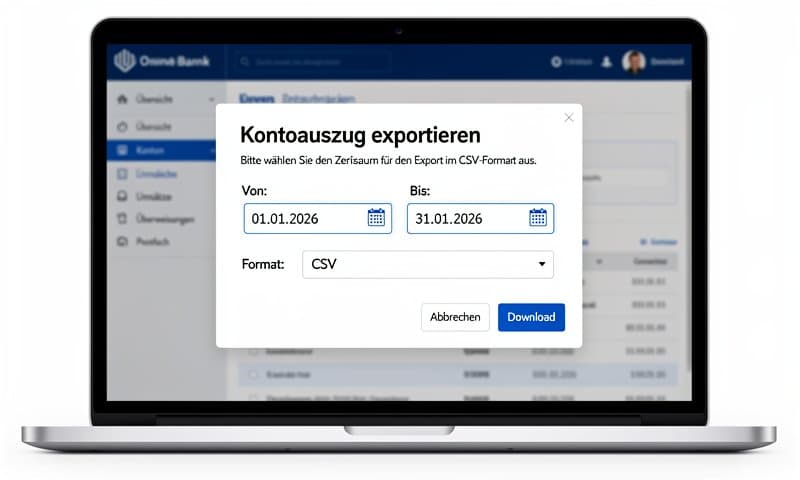
- A dialog will appear asking you to choose a format and date range
- Select CSV or Excel as the export format
- Set your date range. Practical note: Deutsche Bank typically limits each export to around 90 days of history. For a full year, you'll need to run four separate exports and merge them in Excel afterward.
- Click Herunterladen (Download) — the file saves to your computer automatically
Formats available through Deutsche Bank online banking:
| Format | Best For |
|---|---|
| CSV | Excel, Google Sheets, accounting software imports |
| MT940 (SWIFT) | Bank-to-bank reconciliation, legacy accounting systems |
| Excel (XLSX) | Direct spreadsheet use |
For Deutsche Bank USA customers: The US portal interface differs from the German one. Look for a "Download Transactions" or "Export" option under the account activity section. The available formats may be limited to CSV or OFX rather than MT940.
Postbank customers: Since Postbank merged into Deutsche Bank, Postbank online banking (www.postbank.de) uses a similar export function under "Umsätze exportieren."
Method 2: Convert a Deutsche Bank PDF Statement to CSV {#method-2}
Sometimes you don't have online banking access, or you only have older statements saved as PDFs. In those cases, you need to extract the transaction data from the PDF itself.
This is where ConvertBankToExcel.com comes in. The tool uses OCR (optical character recognition) to read your Deutsche Bank PDF and output a clean, structured CSV or Excel file.
Steps:
- Go to ConvertBankToExcel.com — no account required to get started
- Upload your Deutsche Bank PDF statement (drag and drop or click to browse)
- The system automatically detects the bank format and extracts transactions
- Choose your output format: CSV or Excel (XLSX)
- Download the converted file
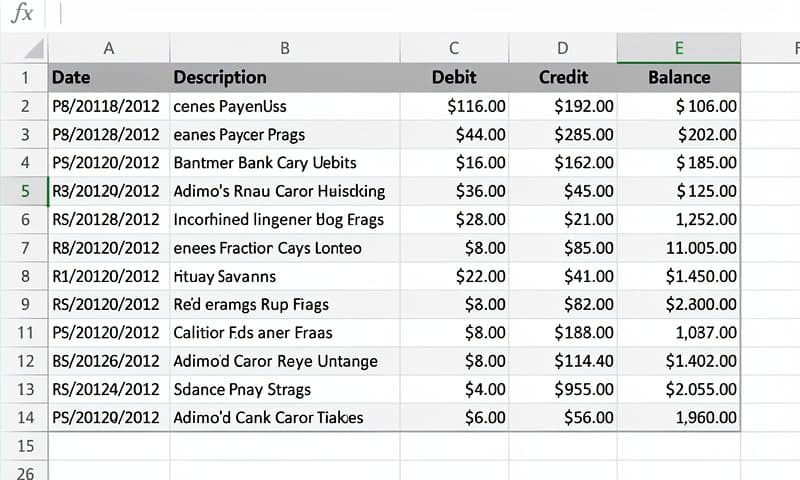
What you get in the output:
- Date column (formatted for your region)
- Description / Verwendungszweck (transaction reference)
- Amount (debit and credit separated, or a single signed amount column)
- Running balance (if present in the original PDF)
When to use this method:
- You have PDF statements but no online banking access
- You're processing older archived statements
- You need to bulk process multiple months at once (batch upload is supported)
- The native CSV export gives you data in a format your software doesn't accept
This approach works for Deutsche Bank statements in German and English. The OCR handles both standard printed PDFs and scanned documents, though clean digital PDFs give the most accurate results.
For more methods, see Bank Statement to CSV File: 4 Methods [2026] which covers the full range of options beyond Deutsche Bank specifically.
Method 3: Deutsche Bank Mobile App Export {#method-3}
If you use the Deutsche Bank Mobile Banking app (available on iOS and Android), you can access your statements and transaction history on your phone — though the export options are more limited than the desktop portal.
Steps to access statements in the app:
- Open the Deutsche Bank app and log in
- Tap your account from the home screen
- Scroll through your transaction list or tap Kontoauszug (Account statement)
- Monthly statements are typically available as PDF downloads
- Download the PDF and then convert it using Method 2 above
The Deutsche Bank app does not typically offer a direct CSV export as of early 2026. The desktop browser version remains the best option for direct CSV downloads. If your region's app has added this feature since then, it will appear in the account details or statement section.
Which Method Should You Use? {#comparison}
| Situation | Best Method |
|---|---|
| Active online banking access, recent transactions | Method 1 (Direct portal export) |
| Older statements, no portal access | Method 2 (PDF conversion) |
| Only have the mobile app | Method 3 then Method 2 |
| Need to process many months at once | Method 2 (batch upload) |
| Need MT940 for accounting system | Method 1, select MT940 format |
| Need to merge multiple date ranges | Method 1 (multiple exports) + Excel merge |
Quick tip on date range limits: Deutsche Bank usually allows up to 90 days per export from the portal. For a full calendar year (for tax purposes, for example), plan on running four exports — one per quarter — and merging them in Excel using copy-paste or Power Query.
How to Import Deutsche Bank CSV into Accounting Software {#import}
Once you have your CSV or Excel file, importing it into your accounting software is straightforward. Here's the short version for each major platform:
QuickBooks Online
- Go to Banking > Upload from file
- Select your Deutsche Bank CSV file
- Map the columns: Date, Description, Amount (or Debit/Credit if split)
- Review and accept the matched transactions
QuickBooks expects dates in MM/DD/YYYY format. If your Deutsche Bank CSV uses DD.MM.YYYY (German format), you may need to reformat the date column in Excel first before importing.
Xero
- Go to Accounting > Bank Accounts > select your bank account
- Click Import a Statement
- Upload the CSV file
- Map columns to Xero's expected fields (Date, Payee, Description, Amount)
Xero is generally flexible with date formats but double-check before finalizing.
MYOB
- Navigate to Banking > Reconcile Accounts
- Choose Import Transactions
- Select your file and map the fields
Sage
- Go to Bank Accounts > select the account > Import
- Upload the CSV and follow the field mapping wizard
For a full breakdown of importing bank CSV files, including column mapping tips, see Bank Statement CSV to Excel: 5 Quick Ways [2026].
FAQ {#faq}
Does Deutsche Bank export CSV directly?
Yes, Deutsche Bank's online banking portal (for German accounts) supports direct CSV export under the transaction history / Umsätze section. Look for the export or download icon. The exact steps may vary slightly by account type (personal vs. business). Deutsche Bank USA may offer different export options depending on the account.
What format does Deutsche Bank use for exports?
Deutsche Bank Germany typically offers CSV, MT940 (SWIFT format), and Excel. MT940 is a structured banking format widely used in Europe for reconciliation. If you need MT940 converted to something more readable, see MT940 to Excel: Parse SWIFT Bank Files Online [2026].
Can I export years of Deutsche Bank transaction history at once?
Not in a single export — Deutsche Bank typically limits each download to 90 days of history. To get a full year, run four separate quarterly exports and combine them. If you have annual PDF statements, using a PDF converter like ConvertBankToExcel.com on each one is often faster.
My Deutsche Bank CSV has the wrong date format. How do I fix it?
German date formats use DD.MM.YYYY (e.g., 15.02.2026 for February 15). Most accounting software in English-speaking countries expects MM/DD/YYYY or YYYY-MM-DD. In Excel, select the date column, use Text to Columns to parse it, then reformat using a custom date format before importing. Alternatively, many modern accounting tools handle European date formats automatically.
Get Your Deutsche Bank Data into a Spreadsheet Today
Whether you're exporting directly from the Deutsche Bank portal or converting a PDF statement, the process takes a few minutes once you know the steps.
If you have PDF statements that need converting, ConvertBankToExcel.com handles Deutsche Bank format accurately — paste the file in, download the CSV. No sign-up required to try it.
For other bank-specific export guides, the Capitec Bank CSV export guide covers a similar walkthrough for South African bank users.