
![Dext and Bank Statements: Feed, Import & Convert [2026]](/_next/image?url=https%3A%2F%2Fconvertbanktoexcel.com%2Fapi%2Fuploads%2Fimages%2Ffeatured-image-for-dext-bank-statement-guide-professional-accounting-software-dashboard-1772223561690.jpg&w=1920&q=75)
Dext and Bank Statements: Feed, Import and Convert [2026]
If you work with Dext, you already know it saves serious time on receipt and invoice capture. But if a client hands you a PDF bank statement that Dext struggles to read cleanly, you need a plan B. This guide covers exactly how Dext connects to bank feeds, what its bank statement import feature actually does, and what to reach for when it falls short.
What Is Dext?
Dext — formerly Receipt Bank — is an accounting automation platform used by over 700,000 businesses and their accountants worldwide. The core product, Dext Prepare, captures and extracts data from receipts, invoices, and supplier documents. You photograph a receipt, Dext reads the merchant, amount, date, and tax, then pushes the data straight into Xero, QuickBooks, or Sage.
That's where Dext excels: source document capture for accounts payable. It was not built as a bank statement processor, and that distinction matters when you're trying to reconcile a full month of bank transactions from a PDF.
How Dext Connects to Bank Feeds
Dext Prepare includes a bank statement processing feature that lets you connect direct bank feeds for supported institutions. When your bank is on the list, the feed pulls transactions automatically — no PDF involved. You get clean, structured data that flows into your accounting software.
Setting up a bank feed in Dext:
- Go to Settings in your Dext Prepare account
- Select Bank Accounts from the left navigation
- Click Add Bank Account and search for your institution
- Authenticate with your online banking credentials
- Choose the account(s) to sync and set the date range
- Dext fetches transactions and makes them available for matching against receipts
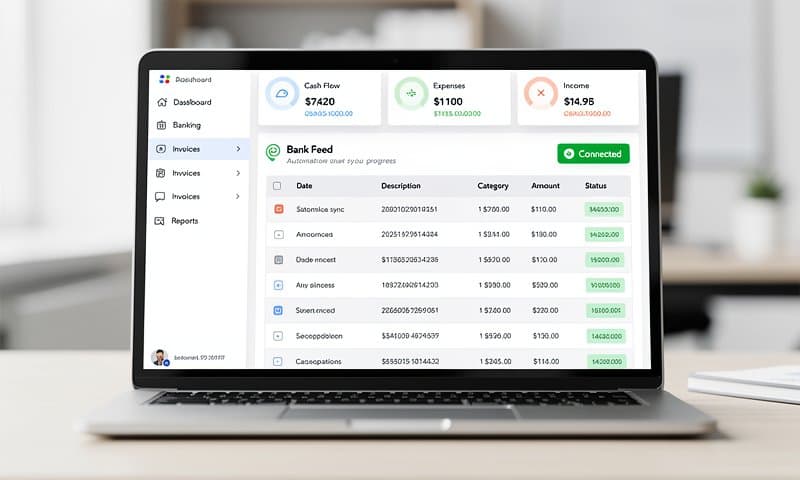
When a direct feed is available and working, this is genuinely useful. Transactions appear in Dext, you match them to receipt documents, and the reconciled data exports to your accounting software with a clean audit trail.
The catch: Dext's supported bank list skews toward major UK, Australian, and Canadian banks, with more limited coverage for US regional banks and credit unions. If your client banks with a smaller institution, you may not find it in Dext's list at all.
Practical tip: Before assuming a bank is not supported, try searching by the bank's parent company. Many regional banks use a shared banking platform and may appear under a parent name rather than their branded name.
What Dext Does Not Do Well
It's worth being direct here: Dext is a receipt and invoice tool, not a bank statement converter. That design choice shows in a few ways.
PDF extraction accuracy varies. When you upload a PDF bank statement to Dext, it uses OCR to read the text. Statement formats differ significantly between banks — multi-column layouts, merged cells, footers with running totals, and varying date formats all create extraction inconsistencies. Dext may miss transactions, duplicate lines, or misread amounts.
No native CSV or Excel export of statement data. Dext's output format is designed for pushing transactions into accounting software. If you need a clean CSV of all transactions from a statement to do your own analysis or import into a system that Dext does not integrate with, you are working around the tool rather than with it.
Limited support for non-standard statement formats. Business account statements, multi-currency accounts, and statements from overseas banks often cause problems. Dext handles straightforward cases well and struggles with anything unusual.
None of this is a criticism of Dext as a product — it solves a real problem for receipt capture. But if bank statement conversion is the task, you need a tool designed specifically for that job.
How to Import a Bank Statement into Dext
Dext does provide a manual bank statement upload path. Here's how it works:
- Log into Dext Prepare and navigate to Bank Statements (found under the Costs menu or the left sidebar depending on your account version)
- Click Upload Statement
- Select your PDF bank statement file — Dext accepts PDF format only, not scanned images or OFX files
- Assign the statement to the correct bank account in your Dext account
- Dext processes the file using OCR and extracts transactions into a list view
- Review the extracted transactions and resolve any flagged items before exporting
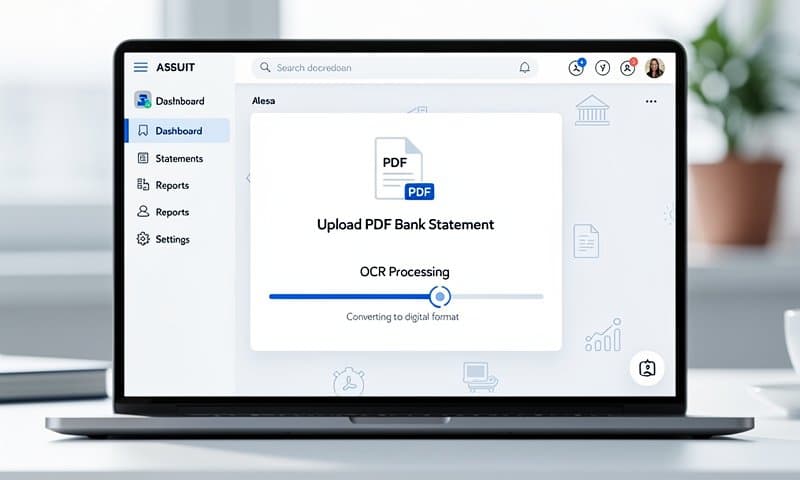
For straightforward statements from major banks, this process works reasonably well. For anything complex — business accounts with many columns, statements with opening and closing balance summaries, or PDFs that are scanned rather than digitally generated — expect to spend time correcting errors.
What to watch for: Dext sometimes creates duplicate transactions when a statement spans a period that overlaps with your bank feed dates. Always check for duplicates before exporting, particularly if you run both a live feed and manual statement uploads for the same account.
What to Do When Dext Cannot Process Your Bank Statement
When Dext's extraction produces errors you cannot quickly fix, or when the bank is simply not supported, the most efficient path is to convert the PDF bank statement directly to CSV or Excel using a dedicated converter.
ConvertBankToExcel.com handles this specific task. You upload a PDF bank statement — from any bank, in any format — and get back a clean CSV or Excel file with transactions properly mapped to columns. The process takes under two minutes for most statements, and you can use the free PDF to Excel converter to test it with your first statements.
Once you have the CSV, the workflow is straightforward:
- Upload your PDF bank statement at ConvertBankToExcel.com
- Download the CSV or Excel output
- Review and clean the data if needed — usually minimal work
- Import into Xero, QuickBooks, or your accounting software using its native CSV import feature
This approach also works well for importing bank statements into Xero when the bank feed is not available or has a gap. The CSV import in Xero accepts a simple three-column format (date, description, amount), and the converter output maps directly to it.
For small business clients who need a clear process, this two-tool approach — Dext for receipts, ConvertBankToExcel for PDF statements — covers the full bookkeeping workflow without gaps. See the bank statement converter guide for a full walkthrough.
Dext vs Other Bank Statement Tools
| Tool | Best for | Bank statement support | Approximate cost |
|---|---|---|---|
| Dext Prepare | Receipt and invoice capture | Limited (feed plus basic PDF upload) | From $20/month |
| ConvertBankToExcel | PDF bank statement to CSV/Excel/OFX | Excellent, 1,000+ banks | Free tier available |
| Hubdoc | Document collection and receipt capture | Similar to Dext, limited | From $12/month |
| Your accounting software | Native bank feeds | Varies by bank | Included |
The practical takeaway: Dext and ConvertBankToExcel address different parts of the bookkeeping process. Dext handles document capture; ConvertBankToExcel handles the cases where you have a PDF statement and need structured data fast.
For a broader look at how extraction tools compare, the bank statement PDF to CSV conversion guide covers the technical differences in detail.
Frequently Asked Questions
Does Dext read bank statements?
Yes, but with limitations. Dext can process PDF bank statements through its bank statement upload feature, and it supports direct bank feeds for a selection of banks. Extraction accuracy for PDF statements varies depending on the bank's format. Straightforward digital PDFs from major banks tend to work well; scanned statements, complex layouts, and niche bank formats produce more errors.
Is Dext the same as Receipt Bank?
Yes. Dext rebranded from Receipt Bank in 2021. The core product — Dext Prepare — is the same receipt and invoice capture tool that Receipt Bank users knew. If you see references to Receipt Bank in older help articles or integrations, they refer to the same product.
Can Dext connect to any bank?
No. Dext supports direct bank feeds for a specific list of institutions, weighted toward UK, Australian, and North American major banks. If your bank is not on the list, the PDF upload path is the alternative within Dext — or you can use ConvertBankToExcel.com as a complement to handle those statements outside Dext.
What is the best way to get bank statements into Xero or QuickBooks if Dext fails?
Convert the PDF to CSV first. ConvertBankToExcel.com handles the extraction with high accuracy because it is built specifically for bank statement formats. Once you have a CSV, both Xero and QuickBooks accept it through their standard bank statement import flows. The how to import bank statement into Xero guide covers the step-by-step process.
Conclusion
Dext is a strong tool for what it does: capturing receipts and invoices and feeding that data into accounting software. Its bank feed and statement upload features are useful extras, not core strengths. For routine receipt management and document capture, Dext earns its place in an accounting workflow.
For PDF bank statements — especially from banks outside Dext's supported list, or statements with complex formats — a dedicated converter is the better fit. ConvertBankToExcel.com converts any PDF bank statement to Excel, CSV, or OFX in minutes, and the free tier lets you try it immediately without a commitment.
Use Dext for receipts. Use ConvertBankToExcel for bank statements. Between the two, the full document workflow is covered.