
Monday morning. AP has 43 invoices waiting, three came in as clean PDFs, six are scans from branch offices, and one is a phone photo with a shadow across the total. The problem is not only volume. It is that every weak image and every odd layout increases the chance that someone has to stop, check, and correct the record before it can be posted.
That is the core business case for invoice OCR processing. It reduces manual entry, but the bigger value is earlier error detection. In practice, AP teams do not lose time only on typing. They lose time when the OCR reads a 3 as an 8, pulls the invoice date from the wrong part of the page, or misses tax because the scan was flattened and low contrast.
I have seen invoice OCR work well, and I have seen it create more cleanup than it saves. The difference usually comes down to workflow discipline. Good intake rules, supplier-specific validation, and a review queue for exceptions matter more than a vendor's headline accuracy claim. If the process accepts every extraction without checks, bad data moves into coding, approvals, and payment runs faster than a clerk would have entered it manually.
That is why teams often pair OCR with document standardization and downstream automation. A tool that handles bank statement and document data extraction workflows can help normalize messy inputs before they become accounting records. The same principle applies when teams are evaluating Power Automate and Zapier use cases for approvals, routing, and exception handling after capture.
For accountants, the priority is simple. Get the right fields, catch the doubtful ones early, and make sure every exception has a clear owner. Invoice OCR processing earns its keep when it improves control and reduces rework, not when it only promises faster data entry.
Ending the Tyranny of Manual Invoice Entry
The pattern is usually the same. Invoices arrive from too many places, email attachments, vendor portals, scans from branch locations, and the occasional image someone texts over because “it was faster.” Then a bookkeeper or AP clerk has to normalize all of it into one clean record the accounting system can use.
That's where teams lose hours. Not only on the typing, but on the cleanup after the typing.
I've seen firms spend more time fixing invoice entry than posting it. The rework comes later, during duplicate checks, month-end accrual reviews, vendor statement reconciliations, or approval disputes where no one trusts the original capture. At that point, the problem isn't administrative. It's operational.
Where manual workflows break first
A manual process usually fails in three places:
- Intake gets messy. Invoices come in as searchable PDFs, flattened PDFs, scans, photos, and forwarded email threads.
- People key inconsistent values. One person enters vendor names exactly as shown. Another uses the vendor master name. A third abbreviates.
- Review happens too late. Errors surface after the invoice has already moved into coding, approval, or payment scheduling.
That's why invoice OCR processing is valuable when it's implemented as a workflow tool, not just a text-reading tool. The right setup captures invoice data early, structures it consistently, and gives the team a controlled review step before anything hits the ledger.
A lot of firms also pair invoice extraction with adjacent workflow tools. If you're evaluating Power Automate and Zapier use cases, it helps to think about OCR as one component in a larger intake-to-posting chain rather than a standalone app.
Practical rule: If your team still copies data from PDFs into the accounting system by hand, you don't have an AP process. You have an AP bottleneck.
Structured financial data matters beyond invoices too. Teams that already standardize exports and imports across documents tend to adopt OCR faster, especially when they're used to tools that turn messy financial files into clean outputs such as the formats shown on ConvertBankToExcel's feature set.
How Modern Invoice Processing Actually Works
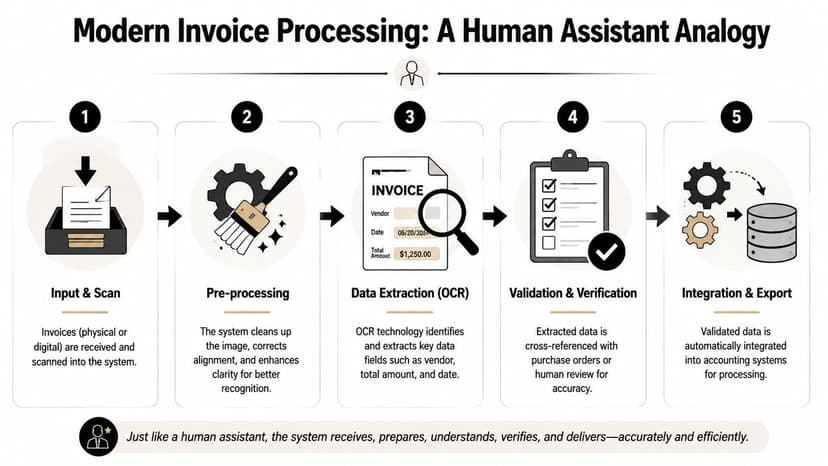
Modern invoice OCR processing isn't one step. It's a sequence. The easiest way to understand it is to compare it to a capable AP assistant handling mail.
First, the assistant receives the invoice. Then they straighten it, make sure it's readable, read the text, identify which parts matter, and finally check whether the numbers make sense before entering anything into the accounting system. Good software follows the same logic.
The five stages that matter
Here's the pipeline finance teams should expect:
Digitizing the document
The system receives invoices from scans, PDFs, email attachments, or images.Preprocessing the image
It improves readability by correcting alignment and cleaning noise.OCR text recognition
Characters become machine-readable text.Field extraction
The software maps content into accounting fields such as vendor, invoice number, dates, totals, taxes, and line items.Validation before export
Extracted values are checked before the record is sent to ERP or accounting software.
This staged model is the important part. Box's explanation of OCR invoice processing notes that invoice OCR works best when documents are digitized, preprocessed, recognized, extracted, and validated in sequence. The same explanation notes that page-level OCR accuracy can be around 98 to 99 percent, but field-level accuracy is the KPI that matters for accounting because one wrong digit can break the workflow.
Why older OCR tools disappoint accountants
Traditional OCR tools often stop at “I found text.” That's not enough for AP.
An accounting workflow needs the system to understand that “06/07/25” might be an invoice date, not a due date. It needs to know that the number near “Total Due” matters more than a repeated figure in the remittance stub. It needs to separate tax from subtotal and identify the PO reference even when the vendor puts it in an odd place.
That's why newer systems outperform template-only approaches on mixed vendor formats. They don't just read. They classify, map, and verify.
Teams researching broader workflow changes often benefit from practical guides on AP automation for small businesses, especially when they're trying to decide what should be automated first and what still needs a human checkpoint.
For a related view of how OCR pipelines work on financial documents beyond invoices, this bank statement parser OCR overview is useful because it shows the same core lesson: extraction quality depends on preprocessing, structure detection, and validation, not text recognition alone.
The software that saves the most time usually isn't the software that reads the most text. It's the software that creates the fewest downstream exceptions.
What AP teams should look for in the workflow
A strong invoice OCR process should visibly handle:
| Workflow stage | What good looks like |
|---|---|
| Intake | Email, PDF, scan, and image capture in one queue |
| Cleanup | Skew correction, contrast cleanup, and noise handling |
| Extraction | Header fields and line items mapped into structured data |
| Validation | Rules for totals, dates, duplicates, and PO checks |
| Export | Clean output into accounting software or import files |
If a vendor can't explain each stage clearly, the product usually pushes the mess into your exception queue instead of removing it.
The Most Valuable Data Fields to Extract
The goal of invoice OCR processing isn't to create a prettier PDF. It's to produce a record your accounting system can trust. That means some fields matter far more than others.
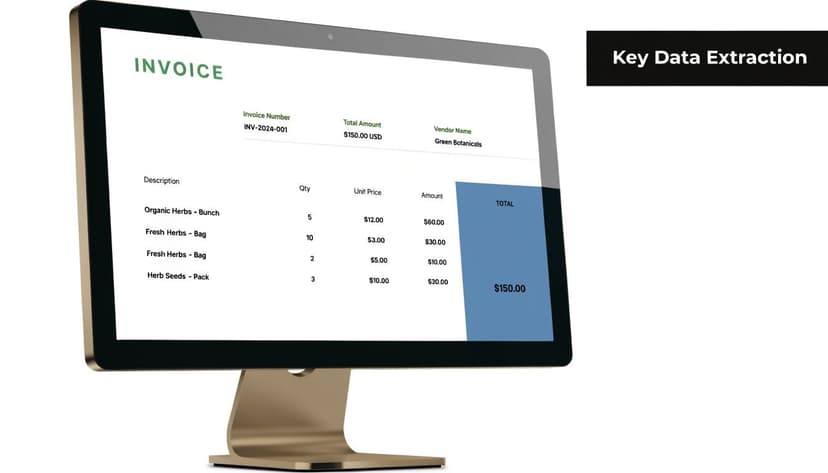
The first fields everyone asks about are the header fields. Vendor name, invoice number, invoice date, due date, PO number, subtotal, tax, and total. Those are necessary, but they're only the beginning.
The fields that drive actual accounting work
Some extracted fields support convenience. Others support control.
Vendor name
This links the invoice to the vendor master. If the capture is inconsistent, duplicate vendors and coding errors follow.Invoice number
This is the key field for duplicate prevention. If this field is wrong, every other control weakens.Invoice date and due date
These affect aging, payment scheduling, and period cutoff.Subtotal, tax, and total
These drive coding, tax treatment, and approval thresholds.PO reference
This enables matching. Without it, invoices often drop into manual review even when the rest of the capture is clean.
Why line items matter more than most buyers expect
Header capture gets the invoice into the system. Line-item extraction determines whether the invoice is useful once it gets there.
For purchasing environments, line items support three-way match. For controllers, they support spend analysis. For bookkeepers cleaning up messy AP files, they explain what was bought when the header says almost nothing.
A line-item capable system should parse descriptions, quantities, unit prices, and row totals even when vendors use different table layouts. That's harder than capturing a single total box, but it's the difference between partial automation and usable automation.
If your tool extracts only the invoice header, your team still has to inspect the invoice like a person. The software hasn't reduced much work.
A related discipline shows up in bank and credit card document handling too. The challenge is always the same: get document data into a structured format that can be reviewed, reconciled, and imported. That's why workflows for extracting bank statement data are relevant to finance teams thinking about invoices as well. The useful output isn't the image. It's the structured record.
A practical priority list
If I were ranking fields by accounting impact, I'd test them in this order:
| Priority | Data field | Why it matters |
|---|---|---|
| Highest | Invoice number | Duplicate control |
| High | Total amount | Payment and approval integrity |
| High | Vendor name | Vendor matching and coding |
| High | Invoice date | Period and aging accuracy |
| Medium | PO number | Match automation |
| Medium | Tax fields | Compliance and coding |
| Critical for scale | Line items | Matching, analytics, and audit support |
That order surprises some buyers. It shouldn't. The field that causes the most damage when wrong is often more important than the field that looks easiest to capture.
The Truth About Invoice OCR Accuracy
Most invoice OCR marketing starts with an accuracy claim. That's fine as a starting point, but accountants shouldn't stop there.
The first question isn't “what percentage accuracy do you claim?” It's “what exactly are you measuring?”
Character accuracy is not accounting accuracy
A widely cited developer guide on invoice extraction makes the problem clear. A system can hit 98% character-level accuracy and still produce 20% incorrect invoice fields because one bad digit can corrupt the invoice number or total. The same guide says traditional OCR-only invoice workflows typically reach 85 to 95% field-level accuracy on structured invoices, while AI and LLM-based extraction systems generally reach 97 to 99%. It also notes that document-level accuracy is much stricter than field-level accuracy. At 97% field-level accuracy across 15 extracted fields, roughly 36% of documents may still contain at least one error. That breakdown is explained in the invoice OCR accuracy developer guide.
That's the number buyers need to sit with. Not because the technology is weak. Because accounting tolerances are strict.
Where invoice OCR fails in the real world
In production, OCR usually doesn't fail in a dramatic way. It fails unobtrusively.
A total gets read correctly, but the invoice number loses one character. A vendor stamp overlaps a due date. A phone photo introduces a shadow over the tax area. A clerk scans a page crooked. Someone writes “paid” across the corner. The invoice is still readable to a person, but not clean enough for reliable extraction.
Common failure points include:
- Low-quality captures from mobile photos or poor scans
- Skew and rotation that shift table boundaries
- Shadows and uneven lighting that hide characters
- Stamps and handwritten notes that overlap key fields
- Layout variation across vendors and countries
- Ambiguous labels like “amount,” “balance,” and “total due”
This is also why exception handling matters so much. An invoice can be structurally legible and still be operationally unusable.
Preprocessing does more work than buyers think
The focus is often on the extraction model, with image quality ignored. That's a mistake.
One practical data point from a preprocessing study found that entropy-based preprocessing before binarization reduced OCR character-recognition errors by roughly 44% across 140 unevenly illuminated document images, as described in this analysis of OCR preprocessing for invoice extraction. If your AP inbox includes branch scans, emailed copies of copies, or phone captures, preprocessing isn't a bonus feature. It's part of accuracy.
Field test: Run your proof of concept on the worst invoices you actually receive, not the clean PDFs the vendor puts in the demo.
There's also a practical side to OCR error handling beyond invoices. Teams that work with mixed-quality financial documents often face the same issues with missing characters, broken tables, and incorrect field mapping. A useful reference point is common OCR error patterns and fixes, because the remediation logic is similar across finance documents.
Here's a short walkthrough that shows the difference between headline accuracy and workflow-ready extraction:
What actually improves reliability
If you want invoice OCR processing to hold up in accounting, focus on controls, not slogans.
Use systems that support:
- Image cleanup before OCR so poor captures don't poison extraction
- Validation rules such as subtotal plus tax equals total
- Cross-checks against vendor master or PO data
- Line-item table detection instead of header-only capture
- Human review queues for low-confidence fields and ambiguous invoices
Marketing claims aren't useless. They're just incomplete. Accuracy in AP is the percentage that still holds after bad scans, messy layouts, and real-world exceptions show up.
Integrating OCR with Your Accounting Systems
Extraction is only half the job. If the data stays trapped in the OCR tool, your team still ends up copying values into QuickBooks, Xero, NetSuite, or Sage.
That last mile is where many invoice OCR projects stall. The software reads the invoice correctly, but the handoff into the accounting system is awkward, brittle, or manual.
The two integration models that matter
Most firms end up choosing between two paths.
Direct integration pushes validated data into the accounting or ERP platform through an API or native connector. This is cleaner when the chart of accounts, vendor lists, approval rules, and document attachments all need to move together.
Structured export creates CSV, Excel, JSON, or accounting import files that staff can review and import. This is less elegant, but often easier to audit and easier to control during an early rollout.
The right choice depends on your environment:
| Integration path | Best for | Main drawback |
|---|---|---|
| Direct API or native connector | Higher volume, lower touch workflows | Harder setup and dependency on connector quality |
| Structured file export | Firms that want review before import | Still requires an import step |
What accountants should verify before go-live
Don't just ask whether a system “integrates with Xero” or “works with QuickBooks.” Ask what data moves.
You want to know:
- Does the invoice image attach to the transaction record
- Can line items map into the destination system cleanly
- Will tax fields, classes, locations, or tracking categories carry over
- How are vendor mismatches handled
- What happens when required fields are missing
For firms that handle multiple financial data flows, file-based integration is still underrated. A clean export can be safer than a shaky connector.
That's also why finance teams often look at adjacent import pipelines. If you manage ecommerce payouts or marketplace reconciliations, Hopted Amazon data platform is a useful example of the broader challenge: extracting financial data is one task, but structuring and syncing it into finance systems is where operational value appears.
For Xero users in particular, compatibility matters at the format level, not just the marketing level. Teams comparing options should review practical import paths like Xero integration workflows for structured financial data. The principle is the same with invoices. Reliable output beats flashy extraction.
One pragmatic way to think about tooling
Some firms need a dedicated invoice platform. Others need a stack of simpler tools that each solve one document problem well.
For example, ConvertBankToExcel is relevant when your workflow also includes bank and card statements that need OCR-based conversion into structured accounting formats. It's not an invoice OCR platform, but in a finance operation the surrounding documents often create the same import and cleanup burden as invoices.
How to Choose the Right Invoice OCR Vendor
Most buyers compare vendors in the wrong order. They start with the demo, then the interface, then the pricing page. Accountants should reverse that. Start with failure risk.
A vendor is a good fit if the system handles your ugliest invoices, captures the fields that drive controls, and sends the data into your accounting stack without creating a second cleanup project.
Ask for the metric that matters
The first screen of every evaluation should be about measurement.
A vendor may highlight strong extraction results, but that isn't useful unless you know whether the claim refers to character recognition, field extraction, or true invoice usability. For AP, the practical test is simple: how many invoices can move forward with minimal correction, and which fields still fail when the invoice quality drops.
Buyers should distrust any demo that uses only clean invoices from a curated sample set.
Non-negotiable capabilities
The feature list below separates workable systems from expensive distractions:
Line-item extraction
This is not optional. ACOM's overview of invoice OCR notes that for invoice automation, the most valuable capability is line-item extraction, not just header capture, because it supports 3-way matching and spend analysis. The same source says high-performance systems use machine-learning-assisted table detection to parse quantities, prices, and descriptions, and that this is the technical driver behind claims of 99%+ accuracy and 75% time savings.Validation controls
The software should catch totals that don't foot, suspicious dates, duplicate invoice numbers, and PO mismatches before export.Template flexibility
If every new vendor layout requires manual setup, maintenance will become its own job.Exception workflow
Low-confidence fields should route into a review queue with the source image visible beside the extracted values.Accounting integration
Don't settle for generic “ERP support.” Confirm whether your exact system and required output method are supported.
Questions worth asking in a proof of concept
A good proof of concept is less about speed and more about stress.
Use a mixed batch that includes:
- Blurry scans
- Multi-page invoices
- Different vendor layouts
- Invoices with tax complexity
- Documents with stamps or annotations
Then ask practical questions, not sales questions:
| Evaluation area | Better question |
|---|---|
| Accuracy | Which fields fail most often on our invoices |
| Exceptions | How does the reviewer correct low-confidence captures |
| Learning | Does the system adapt after corrections |
| Integration | What exact formats or connectors are available |
| Control | Can we stop bad records before posting |
The hidden selection criterion
The best vendor for a controller is often not the one with the flashiest AI pitch. It's the one that creates the smallest and most manageable exception queue.
That sounds less exciting than “intelligent automation,” but it's how accounting teams win. Clean captures are good. Predictable exceptions are better. Unexplained exceptions are what make teams abandon the software after rollout.
Your Implementation and Troubleshooting Checklist
The first month after go-live usually decides whether invoice OCR becomes an AP time-saver or another queue your team has to babysit. The difference is rarely the demo. It comes down to how the system handles bad scans, changed vendor layouts, and the validation rules that stop bad data before it reaches the ledger.
Start with a pilot that reflects real accounting work, not a polished sample set from sales. A narrow rollout gives you room to measure exception volume, review time, and posting errors before you expand to every entity or supplier.
Use this checklist:
Pick a pilot group
Start with one business unit, one inbox, or a limited supplier set. Choose invoices your team sees every week so you get enough volume to spot recurring failures.Define the fields that must be right
Invoice number, invoice date, due date, vendor name, subtotal, tax, total, PO number, and entity or location code are common examples. If a field affects coding, approvals, or duplicate detection, require validation before export.Test poor-quality documents on purpose
Include skewed scans, mobile phone photos, faint PDFs, and invoices with dense tables. If OCR only works on clean digital invoices, it will disappoint in production.Set validation rules before go-live
Add duplicate invoice checks, total math checks, date logic, vendor matching, and required-field rules early. Good validation catches more accounting errors than OCR alone.Train the reviewers
Reviewers need to know how to correct exceptions, when to override a capture, and when to send a document back to the vendor. Many rollouts stall at this stage. The software extracts data, but the team has no consistent process for clearing the queue.Track exceptions by cause
Separate OCR misses from mapping problems, validation failures, and upstream document quality issues. If everything is labeled "OCR error," you will fix the wrong problem.
Quick troubleshooting moves
When accuracy slips, check the workflow before blaming the model.
- A supplier changed its invoice layout. Review recent samples from that vendor and compare field placement to earlier invoices. Header shifts often break invoice number, due date, and tax extraction first.
- Totals or taxes are off. Check whether freight, discounts, or tax lines are being rolled into the wrong field. Line-item parsing is a common failure point, especially on multi-page invoices.
- Exceptions suddenly spike. Look at scan quality, file type, and document source. A new scanner setting or phone-upload habit can create more work than any model change.
- Invoices extract correctly but fail to post. Review your ERP mapping, vendor master matching, and export format. Extraction and posting are separate control points.
- Duplicate invoices are getting through. Tighten duplicate logic beyond invoice number alone. In practice, teams often need vendor, invoice date, and amount checks together.
- Reviewers are overriding too much. Audit a sample of corrected invoices. If people are fixing the same field every day, update the rule, template, or mapping instead of absorbing the labor.
The business case comes from shifting staff time away from keying data and toward exception handling, approvals, and vendor follow-up. In a well-run process, OCR does not eliminate review. It reduces the number of invoices that need human attention and makes the remaining problems easier to spot.
If your firm handles more than invoices and also spends time converting bank or credit card statements into usable accounting data, ConvertBankToExcel is worth a look. It is built for CPAs, bookkeepers, and finance teams that need OCR-based extraction from financial statements into structured files for Excel, CSV, and accounting workflows.