
![QFX to QBO Converter: 3 Methods That Work [2026]](/_next/image?url=https%3A%2F%2Fconvertbanktoexcel.com%2Fapi%2Fuploads%2Fimages%2Fqfx-to-qbo-file-format-conversion-interface-on-laptop-with-professional-office-background-1772395312795.jpg&w=1920&q=75)
QFX to QBO Converter: 3 Methods That Work [2026]
I spent two hours renaming file extensions and editing XML headers last month. The result? A corrupted file that QuickBooks refused to import.
There are better ways to convert QFX to QBO. Here are three methods I've actually tested, ranked by reliability.
QFX vs QBO: What's the Difference?
Before we get into conversion methods, here's what these formats actually are:
QFX (Quicken Financial Exchange) is Quicken's proprietary version of the OFX standard. Banks generate QFX files for download, and Quicken reads them directly. The file contains your transactions in XML-like format with a Quicken-specific header.
QBO (QuickBooks Online/Desktop) is Intuit's format for QuickBooks. It's also based on OFX, but has different header values and sometimes slightly different field structures.
The core transaction data is nearly identical. The difference is mostly in the file headers.
| Feature | QFX | QBO |
|---|---|---|
| Made for | Quicken | QuickBooks |
| Based on | OFX standard | OFX standard |
| File extension | .qfx | .qbo |
| Header format | OFXHEADER:100 | OFXHEADER:100 |
| APPID value | Quicken-specific | QBKS (Desktop) or QBM (Online) |
| Transaction data | Standard OFX | Standard OFX |
The key difference? The APPID and APPVER values in the header. QuickBooks checks these before importing.
Why Convert QFX to QBO?
Most people hit this problem when they're:
- Switching from Quicken to QuickBooks and need to move historical data
- Downloading bank files that only come in QFX format
- Working with a bookkeeper who needs QBO files specifically
- Importing into QuickBooks Desktop which sometimes rejects QFX files
QuickBooks Online actually handles QFX files reasonably well. QuickBooks Desktop is pickier about the format.
Method 1: Automated Converter (Fastest)
The quickest approach is using a converter tool that handles the format translation for you.
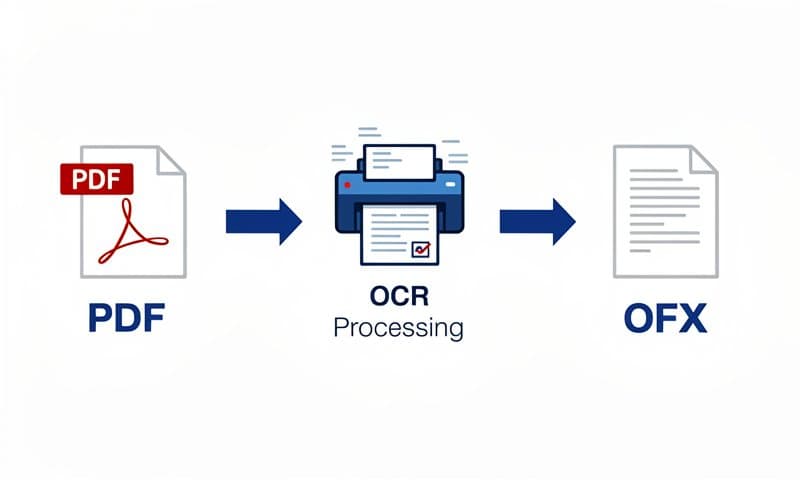
Steps:
- Go to ConvertBankToExcel.com
- Upload your QFX file
- Select QBO as the output format
- Download the converted file
- Import into QuickBooks
Pros: Takes about 90 seconds. No technical knowledge needed. Handles the header conversion and validates the output file structure.
Cons: Requires internet access.
When to use: You want it done fast and don't care about the technical details.
Method 2: Manual Header Editing
Since QFX and QBO are both OFX-based, you can manually edit the header values. I'll warn you up front: this works but it's fragile.
Steps:
- Make a copy of your .qfx file (never edit the original)
- Open the copy in a plain text editor (Notepad, VS Code, Sublime)
- Find the header section at the top of the file
- Change the
APPIDvalue:- From:
APPID:SomeBankorAPPID:QCKT - To:
APPID:QBKS(for QuickBooks Desktop)
- From:
- Change the
APPVERvalue:- To:
APPVER:2600(for QuickBooks Desktop)
- To:
- Save the file with a .qbo extension
- Try importing into QuickBooks
The header should look like this after editing:
OFXHEADER:100
DATA:OFXSGML
VERSION:102
SECURITY:NONE
ENCODING:USASCII
CHARSET:1252
COMPRESSION:NONE
OLDFILEUID:NONE
NEWFILEUID:NONE
Pros: Free. No software needed.
Cons: Easy to break the file. QuickBooks validates more than just headers—date formats, currency codes, and institution IDs all need to be correct. One wrong character and the import fails with a cryptic error.
When to use: You're comfortable with text files and only need to do this once or twice.
Method 3: Excel as a Middle Step
If direct conversion isn't working (some bank QFX files have non-standard formatting), go through Excel as an intermediate format.
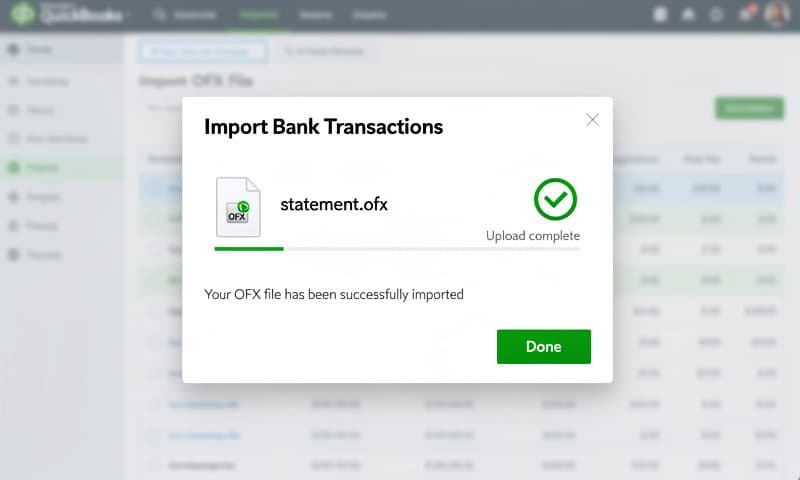
Steps:
- Upload your QFX file and convert to Excel/CSV
- Review the transactions in Excel—fix any dates or amounts that look wrong
- Convert the cleaned CSV to QBO format using a CSV to QBO converter
- Import the QBO file into QuickBooks
Pros: You get to inspect and clean the data before importing. Catches formatting problems that direct conversion might miss.
Cons: Extra step. Takes 5-10 minutes instead of 90 seconds.
When to use: Your QFX file has messy data, duplicate transactions, or dates in weird formats. Also good when you need to filter out certain transactions before importing.
Common QFX to QBO Conversion Errors
Here are the errors I've run into and how to fix them:
"This file is not a valid QuickBooks file"
Usually means the header values are wrong. Check that APPID is QBKS and APPVER is 2600 for Desktop.
"Unable to read this file" or blank import
The character encoding might be wrong. QBO files need to be USASCII or UTF-8. If your text editor saved it as UTF-16, QuickBooks won't read it.
Duplicate transactions after import
QuickBooks uses the FITID field (Financial Institution Transaction ID) to detect duplicates. If your QFX file has duplicate FITIDs, you'll get double entries. Delete the duplicates in QuickBooks after import, or clean the file first using the Excel method.
Dates showing in wrong format
OFX uses YYYYMMDD format (e.g., 20260301). If your QFX file has dates like 03/01/2026, the conversion will fail. An automated converter handles this reformatting.
QFX to QBO: Which Method Should You Pick?
| Criteria | Method 1: Auto | Method 2: Manual | Method 3: Excel |
|---|---|---|---|
| Speed | 90 seconds | 15-30 minutes | 5-10 minutes |
| Skill needed | None | Text editing | Basic Excel |
| Reliability | High | Medium | High |
| Data cleaning | No | No | Yes |
| Best for | Quick one-off | Single file, tech-savvy | Messy data |
For most people, Method 1 is the answer. Upload your QFX file and you're done in under two minutes.
If your file has issues or you need to clean the data, go with Method 3 through Excel.
Method 2 (manual editing) works in a pinch but I wouldn't rely on it for important financial data.
FAQ
Can QuickBooks Online import QFX files directly?
Yes, in many cases. QuickBooks Online is more flexible than Desktop with file formats. Try importing your QFX file directly before converting—it might just work.
Is QFX the same as OFX?
Almost. QFX is Quicken's branded version of the OFX standard. The file structure is identical, but QFX files include Quicken-specific header values. Most OFX-compatible software can read QFX files.
Will I lose transaction data during conversion?
No. Both QFX and QBO contain the same core transaction fields: date, amount, payee name, transaction type, and reference number. A proper conversion preserves all of this.
How do I convert multiple QFX files at once?
Batch conversion depends on the tool. ConvertBankToExcel.com lets you process multiple files. For manual conversion, you'd need to edit each file individually.
What about QFX to QBO for Mac?
The same methods work on Mac. For Method 2, use TextEdit (set to plain text mode) instead of Notepad. Methods 1 and 3 are browser-based, so they work on any operating system.
Wrap Up
Converting QFX to QBO comes down to changing file headers and validating the output. An automated tool handles both steps reliably. Manual editing works but risks corrupting the file.
Need to convert right now? Try ConvertBankToExcel.com free—no signup, no credit card.