
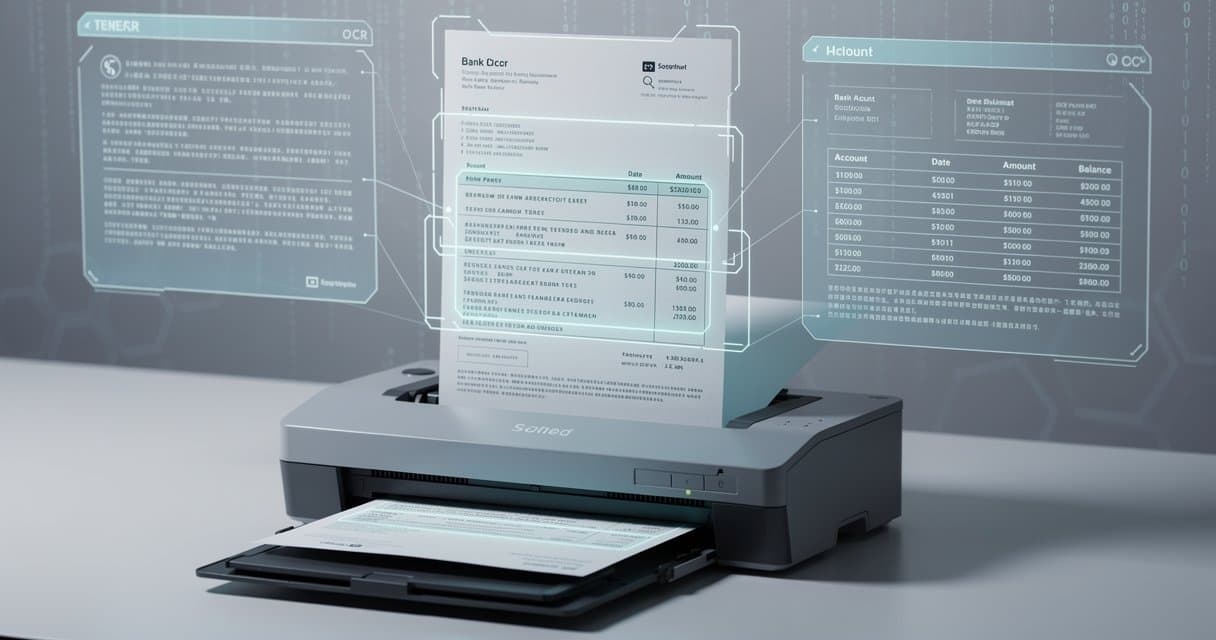
Scan Bank Statements into Excel — OCR Guide (2026)
Still have paper bank statements? Whether they're old records, foreign bank statements, or documents you need for legal purposes, scanning them into Excel makes them searchable, analyzable, and easy to archive.
This guide covers the entire process: from scanning paper statements to getting accurate, usable data in Excel format.
Why Scan Paper Bank Statements?
Searchability
Once in Excel, you can:
- Find any transaction instantly
- Filter by date, amount, or description
- Search across multiple statements
Analysis
Spreadsheet format enables:
- Calculate totals and averages
- Create charts and graphs
- Compare periods
For text-based PDFs from online banking, converting directly to Excel typically produces better results than scanning.
Digital Archiving
Convert physical documents to:
- Searchable PDFs
- Secure digital backups
- Space-saving storage
Integration
Import scanned data into:
- Accounting software
- Tax preparation tools
- Financial planning apps
Equipment You'll Need
Scanner Options
Flatbed Scanner
- Best quality for individual pages
- Can handle fragile documents
- Slower for multi-page statements
Sheet-Fed Scanner
- Fast for multiple pages
- Good for regular-sized documents
- May struggle with thick or damaged paper
All-in-One Printer
- Convenient if you already own one
- Quality varies significantly
- Usually adequate for bank statements
Smartphone Camera
- Surprisingly good with proper technique
- Always available
- Requires steady hands and good lighting
For converting scanned credit card statements, the same scanning principles apply.
Minimum Quality Requirements
| Setting | Recommended | Minimum |
|---|---|---|
| Resolution | 300 DPI | 200 DPI |
| Color Mode | Grayscale | Black & White |
| Format | PDF or PNG | JPEG (high quality) |
Step-by-Step Scanning Process
Step 1: Prepare Your Documents
Sort Your Statements
- Organize by date or account
- Remove staples carefully
- Unfold any creased pages
- Smooth out wrinkles
Check Paper Condition
- Flatten curled pages under heavy books
- Tape any tears on the back
- Clean any smudges gently
Step 2: Adjust Scanner Settings
Resolution
Set to 300 DPI for optimal balance of quality and file size. Higher isn't necessarily better for text documents.
Color Mode
- Grayscale works best for most statements
- Black & white can increase OCR accuracy
- Color only if needed for specific markings
Brightness/Contrast
- Increase brightness slightly if document is yellowed
- Increase contrast if print is faded
- Test with one page first
Step 3: Scan Your Documents
Positioning
- Align straight along scanner edge
- Keep margins visible
- Don't cut off any transaction data
Multi-Page Documents
- Use automatic document feeder if available
- Maintain page order
- Check for missed pages
Save Format
- PDF for multi-page documents
- PNG for single pages
- Avoid JPEG compression for text
Step 4: Check Scan Quality
Before converting, verify:
- All text is legible
- Numbers are clear (especially 1s, 7s, 0s, and 8s)
- No shadows or dark edges
- Complete page captured
Converting Scanned Statements to Excel
Using an Online OCR Converter
The easiest method for most users:
Upload Your Scan
Visit ConvertBankToExcel.com and upload your scanned PDF or image.Automatic OCR Processing
Our converter automatically:- Detects text vs image content
- Applies optimal OCR settings
- Recognizes bank statement layout
- Extracts transaction data
Our bank statement parser guide explains the OCR technology that makes accurate data extraction possible.
Review Extracted Data
Preview the results before downloading:- Check date formatting
- Verify amounts
- Review descriptions
Download Excel File
Export in your preferred format:- Excel (.xlsx)
- CSV
- Other formats as needed
Using Desktop OCR Software
For offline processing:
Adobe Acrobat Pro
- Open scanned PDF
- Tools > Enhance Scans > Recognize Text
- Export to Excel
ABBYY FineReader
- Open document
- Recognize > OCR Editor
- Export as spreadsheet
Free Options (Limited)
- Google Docs (upload PDF, download as text)
- Microsoft OneNote (paste image, copy text)
- Tesseract (command-line, technical users)
Optimizing OCR Accuracy
Image Enhancement
Before conversion, consider:
Deskewing
Straighten tilted scans. Most OCR software does this automatically, but severely tilted scans should be corrected manually.
Noise Reduction
Remove speckles and artifacts that could be misread as punctuation or numbers.
Contrast Enhancement
Make text stand out from background for clearer recognition.
Font Considerations
OCR accuracy varies by font:
| Font Type | OCR Accuracy |
|---|---|
| Sans-serif (Arial, Helvetica) | Excellent |
| Serif (Times New Roman) | Good |
| Dot matrix | Fair to Good |
| Script/Italic | Poor |
| Highly stylized | Poor |
Most bank statements use standard fonts with good OCR compatibility.
Common OCR Errors
Number Confusion
- 0 vs O (zero vs letter O)
- 1 vs l vs I (one vs lowercase L vs capital I)
- 5 vs S
- 8 vs B
Character Misreads
- Period vs comma in amounts
- Missing decimal points
- Spaces in numbers
Solution: Always verify extracted totals against statement totals.
Tips for Best Results
1. Use the Best Source Available
Order of preference:
- Download PDF from online banking (no scanning needed)
- Scan original printed statement
- Scan high-quality photocopy
- Photograph with smartphone (last resort)
2. Scan in Batches by Bank
Different banks have different formats. Process similar statements together for consistency.
3. Keep Original Scans
After converting, keep the original scans:
- They're your source of truth
- Can reconvert with better software later
- Useful for disputes or verification
4. Use Consistent Naming
Name files systematically:
BankName_AccountLast4_YYYY-MM.pdf
Chase_1234_2025-01.pdf
5. Create a Quality Control Checklist
For each converted statement, verify:
- Transaction count matches
- Opening balance correct
- Closing balance correct
- Sum of debits/credits matches totals
- Dates are in expected range
Handling Problem Documents
Faded Print
Old statements may have faded text:
Solutions:
- Increase scanner contrast
- Use image editing to enhance before OCR
- Try multiple OCR engines
- Manual data entry as fallback
Damaged Documents
Water damage, tears, or stains:
Solutions:
- Scan what's legible
- Note missing/uncertain data
- Request duplicate from bank if available
- Document any estimated entries
Multi-Column Formats
Some old statements use narrow columns:
Solutions:
- Use bank-specific OCR tools
- Convert columns separately
- Manual cleanup in Excel
Foreign Language Statements
Non-English text can challenge OCR:
Solutions:
- Use OCR software that supports the language
- Set correct language in OCR settings
- Focus on numerical data (universal)
Mobile Scanning Solutions
Smartphone Camera Tips
Lighting
- Use natural daylight when possible
- Avoid shadows across the document
- Even, diffuse lighting is best
Positioning
- Hold directly above, not at an angle
- Keep camera parallel to document
- Fill the frame with the page
Stability
- Use a tripod or rest arms on table
- Enable grid lines for alignment
- Take multiple shots, keep the best
Document Scanner Apps
Best Free Apps:
- Microsoft Lens (iOS/Android)
- Adobe Scan (iOS/Android)
- Google Drive built-in scanner
Premium Apps:
- Scanner Pro (iOS)
- SwiftScan (Android)
- Genius Scan (both platforms)
When choosing a converter for your scanned statements, read our comparison of free vs paid bank statement converters.
These apps automatically:
- Detect document edges
- Correct perspective
- Enhance contrast
- Create multi-page PDFs
Security Considerations
During Scanning
- Use your own equipment when possible
- Clear scanner memory after use
- Don't use public computers for sensitive documents
File Storage
- Encrypt sensitive financial documents
- Use secure cloud storage
- Regularly backup converted files
- Shred paper originals securely when no longer needed
Disposal
If discarding scanned files:
- Securely delete (not just trash)
- Clear from cloud sync folders
- Remove from backup systems
Conclusion
Scanning paper bank statements into Excel brings old financial records into the digital age. While it requires more effort than converting digital PDFs, modern OCR technology makes the process straightforward.
Key takeaways:
- Scan at 300 DPI in grayscale for best results
- Use specialized bank statement converters for OCR
- Always verify extracted data against original documents
- Keep original scans as backup
Need to convert scanned bank statements? Try our OCR-powered converter - it handles both digital and scanned PDFs with high accuracy.