
![Bank Statement to CSV Free: 5 Methods [2026]](/_next/image?url=https%3A%2F%2Fconvertbanktoexcel.com%2Fapi%2Fuploads%2Fimages%2Flaptop-on-office-desk-showing-bank-statement-to-csv-free-conversion-workflow-with-multiple-format-ic-1773169519417.jpg&w=1920&q=75)
Bank Statement to CSV Free: 5 Methods [2026]
My bank exports statements in OFX. My accountant wants a CSV. There's no direct export button.
If you've hit this same wall, you're not alone. Converting bank statements to CSV is one of the most common requests in bookkeeping forums — and most answers only cover PDF statements.
This guide covers all five practical methods for getting bank statement data into CSV, regardless of your starting format. All free, all tested in 2026.
What Format Is Your Bank Statement?
The right method depends on what format you have. Banks export in several ways:
| Starting Format | What It Is | Exported By |
|---|---|---|
| Portable Document Format | Almost every bank | |
| OFX / QFX | Open Financial Exchange | Chase, Wells Fargo, US banks |
| QBO | QuickBooks Online format | US banks for QuickBooks |
| MT940 | SWIFT international format | European and international banks |
| Paper / scanned | Physical statement photographed | Older accounts, regional banks |
For PDF-specific conversion in detail, the PDF bank statement to CSV free guide covers edge cases for scanned and password-protected PDFs.
The methods below are ordered from fastest (least setup) to most manual.
Method 1: ConvertBankToExcel.com (All Formats, Free)
This is the fastest option if you don't want to install anything.
It accepts PDF, scanned images, OFX, QBO, and most structured formats. The output is a clean CSV with standardized columns: date, description, debit, credit, balance.
How it works:
- Go to convertbanktoexcel.com
- Upload your statement (PDF, image, OFX, QBO, or other format)
- Click Download and choose CSV
Free tier handles most statements without an account. No signup required.
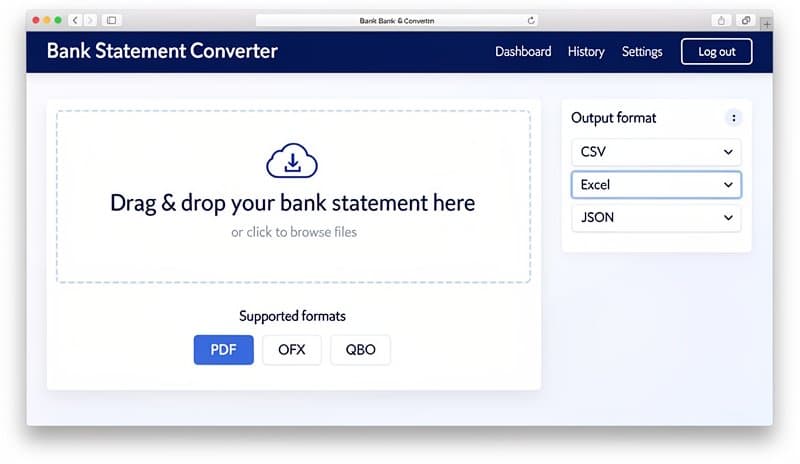
The OCR layer handles tricky bank layouts — two-column PDFs, merged cells, statements where debits and credits share one column with a D/C suffix. Worth trying before spending time on any other method.
Works with: Chase, Bank of America, Wells Fargo, Barclays, Standard Bank, Capitec, Deutsche Bank, ING, and 2,000+ other banks worldwide.
What it handles that other free tools often miss:
- Scanned and image-based PDFs (OCR extracts the text)
- Two-column statement layouts
- Mixed debit/credit columns with D/C suffix
- OFX and QBO files (not just PDF)
- MT940 SWIFT files from European banks
Method 2: PDF Bank Statement to CSV via Browser Tools
If you'd rather not upload to a specialized service, browser-based PDF tools work for simple statements.
Option A: Adobe Acrobat Free
- Open your PDF in Adobe Acrobat (free account)
- File → Export To → Spreadsheet → Microsoft Excel Workbook
- Open the XLSX in Excel or Google Sheets
- File → Save As → CSV
Decent results for well-formatted PDFs with clear table structure.
Option B: Smallpdf / ILovePDF / PDF2Go
These offer free PDF-to-Excel conversion with daily page limits:
- Upload your PDF
- Download the XLSX
- Open in Excel and save as CSV
When this works well: Simple PDF statements from large banks with standard layouts — one transaction per row, clear headers, no merged cells.
When it fails: Scanned PDFs, image-based PDFs, two-column layouts, or statements mixing narrative text with transaction tables. Method 1 handles those via OCR.
For a tested comparison of 15 free PDF conversion tools, the bank statement to CSV file guide ranks each by accuracy on real bank statements.
Method 3: OFX / QBO / QFX Files to CSV
Good news: if your bank exports OFX, QFX, or QBO files, you already have machine-readable structured data. Converting to CSV is highly accurate — no OCR involved.
Why OFX/QBO beats PDF for conversion:
- Data is already structured (no OCR needed)
- Dates and amounts are consistent
- No risk of misreading numbers
- Works reliably regardless of bank formatting
Option A: LibreOffice Calc (free, no coding)
- Download LibreOffice (free)
- Open LibreOffice Calc
- File → Open → select your .ofx or .qbo file
- LibreOffice parses the XML and maps columns automatically
- Review the columns, then File → Save As → CSV
About 3 minutes total. Reliable output.
Option B: ConvertBankToExcel.com also handles OFX and QBO
Same workflow as Method 1 — upload the OFX or QBO file, download CSV. Faster if you need it done once without installing LibreOffice.
For a deeper comparison of OFX, QBO, and IIF formats and which accounting software prefers each, see OFX vs QBO vs IIF: Which Format Does Your Software Need?
Method 4: MT940 / SWIFT Files to CSV
MT940 is the format used by most European and international banks for SWIFT transactions. It looks like plain text but has a specific line-based structure.
If you bank with Deutsche Bank, ING, Rabobank, HSBC (UK/EU), or most Swiss or Dutch banks, your downloaded statement may be in MT940 format.
How to recognize MT940: The file contains coded transaction tags in a fixed-width format. Lines typically start with coded identifiers for transaction entries, narrative text, and account balances.
Converting MT940 online: ConvertBankToExcel.com handles MT940 files directly. Upload → Download CSV. Fastest option without coding.
For teams processing MT940 in bulk: Open-source libraries exist in Python and JavaScript for parsing MT940 into structured objects you can then write to CSV. The Python mt940 package is the most widely used and handles all major variations of the format.
This approach suits finance teams processing multiple MT940 files from multiple accounts regularly — automatable as files arrive.
Method 5: Manual Copy-Paste via Browser (Last Resort)
For very short statements (under 20 transactions), manual copy-paste is sometimes faster than configuring a tool:
- Open your bank's online portal
- Select the transaction table (click the first row, Shift+click the last)
- Copy (Ctrl+C or Cmd+C)
- Paste into Excel — it usually recognizes column structure
- Clean up: remove page headers, standardize date formats
- File → Save As → CSV UTF-8
When this is the right call: One-time conversion for a short period, or when you need a single month of data for taxes and prefer not to install anything.
Not practical for monthly reconciliation or statements longer than 2 pages.
Which Method Is Right for You?
| Your Situation | Best Method | Time Required |
|---|---|---|
| PDF from any major bank | Method 1 | 2 minutes |
| OFX/QBO file, no coding | Method 3 (LibreOffice) | 3 minutes |
| OFX/QBO, regular conversion | Method 3 automated | 5 min setup, instant after |
| MT940 from European bank | Method 4 or Method 1 | 2-5 minutes |
| Scanned or image-based PDF | Method 1 (OCR) | 2 minutes |
| 15 transactions, one-time only | Method 5 (manual) | 5 minutes |
| Privacy concern, no cloud upload | Method 3 or Method 5 | 5-10 minutes |
Common Problems and Fixes
Even with the right tool, you'll sometimes hit import issues. Here are the most common:
Numbers import as text in Excel
Select the column → Data → Text to Columns → Delimited → Finish. Or multiply the column by 1.
Dates come through in wrong format (MM/DD vs DD/MM)
Standardize before importing. In Excel: Format Cells → Date → choose your regional format. In accounting software, check the date format setting in the import wizard.
Debits and credits are in one column with a D/C suffix
Method 1 splits these automatically. Manual fix: create a helper column that reads the D or C suffix and applies positive/negative sign accordingly.
Foreign currency amounts show up wrong
Keep the original currency column intact. Handle FX conversion in your accounting software — don't convert rates during CSV import or you'll lose the original transaction data.
PDF has two transaction tables (checking and savings on one statement)
Method 1 separates them during OCR processing. Manually: identify the section boundary, convert each separately, then combine and sort by date.
Accounting software rejects the CSV on import
Three common causes:
- Date format mismatch — change to YYYY-MM-DD (universally accepted)
- Header row not recognized — check the expected column names in your software's import wizard
- Encoding issue — save specifically as UTF-8 CSV, not generic CSV
Conclusion
For most people, Method 1 covers 95% of cases without any setup. Upload your statement — PDF, OFX, QBO, or MT940 — and download a clean CSV. Done in under 2 minutes.
The other methods are worth knowing for specific situations: LibreOffice for OFX without uploading anywhere, and manual copy-paste for tiny one-off jobs.
Convert your bank statement to CSV now — free, no account required, handles PDF, OFX, QBO, MT940, and scanned statements from 2,000+ banks.