
![Convert PDF Bank Statement to QIF [2026]](/_next/image?url=https%3A%2F%2Fconvertbanktoexcel.com%2Fapi%2Fuploads%2Fimages%2Flaptop-showing-pdf-to-qif-conversion-workflow-for-quicken-financial-software-1772827357931.jpg&w=1920&q=75)
Convert PDF Bank Statement to QIF: 3 Free Methods [2026]
I needed to import two years of bank history into Quicken. The bank only offered PDF statements. No QIF export, no OFX download, nothing useful.
If you're in the same spot, here are 3 methods I tested to convert PDF bank statements to QIF format, ranked from easiest to most technical.
What Is a QIF File?
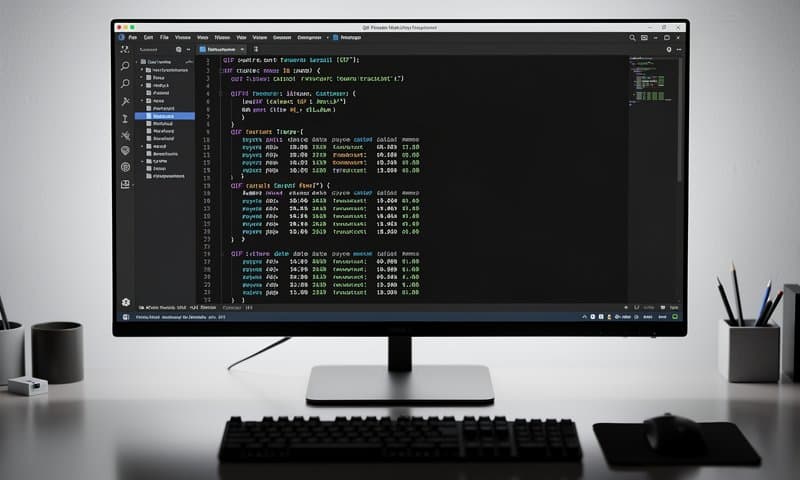
QIF stands for Quicken Interchange Format. Intuit created it in the 1990s for Quicken, and it stuck around because it's dead simple. A QIF file is just a plain text file with transaction records.
Here's what one looks like inside:
!Type:Bank
D01/15/2026
T-250.00
PGrocery Store
^
D01/16/2026
T1500.00
PSalary Deposit
^
Each transaction starts with field codes: D for date, T for amount, P for payee. The ^ marks the end of a transaction. That's it.
Who Still Uses QIF?
More people than you'd think:
- Quicken users on older versions that don't support QFX/OFX
- GnuCash users (QIF is a primary import format)
- MoneyDance and other personal finance apps
- Anyone migrating historical data between financial tools
Quicken officially replaced QIF with QFX years ago, but the format refuses to die. It works, it's readable, and dozens of tools still support it.
Method 1: PDF to CSV, Then CSV to QIF (Recommended)
This two-step approach is the most reliable because each step uses the right tool for the job.
Step 1: Convert your PDF to CSV
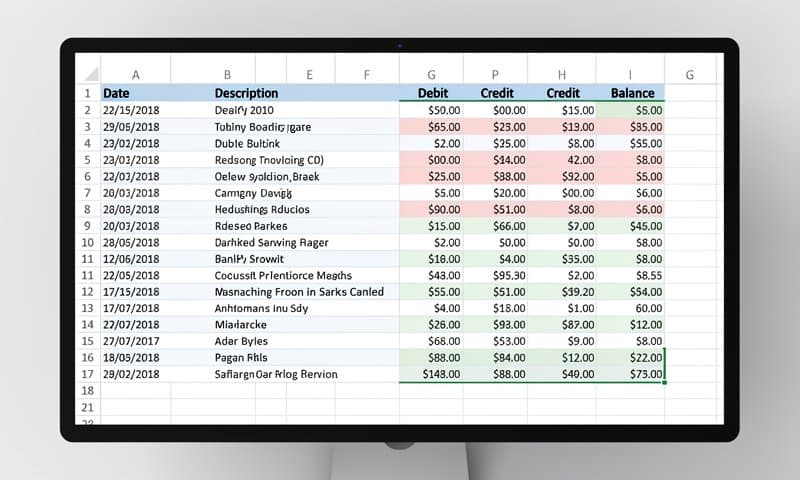
Upload your PDF bank statement and download the CSV. The converter handles scanned documents, multi-page statements, and messy layouts. Takes about 30 seconds.
Your CSV will have clean columns: date, description, amount (and sometimes a running balance).
Step 2: Convert CSV to QIF
Open your CSV in a spreadsheet, then build the QIF manually or use a free converter:
Option A: Use a free online CSV-to-QIF converter
Tools like MoneyThumb's CSV2QIF or the open-source csv2qif Python package handle the mapping for you. Upload your CSV, map the columns (date, amount, payee), and download the QIF.
Option B: Build it yourself in a spreadsheet
If you have 20 transactions, this takes 5 minutes:
- Open your CSV in Excel or Google Sheets
- Create a new column with this formula for each row:
="D"&TEXT(A2,"MM/DD/YYYY")&CHAR(10)&"T"&B2&CHAR(10)&"P"&C2&CHAR(10)&"^"
- Copy the output column into a text file
- Add
!Type:Bankas the first line - Save as
.qif
Why this method wins: The PDF-to-CSV step is where most errors happen. Using a dedicated converter for that part means your transaction data is already clean before you touch the QIF formatting.
Method 2: Manual QIF Creation
If you only have a few transactions, skip the tools entirely.
- Open your PDF bank statement
- Open any text editor (Notepad, VS Code, TextEdit)
- Type
!Type:Bankon the first line - For each transaction, add:
D[date in MM/DD/YYYY]
T[amount, negative for debits]
P[payee name]
^
Real example from a Chase statement:
!Type:Bank
D01/03/2026
T-42.50
PAmazon.com
^
D01/05/2026
T-85.00
PComcast Internet
^
D01/07/2026
T3200.00
PDirect Deposit - Employer
^
Save the file with a .qif extension. Import into Quicken via File > Import > QIF File.
When to use this: Fewer than 15 transactions. Beyond that, you'll make typos and waste more time fixing them than the automation would have cost.
Method 3: Python Script for Bulk Conversion
For recurring conversions or large volumes, a script saves hours.
First, get your PDF into CSV format. ConvertBankToExcel.com handles this step fast, even for scanned documents.
Then use this Python script to convert the CSV to QIF:
import csv
from datetime import datetime

def csv_to_qif(csv_path, qif_path):
    with open(csv_path, 'r') as f:
        reader = csv.DictReader(f)
        lines = ['!Type:Bank']
        for row in reader:
            date = datetime.strptime(row['Date'], '%Y-%m-%d')
            lines.append(f"D{date.strftime('%m/%d/%Y')}")
            lines.append(f"T{row['Amount']}")
            lines.append(f"P{row['Description']}")
            lines.append('^')
    with open(qif_path, 'w') as f:
        f.write('\n'.join(lines))
    print(f"Converted {len(lines)//4} transactions to {qif_path}")

csv_to_qif('bank_statement.csv', 'output.qif')
Adjust the column names (Date, Amount, Description) to match your CSV headers. Run it once, and you have a reusable pipeline for every statement going forward.
Method Comparison
| Method | Best For | Time | Accuracy | Cost |
|---|---|---|---|---|
| PDF to CSV to QIF | Most people | 2-5 min | 95%+ | Free |
| Manual QIF creation | Under 15 transactions | 5-15 min | Depends on you | Free |
| Python script | Recurring bulk conversions | 30 min setup, then seconds | 95%+ | Free |
QIF vs QFX vs OFX: Which Do You Actually Need?
Before converting, make sure QIF is the right target format. Quick comparison:
- QIF: Plain text, widely supported, no bank verification. Works in Quicken, GnuCash, MoneyDance.
- QFX: Quicken's newer format, includes bank ID verification. Required by Quicken 2005+.
- OFX/QBO: Used by QuickBooks and many modern accounting tools.
If your software accepts OFX or QBO formats, those might be a better fit since they carry more metadata. But for Quicken Classic, GnuCash, or any tool that specifically asks for QIF, you're in the right place.
Need OFX instead? Check our guide on converting PDF bank statements to OFX.
Common QIF Import Issues and Fixes
Date format mismatch: Quicken expects MM/DD/YYYY in the US. If your dates use DD/MM/YYYY, transactions will import with wrong dates or fail entirely. Check your Quicken regional settings.
Duplicate transactions: If you import the same QIF file twice, Quicken may create duplicates. Always check the date range before importing and use Quicken's duplicate detection.
Wrong sign on amounts: Deposits should be positive, withdrawals negative. Some CSV exports flip this. Verify the first few transactions after import.
Special characters in payee names: Ampersands (&), quotes, and other special characters can break some QIF parsers. Replace them with plain text before importing.
Get Your PDF to QIF in Under 5 Minutes
The fastest path for most people:
- Upload your PDF statement and download the CSV (30 seconds)
- Use a CSV-to-QIF tool or the spreadsheet formula above (2 minutes)
- Import the QIF into Quicken or GnuCash (1 minute)
Total time: under 5 minutes. No manual typing, no subscription required.
If you convert statements regularly, consider also exporting to CSV directly as a starting point for any format conversion. CSV is the universal intermediate format that opens doors to QIF, OFX, QBO, and more.
Start converting your bank statement now — it's free, no signup needed.