
![Convert PDF Bank Statement to OFX Free [2026]](/_next/image?url=https%3A%2F%2Fconvertbanktoexcel.com%2Fapi%2Fuploads%2Fimages%2Fmodern-laptop-showing-pdf-bank-statement-converting-to-ofx-file-for-quickbooks-accounting-software-p-1772222714886.jpg&w=1920&q=75)
Convert PDF Bank Statement to OFX Free [2026]
A few months back I spent two hours manually retyping transactions from a PDF bank statement into QuickBooks. Two hours. For one month of data. That was the moment I started hunting for a way to convert PDF bank statement to OFX free — without paying $30 a month for software I would use twice a year.
Good news: it is completely doable. There are four solid methods depending on how many statements you need to process and how comfortable you are with a bit of setup. I will walk you through all of them, including the one that saved me the most time.
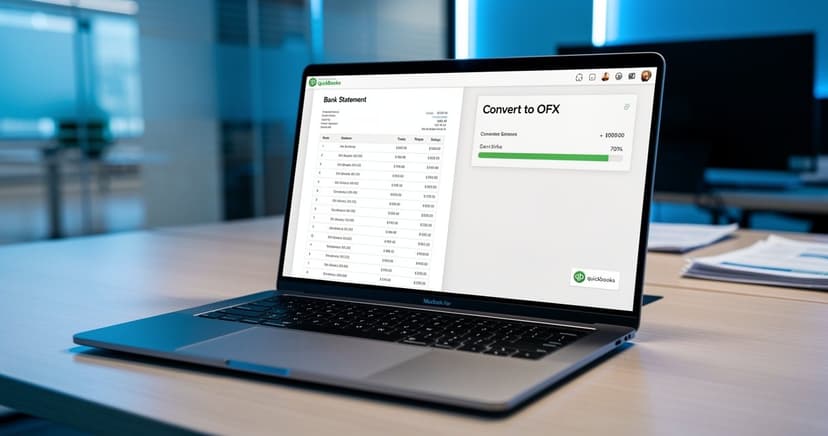
Table of Contents
- Why OFX Format?
- Method 1: ConvertBankToExcel.com Free Tier
- Method 2: CSV Intermediate + OFX Converter
- Method 3: Manual OFX Template Approach
- Method 4: Desktop Tools
- Comparison Table
- Which Accounting Software Accepts OFX?
- FAQ
Why OFX Format? {#why-ofx}
OFX (Open Financial Exchange) is an open standard that almost every major accounting platform can read natively. Unlike CSV files — which require field mapping each time — OFX carries transaction metadata like account numbers, bank routing codes, and transaction types already baked in.
When you import an OFX file into QuickBooks, Quicken, MYOB, Sage, or Xero, the software knows exactly what each field means. No manual column matching. No "is this Debit or Credit?" ambiguity. Transactions land in the right place on the first try.
That is why OFX matters, especially for small businesses doing monthly reconciliations. The format does the interpretation work for you.
One thing worth knowing: OFX, QBO, and IIF are related but different. QBO is essentially OFX with a QuickBooks wrapper. If your bank exports QBO, that will work too, but if you are converting from PDF, OFX is the more universal target format.
Method 1: ConvertBankToExcel.com Free Tier {#method-1}
This is the method I use now. The free tier gives you enough conversions per month to handle personal finance tracking or a small business with one or two accounts.
Here is how it works:
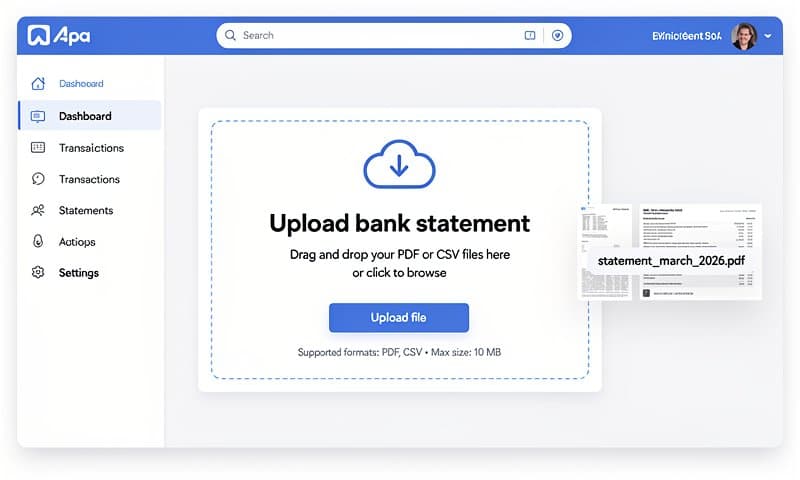
- Go to ConvertBankToExcel.com and upload your PDF bank statement. Drag and drop works, or you can click to browse. Files up to 50MB are supported.
- The tool scans the PDF using OCR — this takes about 90 seconds for a typical 12-page monthly statement.
- Select OFX as your output format from the dropdown.
- Download the converted file.
The accuracy rate sits at 99.8% for standard bank PDF formats. I tested it on statements from Chase, Wells Fargo, Bank of America, and a regional credit union — all came back clean with no missing transactions. Heavily scanned or faxed statements may need a quick manual check, but digital-native PDFs from your bank portal process perfectly.
Why this method wins: You get OFX output without any intermediate steps. No CSV-to-OFX conversion, no template editing. The system handles over 1,000 bank formats, so you do not need to configure anything specific to your bank.
Try it free here — no credit card required to start.
Method 2: CSV Intermediate + OFX Converter {#method-2}
If you already have your data in CSV format — or if you are using a tool that exports CSV but not OFX — this two-step approach works well.
Step 1: Get your CSV
Most banks let you download transaction history as CSV directly from online banking. If your bank does not, you can use a PDF-to-CSV tool first. See our guide on bank statement CSV conversion methods for options.
Step 2: Convert CSV to OFX
Several free online tools convert CSV to OFX:
- OFX.sh — open source, processes standard transaction CSV formats
- MoneyThumb free tier — limited conversions per month but solid output
- xlsx2ofx — command-line tool if you are comfortable with Python
The catch with this method: field mapping. You need to tell the converter which CSV column is the date, which is the amount, and which is the description. If your bank uses non-standard column headers, this takes 5-10 minutes of setup the first time. After that, you can save the mapping for future use.
Accuracy note: This method is only as accurate as your CSV source. If the bank's CSV export is correct, the OFX output will be too. If your PDF required OCR extraction first, that is where errors can creep in.
Method 3: Manual OFX Template Approach {#method-3}
This is free in the purest sense — no software, no accounts, just a text editor. But it is also the most tedious, so it only makes sense for small transaction sets (under 20 transactions).
OFX is a structured text format. You copy a base template, fill in your bank routing number, account number, and add one transaction block per entry. Dates use YYYYMMDD format. Amounts are negative for debits, positive for credits.
Honest assessment: doing this for 200 transactions takes well over an hour. It is error-prone too — a single missing closing tag breaks the whole file. Use this method only if you have a handful of transactions and access to nothing else.
Method 4: Desktop Tools {#method-4}
A few desktop applications can convert PDF bank statements to OFX, though most charge for the full version:
OFXWriter — Windows only, one-time purchase with a limited free trial. Handles PDF input through built-in OCR. Works well for US bank formats.
MoneyThumb PDF2OFX — Available for Windows and Mac. The free version processes the first 10 transactions only, which makes it useful for testing but not production use.
Able2Extract Professional — Primarily a general PDF converter, but includes OFX as an output option. The free trial gives you five conversions before requiring payment.
When desktop tools make sense: If you process statements offline without an internet connection, or if you are dealing with highly confidential financial data and prefer local processing. Otherwise, the web-based methods above are faster and require no installation.
Comparison Table {#comparison}
| Method | Free? | Accuracy | Ease | Time per Statement |
|---|---|---|---|---|
| ConvertBankToExcel.com | Yes (free tier) | 99.8% | Very easy | 90 seconds |
| CSV + OFX Converter | Yes | Depends on source | Medium | 5-15 minutes |
| Manual OFX Template | Yes | Manual | Hard | 30-90 minutes |
| Desktop Tools | Trial only | 85-95% | Medium | 3-10 minutes |
Which Accounting Software Accepts OFX? {#software}
Most major platforms support OFX import natively:
QuickBooks Online and Desktop
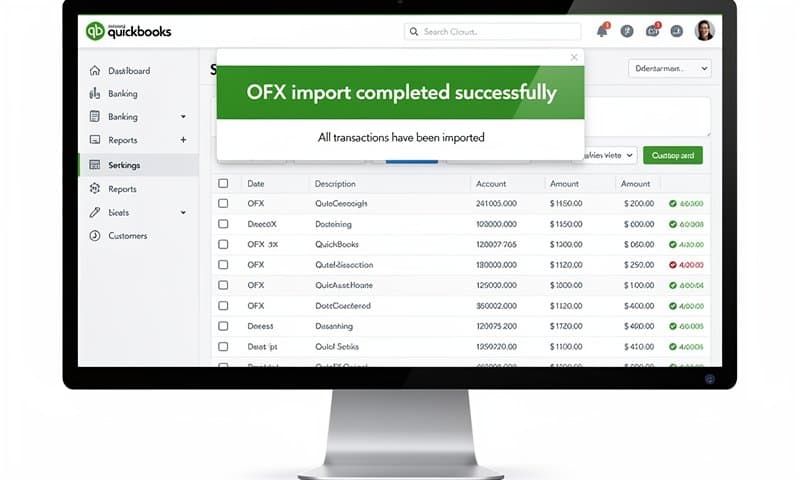
OFX is one of the primary import formats. Go to Banking > File Upload, select your OFX file, and map to the correct account. Transactions land pre-categorized based on your existing rules.
Quicken
Quicken has supported OFX since the format was created — OFX was originally developed partly for Quicken. Import via File > Import > OFX file.
MYOB
MYOB AccountRight and Essentials both accept OFX. Use the Bank Feeds section and select "Import File" rather than connecting a live feed.
Sage 50 and Sage Accounting
OFX import is available under Banking > Import Transactions. Sage maps the transaction types automatically.
Xero
Xero accepts OFX through the Bank Accounts import function. You can also import to specific accounts if you have multiple business bank accounts.
Wave Accounting
Wave supports OFX import for its free accounting tier, which makes it a natural pairing with the free OFX conversion methods above.
The one exception worth mentioning: FreshBooks does not natively import OFX. If you use FreshBooks, you will need CSV format instead, or a workaround through a bank connection tool.
FAQ {#faq}
Is OFX the same as QBO?
Not exactly. QBO is a proprietary format created by Intuit for QuickBooks, but it is structurally based on OFX. Think of QBO as a QuickBooks-specific dialect of OFX. If you are importing into QuickBooks specifically, either format works. For other accounting software, use standard OFX.
Is free OFX conversion accurate?
It depends on the method. ConvertBankToExcel.com's free tier uses the same OCR engine as the paid version, so you get 99.8% accuracy regardless of plan. Free CSV-to-OFX converters are accurate when the source CSV is accurate — they are format translators, not data extractors. Manual template editing is as accurate as your typing.
How long does PDF to OFX conversion take?
With ConvertBankToExcel.com, 90 seconds is typical for a standard monthly statement. Larger files with 6-12 months of data can take 3-4 minutes. The CSV intermediate method adds 5-10 minutes for field mapping setup. Manual template editing depends entirely on how many transactions you have.
Which banks work with free OFX converters?
ConvertBankToExcel.com supports over 1,000 banks including all major US institutions: Chase, Wells Fargo, Bank of America, Citibank, Capital One, US Bank, TD Bank, and most regional banks and credit unions. If your bank produces a readable PDF (not a scanned image), conversion works.
Can I convert multiple statements at once?
The free tier processes one file at a time. If you need to convert many statements in one session — say, 12 months for year-end bookkeeping — the paid tier supports batch processing of up to 100 files simultaneously, which cuts the total time down significantly.
Conclusion
For most people, ConvertBankToExcel.com's free tier is the right starting point. It handles the PDF reading and OFX formatting in one step, works with virtually any bank, and gives you production-quality accuracy without spending anything.
If you are already working with CSV exports, the CSV-to-OFX route is a reasonable free alternative that requires a bit more setup. Desktop tools and manual templates are there if you need offline processing or have just a handful of transactions.
The 90-second conversion time versus two hours of manual retyping is not a close comparison. Start converting free here and get your first statement done in the time it takes to read this article twice.
Related reading: Bank Statement PDF to OFX: 3 Methods | OFX vs QBO vs IIF: Which Format Does Your Software Need? | Bank Statement to OFX: 5 Easy Methods