
![Excel to CSV Converter: Fix Dates, Zeros & Delimiters [2026]](/_next/image?url=https%3A%2F%2Fconvertbanktoexcel.com%2Fapi%2Fuploads%2Fimages%2F1776151204445-3344a115.jpg&w=1920&q=75)
Excel to CSV Converter: Fix Dates, Zeros & Delimiters [2026]
You open a workbook that looks fine in Excel. You export it, upload the CSV into QuickBooks or Xero, and the mess starts immediately. Dates flip. Account numbers lose leading zeros. One sheet exports, three others disappear. A bank memo field breaks because of a delimiter problem no one noticed until the import failed.
That’s why an excel to csv converter still matters in accounting. Not as a generic office task, but as a control point. If the file is wrong here, everything after it gets more expensive.
I’m writing this from the bookkeeper’s side of the desk. The issue usually isn’t getting “a CSV.” The issue is getting a CSV that survives import without manual repair.
Why Converting Excel to CSV Still Matters
Most accounting systems still prefer simple, structured imports over native Excel workbooks. That’s not glamorous, but it’s practical. CSV stays useful because it strips the file down to rows and columns that different systems can read without arguing over formatting, formulas, or workbook features.

CSV is older than Excel for a reason
CSV wasn’t invented as a convenience feature for spreadsheet users. It came from data exchange work long before modern accounting apps existed. The format originated in the 1960s, with IBM using comma-delimited records by 1967, which means it predates Excel’s 1985 release by nearly two decades. In 2005, RFC 4180 formalized the syntax, and as of 2023, CSV still accounts for 76% of web data downloads (CloudConvert).
That matters because finance teams work across systems that rarely share the same file preferences. Excel may be where the cleanup happens, but it usually isn’t the final destination. The destination is an ERP, accounting platform, tax tool, bank feed workaround, or custom import template.
In finance, CSV acts like a neutral handoff
Excel is flexible. That’s both its strength and its weakness. It lets people merge cells, hide rows, use formulas, and color-code exceptions. None of that helps an import engine.
CSV, by contrast, forces structure. If a row is malformed, you can inspect it. If a column is inconsistent, you can normalize it. That simplicity is exactly why it remains the file type that finance software trusts.
Practical rule: If a file has to move from one system to another, assume CSV is still the safest common language.
That’s also why adjacent conversions matter. If you regularly receive statement data in structured feeds, this guide on XML to CSV conversion for finance workflows is worth knowing alongside Excel exports.
The real skill isn’t exporting. It’s exporting cleanly
Anyone can click Save As. The useful skill is knowing when that’s enough and when it isn’t.
For a single, flat sheet with plain text, stable dates, and no formulas, Excel’s built-in export is often fine. For financial workbooks with mixed data types, regional formatting, or multiple tabs, a casual export creates silent errors that show up later during reconciliation.
That’s why experienced accountants don’t treat CSV as an afterthought. We treat it as part of data validation.
Core Conversion Methods for Everyday Use
If you’re handling a simple file and only need a one-time export, use the built-in tools first. They’re fast, available everywhere, and good enough for straightforward workbooks.

Using Excel desktop
In the desktop version of Microsoft Excel, the standard path is still the most direct:
- Open the workbook.
- Go to File.
- Choose Save As.
- Pick the destination folder.
- In Save as type, select a CSV format.
- Save the file and review the warning Excel gives you.
The warning matters. Excel is telling you the file will keep only the current sheet and will discard workbook-specific features. If you ignore that warning without checking the workbook structure, you can lose data without realizing it.
A few CSV options usually appear:
- CSV Comma Delimited. Best for many standard imports.
- CSV UTF-8. Better when names, memos, or descriptions include non-English characters.
- CSV Macintosh or other legacy variants. Usually unnecessary unless an older downstream system specifically asks for them.
For most modern accounting imports, CSV UTF-8 is the safer first choice because encoding issues are common in vendor names, bank descriptions, and international client data.
Using Google Sheets or Excel Online
Web tools work fine for light jobs. In Google Sheets, go to File > Download > Comma-separated values (.csv). In Excel Online, use the download/export option available for the workbook and confirm which sheet is being exported.
The main limitation is control. Browser-based tools are convenient, but they don’t always make formatting assumptions obvious. If I’m exporting anything tied to bookkeeping, I prefer to verify the downloaded file in a text editor before import.
When manual export works well
Manual conversion is a solid choice in a narrow set of cases:
- Single-sheet reports with no hidden tabs.
- Clean transaction tables where each column contains one data type.
- Short-lived one-off jobs where repeatability doesn’t matter.
- Review-heavy tasks where you want to eyeball the result before upload.
If that sounds like your file, don’t overcomplicate it. Save the sheet, open the CSV, and inspect a few edge rows.
Here’s a walkthrough if you want to see a practical bank-data angle before trying it yourself:
The checks I do before importing
I don’t trust a CSV just because it opened. I check it against a short list:
| Check | Why it matters |
|---|---|
| First row headers | Import tools map columns from this row |
| Date column | Confirms Excel didn’t localize unexpectedly |
| Amount column | Ensures debits and credits stayed numeric |
| ID or account fields | Catches stripped leading zeros |
| Row count glance | Helps spot obvious truncation or missing sections |
For files that start as plain text exports before reaching Excel, this guide on how to convert TXT to CSV is useful because many import errors begin one step earlier than people think.
Manual methods are fine when the workbook is simple. Once the work becomes repetitive, the clicking gets old fast.
Advanced and Automated Conversion Workflows
If you convert files every week, manual export stops being a method and starts being a bottleneck. Repetition is where automation pays off. You get consistency, a trail you can repeat, and less room for accidental clicks.
CLI tools for repeatable batch work
Command-line tools make sense when you receive the same type of file over and over. They’re useful for shared folders, scheduled jobs, and internal ops workflows where a person shouldn’t have to open every workbook by hand.
The catch is that generic batch converters often don’t understand accounting nuance. They’ll convert a file, but they won’t decide whether a column should stay text, whether a date is malformed, or whether a blank balance field is acceptable. You still need rules.
Batch conversion is only safe when the source files are consistent. If the source changes every month, your process has to detect that before import.
If your team is building broader spreadsheet automation around finance operations, not just CSV exports, this overview of automated data entry software is a helpful companion read.
A practical Python script
For accountants who are comfortable handing a repeatable task to a developer, or doing a little scripting themselves, Python with pandas is the cleanest option. It gives you control over sheet selection and output.
This example reads one sheet from an Excel workbook and writes it to CSV:
import pandas as pd

input_file = "transactions.xlsx"
sheet_name = "Bank Activity"
output_file = "transactions.csv"

df = pd.read_excel(input_file, sheet_name=sheet_name, engine="openpyxl")

df.to_csv(output_file, index=False, encoding="utf-8")
Here’s what each line does:
import pandas as pdloads the pandas library.input_filepoints to the workbook.sheet_nametells pandas exactly which tab to export.output_filedefines the CSV name.read_excel(...)loads the chosen sheet.to_csv(...)writes a UTF-8 CSV without the extra index column.
That’s the bare minimum. For finance work, I usually add cleanup before export. Typical examples include trimming spaces, forcing text columns to stay text, and standardizing date fields.
A slightly safer variation looks like this:
import pandas as pd

input_file = "transactions.xlsx"
sheet_name = "Bank Activity"
output_file = "transactions_clean.csv"

df = pd.read_excel(input_file, sheet_name=sheet_name, engine="openpyxl", dtype=str)

df = df.apply(lambda col: col.str.strip() if col.dtype == "object" else col)

df.to_csv(output_file, index=False, encoding="utf-8")
Using dtype=str is important when you want to preserve values exactly as displayed, especially account IDs, check numbers, and reference fields that Excel likes to reinterpret.
Automation works best when the downstream use is defined
The biggest mistake teams make is automating export before they define the import standard. Start with the destination schema. Then make the script produce that exact shape every time.
That principle shows up outside accounting too. If you’re moving marketplace data into spreadsheets for ongoing reporting, this guide to Amazon data connectors for Google Sheets is a good example of how repeatable connectors beat manual data movement once a workflow becomes recurring.
For repeated, stable jobs, scripts are excellent. For messy bank exports, scanned statements, and inconsistent layouts, automation needs more than code. It needs validation.
Navigating Common Excel to CSV Conversion Pitfalls
Most CSV problems don’t look dramatic at first. The file saves. The import runs. Then someone notices totals don’t tie, customer names are broken, or half the transactions landed in the wrong columns.
That’s where the essential work starts.
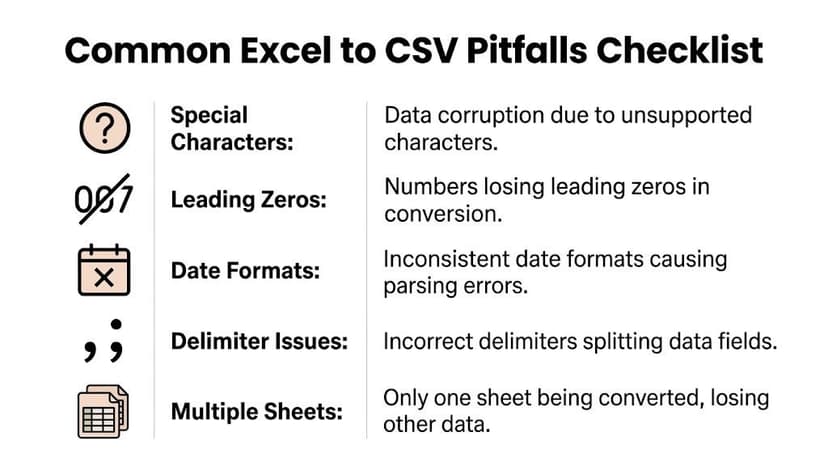
What Excel strips out during conversion
A CSV file can’t hold workbook behavior. That sounds obvious until someone exports a reconciliation workbook and expects the destination system to preserve logic.
When converting from Excel, formulas are replaced by their last calculated value, charts are deleted, all cell formatting is discarded, and a CSV file cannot store multiple sheets. Each sheet must be saved as a separate CSV file manually, which creates real overhead for multi-page bank statement workflows (DataCamp).
Never treat CSV as a backup of an Excel workbook. It is an export format, not a feature-preserving format.
Pitfall one, encoding problems
Encoding issues show up as garbled names, broken symbols, or unreadable foreign characters. They’re common in statements, supplier exports, and multinational client files.
UTF-8 is usually the right choice. It handles a wider range of characters reliably. If you export in a legacy encoding and then import into another system expecting UTF-8, text corruption is easy to miss until after posting.
What helps:
- Choose UTF-8 first when saving from Excel.
- Test special characters in payee names and memo fields.
- Open the CSV in a text editor if the import preview looks suspicious.
Pitfall two, delimiter mismatches
Not every CSV is comma-separated in practice. Regional settings often change the delimiter to a semicolon. That’s where imports break because the destination expects commas, while Excel exported semicolons.
This is one of those issues that feels irrational until you’ve seen it a dozen times. The columns look fine in Excel because Excel understands the local rules. The accounting platform doesn’t.
Field check: If every value lands in one column during import, suspect the delimiter before you suspect the data.
Pitfall three, leading zeros disappear
Account numbers, routing fragments, invoice references, and customer IDs should often be text, not numbers. Excel loves to “help” by treating them as numeric. Once that happens, leading zeros can vanish.
The fix is preventive:
- Format the source column as text before export when possible.
- In scripted workflows, explicitly read sensitive columns as strings.
- Keep a control sample of known values so you can compare before and after.
This matters more in finance than in generic reporting. One dropped zero can turn a valid identifier into an unmatched record.
Pitfall four, dates change meaning
Dates are another classic trap. A value that looks obvious in one region can mean something else in another. Mixed date formats inside one column make it worse.
Common examples include statement exports that mix true date values with text-based dates, or imported files where one system expects month-first while another assumes day-first. The result is a file that imports “successfully” but posts transactions to the wrong period.
A better process is:
- Normalize dates inside Excel before export.
- Keep the date column visually uniform.
- Confirm the destination system’s expected format.
- Check a few month-end rows after import.
For teams dealing with scanned financial documents before conversion, understanding OCR in banking workflows helps because many date issues begin during extraction, not during CSV export itself.
Pitfall five, mixed data types and blank fields
Columns that mix text and numbers create inconsistent behavior across systems. Some importers coerce everything into text. Others reject values or drop rows. Blank cells can also shift logic in tools that require a value for matching, coding, or posting.
The practical answer is boring but reliable. Clean the source first.
- Trim spaces so matching works properly.
- Standardize column content so one field doesn’t contain three different types of values.
- Fill or flag empty values before the export, depending on what your accounting software allows.
If your workbook contains multiple sheets, hidden rows, merged cells, formulas, and inconsistent date handling all at once, a generic excel to csv converter won’t save you. It will only expose the problems faster.
A Better Workflow for Accounting and Finance Teams
Generic conversion advice breaks down when the source file is a bank statement workflow. That’s where most bookkeepers lose time. Not on the export itself, but on the cleanup after a generic tool misreads the source.

Bank data isn’t a normal spreadsheet problem
Bank statements come with irregular layouts, merged headers, running balances, multiline descriptions, and inconsistent transaction formatting. Some are digital PDFs. Some are scans. Some include foreign-language text. A generic converter usually assumes a flat table and moves on.
That’s exactly why this use case is different. According to the background cited in the assigned source, handling bank statement data in Excel-to-CSV conversion is a major challenge because generic tools fail on complex financial layouts, often dropping malformed dates or mixed-type columns without warning. The same source notes that this manual cleanup can waste over 12 hours weekly, while specialized AI tools with multi-model validation are emerging to support batch uploads and direct exports to accounting software (YouTube source).
What a stronger workflow looks like
For accounting teams, the better process isn’t “export better.” It’s “reduce how often humans have to repair exports.”
That means choosing tools and routines built around financial structure:
| Workflow need | What actually helps |
|---|---|
| Statement extraction | OCR that understands transaction layouts |
| Data review | Balance checks against source totals |
| Import prep | Consistent date, amount, and memo structure |
| Volume handling | Batch processing instead of one-file-at-a-time |
| Destination fit | Export options aligned with accounting platforms |
The best workflow is the one that catches mistakes before the CSV reaches your ledger.
This is also why firms looking to automate accounts payable often discover that upstream document handling matters just as much as downstream approval rules. Bad source data pollutes every automation layer after it.
The accounting view of “automation”
In bookkeeping, automation isn’t valuable because it feels modern. It’s valuable because it preserves trust in the numbers. If a team still has to inspect every imported line because the converter is unpredictable, the process isn’t really automated.
That’s especially true for reconciliation-heavy work. If your current flow involves statement extraction, CSV repair, import troubleshooting, and then another review cycle, you don’t have one task. You have four stacked tasks pretending to be one.
Teams trying to reduce that friction usually benefit from tightening the reconciliation side too. This guide on automated bank reconciliation software is a useful next step because conversion errors and reconciliation delays are usually part of the same workflow problem.
Choosing Your Ideal Conversion Strategy
The right approach depends on the kind of file sitting in front of you.
If you have a clean workbook with one sheet and predictable columns, use Excel or Google Sheets. Export it, inspect it, and move on. That’s the fastest option when the data is simple and the job is one-off.
If you process the same workbook structure repeatedly, automate it. A Python script or CLI tool gives you repeatability and removes a lot of manual handling. That matters when monthly reporting, internal exports, or recurring client files all follow the same schema.
If the source is messy, especially bank statements or finance documents that weren’t born as clean tables, stop expecting a generic excel to csv converter to solve the whole problem. It won’t. At that point, the primary task is extraction, validation, and structured export. CSV is only the final container.
The mistake I see most often is choosing a method based on convenience instead of risk. Finance data has a long tail. A small export mistake turns into coding errors, reconciliation gaps, and extra review work later.
Choose based on what failure would cost you:
- Low-risk, simple file. Manual export is fine.
- Recurring, stable structure. Script it.
- Complex bank or accounting source data. Use a workflow built for financial validation.
That’s the practical way to think about conversion. Not as a file format choice, but as a control decision.
If your team is tired of fixing broken statement exports by hand, ConvertBankToExcel is built for that exact accounting workflow. It converts bank and credit card statements into structured Excel, CSV, and accounting-ready formats with validation designed for finance teams, so you can spend less time repairing imports and more time closing the books.